Features in Technical Preview
Features in Technical Preview are available to use in non-production or limited production environments, and to give customers an opportunity to share feedback. Citrix® does not accept support cases for features in technical preview but welcomes feedback for improving them. Citrix might act on feedback based on its severity, criticality, and importance.
List of features in Technical Preview
The following table lists the features in technical preview. These features are request-only preview features. To enable and provide feedback for any of these features, fill out the respective forms.

Note:
- Technical previews are available for customers to test in their non-production or limited production environments, and to give customers an opportunity to share feedback. Citrix does not accept support cases for feature previews but welcomes feedback for improving them. Citrix might or might not act on feedback based on its severity, criticality, and importance. It is advised that Beta builds aren’t deployed in production environments.
- You can provide feedback for this feature using this Feedback Form.
Shield V2 service continuity
| Technical Preview from 2603 version | Feedback form |
Starting with version 2603 Preview, Citrix Workspace app for Mac supports Shield V2, which removes or minimizes dependency on components involved in the connection process. Users can launch their virtual apps and desktops regardless of the health status of the cloud services.
Shield V2 is connector-less and operates without Cloud Connector involvement in the workflow, as compared to Shield V1.
Shield V2 supports:
- Session launch during DaaS or Workspace outage
- New session launches with Shield
For more information, see the Service continuity section in the Citrix Workspace documentation.
Support for Microsoft Teams VDI Plugin Installation
| Technical Preview from 2603 version | Feedback form |
Starting with the 2603 version, the Microsoft Teams VDI Plugin is a key client-side component required for Microsoft Teams SlimCore Optimization for Mac. The DMG installer now provides an Add-On(s) option, allowing users to select and install the Microsoft Teams VDI Plugin during a fresh Citrix Workspace app installation. The checkbox for the plugin is unchecked by default.
Microsoft Teams VDI Plugin
Starting with Citrix Workspace App 2603, the DMG installer provides an Add-On(s) option, allowing users to select the option and install the Microsoft Teams VDI Plugin during a fresh CWA Installation.

Microsoft Teams SlimCore Optimization for Mac is in Public Preview at the time of writing and administrators may need to enable Teams tenant-side configuration. For more details, see New VDI solution for Teams.
The Microsoft Teams VDI Plugin can also be installed through Client App Management. For more information, see Client App Management.
Note:
- Third-party components are fetched from respective third-party CDNs rather than packaged with Citrix Workspace app. Customers must ensure necessary network access from endpoints for successful component installation on both online and offline Citrix Workspace app packages.
- Third-party component installation failure does not impact Citrix Workspace app installation.
- Failed components can be reinstalled by re-running the installer or configuring the installation via Client app management or via Virtual channel plugin manager. It can also be installed during a future upgrade.
- Citrix Workspace app does not manage uninstall of third-party plugins when uninstalling Citrix Workspace app.
- Citrix Workspace app preserves component selections across updates. For example, the Microsoft Teams plugin cannot be deselected during installation if it was already present on the system as a leftover from manual installation.
- Citrix recommends enabling Citrix Workspace app auto-updates to receive the latest versions of third-party components as they become available in the future.
- These Plug-in(s) are third party software and are not created, developed or managed by Cloud Software Group. Cloud Software Group has no obligations or liability for any third party services or software. By downloading and/or utilizing such software, YOU HEREBY ACKNOWLEDGE AND AGREE THAT SUCH SOFTWARE IS PROVIDED BY CLOUD SOFTWARE GROUP ON AN “AS IS” BASIS WITHOUT WARRANTY OF ANY KIND, AS AVAILABLE, AND YOUR ACCESS TO AND/OR USE OF THE SOFTWARE OR ANY RELATED ASSETS IS AT YOUR SOLE RISK. You acknowledge that you are governed by such software’s respective third party license(s).
Support for PassKey (FIDO2) authentication
| Technical Preview from 2511.1 version | Feedback form |
Starting with version 2511.1, Citrix Workspace app for Mac supports PassKey (FIDO2) authentication using TouchID or password, in addition to external Security Keys. The PassKey is specific to the local macOS user profile and stored in the Secure Enclave, accessible only by Citrix Viewer. This feature is supported on Macs with the Secure Enclave.
To enable this feature, use the following command:
defaults write com.citrix.receiver.nomas EnableTouchIDAsFIDO2Authn YES
<!--NeedCopy-->
Notes:
- Citrix Workspace app for Mac creates and manages PassKeys, which are valid only within active sessions.
- Contact your administrator if the organization requires certified authenticators.
Audio Quality Enhancer for reliable transport
| Technical Preview from 2508 version | Feedback form |
Starting with version 2508, audio quality enhancer is also available for connections over reliable transport (i.e. TCP and EDT-Reliable). Under poor network conditions, both audio playback and recording will have a smoother experience with reduced latency.
To enable and disable this feature, see Audio quality enhancer for Mac VDA.
Note:
- Adaptive audio must be enabled for this feature to work.
- This feature is disabled by default in Tech Preview (over reliable transport).
- This feature must be enabled on both VDA and CWA.
- This feature is supported with Mac VDA version 2507 and later.
Seamless application accessibility mirroring
| Technical Preview from 2508 version | Feedback form |
Starting with version 2508, Citrix Workspace app for Mac captures accessibility settings from the client and applies them to seamless applications. This enhancement automatically synchronizes accessibility configurations, providing consistent support across virtual application sessions and eliminating manual reconfiguration.
Prerequisites
To use seamless application accessibility mirroring, ensure that you have the following requirements:
- Citrix Virtual Apps and Desktops™: 2503 or later
-
VDA operating systems:
- Windows Server 2022
- Windows Server 2025
- Windows 10 Multi-session
- Windows 11 Single-session & Multi-session
- Citrix Workspace app for Mac: 2508 or later
Configuration
To enable seamless application accessibility mirroring, you must configure settings on both the VDA and the client side.
VDA configuration
Set the following key on the VDA to enable the accessibility mirroring feature:
HKEY_LOCAL_MACHINE\SYSTEM\CurrentControlSet\Control\Citrix\wfshell\TWI\AccessibilityMirroring
Set a DWORD type with value 1 to enable the feature.
Client configuration
Enable the feature on the Citrix Workspace app for Mac client using the following command:
defaults write com.citrix.receiver.nomas EnableSeamlessAppAccessibilityImprovements -bool YES
<!--NeedCopy-->
Note:
Both VDA and client configurations must be completed for the accessibility mirroring feature to function properly.
Improved session reconnection experience
| Technical Preview from 2505 version | Feedback form |
Starting with version 2511.1, this feature enhances the end-user experience during session timeouts caused by inactivity or network interruptions. The solution provides users with an option to reconnect directly from the timeout screen for desktop and app sessions. Users can also reconnect directly during the Auto-Client-Reconnect (ACR) phase.
Prerequisites:
- Citrix Virtual Apps and Desktops™: Version 2411 or later
- Citrix Workspace™ app: Version 2511 or higher
The key features are as follows:
- Displaying specific reasons for session timeouts, such as Device went to sleep, or Network disruption.
- Allowing seamless reconnection to the session, whether it’s a new or persisting session, based on the administrator’s configuration.
- Supporting scenarios where auto reconnect might fail, such as network switches (for example Wi-Fi to LAN).
- Supporting directly reconnect during the auto-client-reconnect phase.
- Enabling seamless reconnection to hybrid-launched sessions, requiring user authentication only when the store is not configured in CWA.
To enable this feature, use the following command:
defaults write com.citrix.receiver.nomas EnableReconnectionExperience YES
<!--NeedCopy-->
Enhanced seamless app experience
| Technical Preview from 2505 version | Feedback form |
Starting with version 2505, Citrix Workspace app for Mac improves the experience of seamless app sessions connected to Virtual Delivery Agents (VDAs) with Citrix Virtual Apps and Desktops release 2411 or later on Windows Server 2022 or 2025. When users enter Mission Control or App Expose, windows are arranged without overlap and animations are rendered smoothly, offering a more polished and visually appealing experience.
Enhancing hybrid mode support with GACS for cloud stores
| Technical Preview from 2503 version | Feedback form |
Starting with version 2503, Citrix Workspace app for Mac supports Global App Configuration service (GACS) in Hybrid mode for Cloud stores, leveraging the Citrix workspace launcher. This allows administrators to configure GACS settings through stores added using the browser, streamlining the management of client experiences. By, default, this feature is disabled. This feature is a request-only preview. To get it enabled in your environment, fill out the Google form. For more information, see GACS supports hybrid launch.
Support for sharing system audio on Microsoft teams
| Technical Preview from 2405 version | Feedback form |
Starting with the 2405 version, Citrix Workspace app for Mac supports sharing the system audio during the Microsoft Teams meeting. With this feature, you can now share the audio playing on your VDA with the participants in a meeting. Select the Include computer sound option to allow sharing the system audio to the meeting.

Limitations
This feature is supported only on published desktops.
Support for single sign-on to Citrix Secure Access automatically through Citrix Workspace app
| Technical Preview from 2402 version | Feedback form |
Citrix Workspace app for Mac now automatically supports single sign-on (SSO) to Citrix Secure Access once your login to Citrix Workspace app. If you have both the Citrix Secure Access agent and the Citrix Workspace app installed on your device, this feature allows you to automatically sign in to Citrix Secure Access through SSO when you login to Citrix Workspace app. For more information, see Automatic single sign-on (SSO) to Citrix Secure Access through Citrix Workspace app - Preview in the NetScaler documentation.
To enable this feature through MDM, the administrator must use the following settings:
<key>EnableSecureAccessAutoLogin</key><true/>
Note:
- You need to use Citrix Secure Access version 24.03.1 or later to enable this feature.
- This feature is supported only on cloud stores and not for on‑premises stores.
Customizing the text in the Save Energy screen
To use the sustainability feature with a custom message, modify the Delivery Group on the DDC with the following configuration example:
- Follow the steps in the preceding section.
- Set the
ICA-PromptMessagekeyword to the required text in the Description field. - Set the
ICA-Titlekeyword to the required text in the Description field. - Set the
ICA-Iconkeyword totrueorfalse. - Click OK.
Default behavior:
-
ICA-LogOffOnClose: Default isfalse, showing the standard disconnect experience. -
ICA-Title: Default isLog out or disconnect?. -
ICA-PromptMessage: Default isLogging out consumes less energy, but any unsaved changes will be lost. Save your work before logging out. -
ICA-Icon: Default istrue, displaying the green leaf icon when sustainability is enabled.
Customization rules:
-
Default Behavior with
ICA-LogOffOnClose=true: If no additional keywords are specified, the sustainability feature is enabled with the default title, body text, and green leaf icon. -
Customization with Keywords: When
ICA-LogOffOnClose=trueand specific keywords are provided, the sustainability feature is enabled with the specified customizations:-
ICA-PromptMessage: Custom body text (limited to 200 characters). -
ICA-Title: Custom title (limited to 30 characters). -
ICA-Icon=false: Hides the green leaf icon.
-
Example - Custom configuration:
ICA-LogOffOnClose=true
ICA-PromptMessage=`This is a sample custom message.`
ICA-Title="Custom Logout"
ICA-Icon=false

<!--NeedCopy-->
The custom message and title is displayed, and the green leaf icon is hidden.
Support for Citrix Secure Private Access for on-premises deployments
| Technical Preview from 2309 version | Feedback form |
Starting with the 2309 version, Citrix Workspace app for Mac supports Citrix Secure Private Access for on-premises deployments. For more information, see Secure Private Access for on-premises - Preview.
Support for Activity Manager on cloud stores
| Technical Preview from 2308 version | Feedback form |
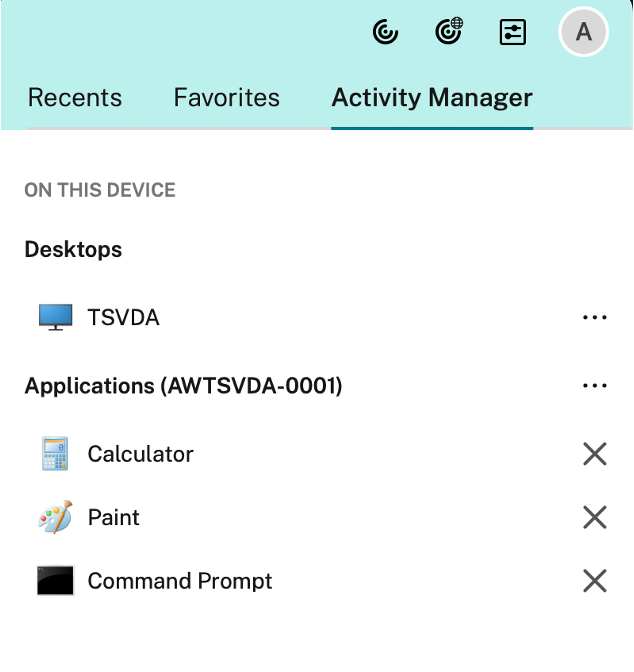
Citrix Workspace app for Mac supports the Activity Manager feature. This feature lets end users view and interact with all their active apps and desktop sessions at one place. You can disconnect or terminate the active sessions directly from the Activity Manager.
To view active sessions in the Activity Manager, select the Citrix Workspace app icon from the menu bar and then click Activity Manager. To disconnect active desktop sessions, select the respective ellipsis (…) menu and click Disconnect. Click the “X” button to terminate the active app session. For more information, see Activity manager.
Keyboard accessibility support for the toolbar on the Virtual Desktop
| Technical Preview from 2307 version | Feedback form |
With the 2307 release, you can use the keyboard shortcut to access the Virtual Desktop Infrastructure (VDI) toolbar. From the Citrix Viewer, go to View in the menu bar and select Use Toolbar shortcut to use the keyboard shortcut. By default, the Use Toolbar shortcut option is enabled.

You can use the following keyboard shortcuts to access the VDI toolbar using the keyboard:
- Shift + Command + T: To activate the VDI toolbar.
- Tab: To navigate across the VDI Toolbar in the clockwise direction.
- Shift + Tab: To navigate across the VDI toolbar in the anti-clockwise direction.
- Space: To select an option on the VDI Toolbar.
- Escape: To close a modal in focus.
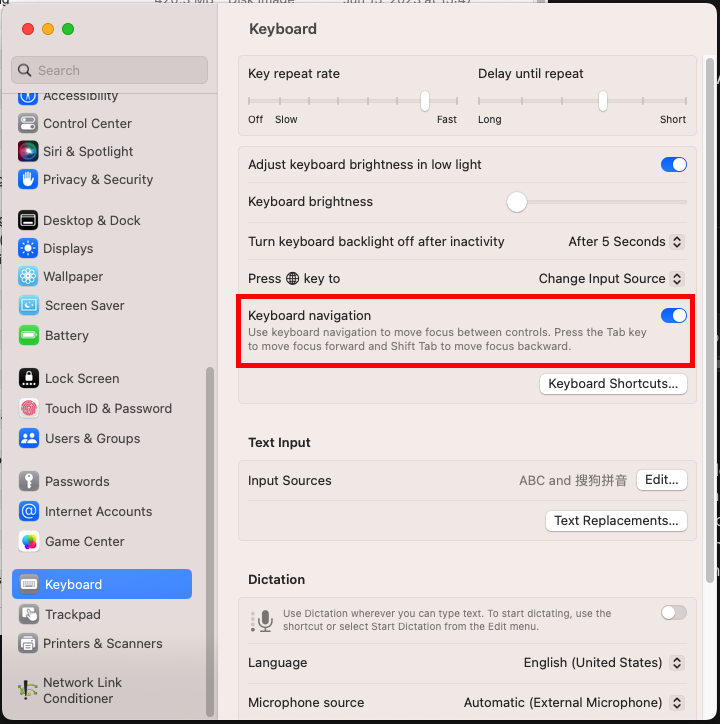
The toolbar and CWA preference window now support Keyboard navigation, which helps to navigate between the UI elements and highlights the element that is in focus.
Single sign-on to Citrix Secure Access using Citrix Workspace app
You can single sign-on to Citrix Secure Access if you have already signed in to Citrix Workspace app. When you sign in to Citrix Workspace app and open Citrix Secure Access, you are not asked to authenticate by entering the credentials. It automatically proceeds with the authentication. This feature provides users with a seamless experience by allowing single sign-on to different Citrix applications. This feature is available only for customers on cloud stores. Along with the latest version of Citrix Workspace app, you must have a compatible version of Citrix Secure Access (22.12.2 and later versions).
Technical Preview to General Availability (GA)
| Service or feature | General availability version |
|---|---|
| Keyboard accessibility support for the toolbar on the Virtual Desktop | 2505 |
| Enhanced Multi-Monitor Management for desktop sessions | 2503 |
| USB Redirection of mass storage devices | 2503 |
| HDX™ direct V2 for non-shield scenario | 2503 |
| Enable Audio Quality Enhancer to improve audio performance | 2503 |
| Support for browser content redirection | 2411.10 |
| HDX Direct | 2411 |
| Support for Plug and play webcam redirection | 2411 |
| Client App Management | 2409 |
| Support for Rapid Scan client drive mapping | 2409 |
| Enhanced Desktop Viewer toolbar | 2409 |
| Enhancements to the smart card reader authentication | 2409 |
| Support for managing composite USB device redirection using DDC policies | 2409 |
| Support for Mac VoiceOver on the virtual desktop and seamless app sessions | 2409 |
| Support for HTML format on the Citrix Workspace app for Mac clipboard | 2409 |
| Support for YUV444 color format | 2409 |
| Customize the Desktop Viewer toolbar | 2409 |
| Connection strength indicator | 2409 |
| Sustainability initiative from Citrix Workspace app | 2409 |
| Support for multiple webcam resolutions | 2409 |
| Enhanced the High DPI option | 2405 |
| Store-based configuration of file access | 2405 |
| Support for Activity Manager on the quick access menu for cloud stores | 2405 |
| Support for extending the desktop session to external monitors automatically | 2405 |
| Upgraded HDX Reducer to Version 4 | 2402 |
| Loss tolerant mode for audio | 2402 |
| Support for Audio volume synchronization | 2402 |
| Support for background blur for webcam | 2402 |
| Support for screen sharing when App protection is enabled | 2402 |
| Support for authentication using FIDO2 when connecting to on‑premises store | 2311 |
| Enhanced virtual apps and desktops launch experience for Workspace (Cloud users only) | 2311 |
| Improved graphics performance | 2308 |
| Increase in the number of supported virtual channels | 2308 |