Images
When you create a catalog to deliver desktops or apps, an image is used as a template for creating the machines.
Citrix provides three options for images:
- Use a Citrix-prepared image when creating a catalog: This option is recommended only for proof of concept deployments.
- Use a Citrix-prepared image to create another image: After the new image created, you customize it by adding applications and other software that your users need. Then, you can use that customized image when creating a catalog.
- Import an image from Azure: After you import an image from Azure, you can then use that image when creating a catalog. Additionally, you can use that image to create a new image using the image builder, adding apps and additional configurations. Then, you can use that customized image when creating a catalog.
When you create a catalog, Citrix DaaS Flex verifies that the image meets prerequisites for deploying a catalog.
Citrix prepared images
Citrix DaaS Flex provides prepared images that can be deployed to a catalog or used as a starting point to customize your image. The following configurations are offered:
- Windows 11 Pro (single-session)
- Windows Server 2019 (multi-session)
- Windows Server 2022 (multi-session)
- Windows Server 2025 (multi-session)
- Linux Ubuntu 22.04 LTS (single-session)
- Linux Ubuntu 22.04 LTS (multi-session)
The Citrix-prepared images have both a current version and a Long Term Service Release (LTSR) version of the Citrix Virtual Delivery Agent (VDA) and Citrix Optimizer. Citrix prepared images will be updated with the latest Cumulative Update (CU) and LTSR versions as they become available.
Citrix-prepared images are notated in the user interface as CITRIX.
Prepare a new image
Preparing a new image includes creating the image and then customizing it. When you create an image, a new VM is created to load the new image.
Requirements:
- Know the performance characteristics that the machines need. For example, running CAD apps might require different CPU, RAM, and storage than other office apps.
- If you plan to use a connection to your on-premises resources, set up that connection before creating the image and the catalog. For details, see Network connections.
When using a Citrix prepared Ubuntu image to build a new image, a root password is created for the new image. You can change that root password, but only during the image creation and customization process. You cannot change the root password after the image is used in a catalog.
- When the image is created, the administrator account that you specified (Login details for image building machine) is added to the sudoers group.
- After you RDP to the machine containing the new image, launch the terminal application and type
sudo passwd root. When prompted, provide the password you specified when creating the image. After verification, you’re prompted to enter a new password for the root user.
Create an image
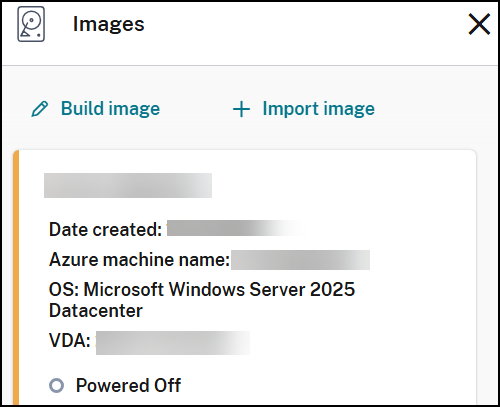
- From the Citrix DaaS Flex dashboard, expand Images on the right.
-
Click Build Image.
-
On the Build image page, enter values in the following fields:
- Name the new image: Enter a name for the new image.
-
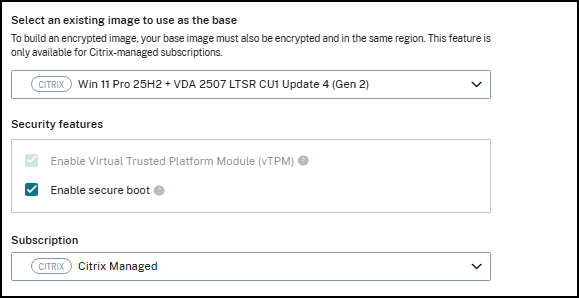
Select an existing image to use as the base: Select an existing image. This is the base image that is used to create the new image. Select a Gen 2 base image from the image list. The VM generation is detected automatically.
-
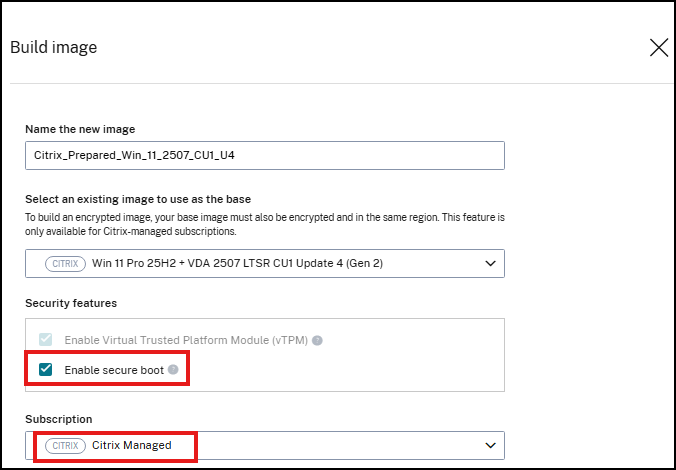
Security features: The Security features panel appears only when a Gen 2 image is selected.
- Enable Virtual Trusted Platform Module (vTPM) is enabled by default and cannot be changed.
- Enable Secure Boot is enabled by default. You can enable or disable this option.
If your configuration requires it, enter the Azure-generated URL for the Secure Boot guest disk. If you disable Enable Secure Boot, a best-practice deviation warning is displayed. Review and confirm before proceeding.
Note:
Gen 1 images do not support Trusted Launch. The Security features panel does not appear when a Gen 1 image is selected in the Build image wizard.
-
- Subscription: Select an Azure subscription. For details, see Azure subscriptions.
- Network connection: Select No connectivity or a previously created connection.
- Region: (Available only for No connectivity.) Select a region where you want the machine containing the image to be created. If connectivity is configured, the catalog is created in the region of the connectivity configuration.
-
Domain type: Select the domain type: Active Directory or non-domain-joined.
- If you select Active Directory, select or add a domain. Specify an OU (optional), service account name, and password.
- Set logon credentials for the image building machine: You will use these credentials later when you connect (RDP) to the machine containing the new image, so that you can install apps and other software.
- Size of the image building machine: Select the CPU, RAM, and storage information for the machine that runs the image. Select a machine performance that meets your apps’ requirements.
- Restricted IP access: Citrix requires restricting the Image Builder machine to a smaller range than permitted by the network connection. Select Add IP addresses and then enter the desired IP addresses.
- Restricted access duration: Citrix requires restricting Image Builder machine access to a specific time-based duration. You can choose between 2, 4, and 8-hour durations. Once the time expires, any open machine sessions, firewall rules, and network routes will be closed.
- Optionally add up to 1024 characters of notes. After the image is created, you can update the notes from the image’s details display.
- When you’re done, click Build Image.
An image can take up to 30 minutes to build. On the Citrix DaaS Flex dashboard, expand Images on the right to see the current state.
Configurable OS disk size for image builds
When building a master image in Citrix DaaS Flex for Azure, you can now select the OS disk size for the image building machine. This lets you accommodate applications or operating system configurations that require more disk space than the default 128 GB allocation. The disk size you select when building the image determines the OS disk size for the VDAs provisioned from that image.
Important:
Selecting a disk size larger than 128 GB can incur additional credit charges. Credit consumption depends on the disk size (128 GB, 256 GB, 512 GB, or 1 TB), the allocation type (persistent or non-persistent), and the storage type (Standard SSD or Premium SSD).
Supported machine types
All machine types support configurable OS disk sizes. You can select a larger OS disk size (256 GB, 512 GB, or 1 TB) for any machine type and session configuration.
Configure OS disk size during image build
To select a custom OS disk size when building an image:
- In Quick Deploy, go to Images and select Build image.
- Complete the image build form as usual. In the Size of the image building machine field, select the machine size appropriate for your workload.
- In the OS Disk Size field (located below the machine size field), select the disk size for
the OS disk:
- 128 GB (default)
- 256 GB
- 512 GB
- 1 TB
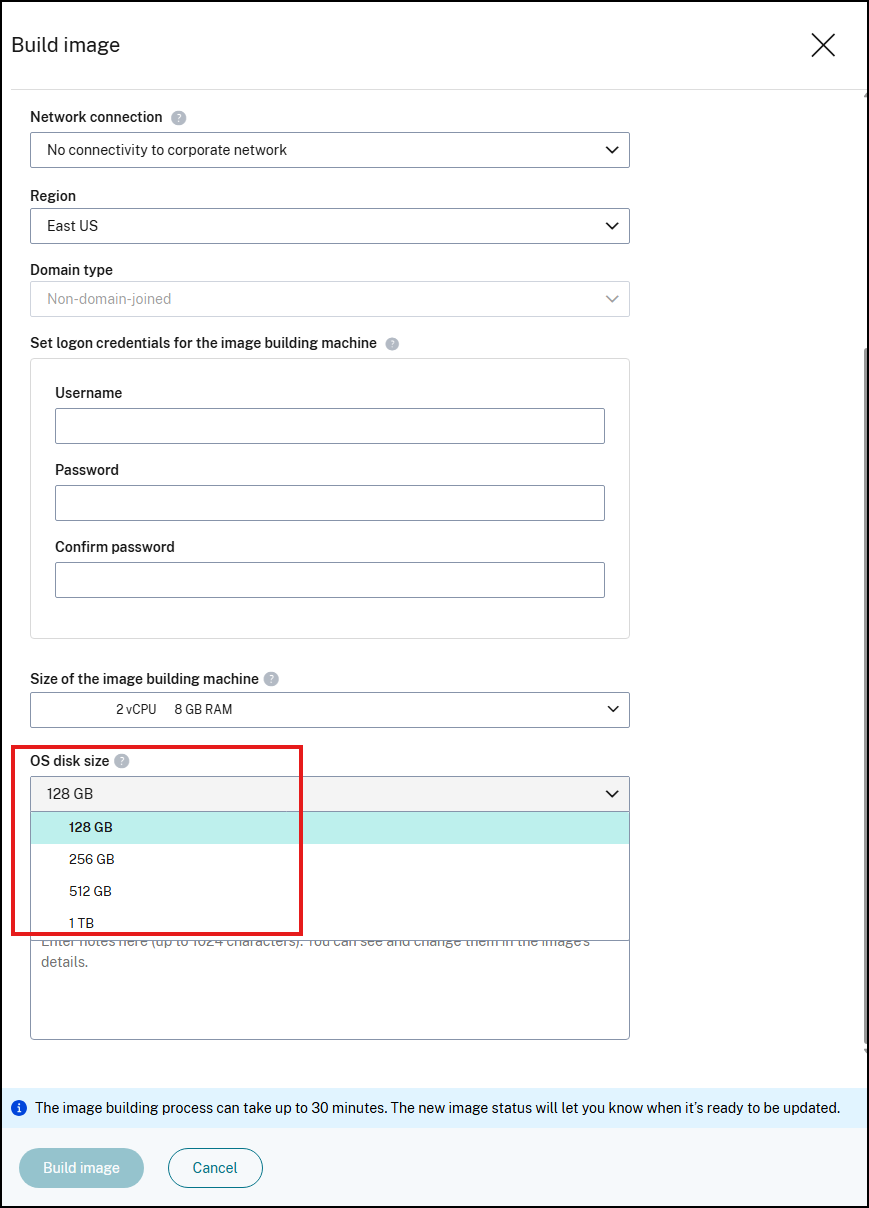
- If you select a disk size larger than 128 GB, hover over the tooltip next to OS disk size to review the billing advisory: Depending on your selection, additional credit charges may incur during catalog creation.
- Complete the remaining image build configuration and click Build image.
Note:
The OS Disk Size setting applies to the image building machine and determines the OS disk size of all VDAs provisioned from that image. You cannot change the disk size after the image is built. You must build a new image if a different disk size is required.
View disk size in image details
After an image is built, the selected disk size appears in the image details pane. In the top summary card of the image details view (alongside OS, Virtual Delivery Agent, and Machine generation), a Disk Size field shows the configured disk size:
- 128 GB
- 256 GB
- 512 GB
- 1 TB
Disk size and catalog creation
When you create a catalog from a master image, Citrix DaaS Flex uses the OS disk size of the image to determine the disk size for the VDA machines in the catalog. Before creating a catalog from a larger-disk image, review the credit consumption of the larger disk size. Credit consumption depends on the disk size (128 GB, 256 GB, 512 GB, or 1 TB), the allocation type (persistent or non-persistent), and the storage type (Standard SSD or Premium SSD).
Connect to a new image and customize it
After a new image is created, its name is added to the images list, with a status of Install apps and updates. To customize that image, download the RDP file. Use the RDP file to connect to the image and customize the software and configurations through that connection.
- From the Citrix DaaS Flex dashboard, expand Images on the right and select the image you want to connect to customize.
-
Click RDP to Public Address or RDP to Private Address based on your preference and connectivity.
- The image machine might power off if you do not RDP to it shortly after it’s created. This saves costs. If that happens, click Power On.
- Open the RDP file. Opening the file automatically attempts to connect to the address of the machine containing the new image. When prompted, enter the credentials you specified when creating the image.
- After you connect to the machine, customize the machine to meet the needs of your use case. Do not Sysprep the image.
- When you’re done customizing the new image, return to Images and click Finish build. The new image automatically undergoes validation testing.
Later, when you create a catalog, the new image is included in the list of images you can select.
On the Citrix DaaS Flex dashboard, the images display on the right indicates how many catalogs and machines use each image.
Note:
After you finalize an image, you cannot edit it. You must create a new image (using the previous image as a starting point), and then update the new image.
Import an image from Azure
When you import an image from Azure that has the Citrix VDA software and applications your users need, you can use it to create a catalog or replace the image in an existing catalog.
Imported image requirements
Citrix runs validation tests on the imported image. Ensure that the following requirements are met when you prepare the image that you’ll import into Citrix DaaS Flex.
-
Supported OS: The image must be a supported OS. To check a Windows OS version, run
Get-WmiObject Win32_OperatingSystem. - Supported generation: Generation 1 virtual machines support most guest operating systems. Generation 2 virtual machines support most 64-bit versions of Windows and more current version of Linux operating systems.
- Not generalized: The image must not be generalized.
-
No configured Delivery Controllers: Ensure that no Citrix Delivery Controllers are configured in the image. Ensure that the following registry keys are cleared.
HKLM:\SOFTWARE\Citrix\VirtualDesktopAgent\ListOfDDCsHKLM:\SOFTWARE\Policies\Citrix\VirtualDesktopAgent\ListOfDDCsHKLM:\SOFTWARE\Citrix\VirtualDesktopAgent\FarmGUIDHKLM:\SOFTWARE\Policies\Citrix\VirtualDesktopAgent\FarmGUID
-
Personality.inifile: Thepersonality.inifile must exist on the system drive. -
Valid VDA: The image must have Citrix VDA version 2507 or higher installed.
- Windows: To check, use
Get HKLM:\SOFTWARE\Microsoft\Windows\CurrentVersion\Uninstall\Citrix Virtual Desktop Agent. For installation guidance, see Install VDAs. - Red Hat Enterprise Linux and Ubuntu: For installation guidance, see Linux Virtual Delivery Agent.
- Windows: To check, use
- Azure Virtual Machine Agent: Before importing an image, make sure that the Azure Virtual Machine Agent is installed on the image. For more information, see the Microsoft article Azure Virtual Machine Agent overview.
Import the image
- From the Citrix DaaS Flex dashboard, expand Images on the right.
- Click Import image.
-
Choose how to import the image.
- For managed disks, use the export feature to generate a SAS URL. Set the expiration time to 7200 seconds or more.
-
For VHDs in a storage account, choose one of the following:
- Generate a SAS URL for the VHD file.
- Update the access level of a block storage container to blob or container. Then, get the file’s URL.
-
If you select:
-
Browse storage account:
- Select a subscription, resource group, storage account, and image.
- Name the image.
-
Azure public URL:
-
Enter the Azure-generated URL for the VHD. For guidance, click the link to the Microsoft document Download a Windows VHD from Azure.
- Select a subscription.
- Name the image.
-
-
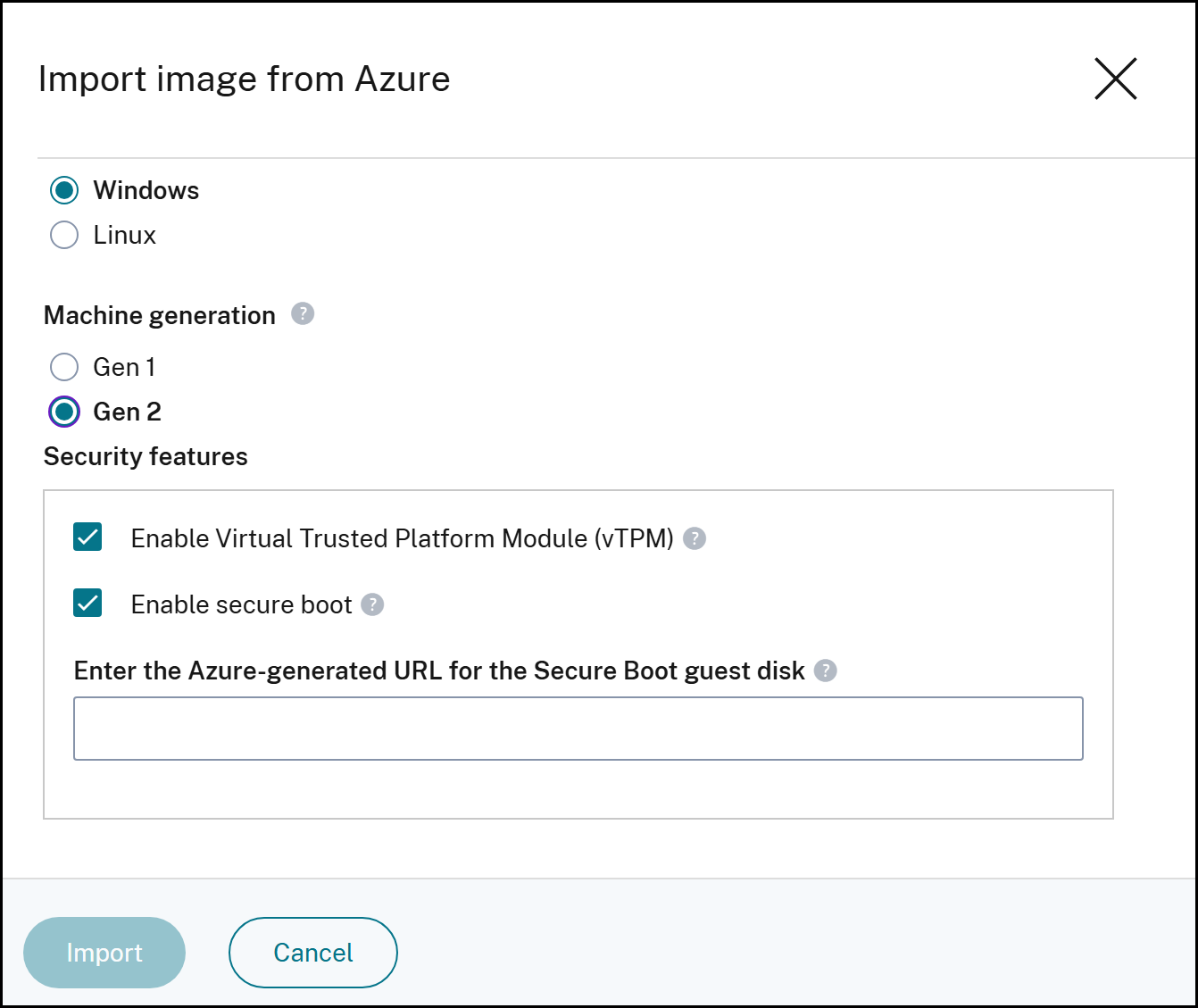
- Select the OS type: Windows or Linux.
-
Under Machine generation, select Gen 1 or Gen 2.
For both Browse storage account and Azure public URL, when the OS type is Windows and the Machine generation is Gen 2, the Security features panel appears with the following options:
- Enable Virtual Trusted Platform Module (vTPM)
- Enable Secure Boot
Both options are enabled by default, and you can enable or disable either option. If your configuration requires it, enter the Azure-generated URL for the Secure Boot guest disk.
- When you are done, click Import.
Display and manage image information
- From the Citrix DaaS Flex dashboard, expand Images on the right. The display lists the images that Citrix provides, and images you created and imported.
-
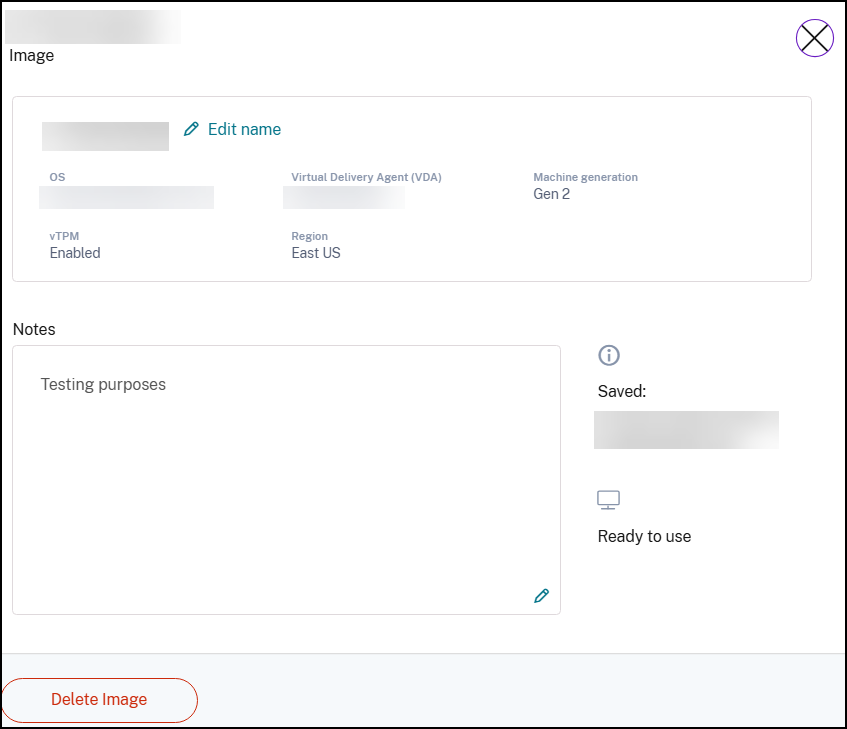
Click an image to display its details.
-
From the details card, you can:
- Change the image’s name.
- Add and edit notes (available only for images you prepared or imported, not Citrix-prepared images).
- Delete the image.
Delete an image
- From the Citrix DaaS Flex dashboard, expand Images on the right.
- Select the image you want to delete.
- Click Delete Image and confirm the deletion.