
USB device redirection
USB devices are shared between Citrix Workspace™ app and the Linux VDA desktop. When a USB device is redirected to the desktop, you can use the USB device as if it were locally connected.
Tip:
We recommend using USB device redirection when the network latency is lower than 100 milliseconds. Do not use USB device redirection when the network latency is higher than 200 milliseconds.
USB device redirection includes three main areas of functionality:
-
Open-source USB/IP project
-
Citrix USB session module
-
Citrix USB service module
Open-source USB/IP project:
The USB/IP project consists of a Linux kernel driver and some user mode libraries that let you communicate with the kernel driver to get all USB data.
The Linux VDA implements USB device redirection based on the open-source USB/IP project and reuses the kernel driver and user mode libraries of USB/IP. However, all USB data transfers between the Linux VDA and Citrix Workspace app are encapsulated by the Citrix ICA USB protocol.
Citrix USB session module:
The Citrix USB session module acts as a communication bridge between the USB/IP kernel module and Citrix Workspace app.
Citrix USB service module:
The Citrix USB service module manages all operations on USB devices, for example, attach or detach USB devices.
How USB device redirection works
Typically, if a USB device is redirected successfully to the Linux VDA, one or more device nodes are created in the system /dev path. Sometimes, however, the redirected device isn't usable for an active Linux VDA session. USB devices rely on drivers to function properly and some devices require special drivers. If drivers aren't provided, the redirected USB devices are inaccessible to the active Linux VDA session. To make sure of USB device connectivity, install the drivers and configure the system properly.
The Linux VDA supports a list of USB devices that are successfully redirected from the client.
Supported USB devices
Tip:
We have added support for USB 3.0 ports. You can insert USB 3.0 devices into USB 3.0 ports on a client device.
The following devices have been verified to support this version of the Linux VDA. Other devices might be freely used, with unexpected results:
| USB mass storage device | VID:PID | File system |
|---|---|---|
Netac Technology Co., Ltd |
0dd8:173c | FAT32, NTFS |
Kingston Datatraveler 101 II |
0951:1625 | FAT32, NTFS |
Kingston Datatraveler GT101 G2 |
1567:8902 | FAT32, NTFS |
SanDisk SDCZ80 flash drive |
0781:5580 | FAT32, NTFS |
WD HDD |
1058:10B8 | FAT32, NTFS |
Toshiba Kingston DataTraveler 3.0 USB device |
0930:6545 | FAT32, NTFS |
Taiwan OEM – OBSOLETE VendorCo ProductCode Disk 2.0 |
FFFF:5678 | FAT32, NTFS |
TD-RDF5A Transcend USB device |
8564:4000 | FAT32, NTFS |
Note:
To use NTFS on RHEL, Rocky Linux, and SUSE, enable NTFS support on these distributions first.
| USB 3D mouse | VID:PID |
|---|---|
3DConnexion SpaceMouse Pro |
046d: c62b |
| USB scanner | VID:PID |
|---|---|
Epson Perfection V330 photo |
04B8: 0142 |
| Yubico USB | VID:PID |
|---|---|
Yubico YubiKey OTP+FIDO+CCID -Keyboard, HID |
1050:0407 |
| Webcam USB | VID:PID |
|---|---|
Logitech composite USB device – WebCam, Audio |
0460:0825 |
Configure USB device redirection
(For RHEL and Rocky Linux only) Install or compile the USB/IP kernel module
The Linux VDA uses USB/IP as the virtual host controller for USB device redirection. Because in most cases the USB/IP kernel module is released with the Linux kernel version 3.17 and later, you don't have to build the kernel module by default. However, the USB/IP kernel module is not available for RHEL and Rocky Linux. To use USB device redirection with these Linux distributions, you must install or compile the USB/IP kernel module. Download and install USB/IP from
<https://pkgs.org/download/kmod-usbip> based on your Linux distribution.
Set USB device redirection policies
A Citrix policy controls whether USB device redirection is enabled or disabled. The type of device can also be specified using a Delivery Controller™ policy. When configuring USB device redirection for the Linux VDA, configure the following policies:
-
Client USB device redirection policy
-
Client USB device redirection rules
Enable USB device redirection
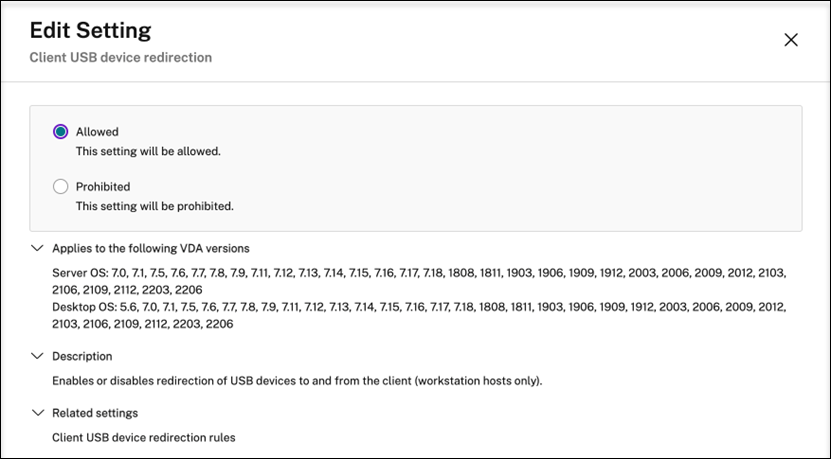
In Citrix Studio, enable (or disable) USB device redirection from the client (for workstation hosts only).
In the Edit Setting dialog:
-
Select Allowed.
-
Click OK.
Set USB device redirection rules
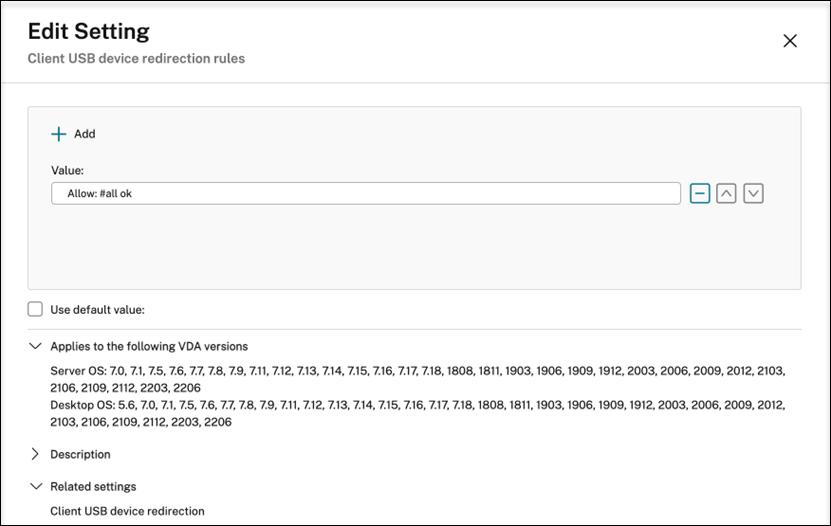
After enabling the USB redirection policy, set the redirection rules using Citrix Studio by specifying which devices are allowed (or denied) on the Linux VDA.
In the Client USB device redirection rules dialog:
-
Click New to add a redirection rule, or click Edit to review an existing rule.
-
After creating (or editing) a rule, click OK.
Note:
When configuring USB device redirection, ensure that you set the Client USB device redirection option to Allowed and configure Client USB device redirection rules as Allow:#all ok. Failure to configure both settings can result in the external mouse disappearing upon clicking in a session.
Support USB Redirection for Ubuntu on Azure
By default, Ubuntu on Azure may not include certain USB kernel drivers. You can enable USB redirection for both generic and specific devices by following the instructions below.
Enabling USB Redirection for Generic Devices
For generic USB devices, such as standard USB storage devices, YubiKey USB HID devices, and ASIX network adapters, you can simply execute the following configuration script:
sudo /opt/Citrix/VDA/sbin/usbazure/ctxusbcfg.sh
After running the script, restart the Citrix USB service to activate support:
sudo service ctxusbsd restart
Building USB Kernel Driver Modules for Specific Devices
For devices not supported out of the box, you can use the following generic workflow to build and install the necessary kernel driver modules. The example below uses a
Kingston DataTraveler 2.0 Stick (VID=0930, PID=6544) for illustration.
Prerequisite:
-
A VDA machine with the Linux VDA package installed.
-
A Linux physical machine running a generic Linux kernel.
Identify Required Kernel Drivers on the Linux Physical Machine
Step 1 - Attach the Device
Connect the USB device to a physical machine running a generic Linux kernel.
Step 2 - Prepare the USB Kernel Driver Identify Script
Copy
/opt/Citrix/VDA/sbin/usbazure/ctxusbkodriver.sh to the physical machine and make it executable.
Step 3 - Obtain Device VID and PID
Use lsusb to identify the connected USB device.
lsusb
 Example output:
 Bus 001 Device 040: ID 0930:6544 Toshiba Corp. TransMemory-Mini / Kingston DataTraveler 2.0 Stick
Step 4 - Identify Required Kernel Drivers
Run the helper script with the device’s
VID:PID:
./ctxusbkodriver.sh 0930:6544
 Example output:
 All USB Kernel drivers for 0930:6544:
 usb-storage
Build and Install the Kernel Drivers on the VDA Machine
Step 1 - Configure the Build Environment
Run the configuration script to set up the build environment and download the necessary kernel source code to
/root/.ctxusb:
sudo /opt/Citrix/VDA/sbin/usbazure/ctxusbcfg.sh
Step 2 - Determine Kernel Build Configuration
Use the configuration script to retrieve the appropriate kernel module build options:
sudo /opt/Citrix/VDA/sbin/usbazure/ctxusbkoconfig.sh /root/.ctxusb/linux usb-storage
 Example output:
 Config option: CONFIG_USB_STORAGE
 Folder: /root/.ctxusb/linux/drivers/usb/storage
Step 3 - Inspect and record kernel configuration options
cd /root/.ctxusb/linux
 make menuconfig
-
Use the search function (press /) to locate options (e.g., CONFIG_USB_STORAGE).
-
Record relevant settings (e.g., CONFIG_USB_SUPPORT=y, CONFIG_USB_STORAGE=m).
-
Exit without saving changes.
Step 4 - Build and Install the Kernel Drivers
Compile and install the kernel module:
sudo /opt/Citrix/VDA/sbin/usbazure/ctxusbkobuild.sh /root/.ctxusb/linux/drivers/usb/storage "CONFIG_USB_SUPPORT=y CONFIG_USB_STORAGE=m"
Step 5 - Verify the Kernel Drivers
modinfo usb-storage
Upon successful completion, the kernel driver for your specified USB device has been built and installed.
Troubleshoot USB device redirection issues
Use the information in this section to troubleshoot various issues that you might come across when using the Linux VDA.
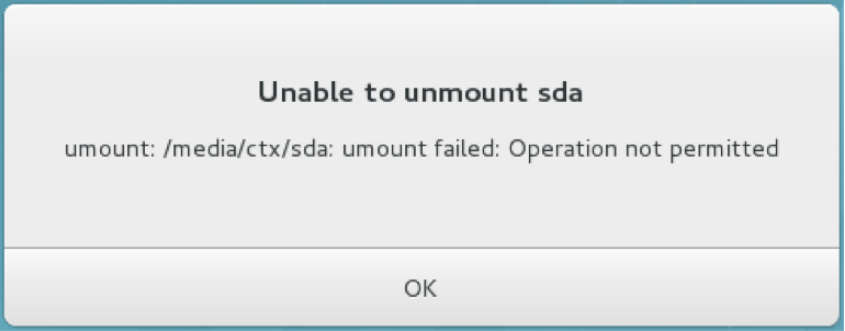
Unable to unmount the redirected USB disk
The Linux VDA manages all USB disks redirected from Citrix Workspace app under the administrative privilege to make sure that only the owner can access the redirected device. As a result, you can unmount the device only with the administrative privilege.
File lost when you stop redirecting a USB disk
If you stop redirecting a USB disk immediately using the toolbar of Citrix Workspace app, the files you modified or created on the disk can be lost. This issue occurs because when you write data to a file system, the system mounts the memory cache in the file system. The data isn't written to the disk itself. If you stop redirecting using the toolbar of Citrix Workspace app, there's no time remaining for data being flushed to the disk, which results in lost data.
To resolve this issue, use the sync command in a terminal to flush data to the disk before stopping USB redirection.
No devices in the toolbar of Citrix Workspace app
Sometimes, you might not be able to see devices listed in the toolbar of Citrix Workspace app, which indicates that no USB redirection is taking place.

If you come across the issue, verify the following:
-
The policy is configured to allow USB device redirection.
-
The Citrix USB service module is running.
If the policy is not set correctly, correct it by referencing the Set USB device redirection policies section in this article.
If the Citrix USB service module is not running, complete the following steps:
-
Check whether a USB/IP kernel module is available on your Linux distribution using the following command:
modinfo usbip-core -
If the output is shown as follows, install or compile the USB/IP kernel module based on your Linux distribution:
modinfo: ERROR: Module usbip-core not found.-
For RHEL and Rocky Linux, see the Install or compile the USB/IP kernel module section in this article.
-
For SUSE, download and install the USB/IP package from
<https://software.opensuse.org/package/usbip>. -
For Ubuntu/Debian, complete the following steps to compile and install the USB/IP kernel module:
-
Download the USB/IP kernel module source code.Go to the Linux kernel repository at
<https://github.com/torvalds/linux/tree/master/drivers/usb/usbip>, select the target Linux kernel version (v4.15 or later) tag, and get the link such as<https://github.com/torvalds/linux/tree/v4.15/drivers/usb/usbip>.Go to DownGit and enter the preceding link to create a download link for downloading the USB/IP source code. -
Unzip the source file using the following commands:
unzip ${USBIP_SRC}.zip

cd usbip -
Modify the Makefile file as follows:
# SPDX-License-Identifier: GPL-2.0

 ccflags-$(CONFIG_USBIP_DEBUG) := -DDEBUG

 obj-$(CONFIG_USBIP_CORE) += usbip-core.o

 usbip-core-y := usbip_common.o usbip_event.o

 obj-$(CONFIG_USBIP_VHCI_HCD) += vhci-hcd.o

 vhci-hcd-y := vhci_sysfs.o vhci_tx.o vhci_rx.o vhci_hcd.o

 #obj-$(CONFIG_USBIP_HOST) += usbip-host.o

 #usbip-host-y := stub_dev.o stub_main.o stub_rx.o stub_tx.o

 #obj-$(CONFIG_USBIP_VUDC) += usbip-vudc.o

#usbip-vudc-y := vudc_dev.o vudc_sysfs.o vudc_tx.o vudc_rx.o vudc_transfer.o vudc_main.o -
Compile the source code:
apt-get install linux-headers-`uname -r`

make -C /lib/modules/`uname -r`/build M=$PWD -
Install the USB/IP kernel module:
cp usbip-core.ko vhci-hcd.ko /opt/Citrix/VDA/lib64/ -
Restart the ctxusbsd service to load the USB/IP kernel module:
systemctl restart ctxusbsd
-
-
Redirection failure when USB devices are visible in the toolbar of Citrix Workspace app, but are labeled "policy restricted"
When the issue occurs, do the following:
-
Configure the Linux VDA policy to enable redirection.
-
Check whether any additional policy restrictions are configured in the registry of Citrix Workspace app. Check DeviceRules in the registry path to make sure that the device isn't denied access by this setting:HKEY\_LOCAL\_MACHINE\\SOFTWARE\\Wow6432Node\\Citrix\\ICA Client\\GenericUSB
A USB device is redirected successfully, but I can't use it in my session
Typically, only supported USB devices can be redirected. Other devices might be redirected to an active Linux VDA session too. For every redirected device, a node owned by the user is created in the system /dev path. However, it's the drivers and the configuration that determine whether the user can use the device successfully. If you find a device owned (plugged in) but inaccessible, add the device to an unrestricted policy.
Note:
For USB drives, the Linux VDA configures and mounts the disk. The user (and only the owner who installed it) can access the disk without any additional configuration. It might not be the case for devices that aren't in the supported device list.