Installing Scout Board
Note:
Scout Board is installed as a component of the Scout Enterprise Management Suite.
-
Download the latest version of the Scout Enterprise Management Suite and start the installation process. For further information, see Installing Scout Enterprise Management Suite.
-
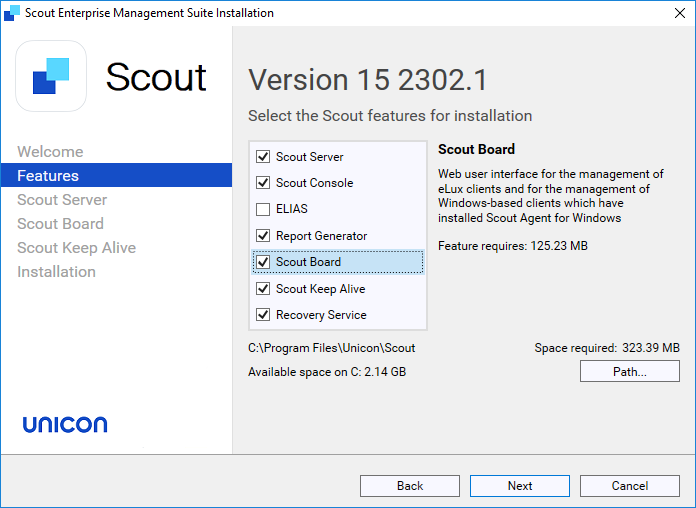
Fresh installation: By default, the Scout Board is part of the installation. Upgrading a previous version without Scout Board: Activate the Scout Board component.
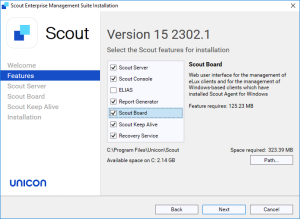
-
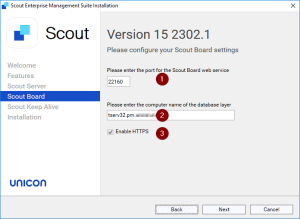
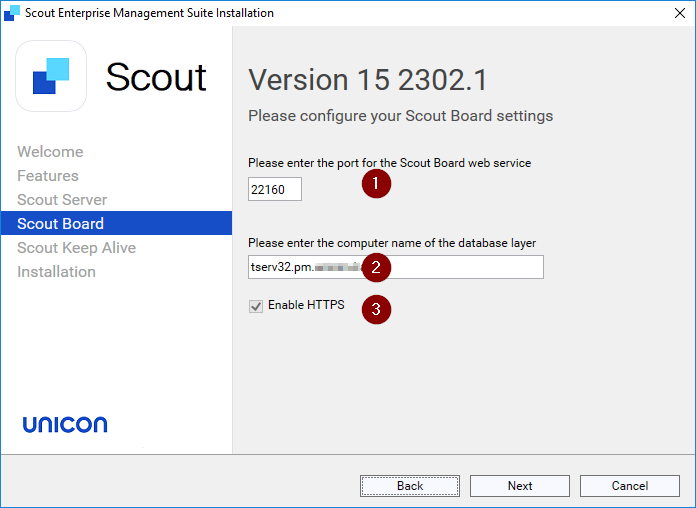
Then configure your Scout Board settings.
| Information | |
|---|---|
| 1 | Number of the port on which the Scout Board service should run |
| 2 | Computer name (FQDN) of the machine on which the database layer is to run |
| 3 | With HTTPS, a secure connection to the interface is used. |
| Initially, a self-signed certificate is created. To configure an individual SSL certificate instead, see below. |
- Follow the further instructions.
Configuring an individual HTTPS certificate for Scout Board
Self-signed certificates are not accepted as secure by the browser. To provide the browser with a valid SSL certificate for Scout Board perform the following steps:
-
Rename your certificate file to
certificate.crtand the private key file toprivate.key -
Copy both files into the Scout Board program directory. By default, this is
C:\Program Files\Unicon\Scout\Scout Board -
Still in the Scout Board program directory, edit the
.envfile and change the entryCERTIFICATE=SELFSIGNtoCERTIFICATE=SIGN -
Restart the Scout Board service.
For further information and detailed certificate configuration, see HTTPS Certificate Setup.
Configuring authentication options for Scout Board
During installation, you can choose which authentication method should be used for Scout Board.
The following authentication methods are supported:
- AD (Active Directory)
- Entra ID (SAML or OIDC)
- OKTA (SAML or OIDC)
After an authentication method has been configured during the installation, you can change or reconfigure it in the .env file. As a reference and an example, the template file .env.example can be used.
| Authentication method | Parameter | Value |
|---|---|---|
| AD | AUTH_TYPE |
AD |
| OIDC | AUTH_TYPE |
OKTA_OIDC or ENTRAID_OIDC
|
OIDC_ISSUER |
your-issuer-url |
|
OIDC_CLIENT_ID |
your-client-id |
|
OIDC_CLIENT_SECRET |
your-client-secret |
|
| SAML | AUTH_TYPE |
OKTA_SAML or ENTRAID_SAML
|
SAML_SSO_ENTRY |
your-sso-entry-url |
|
SAML_LOGOUT_URL |
your-logout-url |
|
SAML_SERVICE_PROVIDER_ISSUER |
https://scoutboard.com/47d899fb-3002-4692-b741-8068b8f7fbb4 Only replace, if you are not using the Scout Board default issuer |
|
SAML_CERT_PATH |
your-certificate-path |
|
SAML_PRIVATE_KEY_PATH |
your-provate-key-path |
Configuring AD domains for Scout Board
The AD domain for the logon process is being used from the provided data during the installation process.
In the .env file, the configuration is available. If the domain changes or additional domains need to be added, these can be added manually.
The defined domains will be selectable in the Scout Board Logon dialog.
Example:
| Domain option | Domain configuration |
|---|---|
| One domain | DOMAINS=["production.mydomain.com"] |
| Multiple domains | DOMAINS=["production.mydomain.com", "test.mydomain.com"] |
If you are using LDAPS,in the .env file, you can configure them: LDAPS_SERVERS=["ldaps://my.ldaps.server", "ldaps://my.other.ldaps.server"]
Note
Scout Board now uses
ldaps://only and validates the DC certificate chain (chain + hostname/SAN). Previously, this validation was turned off. LDAPS silently failed and used plaintextldap://.Affected: On-Premises
AUTH_TYPE=ADdeployments with an untrusted, expired or SAN-mismatched DC certificate, or a plaintextldap://entry inLDAPS_SERVERS/AUTH_DOMAIN_MAP.Logins that worked in UniconOS Management version 15 2605 will fail. SSO modes and UniconOS Management Cloud deployments are not affected. The login screen will provide information on the cause, and the details will be in the
backend.loglog file.Action required: In the Scout Board
.envconfiguration file:Perform configuration:
LDAP_CA_PATH=<PEM CA bundle>orNODE_USE_SYSTEM_CA=1You might need to setNODE_USE_SYSTEM_CA=1as an environment variable, if the change in.envdoes not work.Name mismatch: Use the DC FQDN in
LDAPS_SERVERS/AUTH_DOMAIN_MAP, orLDAP_TLS_MODE=verify-caTemporary workaround only: Use
LDAP_TLS_MODE=insecure.This is not supported in production environments, and it does not restore plaintext. (
ldap://is refused in every mode)The default is
LDAP_TLS_MODE=verify-fullNote:After modifying the .env file, the windows service “Scout Board” needs to be restarted.