Browser SSO
Browser SSO extends Imprivata single sign-on into web applications opened in Google Chrome. After a user authenticates through Imprivata, Chrome signs them into supported web applications (SAML or OIDC) automatically, without asking for a password again.
Note:
Browser SSO is supported in Google Chrome only. It doesn’t work in Chromium.
Prerequisites
- The eLux® device is configured for Imprivata authentication.
- On the Imprivata appliance, an SSO user policy is enabled and Imprivata Cloud Connect is used to create an OpenID Connect (OIDC) application. Both are covered step-by-step in Imprivata’s own documentation: OneSign SSO (OIDC).
Enabling Browser SSO in the IDF
-
In ELIAS, open the IDF used by the devices you want to change.
-
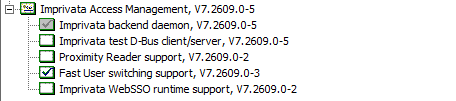
Expand Imprivata Access Management.
-
Tick Imprivata WebSSO runtime support.
-
Expand Google Chrome Web browser.
-
Tick the Google Chrome option, if it isn’t already enabled.
-
Save the IDF.
-
In Scout, assign the updated image to the device or OU and start the update.
Important:
Imprivata WebSSO runtime support depends on Google Chrome. If Google Chrome isn’t also enabled in the same IDF, the update fails.
Starting Chrome automatically (optional)
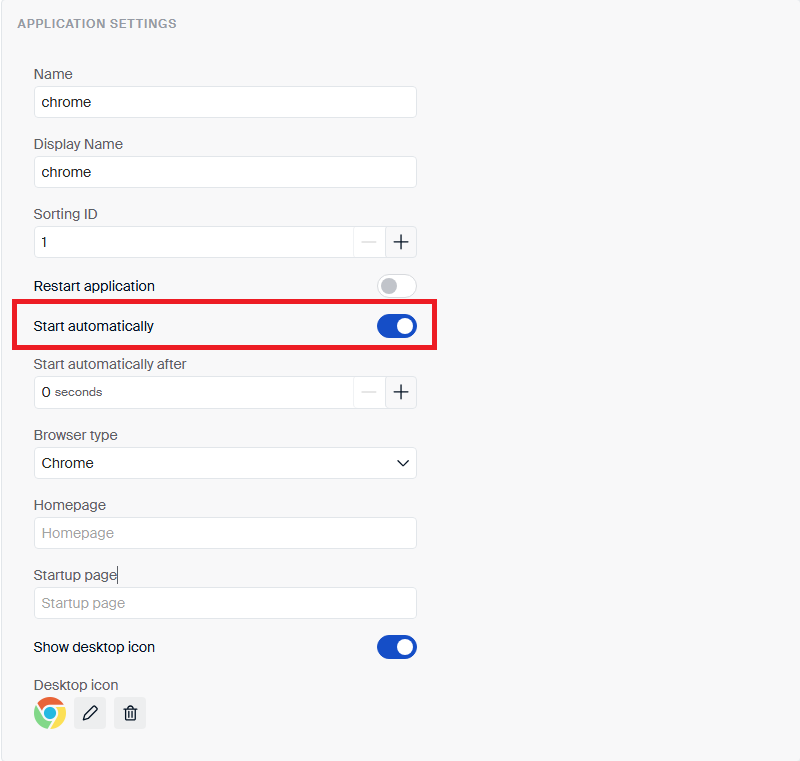
This step is optional — a user can also open Chrome themselves. To have Chrome open on its own right after login, enable Start automatically in the Chrome application settings in Scout (Browser type: Chrome):
-
In Scout, open the application settings for the Chrome application.
-
Turn on Start automatically.
-
Click Apply/OK to confirm the changes.
Verifying Browser SSO
-
Log in on the device with Imprivata.
-
Open Chrome (automatically, if you enabled Start automatically, or launch it yourself). The Imprivata browser extension is already installed — the user never installs it.
-
Open the target web application.
The web application signs the user in automatically, without asking for a password.