
Progressive Web App (PWA) support
Progressive Web Apps (PWAs) are websites you install as apps from your browser.
Once installed, a PWA appears on the task panel and desktop with its own icon — you can start it, switch to it, and close it like any other app.
No configuration is needed; this works out of the box.
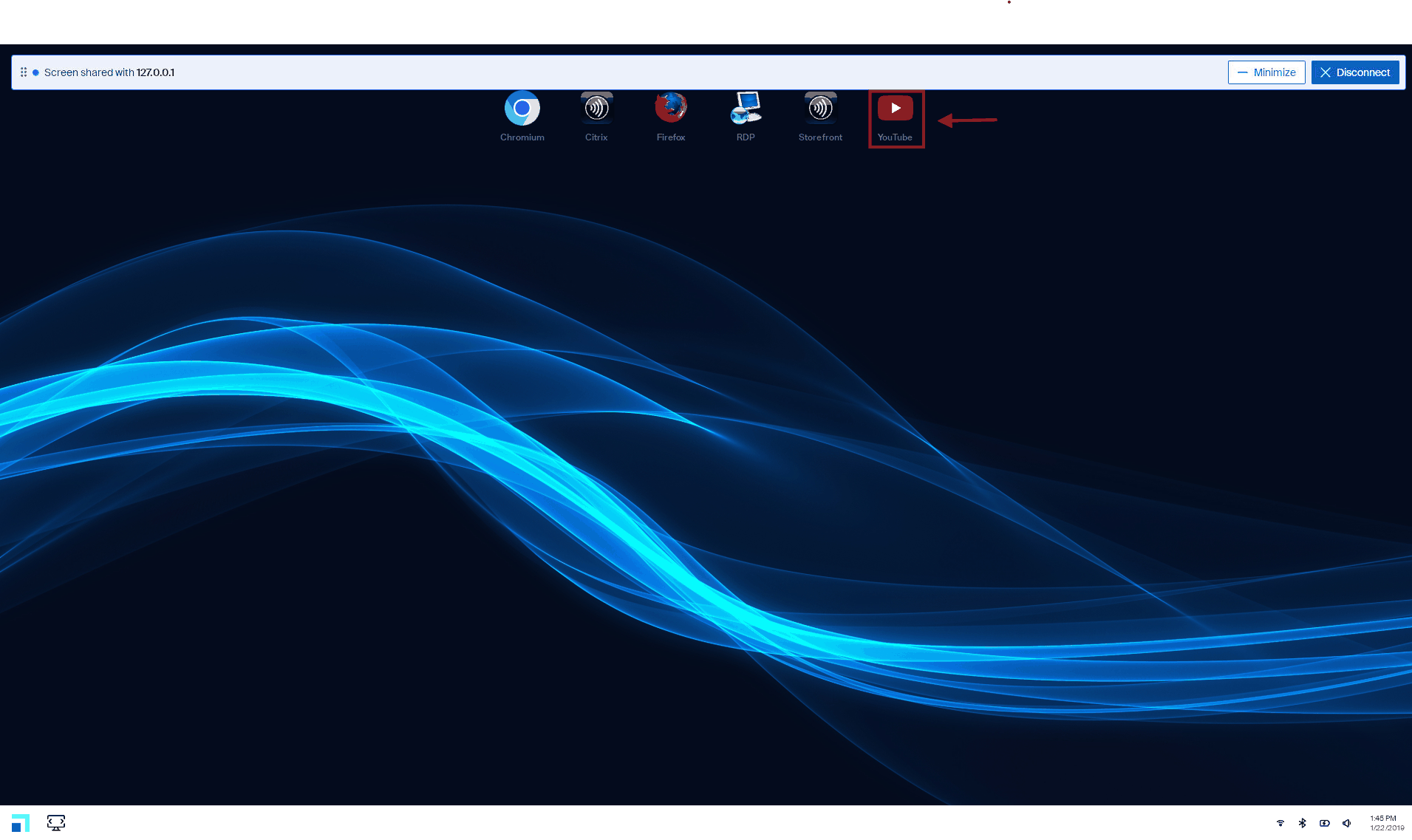
Installing a PWA
In your browser:
-
Open the site you want, then install it as an app (⋮ → Cast, save and share → Install page as app, or the install icon in the address bar).
-
The app appears on the task panel and desktop within a few seconds, with its own icon.
-
Click the icon to start it — click it again while it's running to bring its window to the front.
Removing a PWA
Uninstall it from the browser, not from eLux.
Open the browser's apps page, right-click the app, and remove it — the icon disappears from the task panel and desktop within a few seconds:
| Browser | Apps page |
|---|---|
| Chrome / Chromium | chrome://apps → right-click the app → Remove from Chrome |
| Microsoft Edge | edge://apps → … → Uninstall |
| Island | The browser's apps page (same pattern as Chrome) |
Apps your administrator installs by policy can't be removed this way — they're reinstalled automatically.
Turning it off (administrators)
PWA support is on by default. Set this in Scout → Advanced Configuration → File Entries to turn it off for a device or OU:
| File | /setup/terminal.ini |
| Section | Global |
| Key | EnablePwaApps |
| Values | true (default) / false |
The setting applies after a restart.
Important:
Turning this off is destructive: existing PWA launchers and icons are deleted from the device, and turning it back on does not restore them.
To use a previously installed PWA again, uninstall it from the browser's apps page (for example
chrome://apps) and reinstall it.
Good to know
-
Works with Chromium-based browsers (Google Chrome, Microsoft Edge, Chromium, Island). Firefox doesn't create app entries.
-
To keep installed apps after a restart, include the browser in Persistent home applications (
PersistentHomeApplications, or set it toALL).