
Mirror session bar
Mirroring lets a Scout administrator view your device's screen remotely, typically to help with troubleshooting.
When your device is mirrored, a bar appears to let you know your screen is being shared.
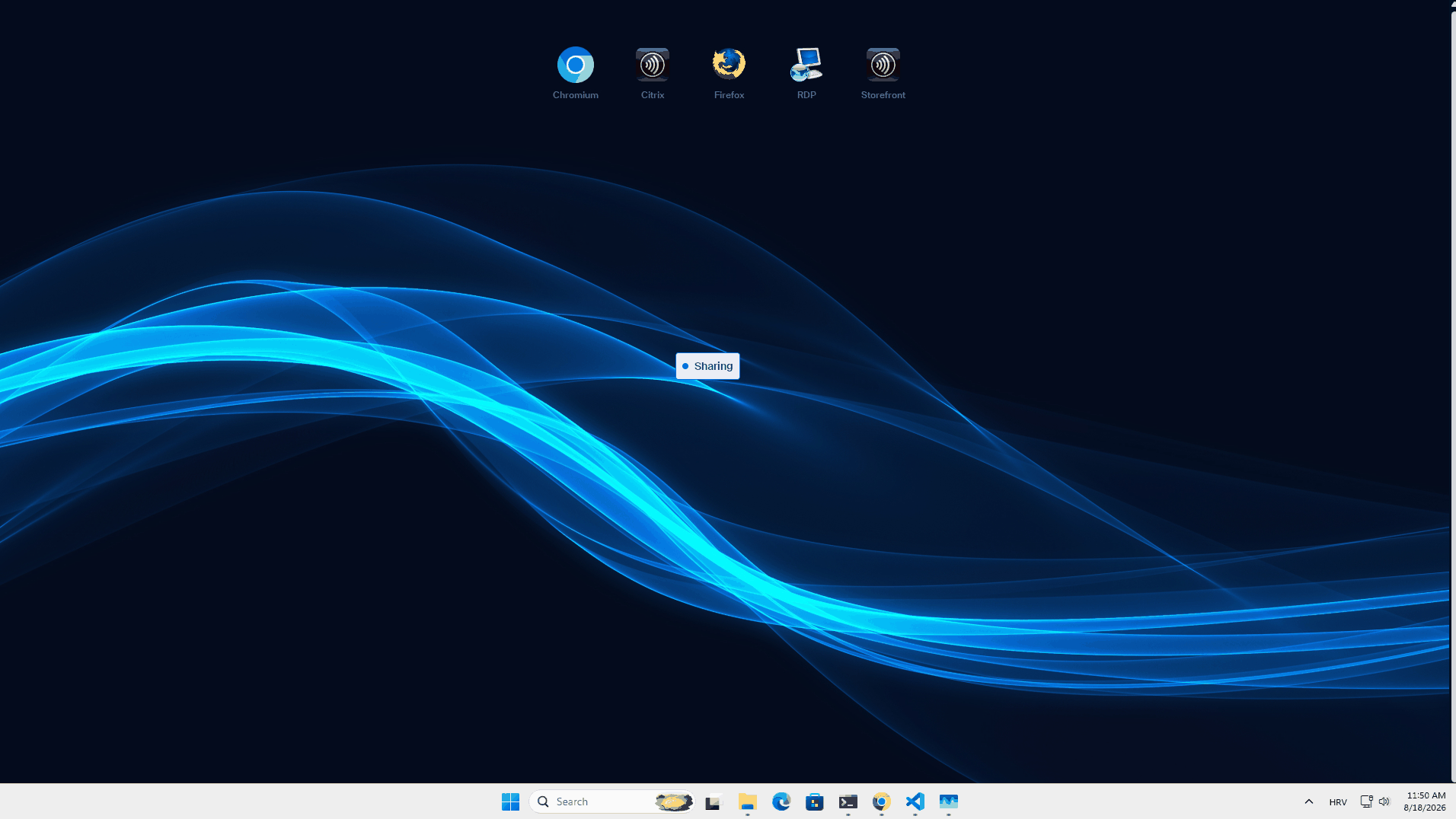
You can move it out of the way or collapse it to a small pill so it doesn't cover the icons, menus, and controls you need.
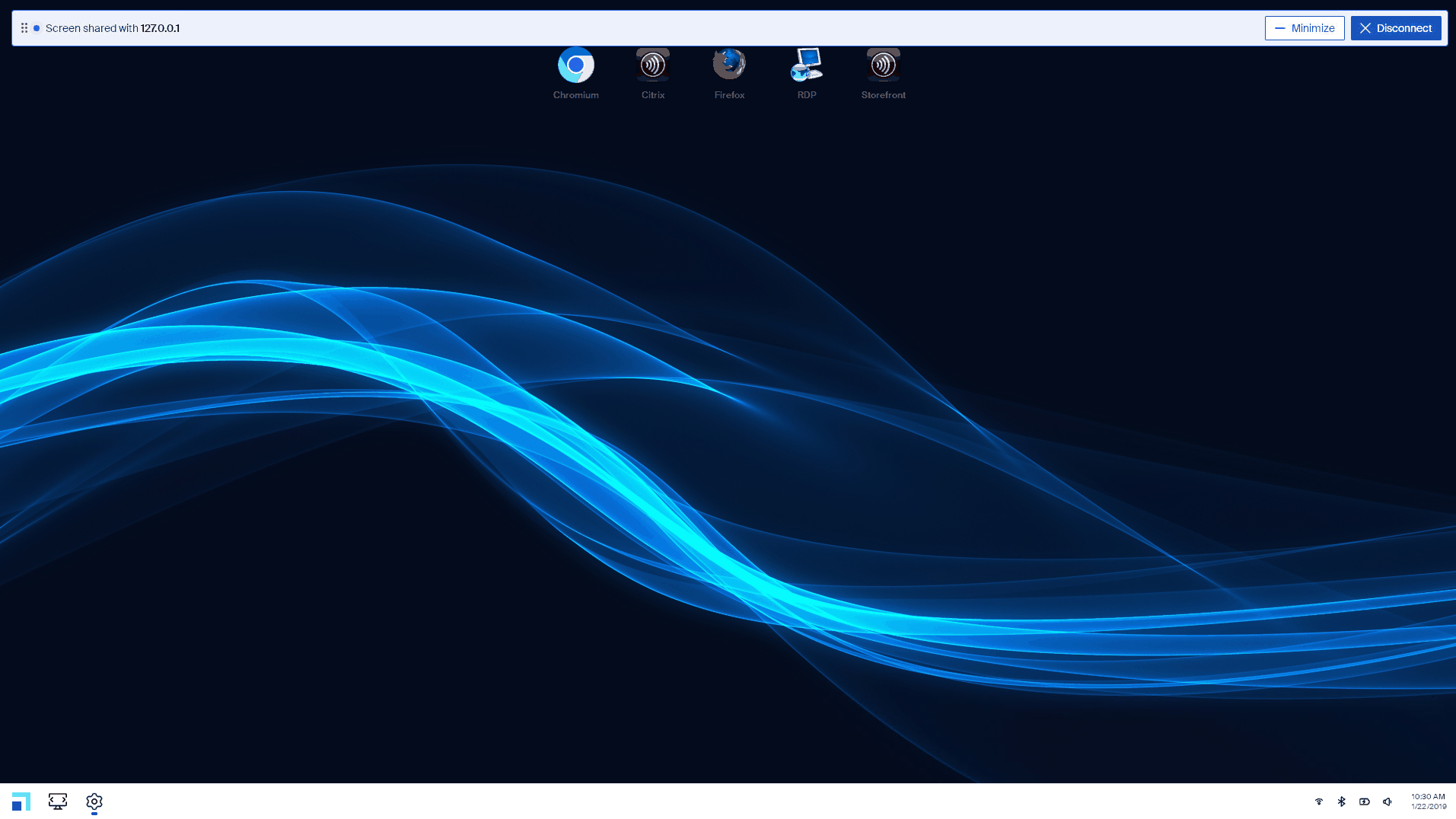
The bar includes:
| Element | Description |
|---|---|
| Pulsing blue dot | Mirroring is live. |
"Screen shared with <IP address>" |
The IP address of the administrator's session. |
| Six-dot handle (left) | Drag to collapse the bar into a movable pill. |
| Minimize (right) | Used to collapse the bar. |
| Disconnect | Ends the mirror session. |
Moving it out of the way
-
Minimize: click Minimize — the bar collapses to a pill labeled Sharing in the top-right corner.
-
Drag it away: grab the six-dot handle on the left and drag — it collapses into the pill and follows your cursor to wherever you drop it.
-
Move the pill: drag it from any point once it's collapsed. Hovering over it fades in the six-dot handle so you can see it's movable.
-
Restore the full bar: click the pill (without dragging).
Good to know
-
The bar and pill appear on the primary monitor only, and stay on top of everything else, including a full-screen Citrix session.
-
The expanded bar stays docked at the top; only the collapsed pill can be moved freely, and it's always kept fully on screen.
-
Position and collapse state are not remembered — every new mirror session starts with the full bar docked at the top.
-
Ending the mirror session removes the bar or pill.
-
Mirroring itself must be enabled for the device under Device management → Mirroring in Scout Board — this only affects how the bar behaves during a session.