
Drives
Drives is where you configure CIFS drives for accessing files and directories on the network.
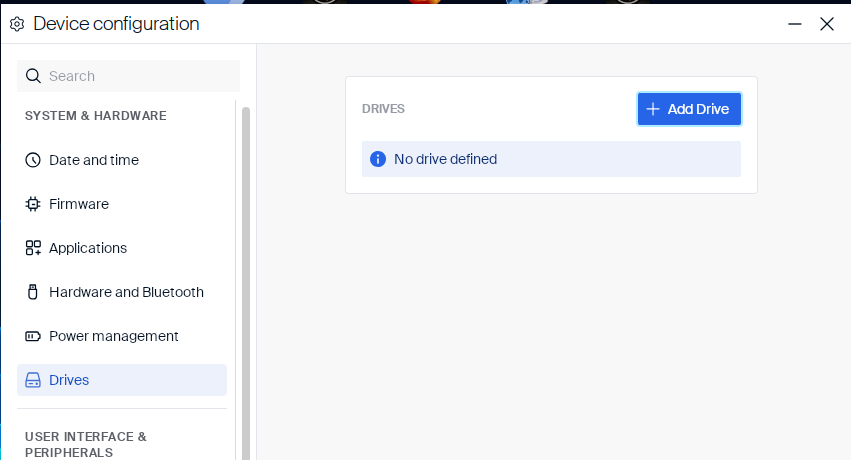
When no drive is configured yet, the page shows a No drive defined notice next to Add Drive.
Adding a CIFS drive
-
Click Add Drive.
-
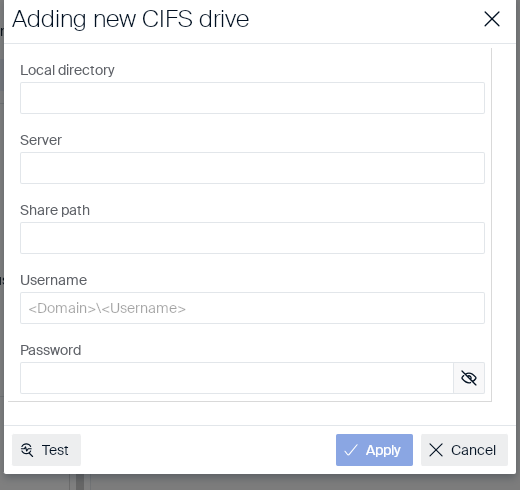
Fill in the following fields to identify the network share and the credentials used to connect to it:
Field Type Description Local directory Text field Local mount point where the network share appears on the device. Required. Server Text field Name or address of the CIFS/SMB server. Required. Share path Text field Path of the share on the server. Required. Username Text field User name for the share, in <Domain>\<Username>format. Required.Password Text field Password for the share. Has a show/hide (eye) icon. Not marked required. Local directory, Server, Share path, and Username are mandatory — clicking Test or Apply while any of them is empty outlines that field in red with a Cannot be empty message and does not proceed: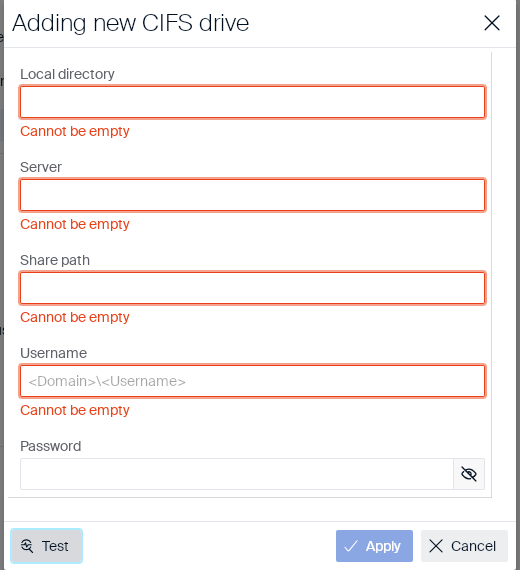
-
Optionally, click Test to verify the connection before saving.
-
Click Apply.
The drive appears in the drives list. To remove a drive, use its delete action in the list.