Custom session logon screens and control OS lock screen
Add a custom background or banner message to session logon screens
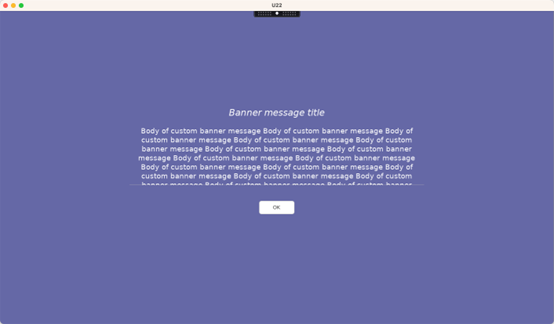
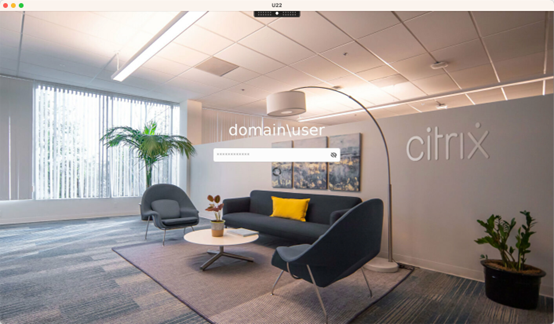
You can use the following commands to add a custom background or banner message to session logon screens. To add both a background and a banner message to session logon screens, you can embed the banner message into the background image. After you open a session, the banner message page is displayed first and then the authentication dialog appears.
To set the title of a custom banner message, run:
/opt/Citrix/VDA/bin/ctxreg create -k "HKLM\System\CurrentControlSet\Control\Citrix" -t "REG_SZ" -v "LogonDisplayStringTitle" -d "<Banner message title>" --force
<!--NeedCopy-->
The maximum length of a banner message title is 64 bytes.
To set the body text of a custom banner message, run:
/opt/Citrix/VDA/bin/ctxreg create -k "HKLM\System\CurrentControlSet\Control\Citrix" -t "REG_SZ" -v "LogonDisplayString" -d "Body of custom banner message\nBody of custom banner message\nBody of custom banner message\n" --force
<!--NeedCopy-->
The maximum length of a banner message body is 1,024 bytes.
Tip:
The
\nelement creates a line break. In this example, the banner message screen looks like this:
To add a custom background to session logon screens, run:
/opt/Citrix/VDA/bin/ctxreg create -k "HKLM\System\CurrentControlSet\Control\Citrix" -t "REG_SZ" -v "BackgroundImagePath" -d "<path to the background image>" --force
<!--NeedCopy-->
To see the custom background, session users must have access to the background image path.
For example:
Example session logon screens
The following are example session logon screens in different scenarios:
-
Session logon in single sign-on (SSO) scenarios:
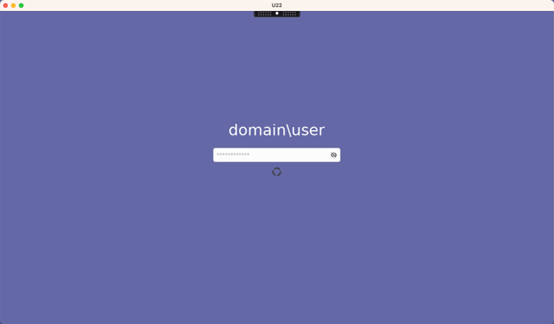
The logon process is displayed.
-
Session logon in typical non-SSO scenarios:
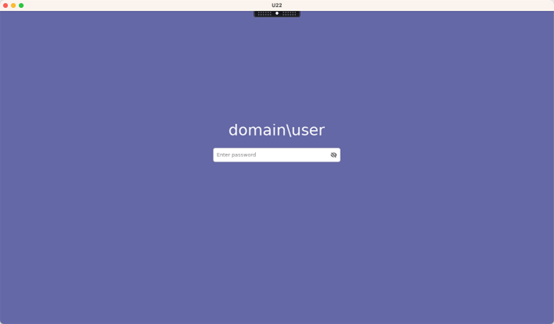
- A password or PIN code is required in non-SSO scenarios.
- Users can toggle the visibility of passwords and PIN codes, making it easy for users to find out incorrect inputs.
-
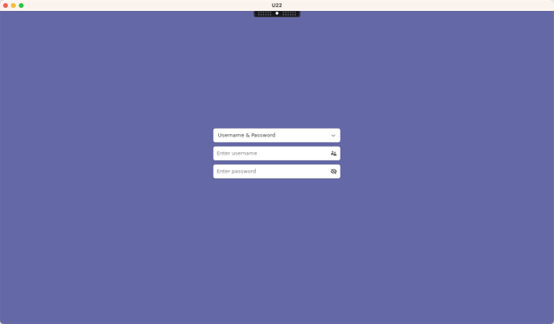
Session logon in non-SSO scenarios when users log on to VDA sessions with credentials different from the credentials used to log on to Citrix Workspace™ app:
User name and password used for session logon:
Smart card used for session logon:
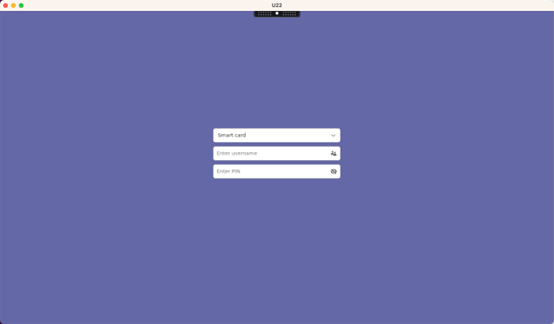
For the combinations of user authentication methods that are supported in non-SSO scenarios, see Non-SSO authentication.
Configurable Logon Banner Display Timeout
To set a custom timeout value (in seconds), use the following command:
/opt/Citrix/VDA/bin/ctxreg create -k "HKLM\System\CurrentControlSet\Control\Citrix" -t "REG_DWORD" -v "LogonDisplayTimeoutS" -d "<timeout_value>" --force

<!--NeedCopy-->
Parameters
- A value of 0 disables the timeout, requiring user interaction to proceed.
- Any non-zero value specifies the timeout duration in seconds. Valid range: 1–1800 seconds.
- The default value is 60 seconds.
Control OS lock screen
Overview
Linux VDA 2607 introduces the EnableOsLockScreen registry key, allowing administrators to explicitly control whether the native OS lock screen (GNOME, MATE, KDE Plasma, XFCE) is available within HDX sessions.
Previously, Linux VDA automatically enabled or disabled the OS lock screen based on session type and authentication method. Since 2607, this behavior is replaced with an administrator-controlled setting.
OS lock screen by default is disabled. To enable the OS lock screen:
/opt/Citrix/VDA/bin/ctxreg create -k "HKEY_LOCAL_MACHINE\SYSTEM\CurrentControlSet\Control\Citrix\Login" -t "REG_DWORD" -v "EnableOsLockScreen" -d "0x00000001" --force
<!--NeedCopy-->
To check the current value:
/opt/Citrix/VDA/bin/ctxreg read -k "HKEY_LOCAL_MACHINE\SYSTEM\CurrentControlSet\Control\Citrix\Login" -v "EnableOsLockScreen"
<!--NeedCopy-->
The setting is applied when a new session starts. When enabled, Linux VDA restores the desktop’s lock screen, auto-lock settings, and lock shortcuts. When disabled, these features are suppressed.
Note:
Anonymous sessions always have the OS lock screen disabled.
Behavior change in 2607
In Linux VDA 2603 and earlier:
- Domain-joined sessions using username/password automatically enabled the OS lock screen.
- Other authentication methods had it disabled.
Starting with 2607, this automatic behavior is removed.
Important:
If domain-joined users rely on the OS lock screen, set
EnableOsLockScreen=1after upgrading.
Notes and requirements
- Settings are stored in the user profile and can affect both future HDX and local logons.
- The OS lock screen depends on the native screen locker of the desktop environment used in the session. Before you enable this feature, ensure that the desktop environment’s screen-locker package is installed — for example,
mate-screensaverfor MATE orxfce4-screensaverfor Xfce. If the screen locker is not installed, EnableOsLockScreen has no effect for that desktop environment. - GNOME requires GDM for PAM-based unlock. If GDM is not running, unlock may fail.
- On GNOME 3, leaving the OS lock screen disabled also applies the VDA’s window-decoration adjustments (window shadow suppression and an explicit minimize/maximize/close button layout). Enabling the OS lock screen leaves the desktop’s own window decoration defaults in place.
- Citrix session locking (ctxlock and smart-card removal lock actions) is unaffected.