Configure endpoint recording policies
You can define policies to capture user actions on endpoint devices when accessing Citrix-delivered web apps, virtual apps and desktops.
Prerequisites
Before you begin, ensure you have met the following requirements:
- Citrix Session Recording server version 2503 or later
- Citrix Workspace App version 2503 or later
- Proper integration with Citrix Gateway and StoreFront, see Site settings
Configure endpoint recording policies
You can activate system-defined endpoint recording policies or create and activate your custom endpoint recording policies. System-defined policies apply a single rule to entire sessions. Custom policies specify which sessions are recorded.
Note:
After you create or activate an endpoint recording policy, the policy applies to all Session Recording servers of the selected site. You can create and activate separate endpoint recording policies for different sites, but only one site’s active policy can be in effect globally.
System-defined endpoint recording policies
Session Recording provides the following system-defined endpoint recording policies:

- Do not record endpoint sessions. The default policy. If you do not specify another policy, no sessions are recorded.
You can’t modify or delete the system-defined endpoint recording policies.
Create a customer endpoint recording policy
Considerations
You can record endpoint sessions of specific users or groups.
For each rule you create, you specify an endpoint recording action and a rule scope. The recording action applies to sessions that fall into the rule scope.
For each rule, choose one endpoint recording action:
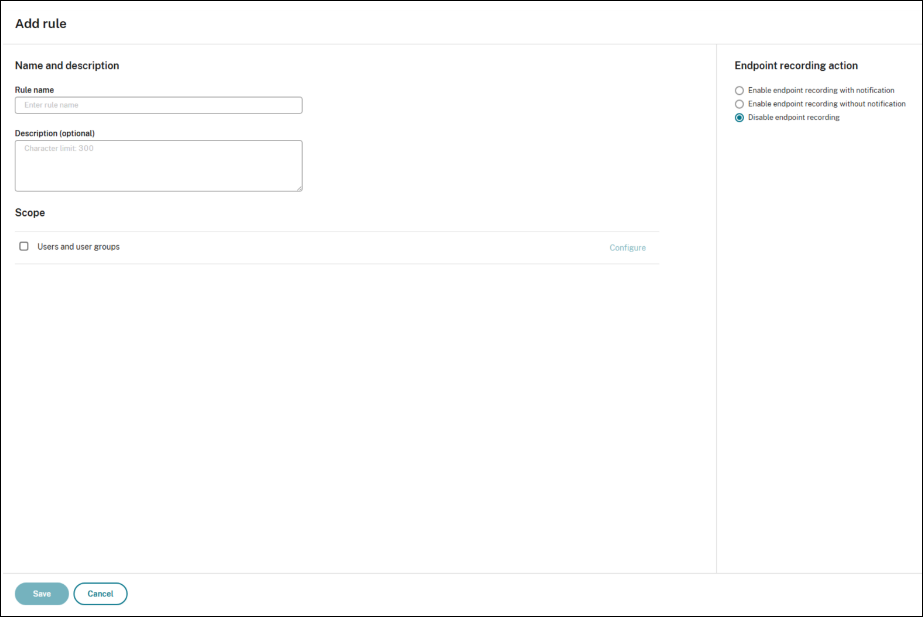
- Enable endpoint recording with notification. This option records user actions on endpoint devices. Users receive recording notifications in advance. With this option selected, you can further select to enable recording for Citrix-delivered web apps or Citrix Virtual Apps and Desktops. Additionally, you can choose to extend to full-screen record in endpoint recording.
- Enable endpoint recording without notification. This option records user actions on endpoint. Users do not receive recording notifications. With this option selected, you can further select to enable recording for Citrix-delivered web apps or Citrix Virtual Apps and Desktops. Additionally, you can choose to extend to full-screen record in endpoint recording.
- Disable endpoint recording. This option means that no user actions on endpoint devices are recorded.
- Citrix-delivered web apps. This option lets you record user actions on endpoint devices accessing these apps.
- Citrix Virtual Apps and Desktops. This option lets record user actions on endpoint devices accessing these apps.
-
Extend to full-screen recording. This option lets you record the entire screen space, including any extended displays.
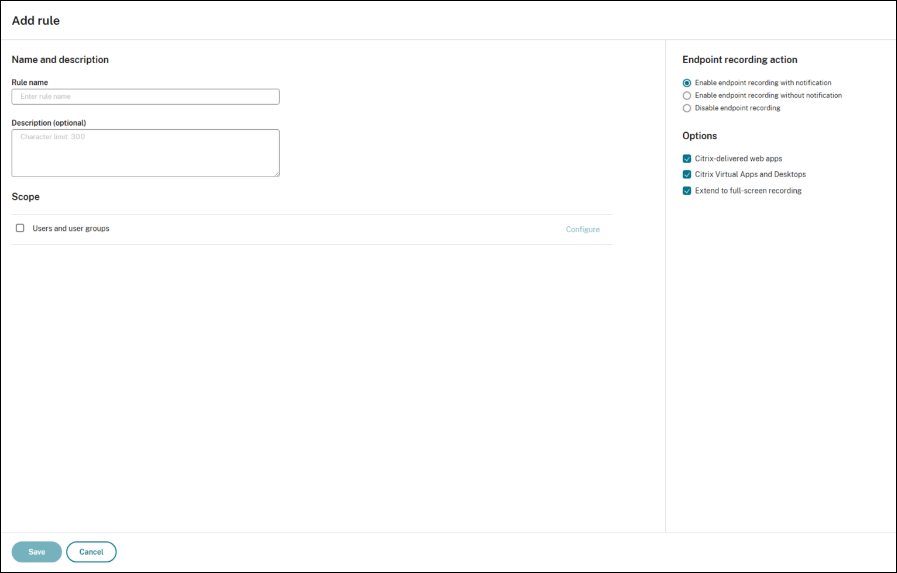
For each rule, choose the following items to create the rule scope.
Users and user groups. Creates a list of users and user groups to which the action of the rule applies.
When you create more than one rule in an endpoint recording policy, some sessions might match the criteria for more than one rule. In these cases, the rule with the highest priority is applied to the sessions.
The recording action of a rule determines its priority:
- Rules with the Disable endpoint recording action have the highest priority.
- Rules with the Enable endpoint recording with notification action have the second-to-highest priority.
- Rules with the Enable endpoint recording without notification action have the lowest priority.
Some sessions might not meet any rule criteria in an endpoint recording policy. For these sessions, the action of the policy fallback rule applies. The action of the fallback rule is always Disable endpoint recording. You can’t modify or delete the fallback rule.
Steps
- Log on as an authorized Policy Administrator to the Session Recording web console.
- Select Policies from the left navigation.
- Select the Endpoint recording policy.
- Click Add policy.
- Enter a name and description for the new policy, and then click Add rule.
-
Enter a name and description for the rule. Specify an endpoint recording action and choose at least one of the following items to create the rule scope.
For each rule, specify a recording action:
- Enable endpoint recording with notification.
- Enable endpoint recording without notification.
- Disable endpoint recording.
For each rule, choose the following items to create the rule scope:
- Users and user groups.
-
After the new policy is created, find it on the Endpoint recording policy tab and turn the toggle on to activate the policy.
Note:
For more detailed information on configuration steps, refer to session recording for endpoint devices.