Configuring PXE recovery
Recovery settings is where you tell devices which server to download the eLux® software packages from during a PXE recovery.
-
In Scout Board, click Preferences, and then click Recovery settings.
-
In the Settings section, fill in the fields that the table below describes.
-
Click Apply settings.
Note:
In the legacy Scout Console, you find the settings under Options > Recovery settings. Confirm with OK instead of Apply settings.
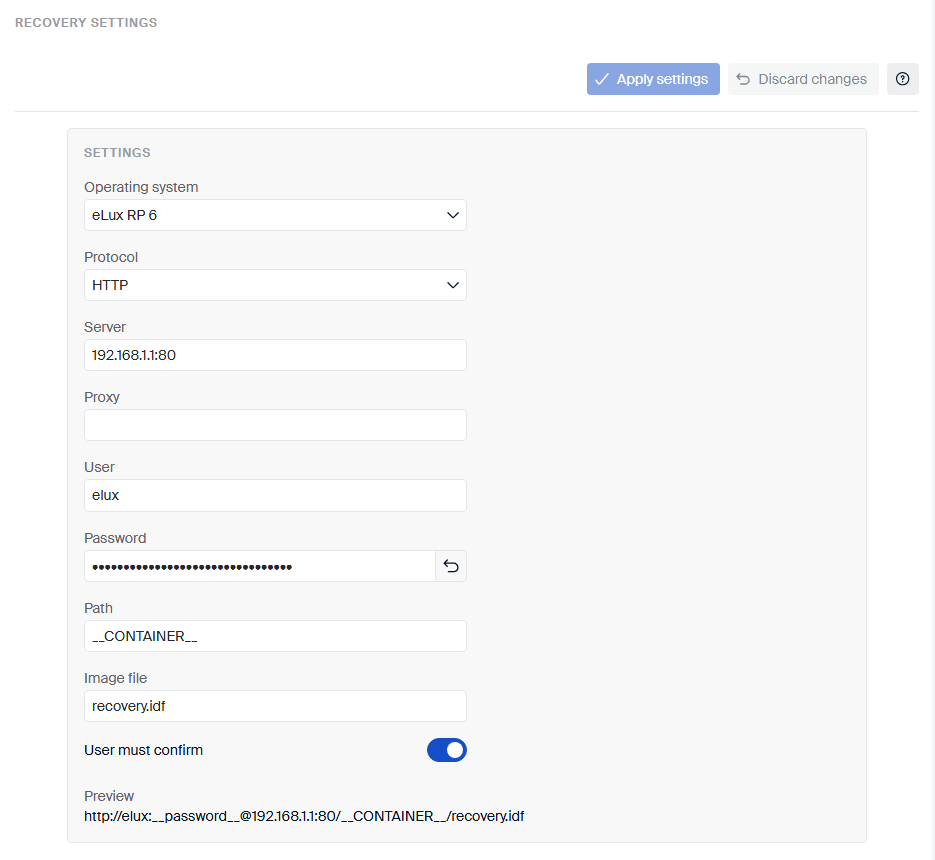
These fields describe the server that provides the software packages and how devices connect to it:
| Field | Type | Description |
|---|---|---|
| Operating system | Dropdown | The eLux version of the devices you want to recover: eLux RP 6 or eLux 7. |
| Protocol | Dropdown | How devices download the software packages: HTTP or FTP. |
| Server | Text field | The name (FQDN) or IP address of the server, with an optional port. Example: 192.168.10.1:80
|
| Proxy | Text field | Optional. The IP address and port of a proxy server. Example: 192.168.10.2:3128
|
| User | Text field | Optional. The user name for the server, if it requires one. |
| Password | Text field | Optional. The password that belongs to that user name. |
| Path | Text field | The folder on the server that holds the software packages. See Path. |
| Image file | Text field | The image definition file (IDF) to use. See Image file. |
| User must confirm | Toggle | Turn on to make users confirm on the device before the recovery installation starts. |
Preview, below the fields, shows the address that your entries produce. It doesn’t show the password.
Path
Separate the folders with /. Which path you enter depends on the ELIAS version that provides the packages:
- With ELIAS 18, enter the path name that you defined during installation, for example
elias/UC_ELUX. - With the legacy ELIAS, enter
eluxng/<container name>.
To use one setting for different major eLux versions, enter the __CONTAINER__ parameter. For details, see
Different eLux versions
in the Scout guide.
Image file
The image definition file defines which software packages devices install. Enter its file name, for example
recovery.idf. For details, see
Firmware tab in the Scout guide.
To update devices that have an earlier partition layout to a version with an extended system partition, see New partition layout in the Scout guide.