This content has been machine translated dynamically.
Dieser Inhalt ist eine maschinelle Übersetzung, die dynamisch erstellt wurde. (Haftungsausschluss)
Cet article a été traduit automatiquement de manière dynamique. (Clause de non responsabilité)
Este artículo lo ha traducido una máquina de forma dinámica. (Aviso legal)
此内容已经过机器动态翻译。 放弃
このコンテンツは動的に機械翻訳されています。免責事項
이 콘텐츠는 동적으로 기계 번역되었습니다. 책임 부인
Este texto foi traduzido automaticamente. (Aviso legal)
Questo contenuto è stato tradotto dinamicamente con traduzione automatica.(Esclusione di responsabilità))
This article has been machine translated.
Dieser Artikel wurde maschinell übersetzt. (Haftungsausschluss)
Ce article a été traduit automatiquement. (Clause de non responsabilité)
Este artículo ha sido traducido automáticamente. (Aviso legal)
この記事は機械翻訳されています.免責事項
이 기사는 기계 번역되었습니다.책임 부인
Este artigo foi traduzido automaticamente.(Aviso legal)
这篇文章已经过机器翻译.放弃
Questo articolo è stato tradotto automaticamente.(Esclusione di responsabilità))
Translation failed!
ユーザー ストアをレプリケートする
Path to user storeポリシーで指定されたパスに加えて、ログオンおよびログオフのたびに、ユーザー ストアを複数のパスにレプリケートできます。この機能は、Replicate user storesポリシーを通じて実装されます。セッション中に変更されたユーザー ストアのファイルとフォルダーを同期するには、アクティブなライトバックを有効にします。この機能は現在、完全なコンテナソリューションをサポートしていません。このポリシーを有効にすると、システムI/Oが増加し、ログオフに時間がかかる場合があります。
このポリシーは、Microsoft Active Directoryグループポリシー管理、Citrix Studio、およびWorkspace Environment Management™ (WEM) を通じて構成できます。
-
Microsoft Active Directoryグループポリシー管理を通じてReplicate user storesポリシーを構成するには、次の手順を実行します。
- グループポリシー管理エディターを開きます。
-
コンピューターの構成 > 管理用テンプレート > Citrixコンポーネント > Profile Management > 詳細設定で、Replicate user storesポリシーをダブルクリックします。
Microsoft Active Directoryグループポリシー管理を通じてReplicate user storesポリシーを構成する(/en-us/profile-management/2206/media/configuring-the-replicate-user-stores-policy-through-microsoft-active-directory-group-policy-management.png)
-
ポリシーをEnabledに設定し、レプリケートされたユーザー ストアへのパスを設定してから、OKをクリックします。
レプリケートされたユーザー ストアへのパスを設定する(/en-us/profile-management/2206/media/setting-the-paths-to-replicated-user-stores.png)
レプリケートされたユーザー ストアへのパスは、Path to user storeポリシーで指定されたパスとともに、リモートユーザープロファイルストレージの完全なリストを形成します。
- 変更を有効にするには、Profile Managementがインストールされているマシンのコマンドプロンプトからgpupdate /forceコマンドを実行します。すべてのセッションからログオフし、再度ログオンします。
-
Citrix StudioでReplicate user storesポリシーを構成するには、次の手順を実行します。
-
Citrix Studioの左ペインで、ポリシーをクリックします。
-
ポリシーの作成ウィンドウで、検索ボックスにポリシーを入力します。たとえば、「Replicate user stores」と入力します。
Citrix StudioでReplicate user storesポリシーを検索する(/en-us/profile-management/2206/media/searching-for-the-replicate-user-stores-policy-in-studio.png)
-
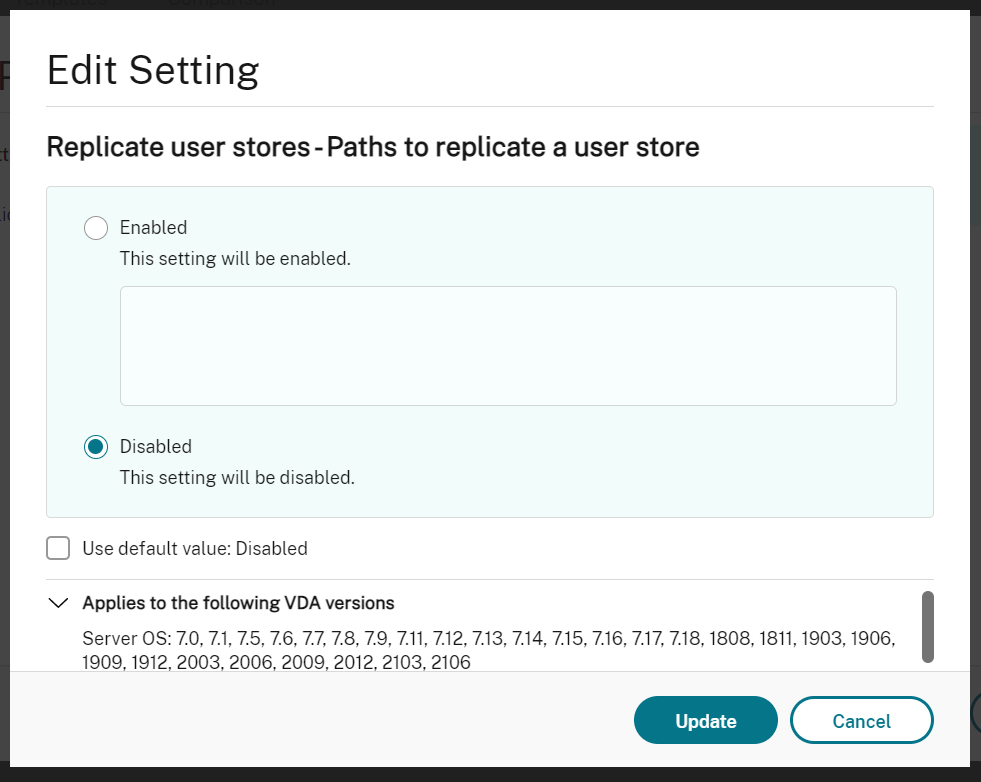
「選択」をクリックして、「ユーザー ストアのレプリケート」ポリシーを開きます。
-
「有効」を選択し、レプリケートされたユーザー ストアへのパスを入力して、「OK」をクリックします。
注:
複数のエントリを区切るには、Enterキーを押します。
-
-
WEMで「ユーザー ストアのレプリケート」ポリシーを構成するには、次の手順を実行します。
-
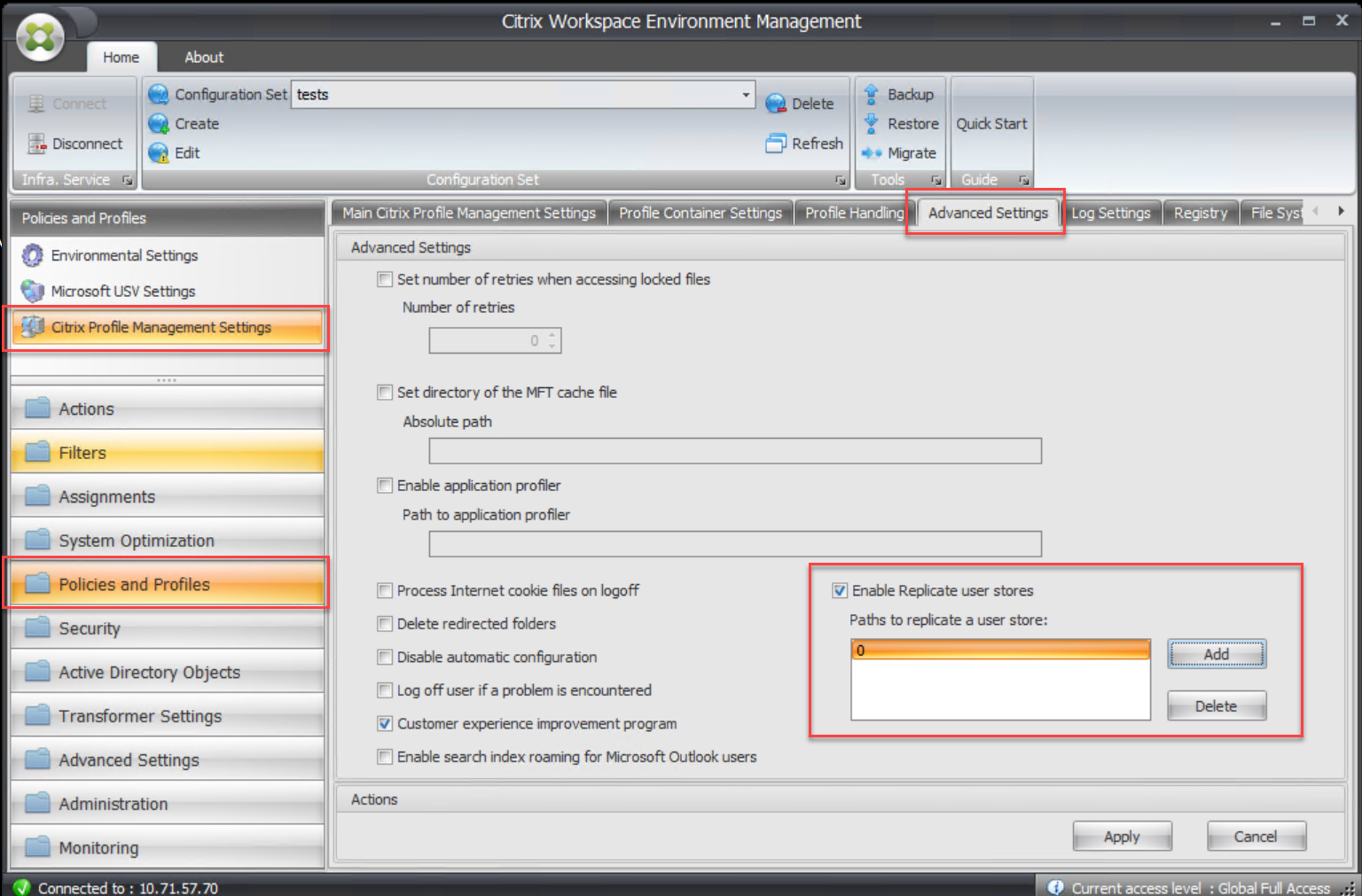
管理コンソールで、ポリシーとプロファイル > Citrix Profile Management設定 > 詳細設定に移動します。
-
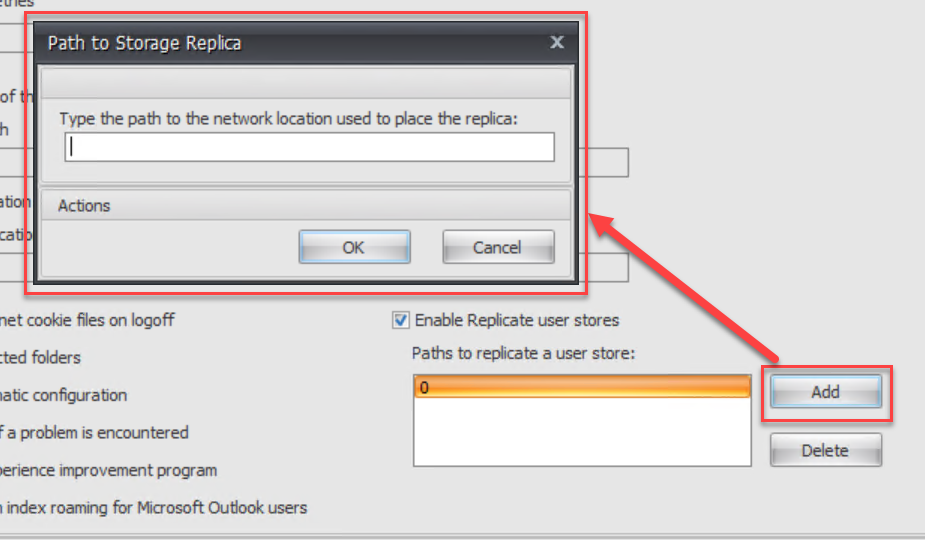
「詳細設定」タブで、「ユーザー ストアのレプリケートを有効にする」チェックボックスをオンまたはオフにし、レプリケートされたユーザー ストアへのパスを設定します。
-
共有
共有
この記事の概要
This Preview product documentation is Citrix Confidential.
You agree to hold this documentation confidential pursuant to the terms of your Citrix Beta/Tech Preview Agreement.
The development, release and timing of any features or functionality described in the Preview documentation remains at our sole discretion and are subject to change without notice or consultation.
The documentation is for informational purposes only and is not a commitment, promise or legal obligation to deliver any material, code or functionality and should not be relied upon in making Citrix product purchase decisions.
If you do not agree, select I DO NOT AGREE to exit.