This content has been machine translated dynamically.
Dieser Inhalt ist eine maschinelle Übersetzung, die dynamisch erstellt wurde. (Haftungsausschluss)
Cet article a été traduit automatiquement de manière dynamique. (Clause de non responsabilité)
Este artículo lo ha traducido una máquina de forma dinámica. (Aviso legal)
此内容已经过机器动态翻译。 放弃
このコンテンツは動的に機械翻訳されています。免責事項
이 콘텐츠는 동적으로 기계 번역되었습니다. 책임 부인
Este texto foi traduzido automaticamente. (Aviso legal)
Questo contenuto è stato tradotto dinamicamente con traduzione automatica.(Esclusione di responsabilità))
This article has been machine translated.
Dieser Artikel wurde maschinell übersetzt. (Haftungsausschluss)
Ce article a été traduit automatiquement. (Clause de non responsabilité)
Este artículo ha sido traducido automáticamente. (Aviso legal)
この記事は機械翻訳されています.免責事項
이 기사는 기계 번역되었습니다.책임 부인
Este artigo foi traduzido automaticamente.(Aviso legal)
这篇文章已经过机器翻译.放弃
Questo articolo è stato tradotto automaticamente.(Esclusione di responsabilità))
Translation failed!
收藏夹
您可以允许用户将资源设置为收藏夹。这些收藏夹显示在用户的主页选项卡上,以便快速访问。如果您使用的是经典体验并禁用了收藏夹,则会隐藏主页选项卡。
启用或禁用收藏夹
使用收藏夹执行以下选项之一:
- 允许用户创建和删除收藏夹。用户可以通过单击应用磁贴上的星形图标来收藏应用。用户可以再次单击星形图标来取消收藏应用。收藏的应用显示在主页选项卡上。
- 禁用收藏夹。用户无法收藏或取消收藏应用。主页选项卡不显示。
禁用订阅不会删除 Store 订阅数据。为 Store 重新启用订阅后,用户下次登录时即可看到其收藏夹。
- 在 Citrix StoreFront 管理控制台的左侧窗格中选择 Store 节点,然后在结果窗格中选择一个 Store。在 操作 窗格中,单击 配置 Store 设置。
- 单击 用户收藏夹 选项卡以启用或禁用用户收藏夹功能。
- 选择 启用用户收藏夹 以启用收藏夹。
- 选择 禁用用户收藏夹 以禁用收藏夹。
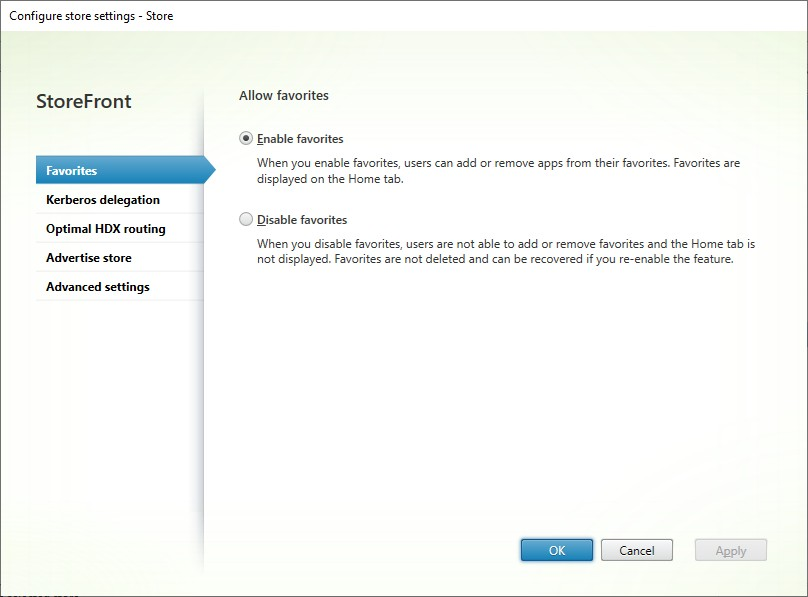
或者,您可以使用 PowerShell cmdlet Set-STFStoreService 并使用 LockedDown 参数。例如,要禁用收藏夹:
$StoreObject = Get-STFStoreService -SiteID 1 -VirtualPath "/citrix/<yourstore>"
Set-STFStoreService -StoreService $StoreObject -LockedDown $True -Confirm:$False
<!--NeedCopy-->
收藏夹数据库
默认情况下,收藏夹存储在本地数据库中,该数据库在服务器组中的服务器之间进行复制。或者,您可以将收藏夹存储在外部 SQL Server 数据库中。
要查看 Store 是使用本地数据库还是外部数据库,请运行 PowerShell cmdlet Get-STFStoreSubscriptionsDatabase。例如:
$store = Get-STFStoreService -VirtualPath [store path]
Get-STFStoreSubscriptionsDatabase -StoreService $store
<!--NeedCopy-->
这将返回:
-
UseLocalStorage- 如果为True,则收藏夹存储在本地数据库中(默认值)。如果为False,则收藏夹存储在外部数据库中。 -
DatabaseConnectionString- 如果使用外部数据库,则此项包含连接字符串。否则为空白。
有关详细信息,请参阅管理订阅数据库。
使用 SQL Server 数据库
要使用外部 SQL Server 数据库,请运行 PowerShell cmdlet Set-STFStoreSubscriptionsDatabase,并指定连接字符串。有关详细信息,请参阅使用 Microsoft SQL Server 存储订阅数据。
配置两个 StoreFront Store 以共享订阅数据存储
在需要不同配置设置的情况下,管理员通常会为相同资源配置两个不同的 StoreFront Store;例如,一个用于使用 Citrix Gateway 外部访问资源,另一个用于使用公司局域网内部访问资源。如果您使用的是 SQL Server 数据库,请将两个 Store 都设置为使用相同的数据库连接字符串。使用本地数据库时,StoreFront 默认会为每个 Store 创建一个单独的数据库。因此,用户必须收藏同一资源两次,每个 Store 各一次。您可以将两个 Store 配置为使用相同的数据库,以便用户无论连接到哪个 Store 都能看到相同的收藏夹。
重要:
由于站点名称是收藏项键的一部分,因此您必须确保两个 Store 中的站点名称完全相同。
例如,假设您有两个名为“Internal”和“External”的 Store。使用本地数据库时,请使用以下脚本将“External”Store 配置为使用与“Internal”Store 相同的订阅数据库。
$internalStore=Get-STFStoreService -VirtualPath '/Citrix/Internal'
$internalUri = $internalStore.SubscriptionStoreClient.ClientEndpoint.Uri.ToString()

$externalStore=Get-STFStoreService -VirtualPath '/Citrix/External'
$externalStore.SubscriptionStoreClient.ClientEndpoint.Uri = $internalUri
Save-STFService $externalStore
<!--NeedCopy-->
将配置传播到服务器组中的其他服务器。
要检查 Store 正在使用哪个本地数据库,请运行以下脚本:
$store=Get-STFStoreService -VirtualPath '/Citrix/External'
$store.SubscriptionStoreClient.ClientEndpoint.Uri.ToString()
<!--NeedCopy-->
共享
共享
This Preview product documentation is Citrix Confidential.
You agree to hold this documentation confidential pursuant to the terms of your Citrix Beta/Tech Preview Agreement.
The development, release and timing of any features or functionality described in the Preview documentation remains at our sole discretion and are subject to change without notice or consultation.
The documentation is for informational purposes only and is not a commitment, promise or legal obligation to deliver any material, code or functionality and should not be relied upon in making Citrix product purchase decisions.
If you do not agree, select I DO NOT AGREE to exit.