Configure hint through the Citrix Endpoint Management™ console
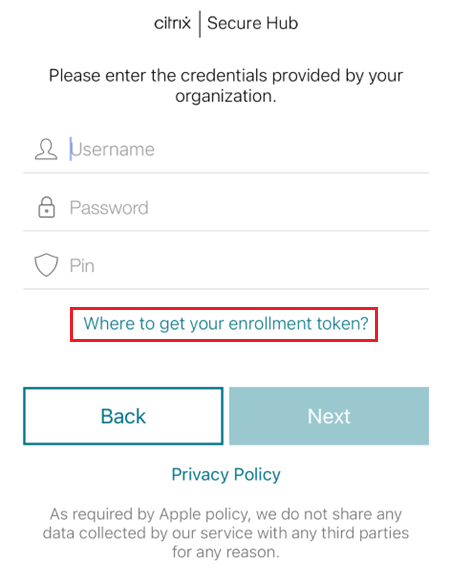
An administrator can configure a hint on the Secure Hub sign-in page for devices with the enrollment mode set to Two Factor. You can configure a hint in one of the following ways:
-
Configure hint as text
-
Configure hint text with webpage link
Configure hint as text
To configure a hint text, perform the following steps:
-
Sign in to the Citrix Endpoint Management console using administrator credentials.
-
Navigate to Settings > Client Properties, and click Add New Client Property.
-
From the Key drop-down list, select Custom Key.
-
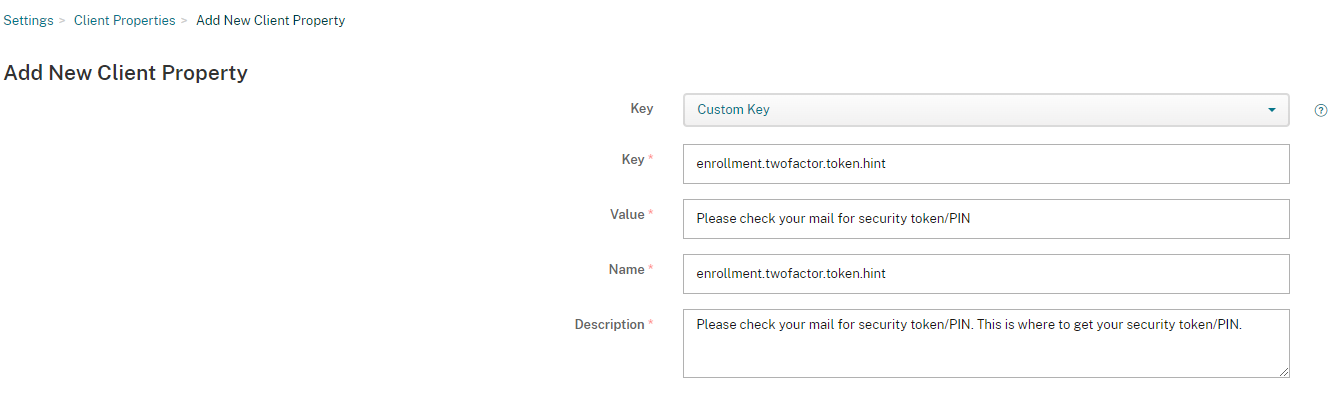
In the Key field, enter enrollment.twofactor.token.hint.
-
In the Value field, you can provide text that displays as a hint on the sign-in page. The hint guides the users to locate the PIN for two-factor authentication.
-
In the Name field, enter enrollment.twofactor.token.hint.
-
In the Description field, you can provide remarks about the hint you configured, which will be helpful for your future reference.
-
Click Save.
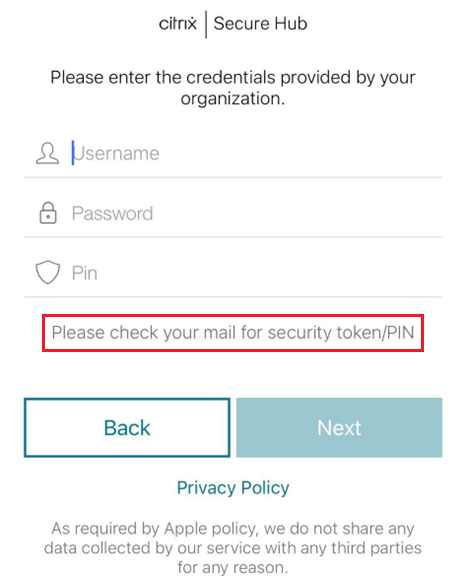
The hint text appears on the sign-in page once you complete the configuration.
Configure hint text with webpage link
You can configure a webpage with detailed information about accessing the PIN. Later, provide the webpage link as a hyperlink in the hint text. When a user clicks the hint on the sign-in page, Secure Hub opens an embedded browser and navigates to the webpage that you already configured.
To configure hint text with a webpage link, first, you need to configure the hint text as explained in the Configure hint as text article. Once completed, continue with the following steps:
-
Sign in to the Citrix Endpoint Management console using administrator credentials.
-
Navigate to Settings > Client Properties, and click Add New Client Property.
-
From the Key drop-down list, select Custom Key.
-
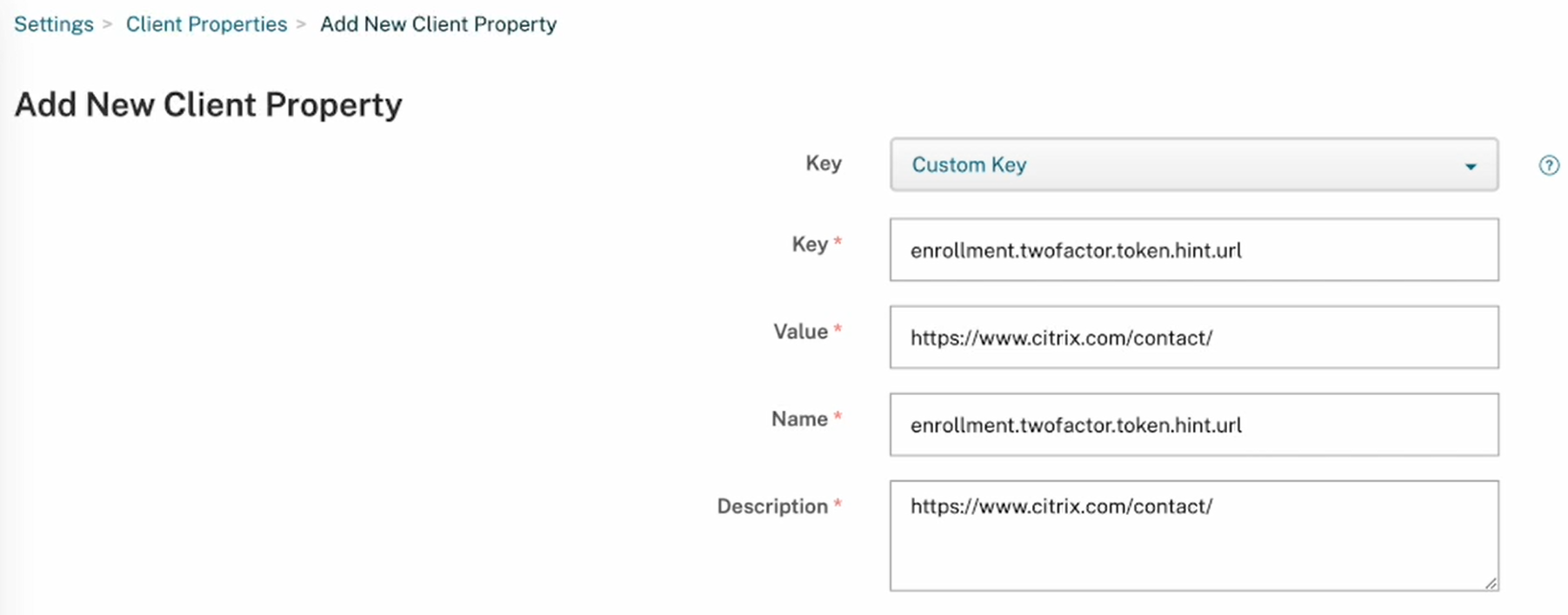
In the Key field, enter enrollment.twofactor.token.hint.url.
-
In the Value field, enter the webpage URL that you configured.
-
In the Name field, enter enrollment.twofactor.token.hint.url.
-
In the Description field, you can provide remarks about the hint you configured, which will be helpful for your future reference.Note:When a user clicks the hint link, a webpage appears in an embedded browser.
-
Click Save.
Once you complete the configuration, the hint text with the webpage link appears on the sign-in page.