GACS & MDM Support for Session Toolbar Configuration
You can configure this feature using the Global App Configuration Service (GACS) and Mobile Device Management (MDM).
Using GACS
-
Sign in to your Citrix Cloud™ account and navigate to Client App Management.
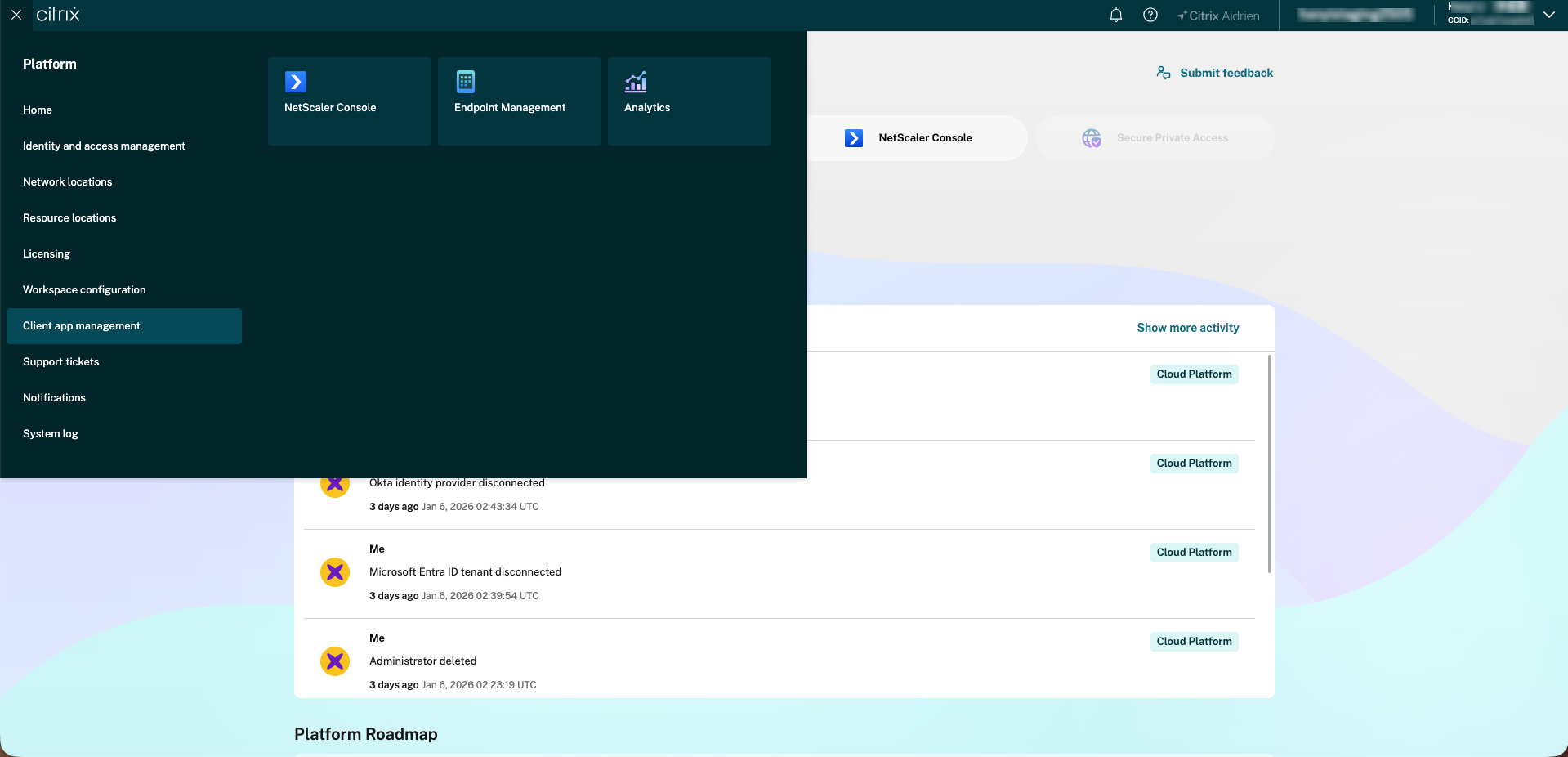
-
Click Citrix Workspace app > Session Experience > Session Toolbar.
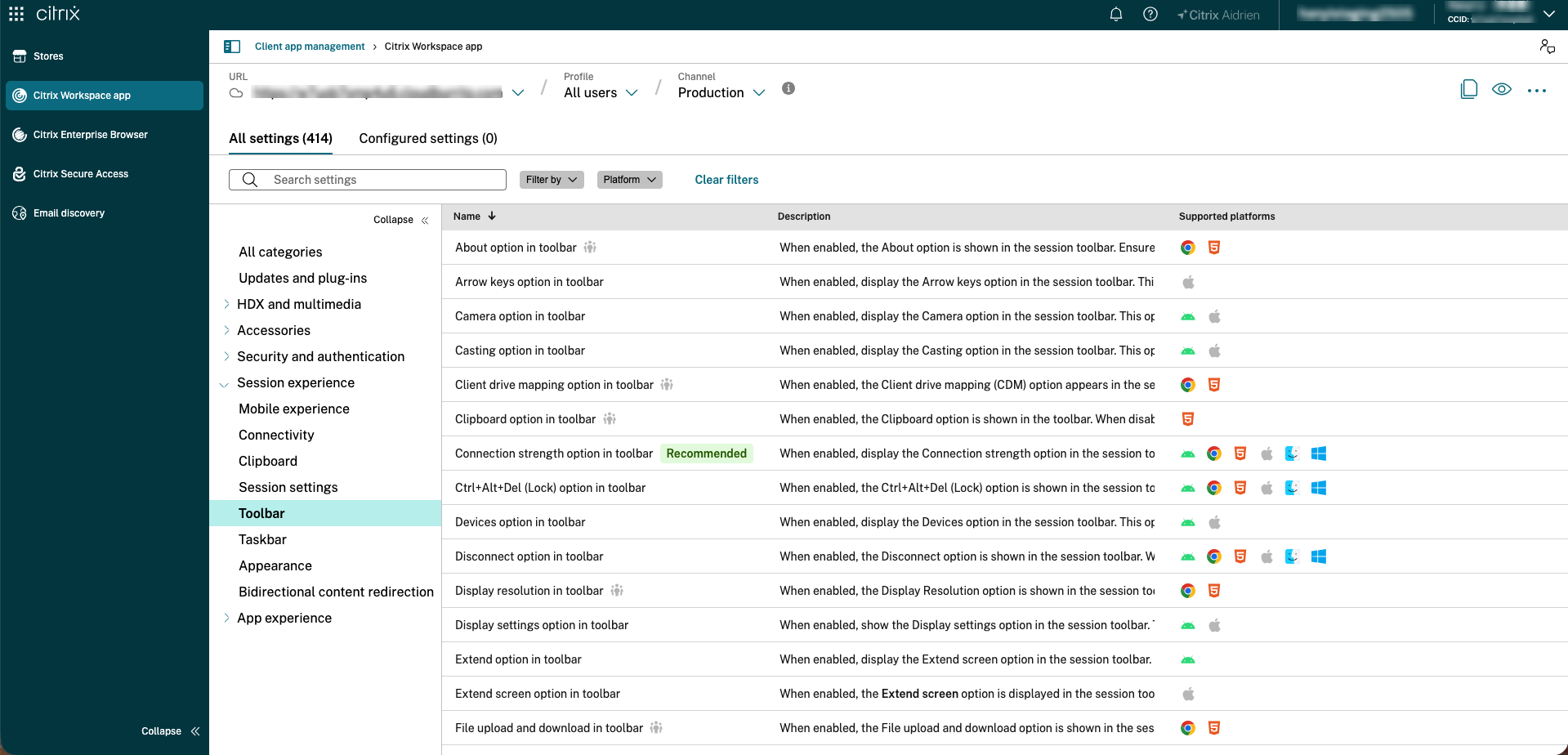
-
Under the Toolbar section. Navigate to the required option in the toolbar and click the column you want to edit. You can also filter by platform (such as iOS or any other platform), then click Apply.
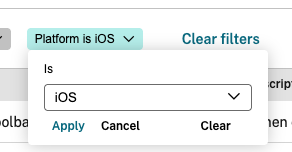
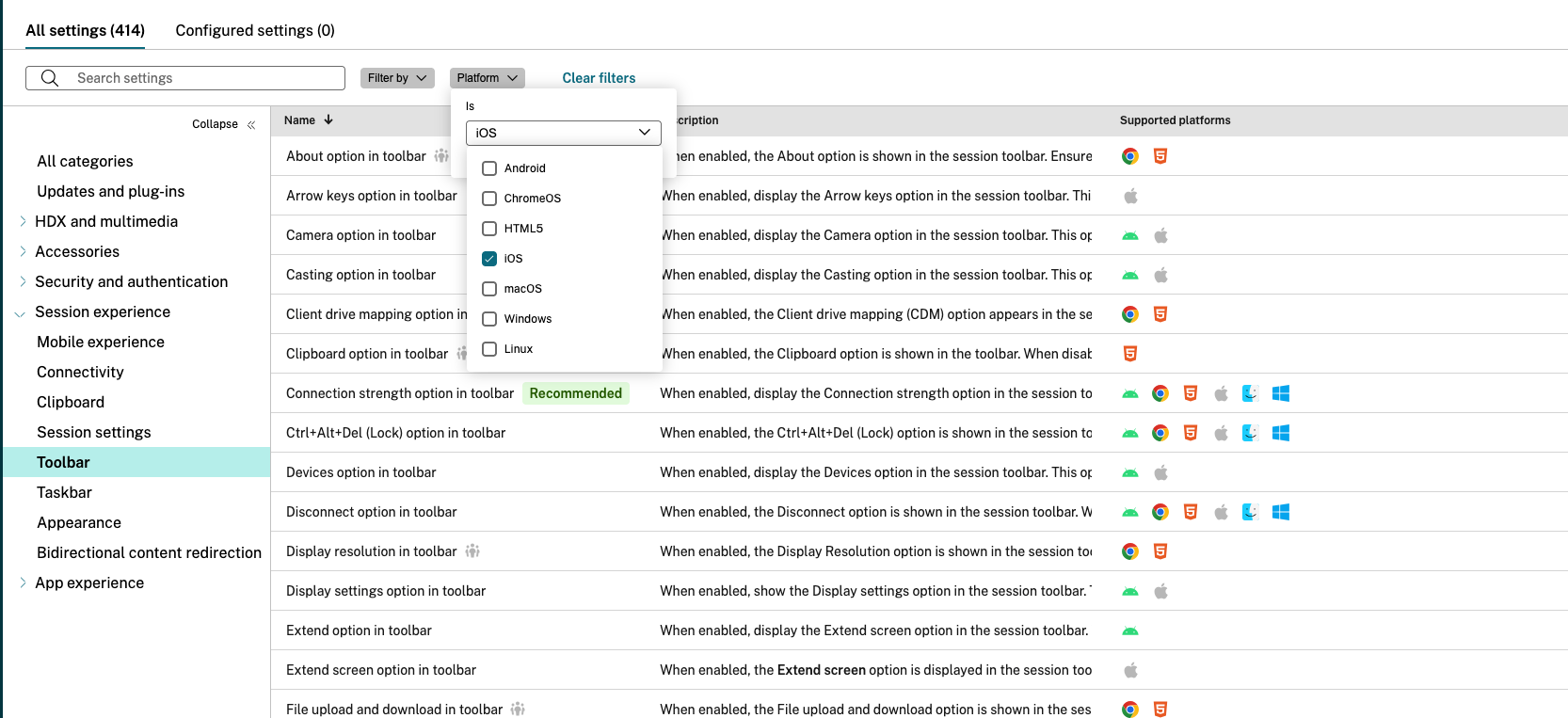
-
Select the configuration checkbox and then click. You can now customize the toolbar option to hide or show.
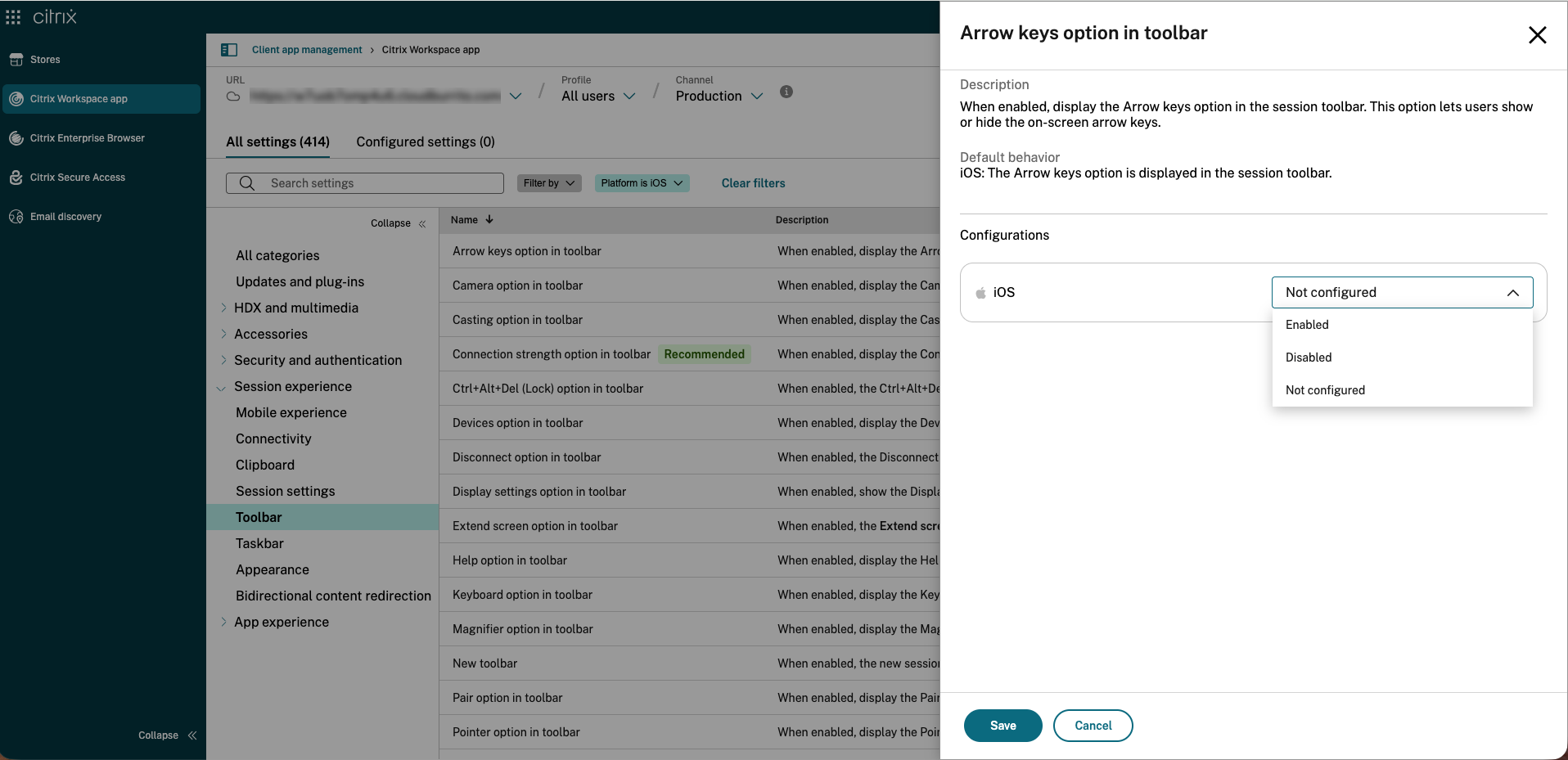
-
Click Save after changing the configuration.
-
Click Publish to save the settings.
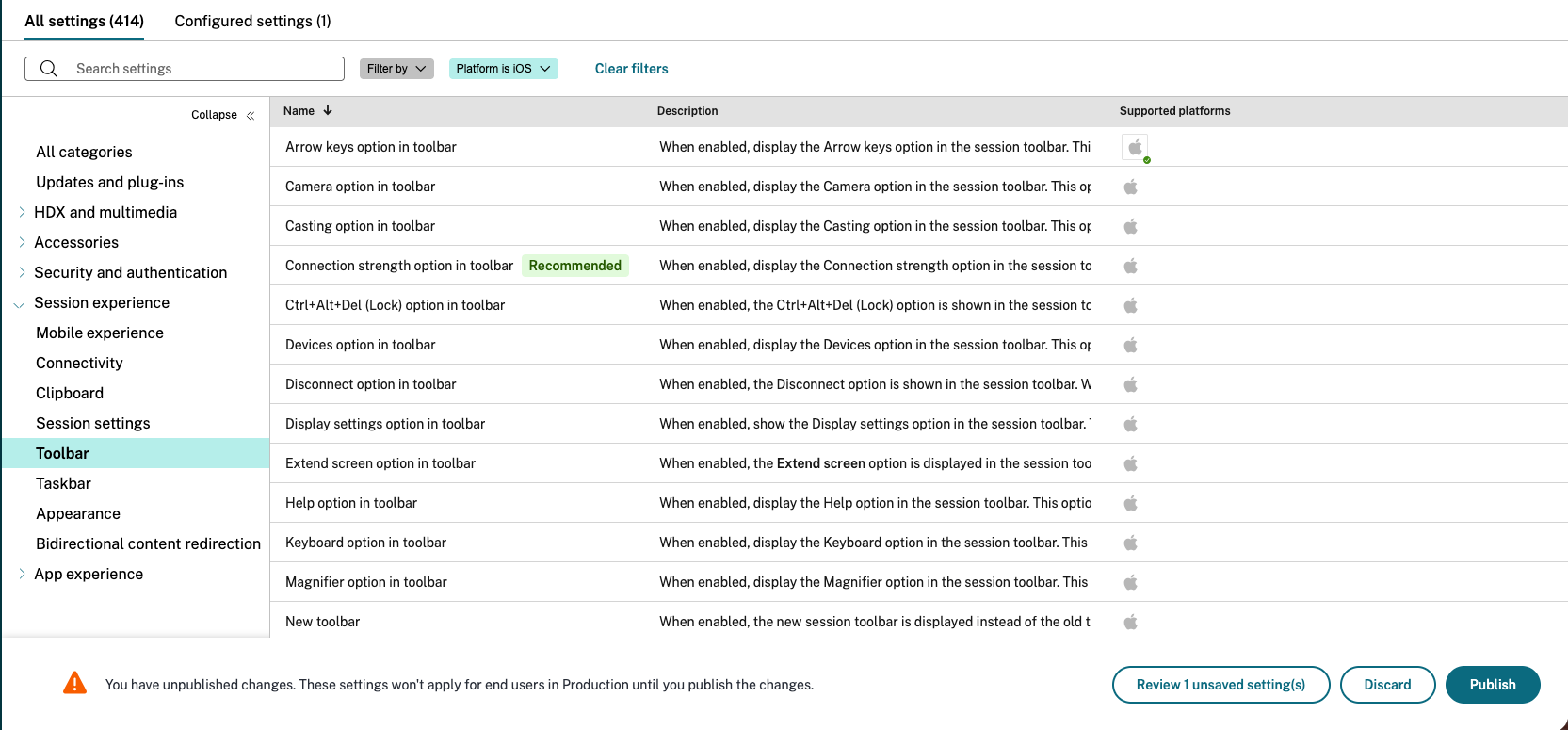
Note:
Changes may take up to 6 hours to take effect due to Citrix Cloud caching.
Using MDM
This configuration is deployed through your MDM solution as a Managed App Configuration for the Citrix Workspace app bundle ID. MDM configurations are given priority over GACS settings. Settings are stored in XML/plist format as part of Apple’s Managed App Configuration.
Example MDM Configuration for Toolbar
<dict>
    <key>category</key>
    <string>toolbar</string>
    <key>userOverride</key>
    <false/>
    <key>settings</key>
    <array>
        <dict>
            <key>name</key>
            <string>enableKeyboardToolbarOption</string>
            <key>value</key>
            <true/>
        </dict>
        <dict>
            <key>name</key>
            <string>enableCloseToolbarOption</string>
            <key>value</key>
            <false/>
        </dict>
        <dict>
            <key>name</key>
            <string>enableCameraToolbarOption</string>
            <key>value</key>
            <true/>
        </dict>
    </array>
</dict>
<!--NeedCopy-->
iOS Toolbar Icons Configuration
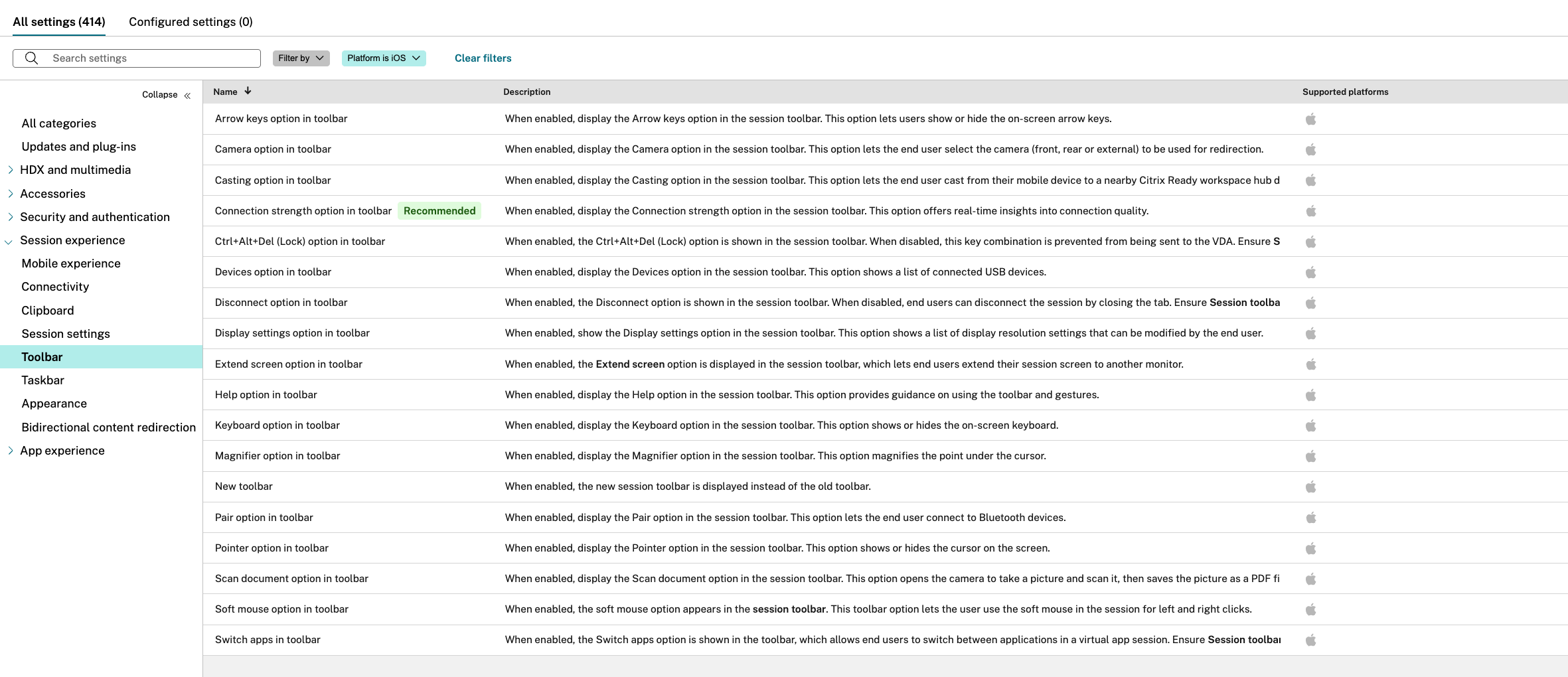
| Name | Description | MDM Setting Key |
|---|---|---|
| Arrow keys option in toolbar | When enabled, display the Arrow keys option in the session toolbar. This option lets users show or hide the on-screen arrow keys. | enableArrowKeysToolbarOption |
| Camera option in toolbar | When enabled, display the Camera option in the session toolbar. This option lets the end user select the camera (front, rear or external) to be used for redirection. | enableCameraToolbarOption |
| Casting option in toolbar | When enabled, display the Casting option in the session toolbar. This option lets the end user cast from their mobile device to a nearby Citrix Ready workspace hub device. | enableCastingToolbarOption |
| Connection strength option in toolbar | When enabled, display the Connection strength option in the session toolbar. This option offers real-time insights into connection quality. | enableConnectionStrengthToolbarOption |
| Ctrl+Alt+Del (Lock) option in toolbar | When enabled, the Ctrl+Alt+Del (Lock) option is shown in the session toolbar. When disabled, this key combination is prevented from being sent to the VDA. Ensure Session toolbar is enabled for this setting to take effect. | enableCtrlAltDelToolbarOption |
| Devices option in toolbar | When enabled, display the Devices option in the session toolbar. This option shows a list of connected USB devices. | enableDevicesToolbarOption |
| Disconnect option in toolbar | When enabled, the Disconnect option is shown in the session toolbar. When disabled, end users can disconnect the session by closing the tab. Ensure Session toolbar is enabled for this setting to take effect. | enableCloseToolbarOption |
| Display settings option in toolbar | When enabled, show the Display settings option in the session toolbar. This option shows a list of display resolution settings that can be modified by the end user. | enableDisplaySettingsToolbarOption |
| Help option in toolbar | When enabled, display the Help option in the session toolbar. This option provides guidance on using the toolbar and gestures. | enableHelpToolbarOption |
| Keyboard option in toolbar | When enabled, display the Keyboard option in the session toolbar. This option shows or hides the on-screen keyboard. | enableKeyboardToolbarOption |
| Magnifier option in toolbar | When enabled, display the Magnifier option in the session toolbar. This option magnifies the point under the cursor. | enableMagnifierToolbarOption |
| New toolbar | When enabled, the new session toolbar is displayed instead of the old toolbar. | enableNewToolbar |
| Pair option in toolbar | When enabled, display the Pair option in the session toolbar. This option lets the end user connect to Bluetooth devices. | enablePairToolbarOption |
| Pointer option in toolbar | When enabled, display the Pointer option in the session toolbar. This option shows or hides the cursor on the screen. | enablePointerToolbarOption |
| Scan document option in toolbar | When enabled, display the Scan document option in the session toolbar. This option opens the camera to take a picture and scan it, then saves the picture as a PDF file. | enableScanDocumentToolbarOption |
| Soft mouse option in toolbar | When enabled, the soft mouse option appears in the session toolbar. This toolbar option lets the user use the soft mouse in the session for left and right clicks. | enableSoftMouseToolbarOption |
| Switch apps in toolbar | When enabled, the Switch apps option is shown in the toolbar, which allows end users to switch between applications in a virtual app session. Ensure Session toolbar is enabled for this setting to take effect. | enableSwitchAppsToolbarOption |