
Authentication
Starting from Citrix Workspace app 2012, you can view the authentication dialog inside Citrix Workspace app and store details on the sign-in screen. This enhancement provides a better user experience.
Authentication tokens are encrypted and stored so that you don't need to reenter credentials when your system or session restarts.
Note:
This authentication enhancement is available only in cloud deployments.
Prerequisite:
Install the
libsecret library.
This feature is enabled by default.
Authentication enhancement for Storebrowse
Starting with version 2205, the authentication dialog is present inside Citrix Workspace app and the store details are displayed on the logon screen for a better user experience. The authentication tokens are encrypted and stored so that you don’t need to reenter credentials when your system or session restarts.
The authentication enhancement supports
storebrowse for the following operations:
-
Storebrowse -E: Lists the available resources. -
Storebrowse -L: Launches a connection to a published resource. -
Storebrowse -S: Lists the subscribed resources. -
Storebrowse -T: Terminates all sessions of the specified store. -
Storebrowse -s: Subscribes the specified resource from a given store. -
Storebrowse -u: Unsubscribes the specified resource from a given store. -
Storebrowse -q: Launches an application using the direct URL. This command works only for StoreFront stores.
Note:
-
You can continue to use the remaining
storebrowsecommands as used earlier (using AuthMangerDaemon). -
The authentication enhancement is applicable for cloud deployments only.
-
With this enhancement, the persistent login feature is supported.
Support for more than 200 groups in Azure AD
Starting with the 2305 release, an Azure AD user who is part of more than 200 groups can view apps and desktops assigned to the user. Previously, the same user wasn’t able to view these apps and desktops.
To enable this feature, do the following:
-
Navigate to $ICAROOT/config/AuthManConfig.xml and add the following entries:
<compressedGroupsEnabled>true</compressedGroupsEnabled>
Note:
Users must sign out from Citrix Workspace app and sign in back to enable this feature.
Authentication enhancement for Storebrowse configuration
By default, the authentication enhancement feature is disabled.
If the gnome-keyring isn't available, the token is stored in the selfservice process memory.
To enforce storage of the token in memory, disable the gnome-keyring, using the following steps:
-
Navigate to
/opt/Citrix/ICAClient/config/AuthmanConfig.xml. -
Add the following entry:
<GnomeKeyringDisabled>true</GnomeKeyringDisabled>
Smart card
To configure smart card support in Citrix Workspace app for Linux, you must configure the StoreFront server through the StoreFront console.
Citrix Workspace app supports smart card readers that are compatible with PCSC-Lite and PKCS#11 drivers appropriately. By default, Citrix Workspace app now locates
opensc-pkcs11.so in one of the standard locations. To add customized PKCS#11 drivers, see Add customized PKCS#11 drivers.
Citrix Workspace app can find
opensc-pkcs11.so in a non-standard location or another PKCS#11 driver. You can store the respective location using the following procedure:
-
Locate the configuration file:
$ICAROOT/config/AuthManConfig.xml. -
Locate the line \<key\>PKCS11module\</key\> and add the driver location to the \<value\> element immediately following the line.Note:If you enter a file name for the driver location, Citrix Workspace app navigates to that file in the
$ICAROOT/PKCS\ #11directory. You can also use an absolute path beginning with "/".
After you remove a smart card, configure the behavior of Citrix Workspace app by updating the
SmartCardRemovalAction using the following steps:
-
Locate the configuration file:
$ICAROOT/config/AuthManConfig.xml -
Locate the line \<key\>SmartCardRemovalAction\</key\> and add
noactionorforcelogoffto the \<value\> element immediately following the line.
The default behavior is
noaction. No action is taken to clear stored credentials and generated tokens on removal of the smart card.
The
forcelogoff action clears all credentials and tokens within StoreFront on removal of the smart card.
Limitation:
Add customized PKCS#11 drivers
If your smartcard requires a custom PKCS#11 driver, do the following steps to add the driver path:
-
Navigate to the
$ICAROOT/config/AuthManConfig.xmlconfiguration file. -
Locate the line
<key>PKCS11module</key>and add the driver location to the<value>element immediately following the line. For example:/usr/lib/pkcs11/libIDPrimePKCS11.so. -
Locate the configuration file:
$ICAROOT/config/scardConfig.json. -
Locate
DefaultPKCS11Liband change the default value to the customized driver path without/usr. For example:/lib/pkcs11/libIDPrimePKCS11.so
Enabling smart card support
Citrix Workspace app supports various smart card readers if smart card is enabled on both server and Citrix Workspace app.
You can use smart cards for the following purposes:
-
Smart card logon authentication - Authenticates you to Citrix Virtual Apps and Desktops™ or Citrix DaaS (formerly Citrix Virtual Apps and Desktops service) servers.
-
Smart card application support - Enables smart card-aware published applications to access the local smart card devices.
Smart card data is security sensitive and must be transmitted over a secure authenticated channel, such as TLS.
Smart card support has the following prerequisites:
-
Your smart card readers and published applications must be PC/SC industry standard compliant.
-
Install the appropriate driver for your smart card.
-
Install the PC/SC Lite package.
-
Install and run the
pcscdDaemon, which provides middleware to access the smart card using PC/SC. -
On a 64-bit system, both 64-bit and 32-bit versions of the "libpcsclite1" package must be present.
For more information about configuring smart card support on servers, see Smart cards in the Citrix Virtual Apps and Desktops documentation.
Enhancement on smart card support
Starting with Version 2112, Citrix Workspace app supports the Plug and Play functionality for the smart card reader.
When you insert a smart card, the smart card reader detects the smart card in the server and client.
You can plug-and-play different cards at the same time, and all of these cards are detected.
Prerequisites:
Install the
libpcscd library on the Linux client.
Note:
This library might be installed by default in the recent versions of most Linux distributions. However, you might need to install the
libpcscd library in earlier versions of some Linux distributions, such as Ubuntu 1604.
To disable this enhancement:
-
Navigate to the
<ICAROOT>/config/module.inifolder. -
Go to the
SmartCardsection. -
Set the
DriverName=VDSCARD.DLL.
Support for new PIV cards
Starting with version 2303, Citrix Workspace app supports the following new Personal Identification Verification (PIV) cards:
-
IDEMIA next-generation smartcard
-
DELL TicTok Smartcard
Performance optimization for smartcard driver
Citrix Workspace app 2303 version includes performance related fixes and optimizations for the
VDSCARDV2.DLL smartcard driver. These enhancements help to outperform version 1 VDSCARD.DLL.
Fast smart card
Fast smart card is an improvement over the existing HDX PC/SC‑based smart card redirection. It improves performance when smart cards are used in high‑latency WAN environments.
Fast smart cards are supported on Windows VDA only.
Note:
Fast smart card supports only Personal Identity Verification (PIV) smart cards that use Elliptic Curve Cryptography (ECC) algorithm.
To enable fast smart card sign in on Citrix Workspace app:
Starting with the 2408 version, Fast smart card sign-in is enabled by default on the VDA and disabled by default on Citrix Workspace app. To enable the fast smart card feature, do the following:
-
Add the following entry:
SmartCardCryptographicRedirection=On
To disable fast smart card sign in on Citrix Workspace app:
Support for Cryptography Next Generation smartcards
Staring with 2408 version, Citrix Workspace app supports the new Personal Identification Verification (PIV) smartcard that uses Elliptic Curve Cryptography (ECC) algorithm. This type of smartcard works based on Cryptography Next Generation.
Support for multi-factor (nFactor) authentication
Multifactor authentication enhances the security of an application by requiring users to provide extra proofs of identification to gain access.
Multifactor authentication makes authentication steps and the associated credential collection forms configurable by the administrator.
Native Citrix Workspace app supports this protocol by building on the Forms sign in support already implemented for StoreFront. The web sign-in pages for Citrix Gateway and Traffic Manager virtual servers also consume this protocol.
Note:
Multi-factor (nFactor) authentication supports only form-based authentication.
For more information, see SAML authentication and Multi-Factor (nFactor) authentication in the Citrix ADC documentation.
Endpoint Analysis support for multi-factor (nFactor) authentication
Starting with this release, Citrix Workspace app supports Endpoint Analysis (EPA) for multi-factor authentication, enhancing compliance and security. For example, if EPA and LDAP are configured as part of multi-factor authentication, Citrix Workspace app detects and runs the EPA app for authentication along with the LDAP authentication.
Previously, Citrix Workspace app did not support invoking the EPA app, resulting in an "Access Denied" error. This release supports EPA invocation, allowing the authentication process to proceed smoothly.
The new feature ensures comprehensive endpoint security checks, compliance with organizational policies, and regulatory requirements. It reduces the risk of unauthorized access and improves overall network integrity.
Prerequisites:
Ensure that the Endpoint Analysis app is installed on your system.
Supported Operating Systems:
-
IGEL OS: EPA is already available.
-
Ubuntu 18, 20, and 22: EPA is not pre-installed; you need to download and install EPA before proceeding with authentication. Download EPA for Ubuntu from the Citrix downloads page.
This feature is enabled by default and is used in conjunction with multi-factor authentication. For more information, see the multi-factor (nFactor) authentication documentation.
Support for authentication using FIDO2 in HDX session
Starting with the 2303 version, you can authenticate within an HDX session using password-less FIDO2 security keys. FIDO2 security keys provide a seamless way for enterprise employees to authenticate to apps or desktops that support FIDO2 without entering a user name or password. For more information about FIDO2, see FIDO2 Authentication.
Note:
If you're using the FIDO2 device through USB redirection, remove the USB redirection rule of your FIDO2 device. You can access this rule from the
usb.conf file in the $ICAROOT/ folder. This update helps you to switch to the FIDO2 virtual channel.
Starting with the 2505 version, FIDO2 authentication is enabled by default and requires no additional configuration. In earlier versions, FIDO2 authentication is disabled by default.
To change the default behavior, do the following:
-
Navigate to the
<ICAROOT>/config/module.inifile. -
Go to the
[ICA 3.0]section. -
Set the value as required:
-
To enable FIDO2 authentication, set
FIDO2=On. -
To disable FIDO2 authentication, set
FIDO2=Off.
-
-
Launch a new session for the change to take effect.
This feature currently supports roaming authenticators (USB only) with PIN code and touch capabilities. You can configure FIDO2 Security Keys based authentication. For information about the prerequisites and using this feature, see Local authorization and virtual authentication using FIDO2.
When you access an app or a website that supports FIDO2, a prompt appears, requesting access to the security key. If you've previously registered your security key with a PIN, you must enter the PIN while signing in. The PIN can be a minimum of 4 and a maximum of 64 characters.
If you've registered your security key previously without a PIN, simply touch the security key to sign in.
Limitation:
You might fail to register the second device to a same account using FIDO2 authentication.
Support for multiple passkeys in HDX session
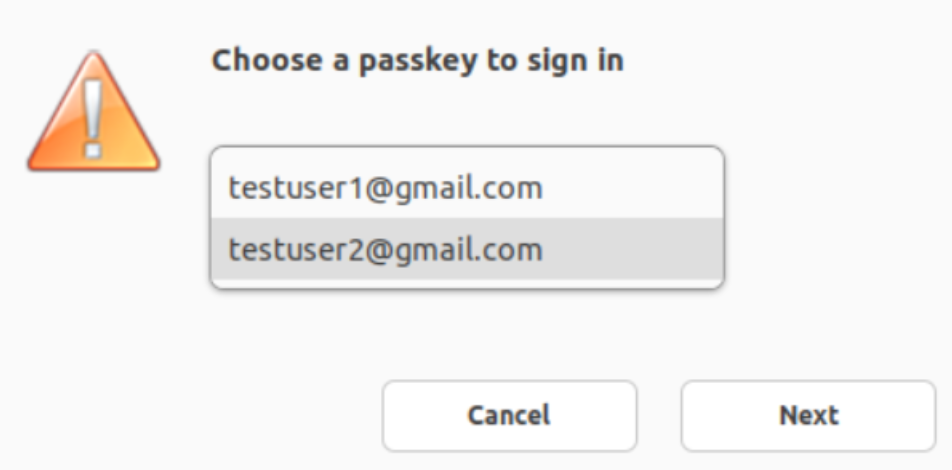
Previously, when there were multiple passkeys associated with a security key or FIDO2 device, you were not having an option to select an appropriate passkey. By default, the first passkey was used for authentication.
Starting with the 2405 version, you can select an appropriate passkey from the Citrix Workspace app UI. This feature is enabled by default. When there are multiple passkeys, the first one is selected as default. However, you can select the appropriate passkey as follows:
Support for authentication using FIDO2 when connecting to on-premises stores
Starting with Citrix Workspace app for Linux version 2309, users can authenticate using passwordless FIDO2 security keys when signing in to on-premises stores. The security keys support different types of security inputs such as security pins, biometrics, card swipe, smart card, Public Key Certificates, and so on. For more information about FIDO2, see FIDO2 Authentication.
Administrators can configure the type of browser to authenticate to Citrix Workspace app. To enable the feature, navigate to
$ICAROOT/config/AuthManConfig.xml and add the following entries:
<key>FIDO2Enabled</key>
 <value>true</value>
To modify the default browser, navigate to
$ICAROOT/config/AuthManConfig.xml and modify the browser settings as required. The possible values are chromium, firefox, and chromium-browser, and Microsoft Edge.
<FIDO2AuthBrowser>firefox</FIDO2AuthBrowser>
Support for authentication using FIDO2 when connecting to cloud stores
Starting with Citrix Workspace app for Linux version 2405, users can authenticate using passwordless FIDO2 security keys when signing in to cloud stores. The security keys support different types of security inputs such as security pins, biometrics, card swipe, smart card, Public Key Certificates, and so on. For more information, see FIDO2 Authentication.
Administrators can configure the type of browser to authenticate to Citrix Workspace app.
To enable the feature, navigate to
$ICAROOT/config/AuthManConfig.xml and add the following entries:
<key>FIDO2Enabled</key>
 <value>true</value>
To modify the default browser, navigate to
$ICAROOT/config/AuthManConfig.xml and modify the browser settings as required. The possible values are chromium, firefox, and chromium-browser.
<FIDO2AuthBrowser>firefox</FIDO2AuthBrowser>
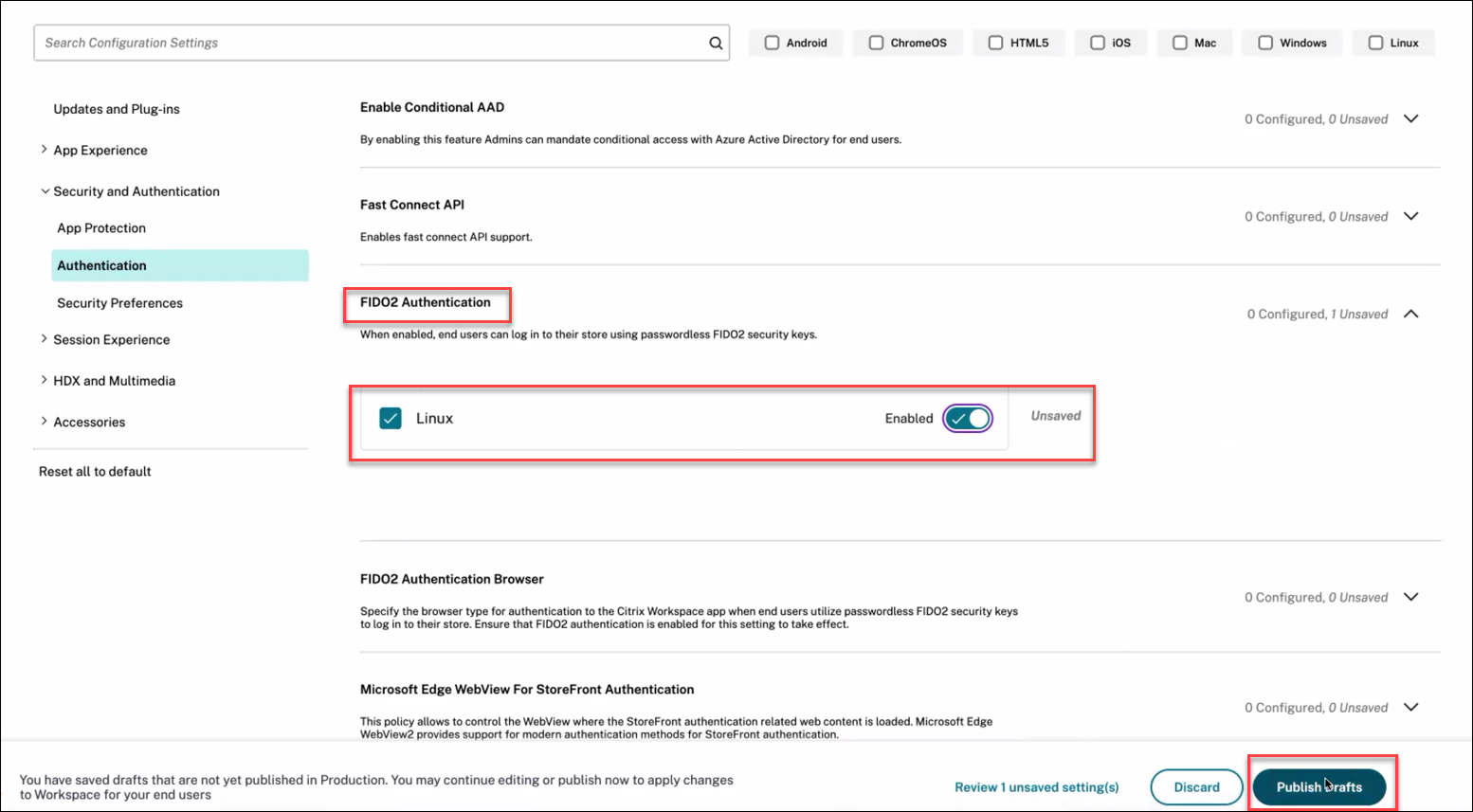
Using GACS configure FIDO2 authentication
To enable the FIDO2 authentication for the store URL using GACS, perform the following steps:
-
Sign into Citrix Cloud™.
-
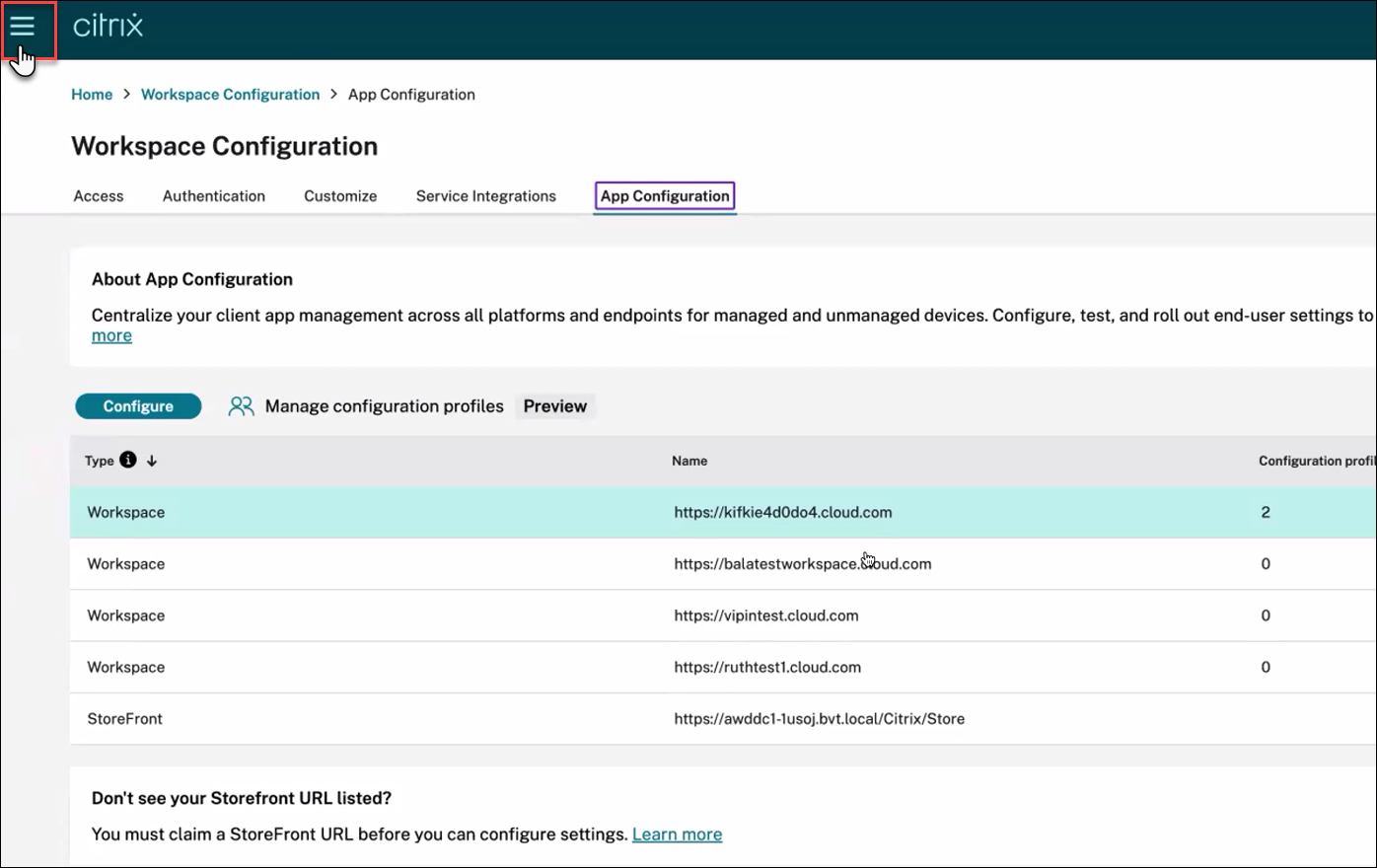
On the upper-left corner, click the hamburger icon, click Workspace Configuration, and then click App Configuration.
-
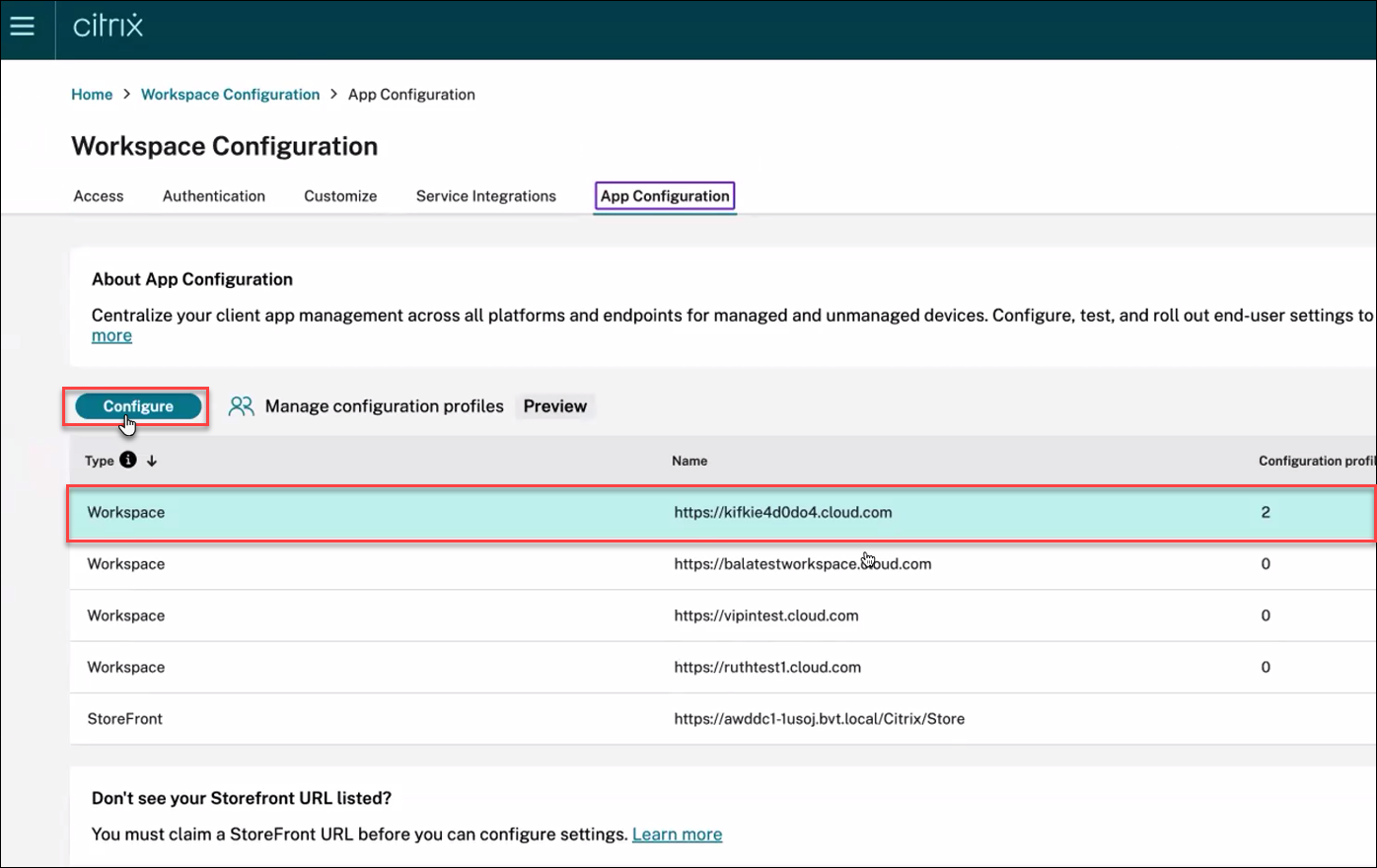
Click Workspace, and then click the Configure button.
-
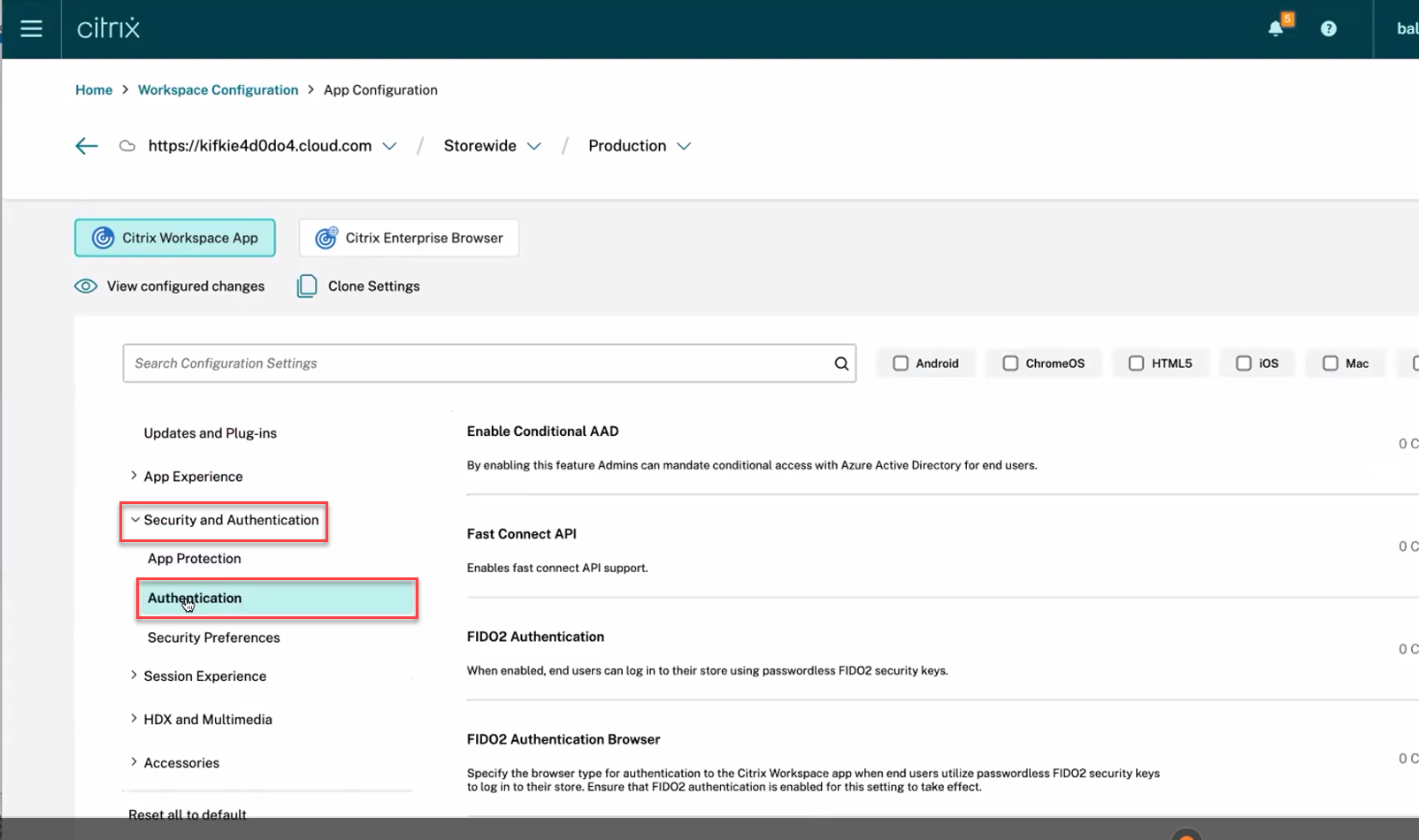
Click Security and Authentication, and then click Authentication.
-
Click FIDO2 Authentication, select the Linux checkbox, and then switch the Enabled toggle.
-
Click Publish Draft.
Customized authentication
The following table provides a reference to the available customized authentication for Citrix Workspace app:
| Utility | SDK | Authentication type | Libraries used | Binaries | Authentication type detection |
|---|---|---|---|---|---|
| Fast Connect | Credential insertion SDK | Username/password/smartcard/Domain passthrough | libCredInject.so | cis |
Parameters-Used by third party authenticator integrations |
| Custom Dialog | Platform Optimization SDK | Username/password/smartcard | UIDialogLib.so and UIDialogLibWebKit3.so | No | Auto detection - Used by thin clients partners |
Storebrowse |
Citrix Workspace app | Username/password | No | Storebrowse |
Parameters |
NFC support for FIDO2 Authentication
Starting with the 2411 version, you can use the FIDO2‑supported NFC card for a Tap-and-Go experience, which is an end-to-end single sign-on (SSO) solution. This means that you can use an NFC card to authenticate to a Citrix® store and then a pre-configured virtual desktop or virtual app will automatically open using SSO.
For more information on configuring this feature, see the following sections:
Prerequisites
Hardware requirements:
-
NFC-supported FIDO2 keys. For example, Yubikey5.
-
NFC-supported FIDO2 readers that are compatible with Linux clients. For example, ACR1252U-M.
Software requirements:
The following software packages are required for this feature:
-
swig
-
libpcsclite-devel and pcsc-lite for CentOS or RHEL
-
libpcsclite-dev and pcscd for Ubuntu
-
python3 and python3-pip
-
Python packages:
pyscard,uhid, andfido2 -
Chromium browser (if Citrix Enterprise Browser is not preferred). The preferred installer for the Chromium browser is the Debian package, which can be downloaded from the Chromium downloads page. It is not recommended to install Chromium as a snap.
Note:
-
Administrators can install the above packages by running the
setupFIDO2Service.shscript that is located at<ICAROOT>/util/Fido2HIDBridgeas a sudo user. ThissetupFIDO2Service.shscript is an example for Ubuntu and RHEL OS. Admins can modify this script as required for their OS configuration. -
This feature is not supported on the Ubuntu x86-64, RHEL x86-64, and ARM64 architectures.
How to enable this feature
-
Ensure that the
fido2-hid-bridge.serviceis running, as it’s usually installed with the Citrix Workspace app. If it isn’t running, you can start it manually.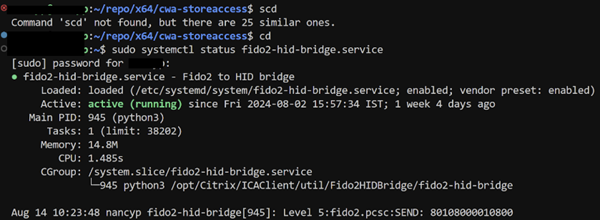
-
Navigate to
$ICAROOT/config/AuthManConfig.xmland add the following entries:<key>FIDO2Enabled</key><value>true</value>Disable Long Lived Token as well:<longLivedTokenSupport>false</longLivedTokenSupport> -
If required, modify the default browser by navigating to
$ICAROOT/config/AuthManConfig.xmland updating the browser settings as required. The possible values areCEBandchromium. The default value isCEB.<FIDO2AuthBrowser>CEB</FIDO2AuthBrowser> -
To display the App Authenticator in full screen, add the following entry:
<Fido2FullScreenMode>true</Fido2FullScreenMode>By default, the App Authenticator is displayed in the window mode.
How to use this feature
-
Add
StoreURLandResourceNamein$ICAROOT/config/AuthManConfig.xml:<StoreURL>test.cloud.com</StoreURL><ResourceName>Notepad</ResourceName> -
Navigate to
$ICAROOT/utiland runnfcui.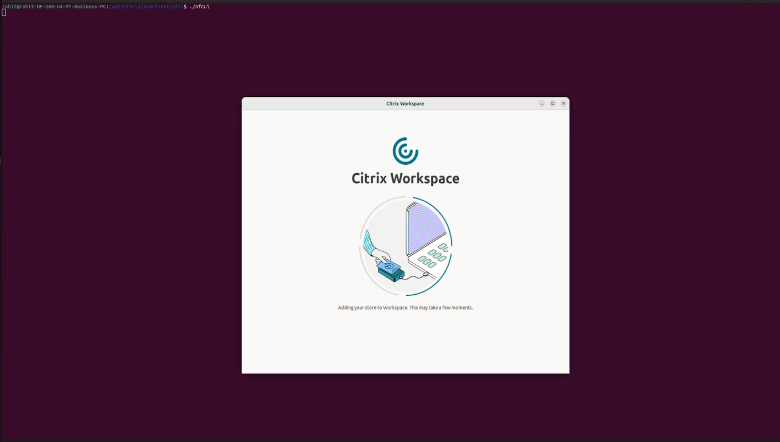
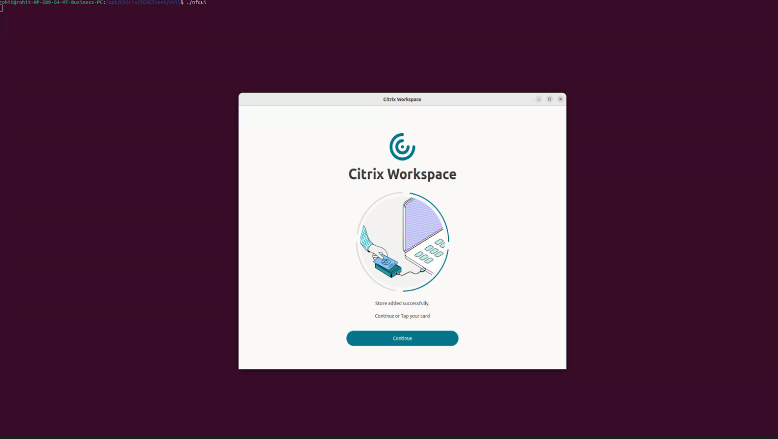
-
Once the store is added, either tap or click Continue for authentication.
-
On the authentication page, enter the user credentials and click Face, Fingerprint, PIN, or Security key as the sign-in option.
-
Tap the NFC-supported FIDO2 key on the reader.
-
Enter the PIN for your security key, and click Next.
-
After successful authentication, click Yes on the Stay signed in? window.
-
Once authentication is completed, the configured VDA or the app is launched.
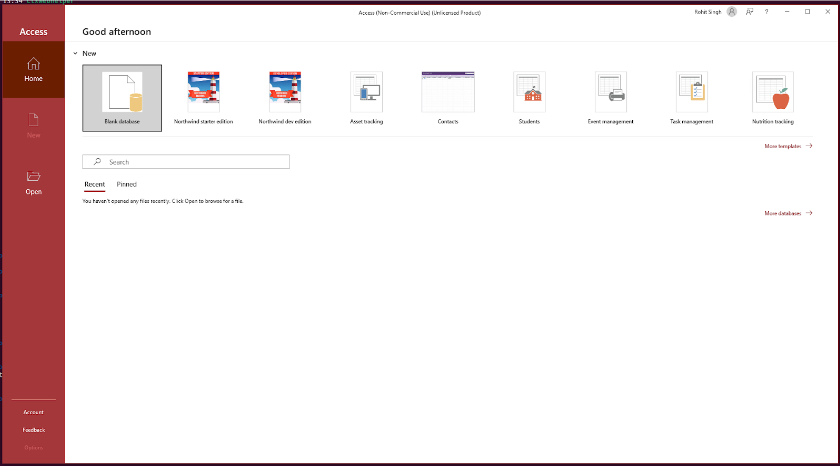
The application is successfully launched.
Storebrowse authentication path
Storebrowse uses an interprocess communication (IPC) path for authentication with cloud stores. For cloud stores, ensure that the
StorebrowseIPCDisabled key is set to false or is not present in $ICAROOT/config/AuthManConfig.xml. The IPC path is required for Long Lived Token (LLT), DSAuth, and Entra ID (Azure AD) authentication to work correctly.
To configure storebrowse for a cloud store, do the following:
-
Open
$ICAROOT/config/AuthManConfig.xml. -
Locate the
StorebrowseIPCDisabledkey, if present. -
Remove the key, or set it to
false:
<dict>
     <StorebrowseIPCDisabled>false</StorebrowseIPCDisabled>
 </dict>
Note:
-
If you previously applied the Raspberry Pi OS workaround from an earlier release, your configuration might still contain
StorebrowseIPCDisabled=true. Remove the key before you connect to a cloud store. -
AuthManLiteDisabledin the same file takes precedence overStorebrowseIPCDisabled. Ensure that it is also not set totruefor cloud store deployments.
Mandate end users to authenticate and access apps and desktops through native app
Starting with version 2508, admins can require Linux users to access Citrix Workspace exclusively through the native app. When enabled, users who try to access the store URL or use third-party browsers are automatically redirected to the Citrix Workspace app. This ensures users benefit from all native app features and enjoy a seamless experience.
If users attempt to connect using a browser and launch the HDX™ engine, they are prompted to add the store to the native client for future use. This feature gives admins greater control, enhances security by keeping authentication within the native app. Also, removes the need to download ICA files.
Admins can enable this feature in Citrix Cloud. Currently, it is supported only for Cloud stores.
For more information, see Mandate end users to authenticate and access apps and desktops through native app.
Storebrowse authentication path
For cloud stores, storebrowse authenticates over an interprocess communication (IPC) path. This path is required for Long Lived Token (LLT), DSAuth, and Microsoft Entra ID (formerly Azure AD) authentication to work correctly.
The IPC path is controlled by the
StorebrowseIPCDisabled key in $ICAROOT/config/AuthManConfig.xml. To use a cloud store, make sure this key is either absent or set to false.
To enable the IPC path for a cloud store, do the following:
-
Open
$ICAROOT/config/AuthManConfig.xml. -
Find the
StorebrowseIPCDisabledkey, if it is present. -
Remove the key, or set its value to
false:<dict>
<StorebrowseIPCDisabled>false</StorebrowseIPCDisabled>
</dict> -
Save the file, and then reconnect to the cloud store.
Note:
-
If you applied the Raspberry Pi OS workaround from an earlier release, your configuration might still contain
StorebrowseIPCDisabled=true. Remove this key before you connect to a cloud store. -
In the same file,
AuthManLiteDisabledtakes precedence overStorebrowseIPCDisabled. For cloud store deployments, make sureAuthManLiteDisabledis also not set totrue.
Entra ID SSO support for cloud
Starting with version 2508.10, Citrix Workspace app for Linux supports Microsoft Entra ID single sign-on (SSO) on endpoint devices running Ubuntu 22.04 and Ubuntu 24.04. Use Microsoft Entra ID credentials to sign in to Citrix cloud stores and access Citrix Virtual Apps and Desktops with SSO, without repeated credential prompts.
Single sign-on with Microsoft Entra ID
Use SSO with Microsoft Entra ID credentials to access virtual apps and desktops on Entra joined or Entra hybrid joined session hosts.
Prerequisites
Install the following packages on the endpoint device:
-
gnome-keyring(version 3.18.3 or later)For Ubuntu and Ubuntu-based distributions, run the following command:sudo apt-get install gnome-keyring -
libsecretFor Ubuntu and Ubuntu-based distributions, run the following command:sudo apt-get install libsecret-1-0
Note:
When Citrix Long Lived Token (LLT) is enabled, Microsoft Entra ID SSO cookies must persist to maintain seamless authentication. To enable cookie persistence, configure the following setting in
AuthManConfig.xml located at /opt/Citrix/ICAClient:
<key>SharedAuthContextEnabled</key>
 <value>true</value>
Entra ID SSO using the system browser
To enable Entra ID SSO with the system browser, set the following keys in
AuthManConfig.xml located at /opt/Citrix/ICAClient:
<key>AADSSOWithFido2AuthenticationEnabled</key>
 <value>true</value>

 <key>FIDO2Enabled</key>
 <value>true</value>

 <!-- FIDO2AuthBrowser options: CEB, chromium, firefox, chromium-browser -->
 <FIDO2AuthBrowser>chromium</FIDO2AuthBrowser>
Note:
Entra ID SSO is supported with Firefox, Microsoft Edge, and Chromium.
Entra ID SSO using Storebrowse
To enable Entra ID SSO with Storebrowse:
-
Navigate to the utility directory:
cd /opt/Citrix/ICAClient/util -
Add the store:
./storebrowse -a <store_URL> -
Enumerate and authenticate the store:
./storebrowse -E <full_store_URL> -
Launch the resource:
./storebrowse -L <resourceID> <full_store_URL>
Entra ID single sign-on (SSO) from web browsers
Starting with version 2601, Citrix Workspace app for Linux supports Entra ID single sign-on (SSO) from web browsers through the Citrix Web Extension. This feature is enabled by default.
Prerequisites:
The following libraries are required:
-
gnome-keyring version 3.18.3 or laterIf you are using Debian, run the following command:
sudo apt-get install gnome-keyringIf you are using RPM, run the following command:sudo yum install gnome-keyring -
libsecretIf you are using Debian, run the following command:
sudo apt-get install libsecret-1-0If you are using RPM, run the following command:sudo yum install libsecret-1*
Microsoft Edge support for FIDO2 and Entra ID SSO
Starting with version 2601, Citrix Workspace app for Linux adds support for using Microsoft Edge for:
-
FIDO2 authentication
-
Entra ID Single Sign-On (SSO) using the system browser
To configure Microsoft Edge for these flows, edit
AuthManConfig.xml located at /opt/Citrix/ICAClient/config/AuthManConfig.xml.
Use Microsoft Edge as the browser for FIDO2 authentication:
<!-- FIDO2AuthBrowser - CEB, chromium, firefox, chromium-browser, edge -->
 <FIDO2AuthBrowser>edge</FIDO2AuthBrowser>
Use Microsoft Edge as the system browser for Entra ID SSO:
<!-- SystemBrowser - CEB, chromium, firefox, chromium-browser, edge -->
 <SystemBrowser>edge</SystemBrowser>
These settings ensure that both FIDO2 authentication and Entra ID SSO flow launch using Microsoft Edge.
FIDO2 authentication timeout configuration
Starting with version 2601, Citrix Workspace app for Linux provides a configuration option to control the browser-based FIDO2 authentication timeout.
To configure, open
/opt/Citrix/ICAClient/config/AuthManConfig.xml and set the timeout (in seconds) using FIDO2AuthTimeout:
<!-- FIDO2AuthTimeout - Authentication timeout in seconds (default: 60, max: 180) -->
 <FIDO2AuthTimeout>60</FIDO2AuthTimeout>
Note:
Set the timeout to a value between 60 and 180 seconds, as required.
Identity Provider (IDP) logout on Workspace (WSP) inactivity timeout
Starting with version 2601, Citrix Workspace app for Linux adds support for logging out of the Identity Provider (IDP) during user logoff and when a Workspace (WSP) inactivity timeout occurs. This opt-in feature helps ensure complete session termination across the authentication chain while preserving existing logout behavior unless enabled.
To configure this feature, edit
AuthManConfig.xml located at /opt/Citrix/ICAClient/config/AuthManConfig.xml.
Default setting:
<!-- EnableChainedLogoffOnTimeout - true, false -->
 <EnableChainedLogoffOnTimeout>false</EnableChainedLogoffOnTimeout>
To enable the feature,
<!-- EnableChainedLogoffOnTimeout - true, false -->
 <EnableChainedLogoffOnTimeout>true</EnableChainedLogoffOnTimeout>
Note:
This feature is disabled by default. Contact your admin to enable this feature if needed.
Biometric user verification for security keys in an HDX session
Starting with Citrix Workspace app 2608 for Linux, you can complete user verification with a fingerprint on FIDO2 biometric (BIO) security keys in an HDX session. When an app or a website in the session requests user verification, you can confirm your identity using the fingerprint sensor on the security key instead of entering the security key PIN.
Earlier, user verification always relied on the security key PIN. A biometric security key that had a fingerprint enrolled but no PIN was rejected, and a key that had both a fingerprint and a PIN always prompted for the PIN, which bypassed the fingerprint sensor.
Your biometric data never leaves the security key. Only the result of the verification is sent to the session.
No additional configuration is required for biometric security keys.
Prerequisites
-
A FIDO2 security key that has a fingerprint sensor with at least one fingerprint enrolled.
-
FIDO2 redirection enabled on the client. It is enabled by default starting with version 2505. For more information, see Support for authentication using FIDO2 in HDX session.
Note:
The fingerprint sensor is the preferred verification method. If the fingerprint is not recognized or on-device verification is locked out, and the security key also has a PIN, Citrix Workspace app prompts for the PIN and retries the operation.
Limitations
-
You can not enroll or manage fingerprints on the security key using Citrix Workspace app. To enroll a fingerprint, use the security key vendor's tool, for example, Yubico Authenticator.
-
Biometric verification applies only when the app or the website requests user verification as required. When user verification is requested as preferred or discouraged, the behavior is unchanged.
Dynamic smart card support
Starting with Citrix Workspace app 2608 for Linux, you can use smart cards from different vendors on the same device without configuring a fixed driver. When you insert a card, Citrix Workspace app reads the card's Answer To Reset (ATR), selects the matching PKCS#11 driver, and loads that driver automatically. Cards that you insert or remove during authentication are detected in real time, so you can switch between cards from different vendors without any manual steps.
Earlier, Citrix Workspace app for Linux could use only a single, fixed PKCS#11 driver. As a result, only one smart card type worked at a time, and an administrator had to configure the driver in advance.
This feature applies to client-side smart card authentication to Citrix StoreFront or NetScaler Gateway. In-session ICA smart card redirection is a separate, existing capability that is unchanged.
This feature is enabled by default (
MultipleSmartCardSupported=true), so you do not have to configure a driver value.
Note:
The fixed-driver setting
PKCS11module in the AuthManConfig.xml file is deprecated. It is used only as a fallback when MultipleSmartCardSupported is set to false. For more information, see Revert to a single fixed driver.
Prerequisites
| Requirement | Details |
|---|---|
| Citrix Workspace app for Linux | Installed at /opt/Citrix/ICAClient/ ($ICAROOT). |
| PC/SC middleware | pcsc-lite – libpcsclite.so (or libpcsclite.so.1) must be present. If it is missing, smart card support is disabled. |
| PC/SC daemon | pcscd running, which is required for card reader insert and remove events. |
| A PKCS#11 driver | The .so file for your card, for example, opensc-pkcs11.so (OpenSC), libykcs11.so (YubiKey), or libIDPrimePKCS11.so (SafeNet). Installed under a standard PKCS#11 directory such as /usr/lib64/pkcs11 or /usr/lib/x86_64-linux-gnu/pkcs11. |
| A supported smart card and reader | A USB reader and a card whose certificate is enabled for logon. |
If the dependencies are not already present, install them as follows:
On Ubuntu or Debian:
sudo apt-get install pcscd libpcsclite1 opensc
 sudo systemctl enable --now pcscd
On RHEL:
sudo dnf install pcsc-lite pcsc-lite-ccid opensc
 sudo systemctl enable --now pcscd
Install the vendor PKCS#11 package instead of, or in addition to,
opensc when your card is not supported by OpenSC. For example, install SafeNet Authentication Client for Gemalto IDPrime .NET cards.
How it works
By default (
MultipleSmartCardSupported=true), Citrix Workspace app does not load any PKCS#11 module at startup. When you insert a card, it reads the card's ATR, selects the matching driver, and loads that driver. If you later insert a different card, Citrix Workspace app switches to the driver for that card automatically.
Citrix Workspace app selects the driver from the following three sources, checked in priority order. It uses the first source that matches the card and does not check the remaining sources.
| Priority | Source | Description |
|---|---|---|
| 1 | smartcard_drivers.ini |
The ATR-to-driver mapping table, which contains [card:Name] sections and a [fallback] driver. |
| 2 | ~/.ICAClient/learned_drivers.json |
A cache that Citrix Workspace app updates after it successfully detects a driver for a card. |
| 3 | Auto-detect | Automatic detection that tests the installed driver files to find one that works with the card. This source is disabled by default. |
Configure ATR-to-driver mappings
The
smartcard_drivers.ini file maps a card's ATR to its PKCS#11 driver. Citrix Workspace app uses only one file and does not merge the two files. When the system file is present, it takes precedence:
-
$ICAROOT/config/smartcard_drivers.ini– The system default. This file is owned by root and is preferred. -
$HOME/.ICAClient/smartcard_drivers.ini– The per-user file, which is used only when the system file does not exist. This file is restricted for security. Citrix Workspace app ignores the[library_paths]section and any absolute driver paths, and accepts only driver file names that resolve within the standard system directories.
The file that ships with Citrix Workspace app already covers common cards, including YubiKey 5, 5 FIPS, and NEO, and Gemalto IDPrime MD, .NET, and .NET Astrid. It also includes an
opensc-pkcs11.so fallback, so any card that OpenSC supports works without changes.
The file uses the following format:
[library_paths]
 path1 = /usr/lib64/pkcs11
 path2 = /usr/lib/x86_64-linux-gnu/pkcs11

 [card:YubiKey_5]
 driver = libykcs11.so
 atr = 3BFD1300008131FE158073C021C057597562694B6579

 [card:Gemalto_IDPrime_MD]
 driver = opensc-pkcs11.so
 atr = 3B7F9600008031B8658B0802

 [fallback]
 driver = opensc-pkcs11.so
To add a new card type, append a section with the driver and one or more ATR prefixes:
[card:MyNewCard]
 driver = my-pkcs11-driver.so
 atr = 3B12AB34CD
 atr = 3B56EF7890
The following table describes the fields:
| Field | Description |
|---|---|
driver |
The PKCS#11 driver. A driver file name is resolved through the [library_paths] section and the standard directories. Absolute paths are accepted only in the system file. |
atr |
The ATR hex prefix, which is not case-sensitive. Repeat this key to map more than one ATR to the same card. |
# |
A comment line, which Citrix Workspace app ignores. |
Revert to a single fixed driver
Dynamic, ATR-based selection is the default. If you need the legacy behavior, that is, a single, fixed PKCS#11 driver that is loaded at startup, you can turn off dynamic selection with the
MultipleSmartCardSupported key in the AuthManConfig.xml file.
| Value | Effect |
|---|---|
true (default) |
Citrix Workspace app selects the driver for each card dynamically from smartcard_drivers.ini. |
false |
Dynamic selection is turned off. Citrix Workspace app loads the single fixed driver that is named in the deprecated PKCS11module key at startup. |
When
MultipleSmartCardSupported is false, set the driver path in the deprecated PKCS11module key:
<key>MultipleSmartCardSupported</key>
 <value>false</value>
 <key>PKCS11module</key>
 <value>/usr/lib64/pkcs11/opensc-pkcs11.so</value>
Note:
-
PKCS11moduleis deprecated. Citrix Workspace app reads it only whenMultipleSmartCardSupported=false. WhenMultipleSmartCardSupported=true(the default), Citrix Workspace app ignores it. -
If
MultipleSmartCardSupported=falseandPKCS11moduleis empty or unset, Citrix Workspace app does not load any PKCS#11 module and logs a warning. Smart card authentication does not work until you supply a driver path. -
In this mode, only one card type works at a time. This is the earlier behavior, which is retained only for backward compatibility. Keep
MultipleSmartCardSupported=trueunless you have a specific reason to use a single driver.
Use dynamic smart card support
-
Ensure that
pcscdis running and the driver for your card is installed. -
If your card is already covered by the
smartcard_drivers.inifile or by the OpenSC fallback, no configuration is needed. Otherwise, add a[card:Name]entry as shown earlier. -
Launch Citrix Workspace app or Self-Service and authenticate to your Citrix StoreFront or NetScaler Gateway store.
-
Insert the smart card when prompted, and then enter the PIN or select the certificate. Citrix Workspace app detects cards that you insert during authentication and loads the matching driver automatically.
Troubleshooting
| Symptom | Resolution |
|---|---|
| Smart card support disabled appears in the logs. | libpcsclite.so is not installed or cannot be loaded. Install pcsc-lite. |
| No readers appear, or the card is not detected. | Confirm that pcscd is running (systemctl status pcscd), and that pcsc_scan lists the reader. |
| The card is detected, but no certificate or token appears. | The selected driver does not support the card. Add a [card:Name] entry that points to the correct vendor PKCS#11 driver. For example, Gemalto IDPrime .NET "Astrid" cards require SafeNet's libIDPrimePKCS11.so, not OpenSC. |
| Cards are not selected dynamically, or only one card type works. | Check whether MultipleSmartCardSupported is set to false in the AuthManConfig.xml file. In that mode, Citrix Workspace app loads only the fixed PKCS11module driver. Set it back to true for dynamic, multi-card selection. |
Starting with Citrix Workspace app 2604 for Linux, you can configure Entra ID single sign-on (SSO) for on-premises stores that are accessed through a NetScaler Gateway. This enhancement lets users launch virtual apps and desktops without re-entering their Entra ID credentials.
Install dependencies
Install the following packages if they are not already present on the endpoint.
For Ubuntu or Debian:
sudo apt install gnome-keyring libsecret-1-0 libwebkit2gtk-4.0-37
For RHEL or Fedora:
sudo dnf install gnome-keyring libsecret-1-0 libwebkit2gtk-4.0-37
For openSUSE:
sudo zypper install gnome-keyring libsecret-1-0 libwebkit2gtk-4.0-37
Configure Entra ID SSO
All Entra ID SSO settings are available in
/opt/Citrix/ICAClient/config/AuthManConfig.xml.
Edit the file with root privileges:
sudo vi /opt/Citrix/ICAClient/config/AuthManConfig.xml
Configure the following settings as needed:
-
PersistCookies: Persists Entra ID SSO cookies in memory when the authentication window closes. The default value isfalse. -
AADSSOEnabled: Enables or disables Entra ID SSO. The default value istrue. -
AADSSOWithFido2AuthenticationEnabled: Uses the system browser for authentication instead of the built-in WebKitGTK window. The default value isfalse. -
SharedAuthContextEnabled: Persists Entra ID cookies across app launches in the same user session. The default value isfalse. -
EnableBypassGateway: Reuses the AAD-issued gateway cookie (NSC_AAAC) to bypass interactive NetScaler Gateway authentication. The default value isfalse.
Example:
<PersistCookies>true</PersistCookies>

 <key>AADSSOEnabled</key>
 <value>true</value>

 <key>AADSSOWithFido2AuthenticationEnabled</key>
 <value>false</value>

 <key>SharedAuthContextEnabled</key>
 <value>true</value>

 <key>EnableBypassGateway</key>
 <value>true</value>
How it works
Self-Service UI
Launch Citrix Workspace app for Linux from the application menu or by running:
/opt/Citrix/ICAClient/selfservice
Use the following workflow:
-
Sign in to the NetScaler Gateway store.
-
Launch an application or desktop.
-
Complete Entra ID authentication in the WebKitGTK window the first time that you launch a resource.
-
Start the session without entering credentials again on the VDA.
When
PersistCookies is true, Citrix Workspace app reuses the Entra ID session for subsequent launches in the same session. When EnableBypassGateway is true, the NetScaler Gateway authentication step is also skipped by reusing the NSC_AAAC cookie that was obtained during the Entra ID sign-in flow.
Storebrowse
storebrowse provides the same Entra ID SSO experience from the command line.
Use the following workflow:
-
Add the NetScaler Gateway store:
/opt/Citrix/ICAClient/util/storebrowse --addstore "https://gateway.example.com" -
List the configured stores:
/opt/Citrix/ICAClient/util/storebrowse --liststore -
List the published applications:
/opt/Citrix/ICAClient/util/storebrowse -E "https://gateway.example.com/Citrix/Store/discovery" -
Launch an application:
/opt/Citrix/ICAClient/util/storebrowse -L "Citrix.MPS.Desktop.Notepad" "https://gateway.example.com/Citrix/Store/discovery" -
Complete Entra ID authentication when the authentication window appears on the first launch.
On the first launch, an Entra ID authentication window appears. After the user authenticates, Citrix Workspace app acquires the SSO token and embeds it in the session so that the VDA does not prompt for credentials. If
EnableBypassGateway is true, the gateway authentication step is skipped by reusing the NSC_AAAC cookie.
Authentication methods
Built-in window
By default, Citrix Workspace app uses a WebKitGTK window for Entra ID authentication. No additional software is required beyond the standard dependencies. When
SharedAuthContextEnabled is true, the built-in window uses the same cookie context as the store webview. Cookies are stored in a persistent SQLite database that WebKitGTK manages. Each authentication attempt uses a 30-second timeout.
System browser
Set
AADSSOWithFido2AuthenticationEnabled=true to use the system browser instead of the built-in window. The browser redirects back to Citrix Workspace app through the ctxaadsso:// protocol handler.
Use the system browser in the following cases:
-
Your organization requires FIDO2 security key authentication.
-
Conditional Access policies require a specific browser.
-
Browser-based smart card or certificate authentication is required.
Supported browsers are Google Chrome, Chromium, Mozilla Firefox, and Microsoft Edge for Linux. Citrix Workspace app registers the
ctxaadsso:// protocol handler automatically during installation by using the desktop file at /opt/Citrix/ICAClient/desktop/ctxaadsso.desktop.