redesigned-settings-experience
Overview
The settings experience in Citrix Workspace app for Windows has been redesigned. The legacy tabbed preferences window used a horizontal tab bar (General, Accounts, File Access, Devices, Audio and Webcam, Keyboard, Security and Privacy, Advanced). It has been replaced with a modern, vertically navigated Citrix Workspace app settings window organized under standardized categories.
Settings have been reorganized, relabeled, and consolidated under six intuitive categories: General, Sound and camera, Keyboard, Devices, Display, and Privacy and security. A built-in search bar enables instant discovery of any setting by keyword.
Important:
The underlying functionality of all settings remains unchanged. Only the user interface, navigation structure, and labeling have been modernized to align with cross-platform consistency goals.
Modernized UI and navigation
With this release, the navigation model, control style, and overall visual design of the settings experience have been modernized. The following table summarizes the key changes:
| Aspect | Previous behavior | New behavior |
|---|---|---|
| Navigation model | Flat list of hyperlinks on the Advanced Preferences page | Left sidebar with categorized navigation |
| Sub-level navigation | Individual pop-up dialogs for each setting | Inline sub-pages with back-arrow navigation |
| Control style | Mixed checkboxes, radio buttons, and drop-down lists in legacy Win32 dialogs | Modern toggle switches, visual selection cards, and inline drop-down lists |
| Version display | Shown in the About section only | A persistent footer in the sidebar showing version, copyright, and third-party notices |
| Change-effect notices | Generic dialog: Pressing OK restarts Citrix Workspace | Inline orange notice with specific instructions about restart behavior |
| Search | Not available | Built-in Search settings bar enabling instant discovery of any setting by keyword |
How to enable the new settings UI
This feature is disabled by default. Enable it with the New settings user interface policy in - Computer Configuration or User Configuration > Administrative Templates > Citrix Components > Citrix Workspace > User experience.
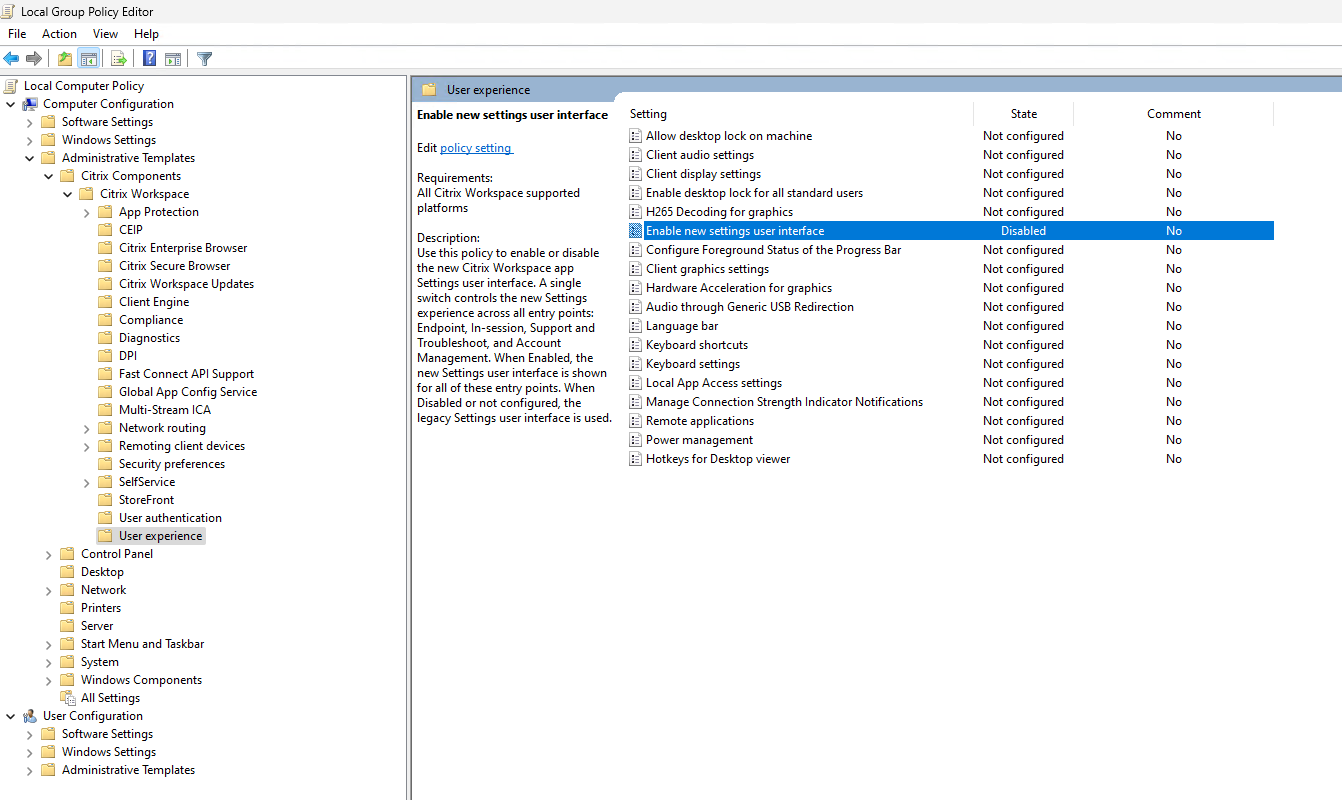
Alternatively, the feature can also be enabled in your environment by completing the form: CWA Windows - Settings Redesign Experience Tech Preview Request
App-level settings
Previously, the Advanced Preferences page presented 14 flat hyperlinks, each opening a separate dialog window. Starting with this release, these settings have been consolidated into four logical categories accessible from a single Citrix Workspace app settings window.
Settings categories
| New category | Settings included | Previous location |
|---|---|---|
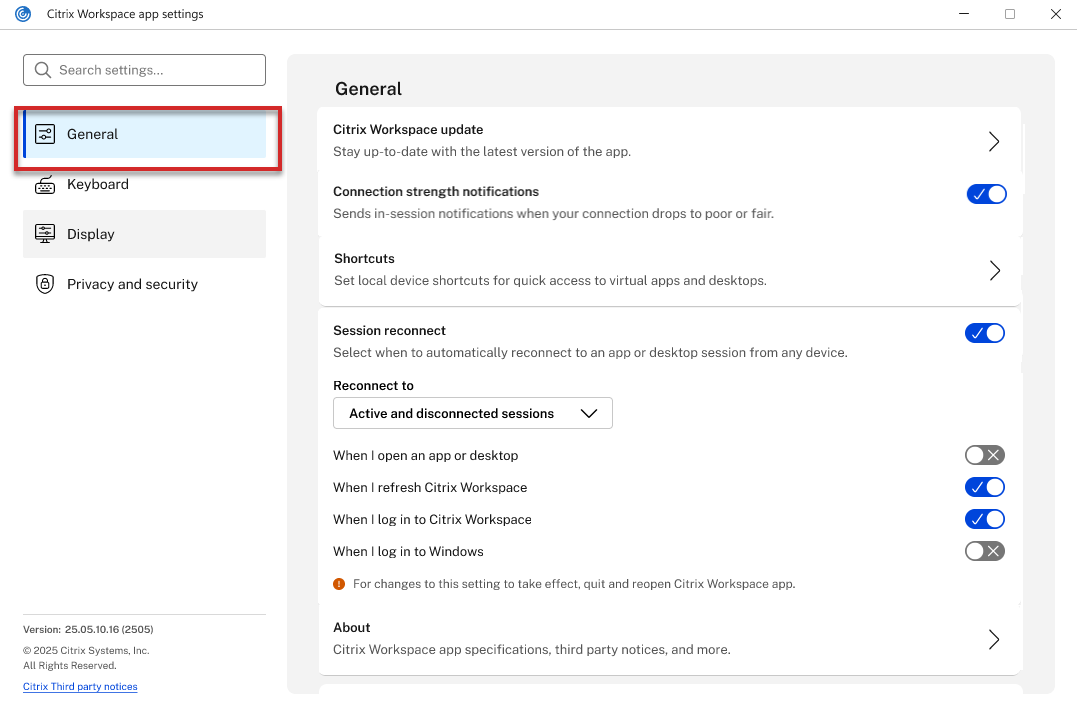
| General | Citrix Workspace update, Connection strength notifications, Shortcuts, Session reconnect, About | Citrix Workspace Updates, Shortcuts and Reconnect, Support information |
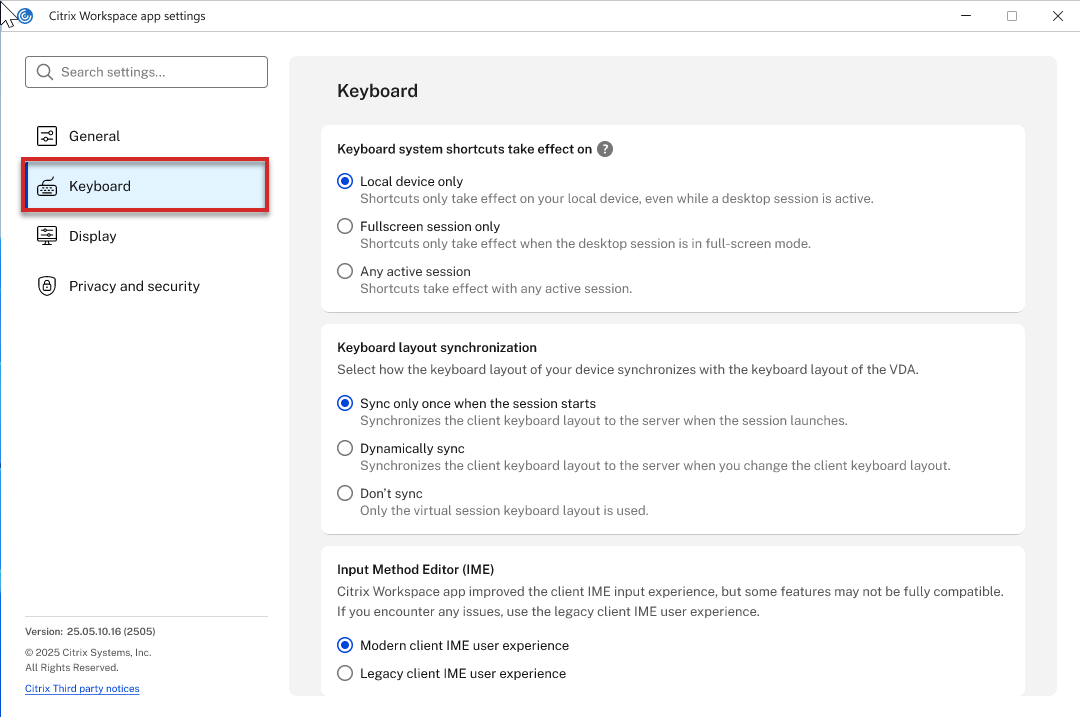
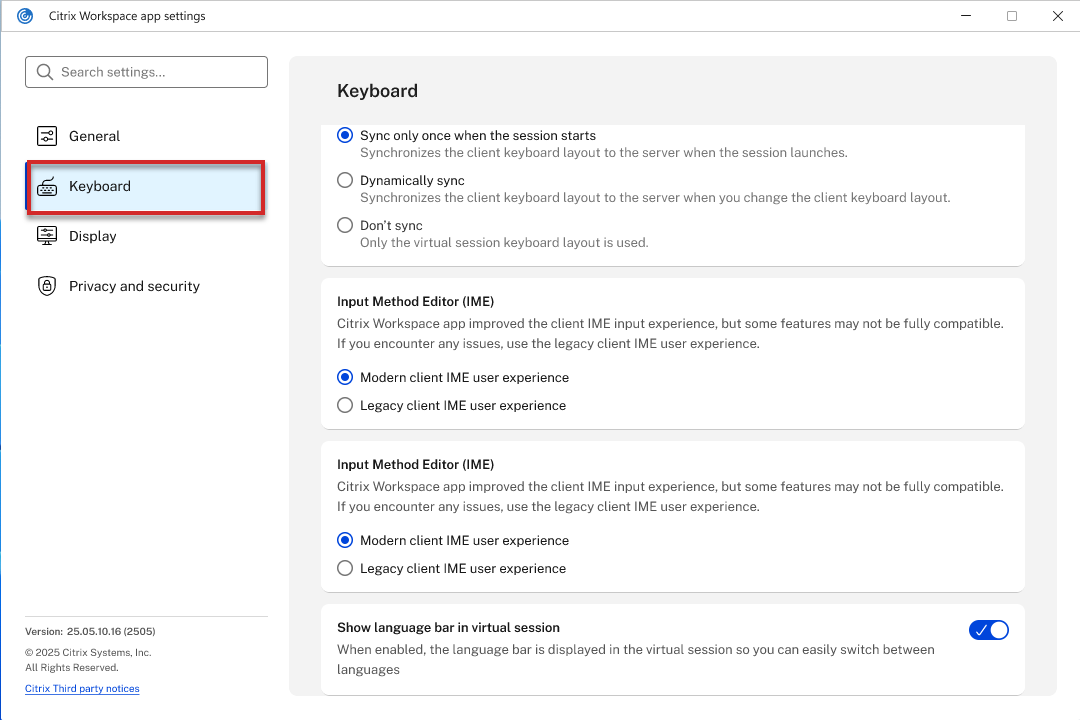
| Keyboard | Keyboard system shortcuts scope, Keyboard layout synchronization, IME, Language bar visibility | Keyboard and Language bar (two separate tabs) |
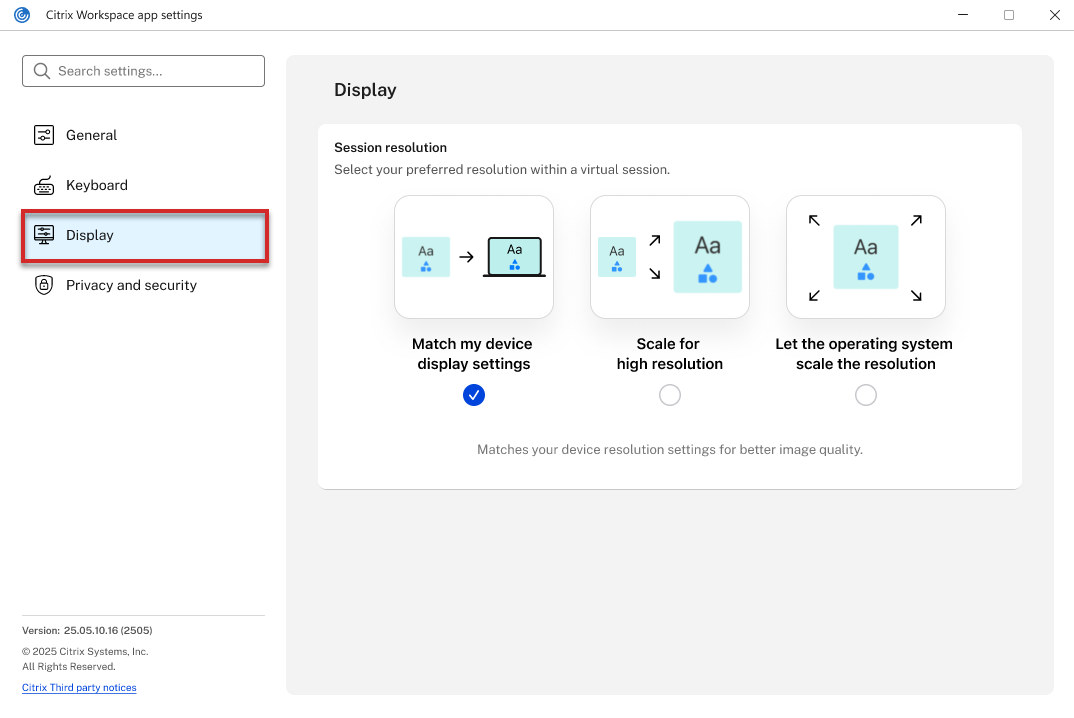
| Display | Session resolution (DPI or scaling) | High DPI (separate dialog) |
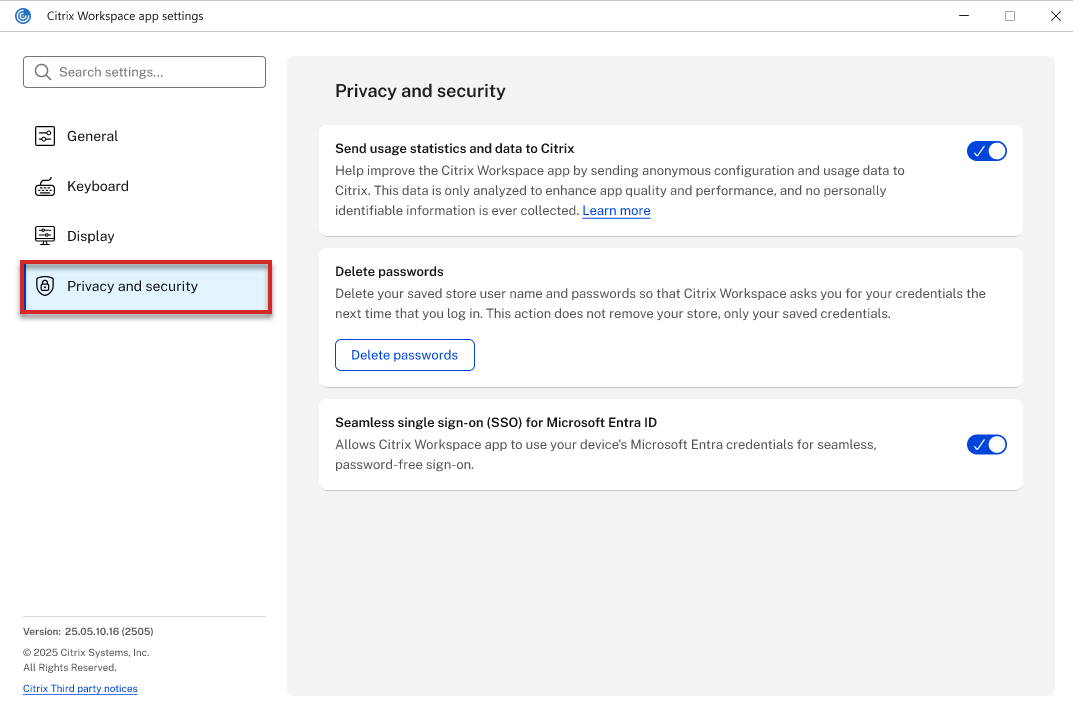
| Privacy and security | Usage statistics (CEIP), Delete passwords, SSO for Microsoft Entra ID | Data collection, Delete passwords, Authentication Settings |
General settings view:
This screenshot shows the redesigned General category in the app-level settings window.
Keyboard settings view:
This screenshot shows the redesigned Keyboard category with updated controls and layout.
Keyboard settings additional view:
This screenshot shows an additional Keyboard settings view in the redesigned experience.
Display settings view:
This screenshot shows the redesigned Display category for session resolution and scaling preferences.
Privacy and security settings view:
This screenshot shows the redesigned Privacy and security category for permissions and security-related options.
Removed and consolidated entry points
The following entry points from the previous Advanced Preferences page have been removed, relocated, or consolidated:
| Previous setting | Disposition in new UI |
|---|---|
| Connection Center | Removed from settings (remains accessible through the system tray) |
| Shortcuts and Reconnect | Split: General > Shortcuts and General > Session reconnect |
| Citrix Workspace Updates | Moved to General > Citrix Workspace update |
| Configuration checker | Moved to Support > Check configuration |
| Delete Passwords | Moved to Privacy and security > Delete passwords |
| Citrix Files | Setting deprecated and removed |
| Authentication Settings | Moved to Privacy and security > SSO for Microsoft Entra ID |
| High DPI | Moved to Display > Session resolution |
| Keyboard and Language bar | Split into sections under Keyboard |
| Local IME | Moved to Keyboard > Input Method Editor (IME) |
| Data collection | Moved to Privacy and security > Send usage statistics |
| Reset Citrix Workspace | Moved to Support > Reset Citrix Workspace |
| Support information | Moved to General > About |
| Log Collection | Moved to Support > Collect logs |
Key changes
- Single unified window - You can access all app-level settings from one Citrix Workspace app settings window instead of navigating 14 or more separate dialogs.
- Persistent sidebar navigation - You can switch between General, Keyboard, Display, and Privacy and security without closing dialogs.
- Built-in search - The Search settings bar enables instant discovery of any setting by keyword, matching down to the most granular label level.
- Sub-level navigation - Settings such as Citrix Workspace update and Shortcuts open as sub-pages with back-arrow navigation.
- Modern controls - Legacy checkboxes and radio buttons have been replaced with toggle switches, visual selection cards, and inline drop-down.
- Admin-managed visibility - Settings configured by an administrator display a clear indicator, improving transparency.
- Contextual help - Tooltip icons provide inline help for settings such as Start Menu folder and Desktop folder paths.
- Update channel relabeling - Release has been renamed to Generally Available. Beta has been renamed to Early Access Release.
Note:
Some settings changes require you to quit and reopen Citrix Workspace app, as indicated by inline notices in the new UI. The Configuration checker and Log Collection tools are no longer accessible from the settings UI; they have been moved to the Support window.
In-session preferences
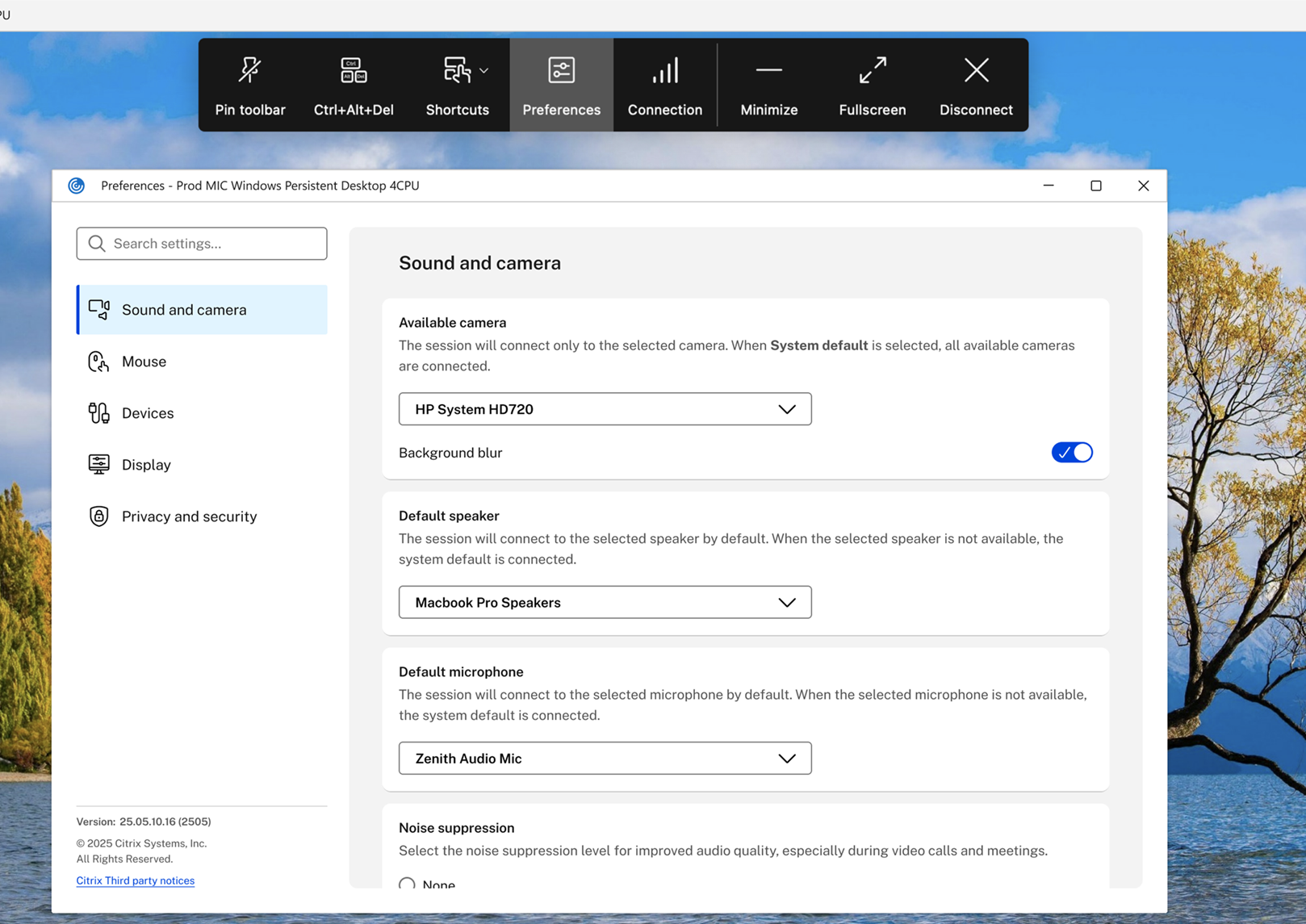
In-session preferences continue to be accessible through the Preferences button in the in-session Desktop Viewer toolbar. The toolbar continues to provide Pin toolbar, Ctrl+Alt+Del, Shortcuts, Preferences, Connection, Minimize, Fullscreen, and Disconnect actions.
Starting with this release, the window title has changed from Citrix Workspace - Preferences to Preferences - [Session Name] (for example, Preferences - Prod MIC Windows Persistent Desktop 4CPU), making it clear which session the settings apply to.
Sound and camera settings view:
This screenshot shows the redesigned in-session Sound and camera settings experience.
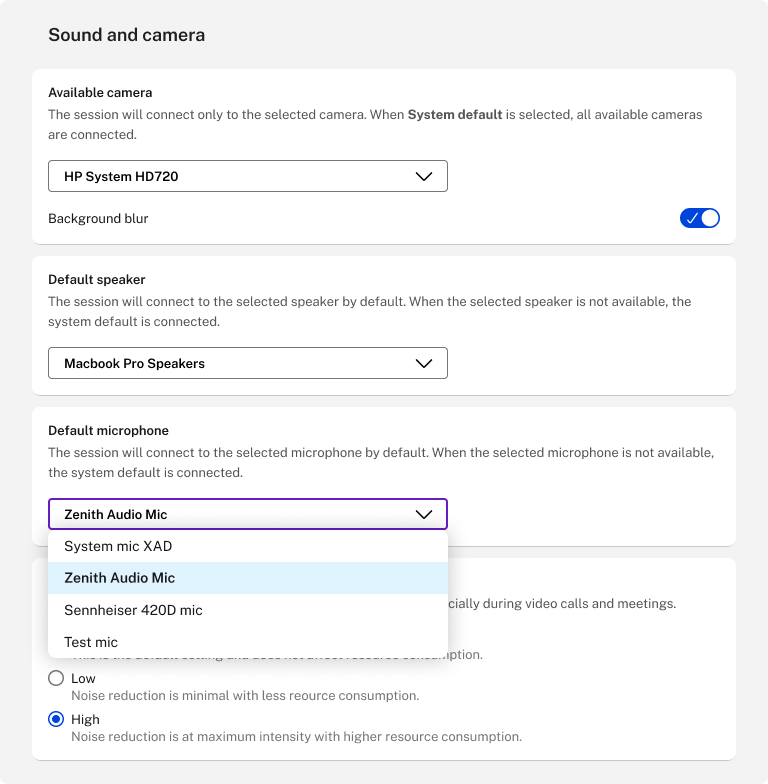
Sound and camera settings additional view:
This screenshot shows an additional in-session Sound and camera settings view.
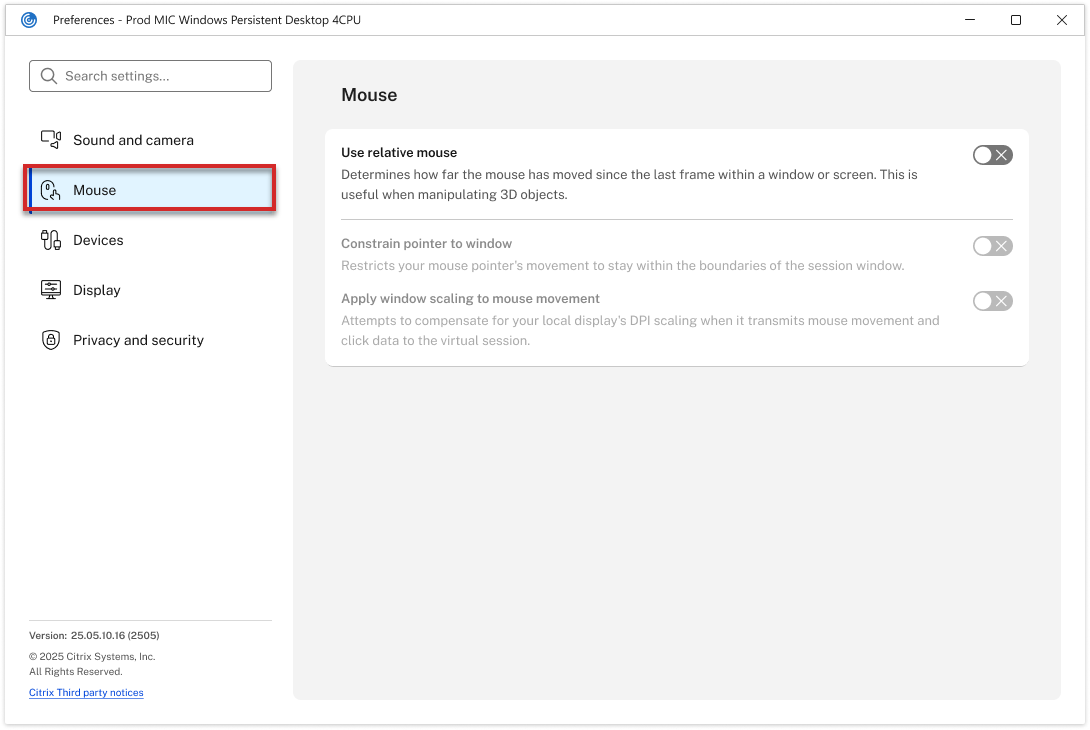
Mouse settings view:
This screenshot shows the redesigned in-session Mouse settings.
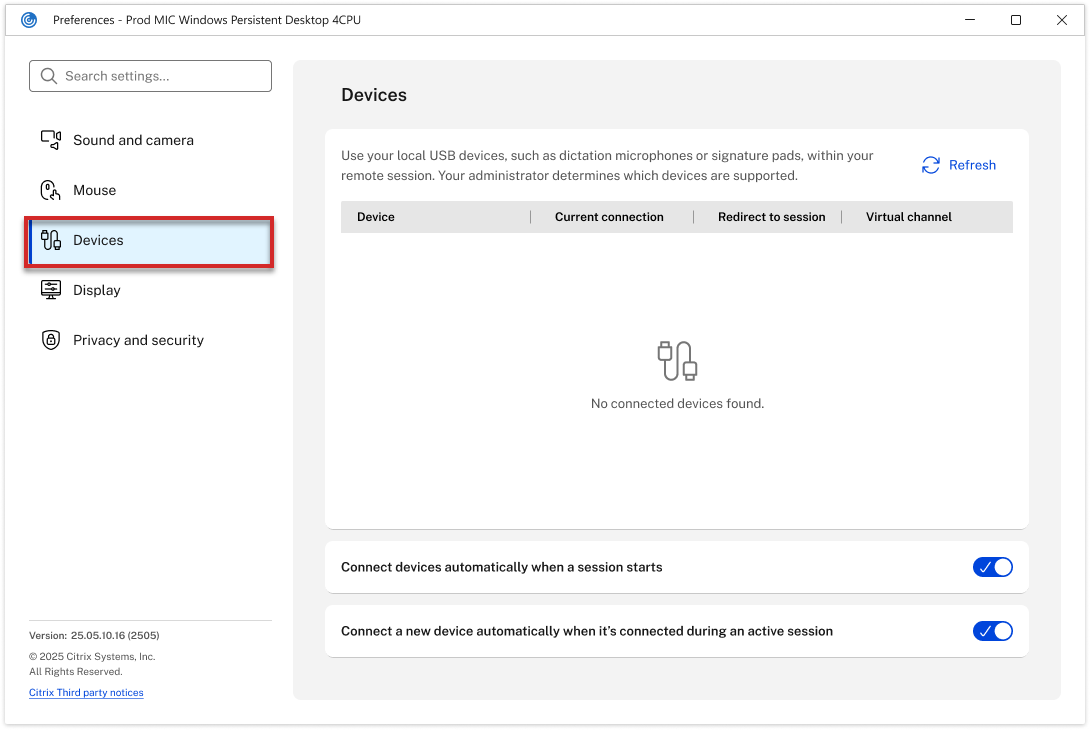
Devices settings view:
This screenshot shows the redesigned in-session Devices settings.
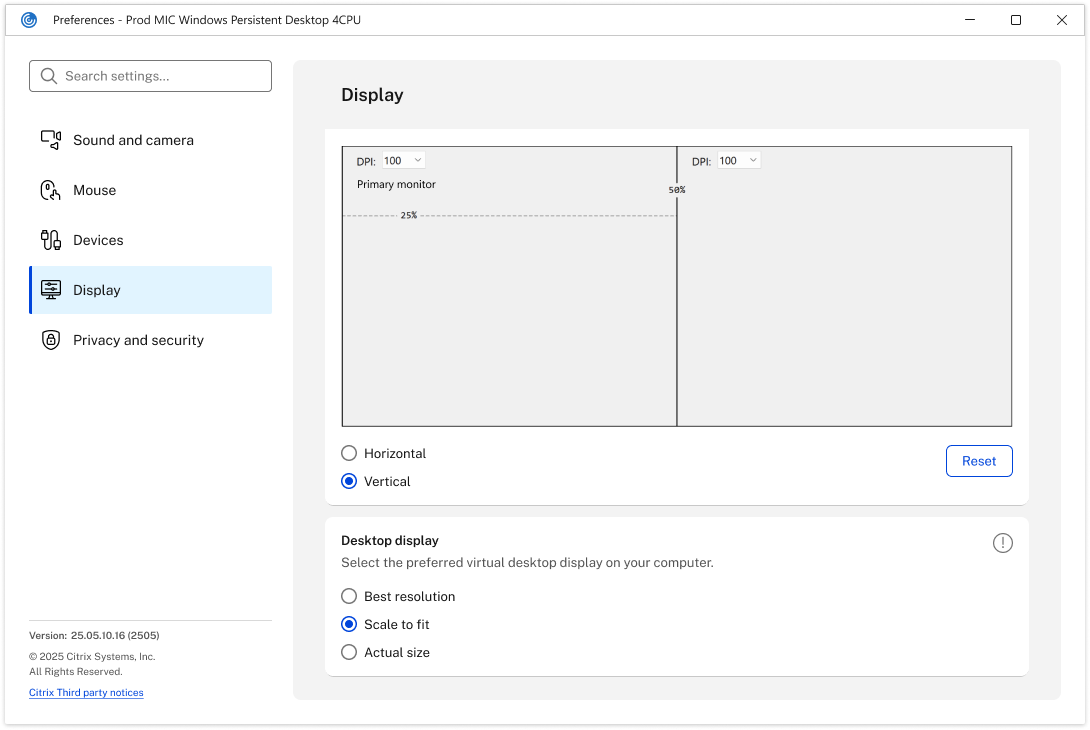
Display settings view:
This screenshot shows the redesigned in-session Display settings.
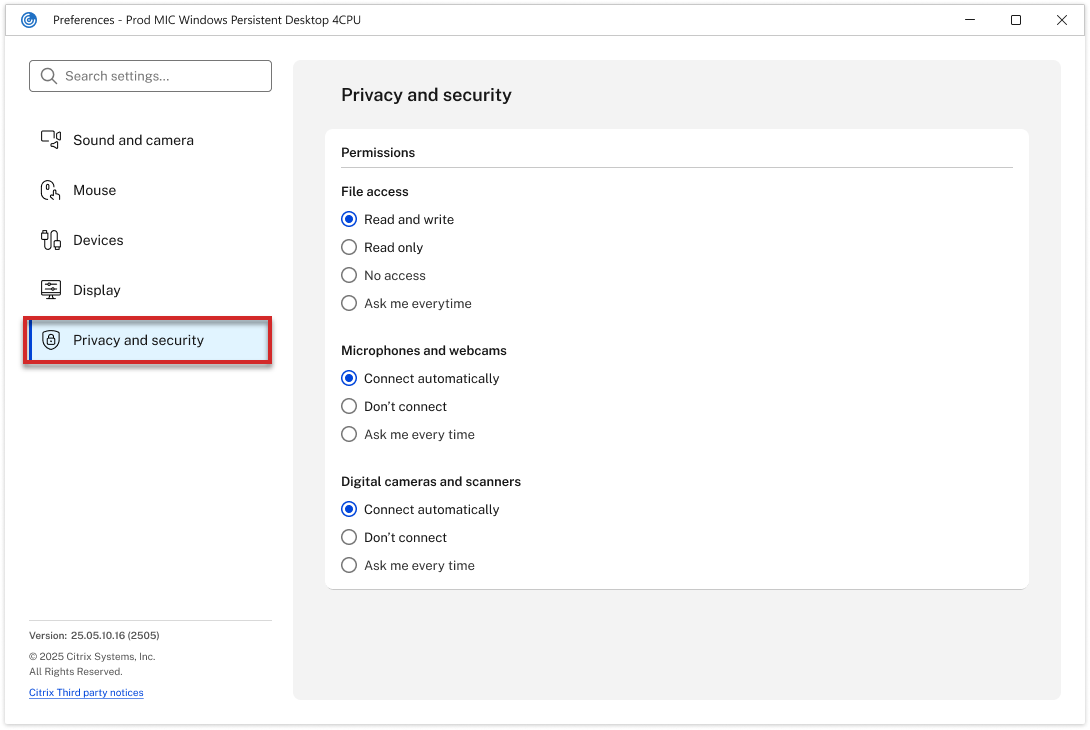
Privacy and security settings view:
This screenshot shows the redesigned in-session Privacy and security settings.
Navigation model
| Aspect | Previous behavior | New behavior |
|---|---|---|
| Window title | Citrix Workspace - Preferences | Preferences - [Session Name] |
| Navigation | Horizontal tab bar across the top | Left sidebar with categorized navigation |
| Search | Not available | Built-in Search settings bar at top of sidebar |
| Categories | 4-5 tabs: Devices, File Access, Local IME, Connections, Display, Monitor Layout | 6 sidebar categories: Sound and camera, Mouse, Devices, Display, Privacy, and security |
| Controls | Legacy Win32 checkboxes, radio buttons, OK/Cancel/Apply buttons | Modern toggle switches, inline drop-down, radio options with descriptions |
| Version info | Not shown in preferences | Persistent footer: version number, copyright, and third-party notices |
Category reorganization
Previously, the tabbed layout grouped settings by technical function. With this release, the new sidebar categories group settings by user intent and device type.
| New category | Settings included | Previous location | Key improvements |
|---|---|---|---|
| Sound and camera | Camera selection, background blur, speaker selection, microphone selection, noise suppression | Connections tab (mixed with device connection policies) | Each audio and video setting now has a dedicated card with a descriptive subtitle explaining its behavior. The microphone drop-down shows all detected devices by name. Noise suppression descriptions explain the resource consumption trade-off for each level. |
| Mouse | Relative mouse, constrain pointer, window scaling for mouse | Connections tab (bottom section, mixed with audio and video) | Each mouse setting now includes a descriptive subtitle explaining what it does and when it is useful, replacing the previous bare checkboxes. |
| Devices | USB device redirection table, auto-connect toggles | Devices tab | The Devices category retains its dedicated section for USB device redirection, with a modernized table layout and two new auto-connect toggles. |
| Display | Monitor layout (split screen, DPI), Desktop display (resolution mode) | Display tab and Monitor Layout tab (two separate tabs) | The previous Display and Monitor Layout tabs have been merged into a single Display category with two sections. |
| Privacy and security | File access permissions, Microphone and webcam connection policy, Digital camera and scanner connection policy | File Access tab and Connections tab (split across two tabs) | This new category consolidates permission-related settings that were previously scattered across the File Access and Connections tabs. |
Setting relocation map
The following table provides a detailed mapping of where each in-session preference setting has been relocated:
| Previous tab | Previous setting | New category | New setting |
|---|---|---|---|
| Connections | Microphones and webcams (Connect automatically / Do not connect / Ask me) | Privacy and security | Microphones and webcams (Connect automatically / Don’t connect / Ask me every time) |
| Connections | Digital cameras and scanners (Connect automatically / Do not connect / Ask me) | Privacy and security | Digital cameras and scanners (Connect automatically / Don’t connect / Ask me every time) |
| Connections | Default webcam drop-down | Sound and camera | Available camera drop-down |
| Connections | Enable background blur checkbox | Sound and camera | Background blur toggle |
| Connections | Default speaker drop-down | Sound and camera | Default speaker drop-down |
| Connections | Default microphone drop-down | Sound and camera | Default microphone drop-down |
| Connections | Noise suppression (None / Low / High) | Sound and camera | Noise suppression (None / Low / High) with descriptions |
| Connections | Use relative mouse checkbox | Mouse | Use relative mouse toggle |
| Connections | Constrain pointer to window checkbox | Mouse | Constrain pointer to window toggle |
| Connections | Apply window scaling to mouse movement checkbox | Mouse | Apply window scaling to mouse movement toggle |
| Devices | USB device redirection table | Devices | USB device redirection table (modernized) |
| File Access | File access settings (Read and write / Read only / No access / Ask me each time) | Privacy and security | File access (Read and write / Read only / No access / Ask me every time) |
| Local IME | Input method settings (Enable Server IME / Local IME modes) | App-level Keyboard | Input Method Editor (IME) in app-level settings |
| Display | Best resolution / Scale to fit / Actual size | Display | Desktop display: Best resolution / Scale to fit / Actual size |
| Monitor Layout | Split screen, DPI per monitor, Horizontal/Vertical | Display | Monitor layout section (same functionality) |
Note:
The previous Connections tab was the most overloaded tab, containing audio and video device defaults, noise suppression, mouse settings, and device connection policies all in one scrollable view. With this release, the Connections tab has been eliminated and its contents distributed across three purpose-built categories: Sound and camera, Mouse, and Privacy and security.
Terminology changes
The following labels have been updated for clarity and consistency:
| Previous label | New label | Category |
|---|---|---|
| Default webcam | Available camera | Sound and camera |
| Enable background blur | Background blur | Sound and camera |
| Do not connect | Don’t connect | Privacy and security |
| Ask me | Ask me every time | Privacy and security |
| Ask me each time | Ask me every time | Privacy and security |
| Current Connection | Connection status | Devices |
| Redirect to Session | Redirection | Devices |
| Virtual Channel | Removed from table view | Devices |
| Citrix Workspace - Preferences | Preferences - [Session Name] | Window title |
Troubleshooting settings
The support experience in Citrix Workspace app for Windows has been redesigned. The previously scattered support-related settings, spread across the Advanced Preferences page as individual hyperlinks, have been consolidated into a dedicated Citrix Workspace app support window with a unified left-navigation layout.
Important:
The underlying functionality of all support settings remains unchanged. This is a UI/UX modernization. No features have been added or removed.
Support settings view
This screenshot shows the redesigned support settings experience with unified navigation.
New unified support window
| Aspect | Previous behavior | New behavior |
|---|---|---|
| Entry point | Individual hyperlinks scattered across the Advanced Preferences and Troubleshooting pages | Dedicated Support option in the Troubleshooting settings, opening a single unified window |
| Window title | Various (for example, Citrix Workspace, Log collection) | Consistent: Citrix Workspace app support |
| Navigation | Separate pop-up dialogs for each function | Persistent left-side navigation panel with all support functions listed |
| Layout | Multiple standalone dialog windows with inconsistent styling | Single-window, two-panel layout (navigation panel and content area) |
Entry point relocation
Previously, support-related items were listed as hyperlinks on the Advanced Preferences page alongside unrelated settings such as Connection Center, Shortcuts and Reconnect, and Citrix Workspace Updates. Starting with this release, you can access all support functions through the Support option in the Troubleshooting settings page or the user profile drop-down menu.
Left navigation categories
The new support window groups all support-related actions into a single vertically navigable panel with five categories:
| Navigation item | Description |
|---|---|
| Collect logs | Log collection with enhanced log-level selection and descriptive guidance |
| Send feedback | Unified feedback submission form with integrated log collection and attachments |
| Check configuration | Configuration checker tool with updated test providers |
| Reset Citrix Workspace | Factory reset with modernized confirmation dialog |
| Help documentation | Direct link to product documentation |
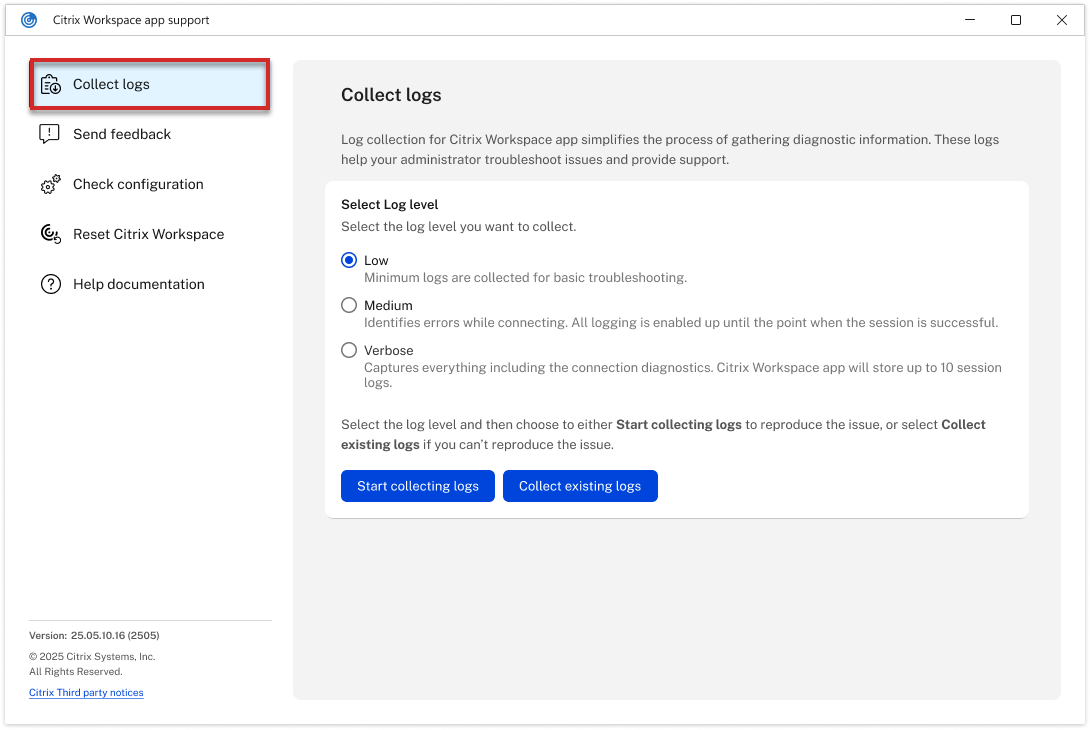
Collect logs
The log collection experience has been enhanced with clearer guidance, descriptive log-level labels, and a modernized interface.
| Aspect | Previous behavior | New behavior |
|---|---|---|
| Location | Log Collection link in Advanced Preferences, opening a standalone dialog | Collect logs in the left navigation of the Support window |
| Log levels | Drop-down with label Log level (for example, Medium) | Radio buttons with three clearly labeled levels: Low, Medium, Verbose |
| Log level descriptions | No description provided for any level | Low: Minimum logs for basic troubleshooting. Medium: Identifies errors while connecting. Verbose: Captures everything including connection diagnostics. |
| Last log display | Last tracing timestamp with Save log link | The last log section showing file name, size, and timestamp, with download and delete icons |
| Capturing dialog | Not available | Modern modal: Capturing issues with Stop and Cancel buttons |
| Cancel confirmation | Not available | Warning dialog: Cancel capturing issue? The trace file for this log collection will be lost. |
Collect logs settings view:
This screenshot shows the redesigned Collect logs settings experience in the Support window.
Send feedback
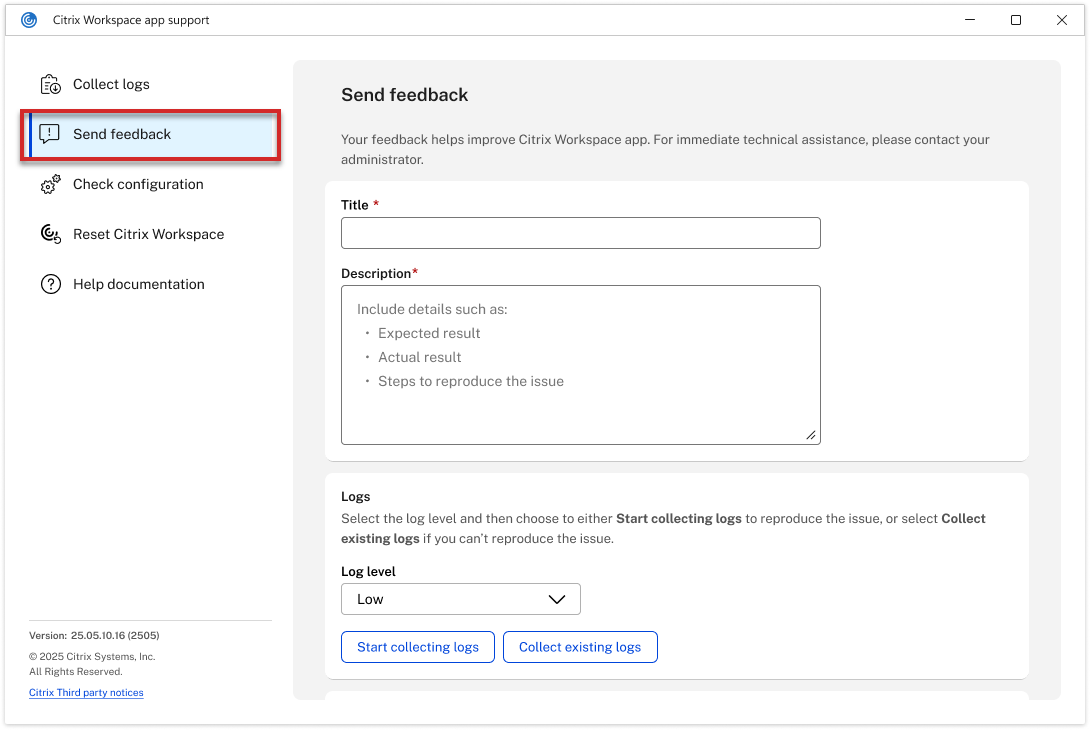
With this release, Citrix Workspace app introduces a new consolidated feedback experience. You can describe issues, attach logs, add screenshots or screen recordings, and generate a complete feedback package in a single flow.
| Field | Details |
|---|---|
| Title | Required text field for a brief summary of the issue |
| Description | Required rich text area with placeholder guidance: Include details such as Expected result, Actual result, Steps to reproduce the issue |
| Integrated log collection | Built-in log section within the feedback form with Log level drop-down (Low, Medium, Verbose) and Start collecting logs / Collect existing logs buttons |
| Attachments | Choose the file button to add screenshots or screen recordings. File size limit of 25 MB per file; files exceeding the limit are flagged with a warning icon |
| Report creation | Create report button generates a feedback package with a clickable file path |
| Email integration | Provides the feedback email address with a copy button and an Open mail app action |
| Create another report | Option to immediately create another report after submission |
Send feedback settings view:
This screenshot shows the redesigned Send feedback settings experience in the Support window.
Check configuration
| Aspect | Previous behavior | New behavior |
|---|---|---|
| Location | Configuration checker link in Advanced Preferences | Check the configuration in the Support left navigation |
| Test providers | SSONChecker, BeaconChecker, TestProvider | SSONChecker, BeaconChecker, AppPHealthChecker |
| Results display | Standalone Citrix Workspace Configuration Checker window | Same checker interface within the Support window context |
| Exit handling | No specific exit confirmation | Modern dialog: Configuration check in progress. Do you want to exit? with Exit and Go back buttons |
Reset Citrix Workspace
| Aspect | Previous behavior | New behavior |
|---|---|---|
| Dialog style | Legacy Windows dialog with yellow warning triangle | Modern dialog with red top border and red diamond warning icon |
| Message | Verbose warning with multiple sentences about resetting all apps, desktops, accounts, and configurations | Streamlined message: All apps, desktops, and profile configurations reset to the Citrix Workspace default settings. Any active sessions close, and unsaved data will be lost. |
| Buttons | Yes, reset Citrix Workspace / Cancel | Reset / Cancel (shorter, clearer labels) |
Help documentation
Starting with this release, a new Help documentation entry has been added to the Support left navigation. This entry provides a direct link to product documentation, replacing the previous Support information option in Advanced Preferences, which generated a technical XML file with version and plug-in information.
Removed and relocated support items
| Previous Advanced Preferences item | New location |
|---|---|
| Log Collection | Support > Collect logs |
| Configuration checker | Support > Check configuration |
| Reset Citrix Workspace | Support > Reset Citrix Workspace |
| Support information (XML export) | Replaced by Support > Help documentation |
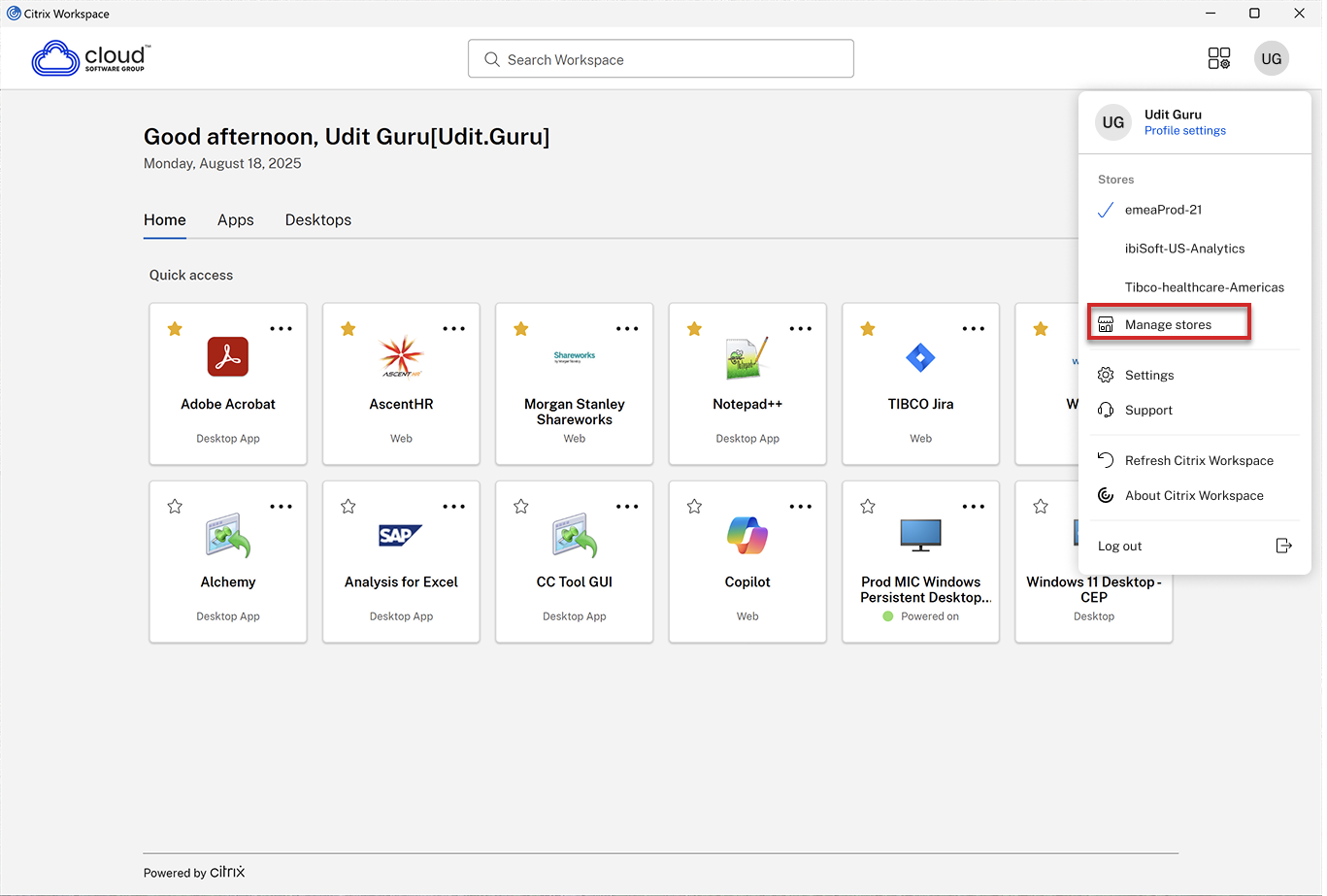
Store visibility in the profile drop-down
The user profile drop-down menu now includes a dedicated Stores section that lists all enabled stores. This section integrates with the Show in menu toggle in the Manage stores window. Only stores with the toggle enabled appear as selectable options. A checkmark icon indicates the currently active store, and you can click any listed store name to switch to that store.
User profile enhancements
With this release, two new options have been added to the user profile drop-down menu in Citrix Workspace app for Windows:
Manage stores
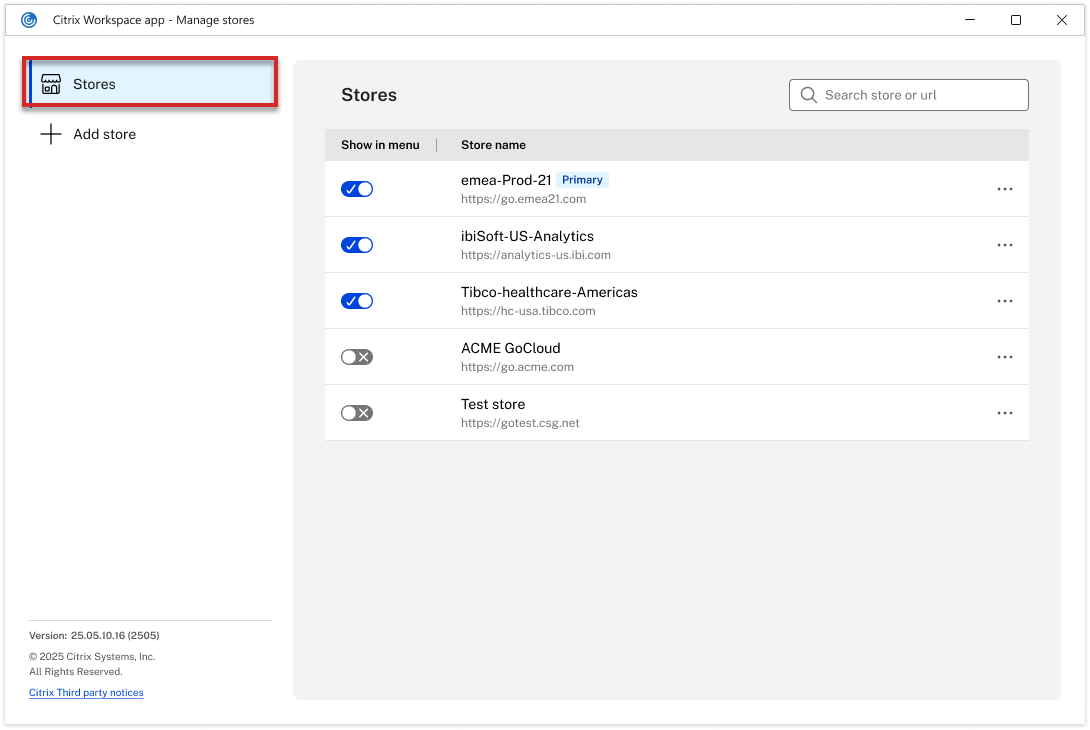
The store management experience in Citrix Workspace app for Windows has been redesigned. The legacy Add or Remove Accounts dialog has been replaced with a modern, feature-rich Manage stores window that provides an intuitive, streamlined interface for managing multiple Citrix stores.
Important: The underlying store management functionality remains unchanged. Only the user interface and interaction patterns have been modernized.
Manage stores settings view:
This screenshot shows the redesigned Manage stores settings experience.
System tray context menu
A new Manage stores menu item has been added to the Citrix Workspace app system tray icon context menu, positioned between Advanced Preferences and Troubleshooting.
| Aspect | Previous behavior | New behavior |
|---|---|---|
| Menu item | Not present in the context menu | Manage stores added between Advanced Preferences and Troubleshooting |
| Access to store management | Required opening Advanced Preferences first or navigating through other dialogs | Direct one-click access from the system tray context menu |
| Full context menu | Open, Connection Center, Open Citrix Enterprise Browser, Advanced Preferences, Troubleshooting, Exit | Open, Connection Center, Open Citrix Enterprise Browser, Advanced Preferences, Manage stores, Troubleshooting, Exit |
Manage stores window
| Aspect | Previous behavior | New behavior |
|---|---|---|
| Window title | Citrix Workspace | Citrix Workspace app - Manage stores |
| Dialog heading | Add or Remove Accounts | Stores |
| Layout | Single-panel legacy dialog with a data grid | Two-panel modern window: left navigation and content area |
| Navigation | None (flat dialog) | Left-side navigation panel with Stores and + Add store options |
| Store list format | Table with columns: On (checkbox), Name, Description | Modern list with toggle switches, store names, URLs, descriptions, and per-store action menus |
| Search | Not available | Built-in Search store or url search bar in the top-right |
| Buttons | Add and Remove buttons at bottom, OK to close | Per-store overflow menu (Edit, Remove); + Add store in left navigation |
| Version info | Not displayed | Shown in bottom-left: version number, copyright, and third-party notices link |
Store list features
Show in menu toggle
With this release, the previous On checkbox has been replaced with a Show in menu toggle switch. When enabled (blue), the store appears in the user profile drop-down Stores list. When disabled (gray with X), the store is hidden from the profile drop-down but remains configured.
Primary store badge
Previously, the primary store was indicated by a (Primary) text label in the Description column. Starting with this release, the primary store displays a styled blue Primary badge inline next to the store name for clear visibility.
Store actions
Per-store overflow menu
Each store now has an overflow menu (three-dot icon) with two contextual actions:
| Action | Description |
|---|---|
| Edit | Opens the Edit store view for the selected store, where you can modify the store name and description. The store URL is displayed but not editable. |
| Remove | Initiates the store removal process with a confirmation dialog |
Edit store
Previously, there was no direct edit capability from the accounts dialog. With this release, you can click the overflow menu and select Edit on any store to modify its name and description. The store URL is displayed but remains read-only to maintain configuration integrity.
Remove store
| Aspect | Previous behavior | New behavior |
|---|---|---|
| Access | Select store and click the Remove button | Click the overflow menu and select Remove on the target store |
| Confirmation | Basic Windows confirmation dialog | Modern dialog with orange warning border and warning triangle icon |
| Dialog title | Generic confirmation | Remove store ‘[store-name]’? with the actual store name |
| Impact information | Not shown | Displays the number of applications that will be deleted (for example, Removing the store deletes 7 applications from your local device.) |
| Application details | Not available | Expandable Details section listing all affected applications with their icons |
| Buttons | OK / Cancel | Remove (primary button) / Cancel (outlined button) |
Search functionality
A new Search store or url search bar has been added to the top-right corner of the Manage stores window. You can search against store names and store URLs to quickly locate a specific store.
Key benefits
- Single unified settings window - You can access all app-level settings from one window instead of navigating multiple separate dialogs.
- Built-in search - The Search settings bar enables instant discovery of any setting by keyword.
- Consolidated support experience - You can collect logs, send feedback, and check configuration from one Support window without navigating multiple dialogs.
- Integrated feedback workflow - You can describe issues, attach logs, add screenshots or screen recordings, and generate a complete feedback package in a single flow.
- Modernized store management - The redesigned Manage stores window provides toggle switches, per-store actions, search, and impact-aware removal dialogs.
- Session-aware preferences - The in-session preferences window now displays the session name in the title, making it clear which session the settings apply to.
- Modern controls - Legacy checkboxes and radio buttons have been replaced with toggle switches, visual selection cards, and inline drop-down lists.
- Cross-platform consistency - The new layout aligns with the unified settings consolidation across all Citrix Workspace app platforms (Windows, macOS, Linux, HTML5, iOS, and Android).
- Separation of concerns - Settings (configuration) and Support (troubleshooting and feedback) are now clearly separated, reducing confusion.
Additional information
- This redesign is part of the broader CTXBV-1283 initiative to consolidate and modernize settings across all Citrix Workspace app platforms.
- The underlying functionality of all settings, support tools, and store management remains unchanged. Only the user interface has been modernized.
- The new interface aligns with cross-platform consistency goals, providing a unified look, feel, and nomenclature across Citrix Workspace app for Windows, macOS, Linux, HTML5, iOS, and Android.
- Store URLs remain non-editable in the Edit store view to maintain configuration integrity.
- The remove store confirmation dialog now provides full transparency about the impact of removing a store, including listing all affected applications.
Note:
For more information about Citrix Workspace app for Windows, see the Citrix Workspace app for Windows documentation.