Manage settings for a store URL
The following section explains how to configure settings for a store URL across Citrix client applications.
How to configure settings
To configure settings:
- Sign in the Citrix Cloud portal and navigate to Client app management.
- From the list of configured store URLs, select the store for which you want to map settings.
-
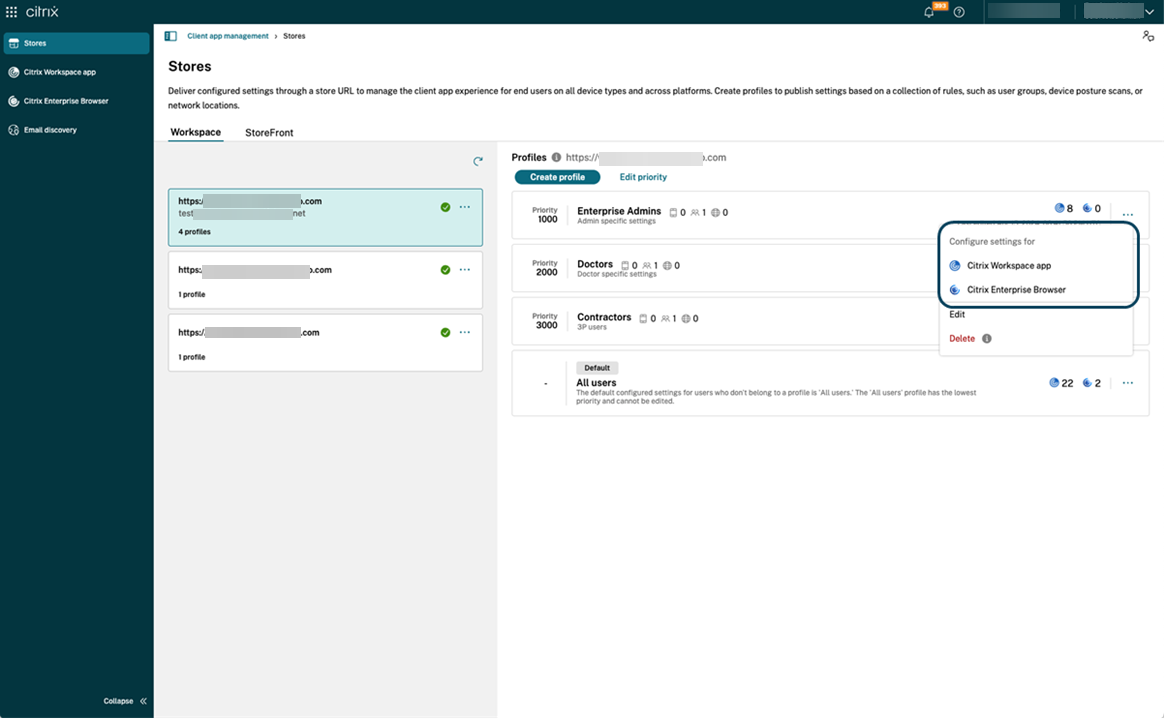
Click three dots next to the store URL and choose the client app for which you want to configure the settings.
-
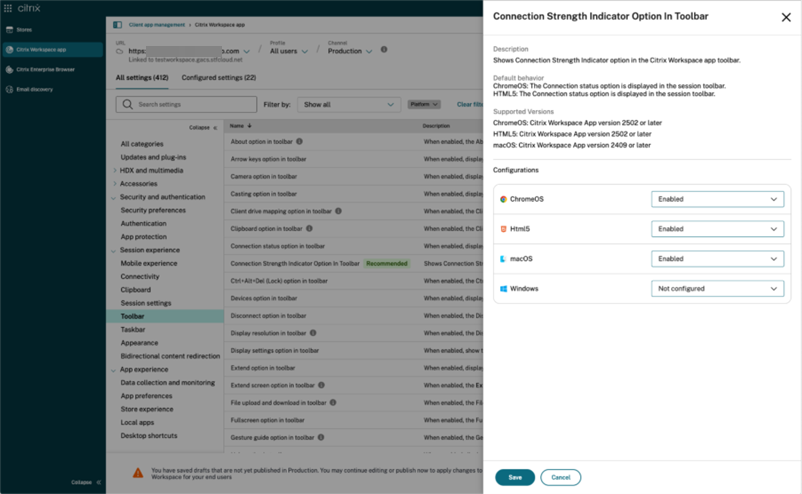
Modify the app settings as per your organization’s policies and click Save.
Note:
Settings marked as Not configured use the app’s default behavior. Configure a setting only when you need to override the default value.
-
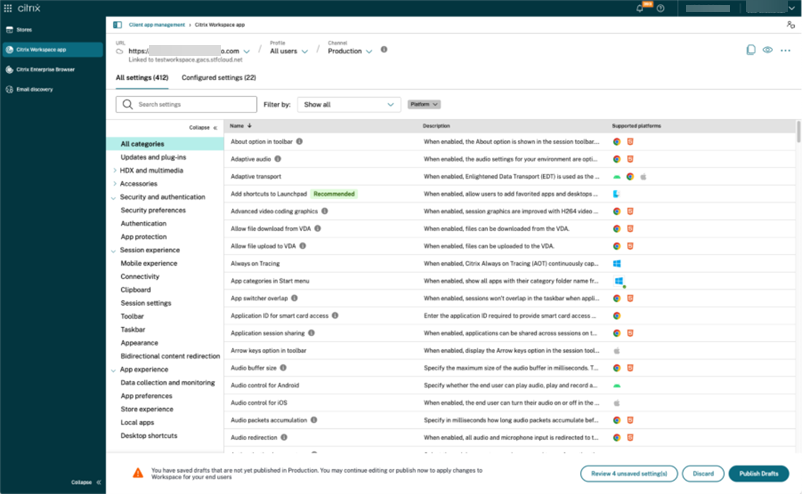
Click Publish Drafts to save and publish your settings.
The user interface also provides the following options for a simplified user experience.
View a summary of configured settings
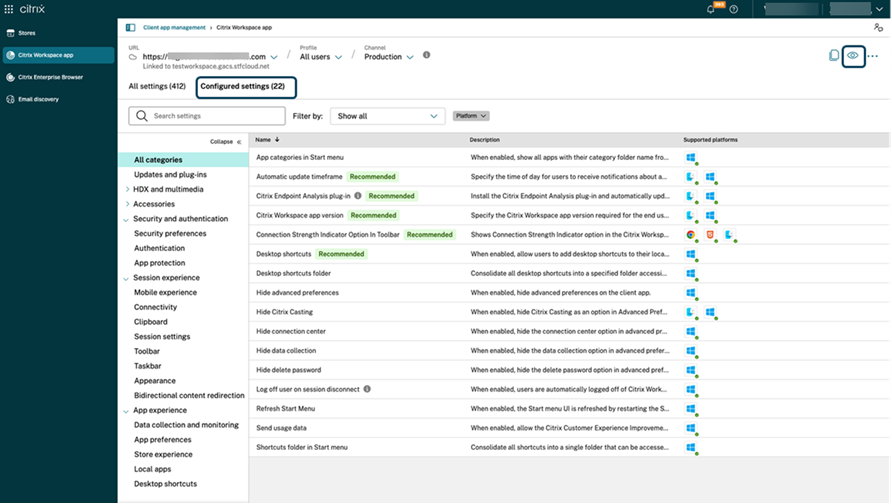
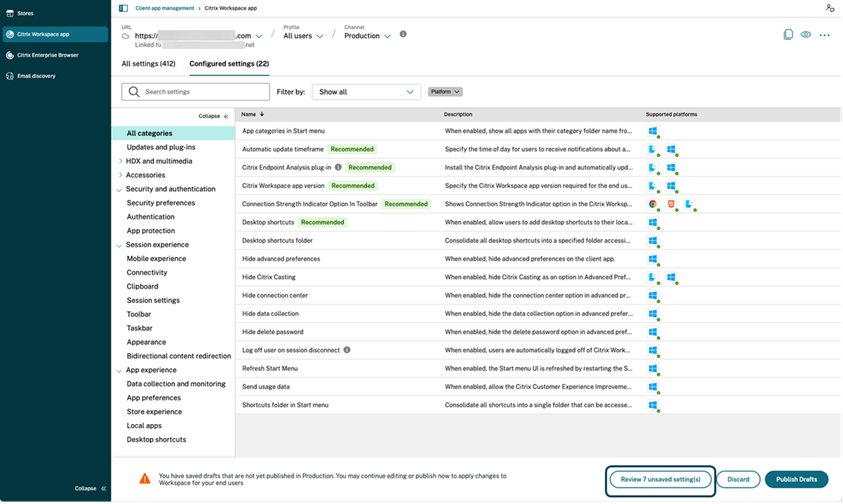
You can view a summary of the current configuration by clicking Configured settings tab. It eliminates the need to expand and review each setting separately. A consolidated list of all the configured settings allows you to perform a comprehensive review of the current configuration and gauge the user impact. As an alternative, you can also click the View configured settings icon as shown in the following screenshot.
Review unsaved changes
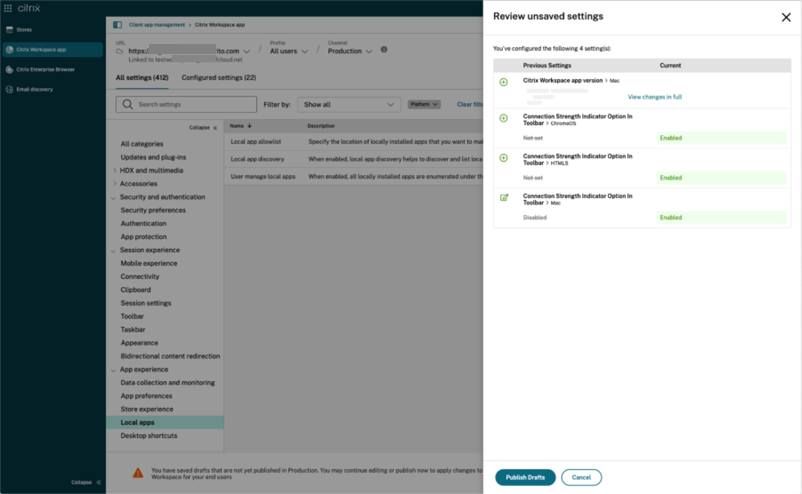
Perform a final review of your unsaved changes before publishing the configuration. The number of unsaved settings is displayed on the UI and you can access this list by clicking the Review unsaved setting(s) option. It enables you to make informed changes and maintain data accuracy.
Enhanced search option
The search experience has been enhanced to provide a robust and seamless experience. Admins can now sign in to the cloud portal and locate the required settings on the Client app management page with ease. They can use the following search methods.
Search using setting description
You can locate settings by entering keywords found within the setting’s description. It allows for a more flexible search approach, using relevant terms associated with the desired setting.
Search using API setting name
You can search for settings by entering the corresponding API setting name. This method allows for a more precise and targeted search, enabling users to quickly find the specific setting they require.
View applicable platforms for each setting
Each setting now dynamically displays only those platforms to which it’s relevant and applicable. This approach ensures that users are presented with a concise and tailored list of options.