Check that the user is managed by deviceTRUST®
The deviceTRUST contextual security policy defines the users that will be managed by deviceTRUST. By default, this does not include members of the local administrators group.
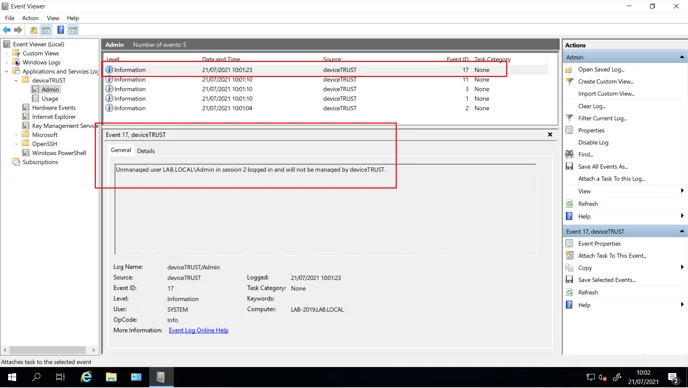
To check if an unmanaged user has signed in, open the Windows Event Log on the remoting or DaaS host system, navigate to APPLICATION AND SERVICE LOGS\DEVICETRUST\ADMIN, and look for Event ID 17.
An unmanaged user signed in
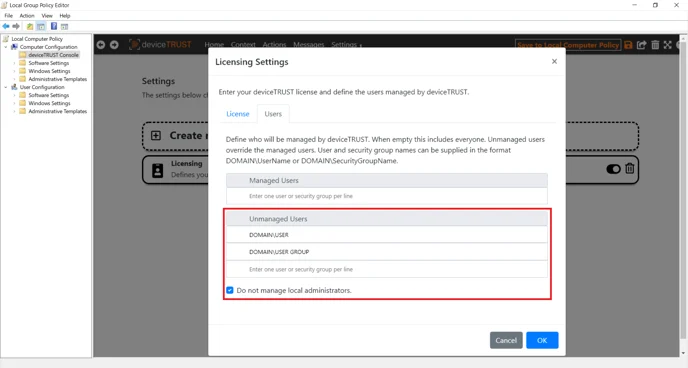
To change the list of managed users, open your active deviceTRUST contextual security policy, navigate to DEVICETRUST CONSOLE, and click the SETTINGS tab. Select LICENSING, navigate to the USERS tab, and check that the user account is not configured in the UNMANAGED USERS directly or via group membership.
Unmanaged Users
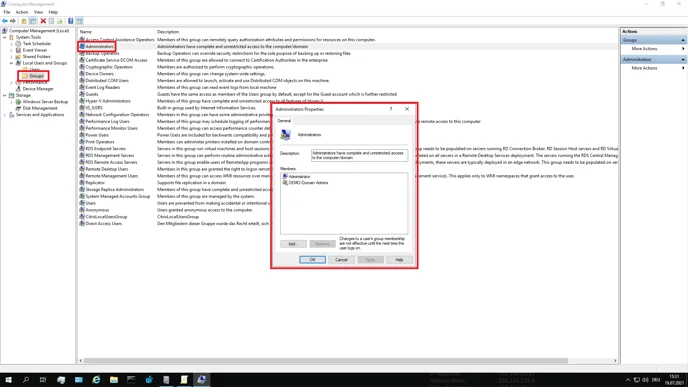
If deviceTRUST policies are still not applied to the user, check if the user account is a member of the local administrators group. To do this, start COMPUTER MANAGEMENT on the remoting or DaaS host system, navigate to SYSTEM TOOLS, select LOCAL USERS AND GROUPS, and check that the user is not a member of the ADMINISTRATORS group.
Administrative Users
The official version of this product documentation is in English. Any non-English version is solely provided for your convenience and may include machine-translated content. For more information, please refer to the Machine Translation Disclaimer on Cloud Software Group home.
DIESER DIENST KANN ÜBERSETZUNGEN ENTHALTEN, DIE VON GOOGLE BEREITGESTELLT WERDEN. GOOGLE LEHNT JEDE AUSDRÜCKLICHE ODER STILLSCHWEIGENDE GEWÄHRLEISTUNG IN BEZUG AUF DIE ÜBERSETZUNGEN AB, EINSCHLIESSLICH JEGLICHER GEWÄHRLEISTUNG DER GENAUIGKEIT, ZUVERLÄSSIGKEIT UND JEGLICHER STILLSCHWEIGENDEN GEWÄHRLEISTUNG DER MARKTGÄNGIGKEIT, DER EIGNUNG FÜR EINEN BESTIMMTEN ZWECK UND DER NICHTVERLETZUNG VON RECHTEN DRITTER.
CE SERVICE PEUT CONTENIR DES TRADUCTIONS FOURNIES PAR GOOGLE. GOOGLE EXCLUT TOUTE GARANTIE RELATIVE AUX TRADUCTIONS, EXPRESSE OU IMPLICITE, Y COMPRIS TOUTE GARANTIE D'EXACTITUDE, DE FIABILITÉ ET TOUTE GARANTIE IMPLICITE DE QUALITÉ MARCHANDE, D'ADÉQUATION À UN USAGE PARTICULIER ET D'ABSENCE DE CONTREFAÇON.
ESTE SERVICIO PUEDE CONTENER TRADUCCIONES CON TECNOLOGÍA DE GOOGLE. GOOGLE RENUNCIA A TODAS LAS GARANTÍAS RELACIONADAS CON LAS TRADUCCIONES, TANTO IMPLÍCITAS COMO EXPLÍCITAS, INCLUIDAS LAS GARANTÍAS DE EXACTITUD, FIABILIDAD Y OTRAS GARANTÍAS IMPLÍCITAS DE COMERCIABILIDAD, IDONEIDAD PARA UN FIN EN PARTICULAR Y AUSENCIA DE INFRACCIÓN DE DERECHOS.
本服务可能包含由 Google 提供技术支持的翻译。Google 对这些翻译内容不做任何明示或暗示的保证,包括对准确性、可靠性的任何保证以及对适销性、特定用途的适用性和非侵权性的任何暗示保证。
このサービスには、Google が提供する翻訳が含まれている可能性があります。Google は翻訳について、明示的か黙示的かを問わず、精度と信頼性に関するあらゆる保証、および商品性、特定目的への適合性、第三者の権利を侵害しないことに関するあらゆる黙示的保証を含め、一切保証しません。
ESTE SERVIÇO PODE CONTER TRADUÇÕES FORNECIDAS PELO GOOGLE. O GOOGLE SE EXIME DE TODAS AS GARANTIAS RELACIONADAS COM AS TRADUÇÕES, EXPRESSAS OU IMPLÍCITAS, INCLUINDO QUALQUER GARANTIA DE PRECISÃO, CONFIABILIDADE E QUALQUER GARANTIA IMPLÍCITA DE COMERCIALIZAÇÃO, ADEQUAÇÃO A UM PROPÓSITO ESPECÍFICO E NÃO INFRAÇÃO.