Licensing
The currently used license and the operation modes are shown in the dashboard and in the license information dialog
The license information dialog can be opened on the top-right corner in Scout Board, by clicking the help (question mark) icon.
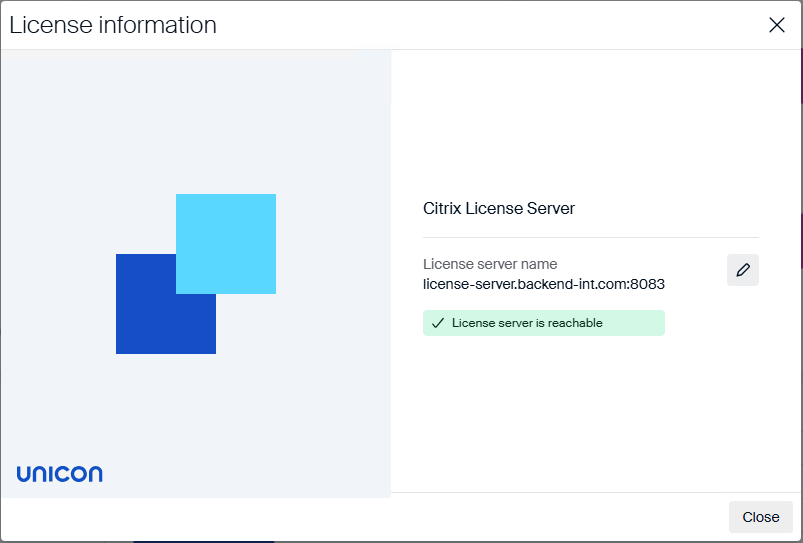
When Scout is licensed through a Citrix License Server, this dialog and the dashboard widget show:
- License server name: the configured server. Scout shows the name whether or not the server is currently reachable, together with License server is reachable or License server is not reachable. If the server is not reachable, a line states when the connection last worked and when the last connection attempt was made.
- Entitlement: Your entitlement is valid or No valid entitlement has been found, followed by Entitlement activation and Entitlement expiry dates. While a grace period runs, a Grace period: N days remaining line appears; click its information icon to open this dialog.
Scout Server checks the License Server when the Scout Server service starts, every 12 hours, and right after the License Server configuration is saved. The dialog and widget always show the result of the last check.
If the Citrix License Server is not reachable, Scout will go into a grace period. Then, a valid configuration needs to be provided in this period, in order for the Scout services to continue operation.
In order to set or change the Citrix License Server configuration, simply click the pen icon, provide the hostname and port and confirm.
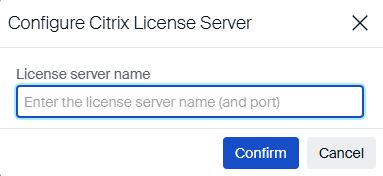
The Citrix License Server configuration will be validated and information will be shown accordingly.
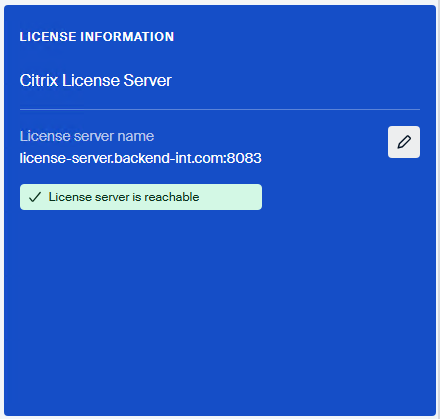
The dashboard widget for licensing will also provide all the information. There, you will also see the possibility to either change the Citrix License Server configuration or switch to the Citrix License Server from another license (i.e. Enterprise Subscription)
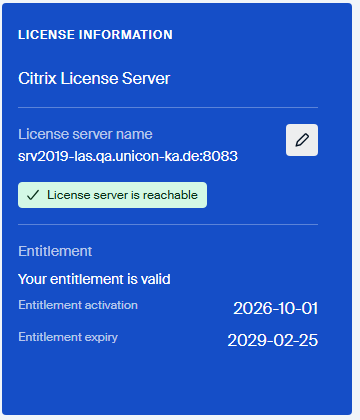
The same Citrix License Server and entitlement information also appears as two rows in System Status (the status icon next to the help icon): one row for the License Server connection, one for the entitlement. A failing row shows as a warning, not an error.
Switching between licenses
In Scout Board, depending on the current license, you can switch to another license mode.
With Scout Board versions 15.2511 and 15.2508.1, you can switch between the following licenses.
- Perpetual –> Enterprise Subscription
- Perpetual –> Citrix License Server
- Enterprise Subscription –> Citrix License Server
Please note, that the license switch is only one way. A switch back is not possible.
Note:
Switching from Perpetual –> Enterprise Subscription has been added with Scout Board versions 15.2511 and 15.2508.1. Before, only the other two methods were possible.
Operation and grace period
Depending on the availability of the Citrix License Server and/or the entitlement for the Unicon Management Solution, the operation of the Scout Server can have different states.
| Citrix License Server | Unicon Entitlement | Information |
|---|---|---|
| Connected | Available | Scout operates normally. Devices can be managed. |
| Connected | NOT Available | Scout Server goes into a grace period of 30 days. After the grace period: Scout operates normally. Devices can’t be managed. |
| NOT connected | NOT Available | If the Citrix License Server connection and a Unicon entitlement existed in the last 5 days: Scout Server goes into a grace period of 14 days. After the grace period: Scout Server stops. Devices can’t be managed. |
| If the Citrix License Server connection and a Unicon entitlement did not exist in the last 5 days: Scout Server goes into a grace period of 5 days. After the grace period: Scout Server stops. Devices can’t be managed. |
Additional information
To see more information about the Citrix License Server and the licensing process, please follow the following links: