Mirroring a device
– from eLux® RP 6 2302 –
Individual devices can be mirrored if they are switched on and the following requirements are met.
| Requires |
|---|
| The target device must have installed eLux RP 6 2209 or later. |
| A VNC server must be installed on the target device. For this, the VNC Server extension feature package included in the eLux package XOrg must be installed. |
| Mirroring must be enabled and configured for the target device in Device Configuration > Security > Mirror settings. |
-
Select a device on a device list (all three views).
-
Click
 to open the device’s Actions menu and choose Mirror.
Note:
Your browser must allow pop-ups.
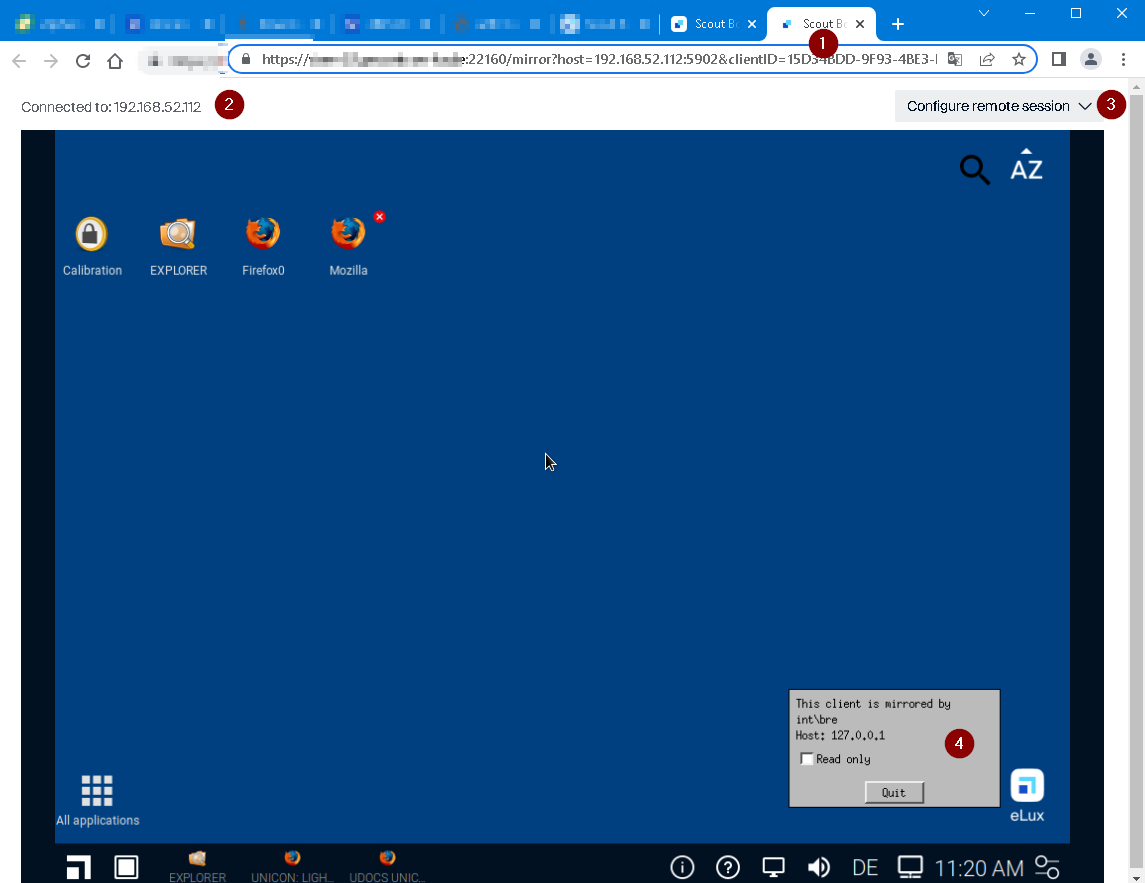
The mirrored device is displayed in a new browser tab.
-
If configured in Device Configuration > Security, a password is required for mirroring. On the new tab, enter the password.
Depending on the device configuration, users must confirm the mirroring request within a defined time span before a session can be initiated.
For further information, see Configuring mirroring in the Scout guide.
 |
|
|---|---|
| 1 | New browser tab for the mirror session |
| 2 | IP address of the mirrored device |
| 3 | Options for the mirror session |
| 4 | Permanent system message |
Role of the system message
Throughout a mirror session, a system message (4) will be displayed on the screens of the user (mirrored) and administrator (mirroring):
-
The message remains permanently in the foreground and indicates that mirroring is active.
-
The mirrored user can end the session at any time (Quit button).
-
The mirrored user can specify that the administrator may only read, which means that he is not allowed to take control of the mirrored device (Read only option).
Configuring a remote session
During a mirror session, there are several options available.
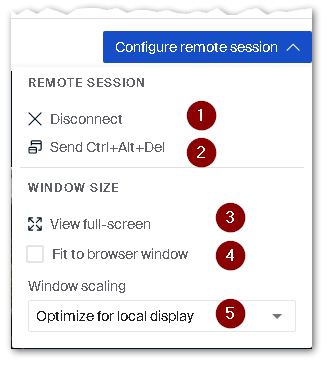
- At top right, click Configure remote session:
 |
|
|---|---|
| 1 | Disconnect mirror session. The session window and tab are closed. |
| 2 | Send Ctrl+Alt+Del into the session, for example to make a logon |
| 3 | Show session window in full screen mode. To return to window mode, press Esc
|
| 4 | Fit session window to browser window.Depending on the aspect ratio, the entire screen of the mirrored device may not be displayed. |
| 5 | Adjust session window in maximum size to the local situation (default) |
The set options for the session window size are saved in the browser for the current user.
For further information, see Mirroring in the Scout guide.