
Set up licensing
Workspace Environment Management™ (WEM) validates your license entitlement through the Citrix License Server. Set up licensing for WEM based on the console you use:
-
If you use the legacy console, set up licensing for the WEM infrastructure services.
-
If you use the web console, set up licensing for both the WEM infrastructure services and the web console.
A WEM license entitlement does not affect WEM agent functionality. It only affects an administrator's ability to configure settings through the web console or the legacy console. Without a valid license, administrators cannot deploy new policies or modify existing ones through a console. Policies that have already been delivered to the agent are not affected.
Note:
WEM uses the Citrix® Licensing Activation Service (LAS) to validate entitlements. We recommend that you upgrade to:
-
WEM version 2511 or later if you use the legacy console.
-
WEM version 2603 or later if you use the web console.
Prerequisites
Before you set up licensing, ensure the following:
-
A Citrix License Server with valid WEM entitlements is available.
-
The WEM infrastructure server can reach the license server over HTTPS on the LAS port (default: 8083).Note:If the license server is unreachable, license configuration and certificate acceptance fail. For more information about connectivity checks, see Troubleshoot WEM LAS issues.
Configure licensing for the infrastructure services
You can configure the WEM license for the infrastructure services in two ways:
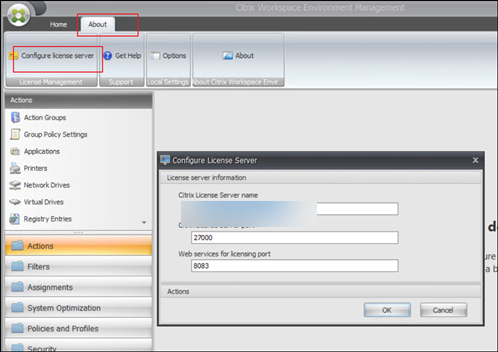
Configure the license server globally for WEM infrastructure services
If you have multiple WEM infrastructure servers, configure the license server globally in the WEM legacy console and apply the same settings to all servers.
-
In the WEM console, click About > Configure License Server to open the configuration dialog box.
-
Enter the license server information.
-
Click OK.
-
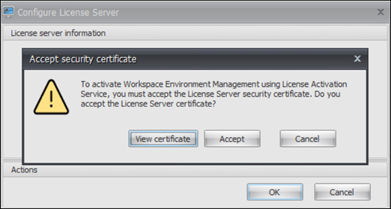
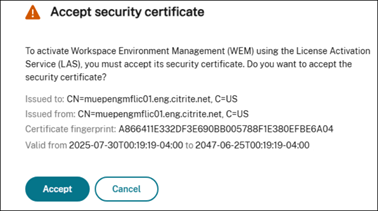
When the Accept Security Certificate dialog box appears, accept the certificate to complete the configuration.
Configure the license server for a single WEM infrastructure server
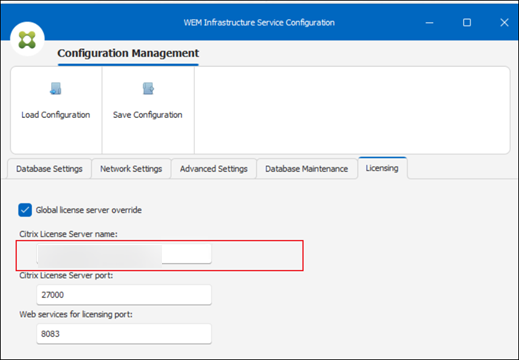
Configure the license server for a specific WEM infrastructure server using the WEM Infrastructure Service Configuration utility.
-
Launch the WEM Infrastructure Service Configuration utility.
-
On the Licensing tab, enter the license server information.
-
Click Save Configuration.
-
When the Accept Security Certificate dialog box appears, accept the certificate to complete the configuration.
Configure licensing for the web console
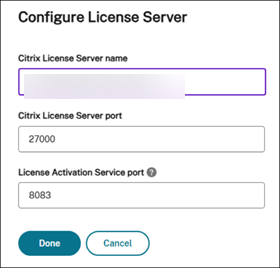
If you use the web console version 2603 or later, configure the license server for the web console after you configure licensing for the infrastructure services. Provide the Citrix License Server connection details, including the license server FQDN, port, and License Activation Service (LAS) port.
Note:
LAS simplifies the licensing experience by eliminating the need to download, upload, or manage license activation codes and product-specific license files. For more information, see License Activation Service.
-
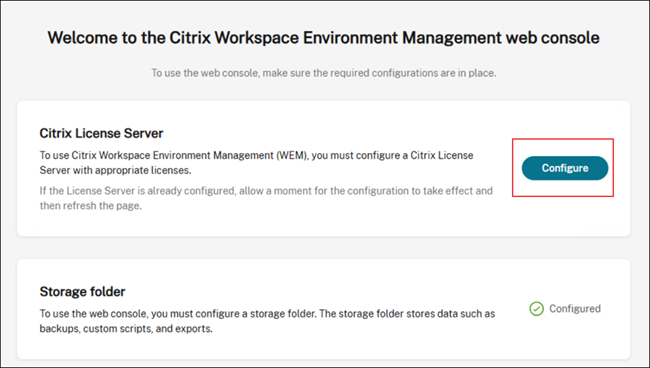
Launch the web console. If no license server has been configured, a prompt appears.
-
Click Configure, and then enter the license server information.
-
When the Accept Security Certificate dialog box appears, accept the certificate to complete the configuration.
Re-accept the license server certificate
The first time you configure the license server, you accept the certificate as part of the configuration steps. You must re-accept the certificate under the following circumstances:
-
You are upgrading WEM from a version that did not support LAS to a version that supports LAS for the first time.
-
You have renewed or replaced the license server certificate.
Note:
If you have added the license server certificate to the machine's Trusted Root Certification Authorities, the dialog box does not appear. This is expected because LAS still works because the certificate is already trusted.
To re-accept the certificate, use the same method you used to configure the license server:
-
WEM Infrastructure Service Configuration utility. Relaunch the utility and click Save Configuration. When the Accept Security Certificate dialog box appears, accept the certificate.
-
WEM console. Reconfigure the license server in the WEM console. This action triggers the certificate acceptance process.
Verify that WEM LAS is working
After you configure the license server and accept the certificate, verify LAS based on the component you use:
Verify LAS for the infrastructure service and legacy console
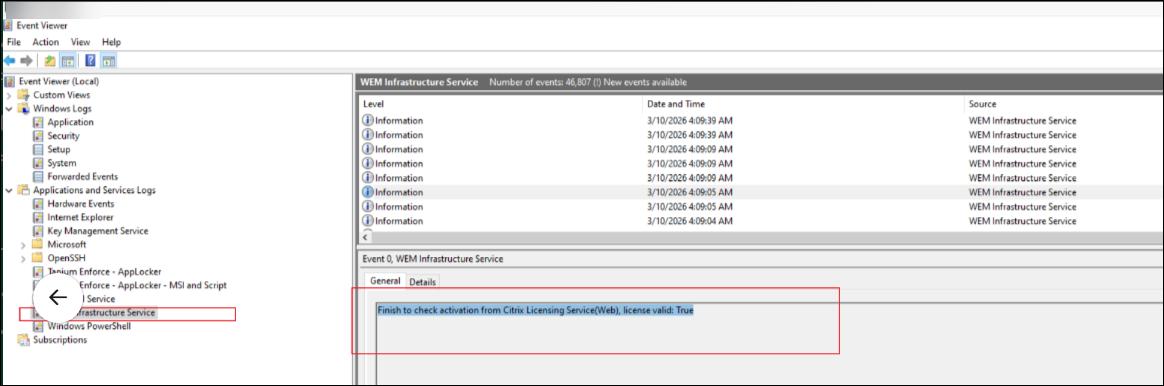
To verify that WEM is using LAS, check for the following log entry in Event Viewer or in the Citrix WEM Infrastructure Service Debug.log. To enable the log file, see View log files.
Finish to check activation from Citrix Licensing Service (Web), license valid: True
If this log entry is present, WEM has been successfully activated using LAS.
Note:
WEM switches to the legacy V6 license if LAS fails. In that case, the log entry includes
Citrix Licensing Service (Legacy) instead.
Check license server information in the web console
You can check the current license server information in the web console:
-
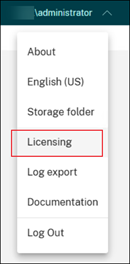
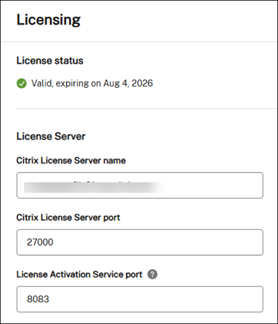
Click your name in the upper-right corner, and then select Licensing. A dialog box displays the current license information.
-
Check the license status and reconfigure the license server information if needed.
Troubleshoot license issues
If license configuration fails, or the certificate acceptance dialog box does not appear, see Troubleshoot WEM LAS issues for guidance on certificate errors, hostname mismatches, and connectivity checks.