
What's new
About the release
This Citrix Virtual Apps and Desktops release includes new versions of the Windows Virtual Delivery Agents (VDAs) and new versions of several core components. You can:
-
Install or upgrade a site: Use the ISO for this release to install or upgrade core components and VDAs. Installing or upgrading to the latest version allows you to use the latest features.
-
Install or upgrade VDAs in an existing site: If you already have a deployment and aren't ready to upgrade your core components, you can still use several of the latest HDX™ features by installing (or upgrading to) a new VDA. Upgrading only the VDAs can be helpful when you want to test enhancements in a non-production environment.After upgrading your VDAs to this version (from version 7.9 or later), you do not need to update the machine catalog's functional level. The 7.9 (or later) value remains the default functional level and is valid for this release. For more information, see VDA versions and functional levels.
For installation and upgrade instructions:
-
If you are building a new site, follow the sequence in Install and configure.
-
If you are upgrading a site, see Upgrade a deployment.
Citrix Virtual Apps and Desktops 7 2311
HDX Direct (Preview)
With the new enhancements, HDX Direct now allows both internal and external client devices to establish a secure direct connection with the session host if direct communication is possible. For more information, see HDX Direct.
Support for associating metadata with configuration logs
Using this enhancement, you can now attach metadata with the configuration logs by associating a
name-value pair on the high-level operations. For more information, see Associate metadata with configuration logs.
Citrix Secure Private Access™ for on-premises
Citrix Secure Private Access for on-premises is now generally available as part of the Citrix Virtual Apps and Desktops 2311 release. The Secure Private Access on-premises solution includes a full service admin console UI with a similar look and feel as the Secure Private Access service. For details, see Citrix Secure Private Access for on-premises – General Availability.
Citrix Hypervisor™ rebranded to XenServer
In line with our latest rebranding strategy, we have updated all instances of Citrix Hypervisor to XenServer®.
Support for registering Oracle Cloud Infrastructure (OCI) provisioned machines in Citrix Virtual Apps and Desktops
If you are a Universal or an on-premises term licensed customer, you can now register your virtual machines provisioned through OCI with Citrix Virtual Apps and Desktops. This enhancement allows you to utilize the Citrix technologies for a seamless and secure access to these VMs. Note that we do not provide Machine Creation Service (MCS) or Citrix Provisioning™ support for machines provisioned through OCI.
Run Citrix Virtual Apps and Desktops Control plane from Azure
You can now run Citrix Virtual Apps and Desktops Control plane infrastructure like Delivery Controllers, Studio, and so on from Azure.
PowerShell script to change the Windows desktops and applications icons to default icons for Citrix Virtual Apps and Desktops 2209 and earlier
After changes in the Citrix Virtual Apps and Desktops architecture in version 2209, the default icons for Windows desktops and for applications deployed before this release have changed to generic PC desktop icons. This change is only applicable to desktops and applications that are pointing to the default icon. If you want to change icons back to the Windows application default icon, run the following script using the Remote PowerShell SDK:
Get-BrokerApplication -IconUid 1 | Set-BrokerApplication -IconUid 0.
Enhanced server-side policy to include Bidirectional URL redirection
You can now use the server-side policy control to manage the Bidirectional URL redirection.
For more information, see Bidirectional content redirection policy settings.
Virtual Delivery Agents (VDAs) 2311
Enhancements to VDA installers
The following enhancements are introduced to the
VDAServerSetup_xxxx.exe, VDAWorkstationSetup_xxxx.exe, and VDAWorkstationCoreSetup_xxxx.exe installers:
-
Newly added arguments:
/enable_hdx_tls_dtlsand/websockettoken -
Options to exclude: Citrix App Protection Component, Citrix HyperV Filter Driver, and Citrix Personalization for the App-V - VDA components
For more information see, Command-line options for installing a VDA.
Adaptive refresh rate
With the new scalability improvements, HDX now matches the refresh rate of virtual monitors to match the target FPS policy set. For more information, see Adaptive refresh rate.
Support for NGads Azure SKUs with AMD Radeon PRO V620
NGads Azure SKUs with AMD Radeon PRO V620 are now supported. With this, you now have more options in selecting the GPU-accelerated SKUs on Azure.
Support for AOMedia Video 1 (AV1) encoding
The AV1 video codec is now supported for the following graphic modes:
-
For Actively Changing Regions
-
For the Entire Screen
The following GPUs are supported:
-
NVIDIA Ada Lovelace-based GPU
-
Intel ARC or Intel Data Center GPU Flex Series GPUs
With the new AV1 video codec, you can now experience superior image compression, better image quality, and lower bandwidth usage compared to H.264 and H.265. For more information, see AV1.
Support for loss tolerant mode for graphics
Loss tolerant mode is thoroughly reworked to ensure the session remains interactive when packet loss is detected.
For more information, see Loss tolerant mode.
Rendezvous V2 protocol by default
Rendezvous continues to be disabled by default. When Rendezvous is enabled, it uses V2 by default instead of V1. For more information, see Configure rendezvous version.
TLS 1.3 support on Universal Print Server
Universal Print Server now supports TLS 1.3 which enhances the overall security posture which includes the removal of all legacy cipher suites, shortened handshake process, updating the TLS protocol version negotiation mechanism, and so on.
For more information, see Transport Layer Security (TLS) on Universal Print Server.
Virtual Channel Allow List logging enhancements
New configuration options have been added for the Virtual Channel Allow List logs, which allow you to set the logging level as well as a throttling period to help manage the amount of events generated. For more information, see Virtual channel allow list logging enhancements.
Virtual IP and virtual loopback
Virtual IP and virtual loopback are now supported with Windows Server 2019 and Windows Server 2022. For more information, see Virtual IP and virtual loopback.
PowerShell command to enable the reuse of power-managed desktop VDAs for all the delivery groups on the site
Previously, to enable access to power-managed desktop VDAs in pooled delivery groups (created by MCS or Citrix Provisioning) during a Local Host Cache event, you had to run the
ReuseMachinesWithoutShutdownInOutage PowerShell command for each delivery group. Now, you can change the default value of ReuseMachinesWithoutShutdownInOutage for new Delivery Groups created in your environment. For more information, see Application and Desktop.
Media Foundation Transforms (MFT) support for webcam redirection on Windows Virtual Desktops Agent
You can now select MFT as an option for webcam redirection on Windows Virtual Desktops Agent. With MFT, media data processing is made simpler.
For more information, see Microsoft documentation.
VDA environments with proxies for internet and URL filtering (Preview)
You can now use the VDA Upgrade Service to update VDAs when you have proxies for internet connectivity and web filtering. The proxy configured in policy takes precedence over the proxy configured in registry. For more information, see Install VDAs. Also, refer to the list of urls that need to be white listed in the proxy.
EDT enhanced congestion control
The EDT congestion control algorithm has been updated to optimize response and performance in challenging networks.
USB diagnostics tool
A commandline tool on the VDA to help Citrix admins diagnose and resolve USB device redirection issues experienced on the client in an expedited manner. This utility tool collects vital information required to resolve configuration issues associated with USB devices attached on the client that are failing to redirect inside an ICA session. For more information, see USB Diagnostics Tool
VDA machines that fail registration consecutively moved to Sin Bin
To improve VDA registration process, machines that fail registrations continuously for two times are put into a quarantine bucket called Sin Bin for a time frame of three minutes. Citrix Virtual Apps and Desktops turns down the registration request if the machine is in Sin Bin.
Note:
For the following errors, machines are moved to Sin Bin after the first occurrence itself:
-
DALWorkerFunctionalLevelTooLowForCatalogException
-
DALWorkerFunctionalLevelTooLowForDesktopGroupException
-
DALSingleMultiSessionMismatchException
-
DALWorkerPoweredOffDuringRegistrationException
Web Studio
Show Secure Default Settings
This feature shows the secure default setting along with the default setting. If the secure default setting is enabled, during VDA installation, the priority of the policy settings is affected as follows:
-
Customized setting takes the highest priority
-
Secure default setting takes the second priority
-
Default setting takes the least priority
For instance, the default setting might be overwritten by the secure default setting. For more information, see Policy settings.
Multiple-site management support
This enhancement brings you an integrated Web Studio console to centralize the site management. You can now efficiently manage multiple sites from the same Web Studio, bringing in significant improvements to the challenges associated with the task. The following are the advantages of using the unified Web Studio:
-
Simplified administration - Seamless experience while switching between sites.
-
Efficient help desk operations - Timely and effective response surety while supporting users across the various sites.
For more information, see Enable multiple site management.
Support for configuring load-balancing methods at the delivery group level
This feature allows you to choose the Vertical Load Balancing method at a delivery group level. With this feature, each machine is aligned to the maximum load index before the next machine is powered on. This feature achieves maximum utilization for each machine and cost savings in public clouds. This feature offers more flexibility in managing the load balancing strategies for machines.
You can configure a delivery group to either adopt the load balancing method set at the site level, or to select between vertical or horizontal load balancing methods, thus overriding the site-level setting. For more information, see Load balancing.
Support for creating empty machine catalogs
You can now create a machine catalog without immediate VM creation. With this feature, you can postpone VM creation until back-end hosts are fully prepared or VM provisioning is completed, gaining more flexibility in creating catalogs. For more information, see Create machine catalogs.
Support for changing networks for resources
In Web Studio, you can now change networks for resources associated with host connections. You can’t unassociate networks from resources if the resources are in use. For more information, see Edit networks.
PowerShell logging
In Web Studio, you can now view the PowerShell commands corresponding to your daily UI actions. This feature helps you gain insights into the underlying PowerShell commands for learning purposes. To view the PowerShell logs, go to Logging > PowerShell. For more information, see Configuration logging.
MCS-provisioned machine catalogs
Detect Orphaned Azure resources. With this feature, you can now detect the orphaned resources in your Azure deployment, enabling efficient resource management. After the orphaned resources are identified, you can take further action, bringing in more productivity and cost reduction. For more information, see Detect Orphaned Azure resources in your deployment.
Machine profile support for AWS and GCP VMs. When provisioning AWS or GCP VMs using MCS, you can now select an existing VM as the machine profile, letting VMs inherit settings from the selected VM.
-
For GCP VMs, the inherited settings include Disk Encryption Set ID, Machine size, Storage type, and Zone.
-
For AWS VMs, the inherited settings vary based on the stage:
-
During catalog creation: Machine specification, Machine size, Tenancy type, Security group, and the number of NICs
-
During catalog editing: Machine specification, Machine size, and Security group.
-
For more information, see Create a machine catalog.
Support for updating various Azure machine properties. You can now update the following property settings when managing Machine Creation Services™ (MCS)-provisioned Azure machine catalogs:
-
Storage type
-
Dedicated host group
-
Azure Compute Gallery settings
-
Write-back cache (WBC) settings, such as Disk cache size, Memory cache size, and Enable storage cost saving
When you update any of these settings, Web Studio automatically identifies related settings and provides automatic synchronization or prompt messages requesting you to reselect related settings. This capability ensures consistent changes across associated settings, preventing potential configuration errors. For more information, see Edit a catalog.
Support for updating various Azure machine properties using machine profiles. For MCS-provisioned Azure machine catalogs, you can now update a wider range of property settings through machine profiles, which include:
-
Machine size
-
License type
-
Availability Zone
-
Dedicated Host Group ID
After you update the machine profile, Web Studio compares the current settings with the new ones. If differences exist, you’re prompted to confirm which to apply. This design ensures transparent and efficient VM setting updates.
Option to downgrade storage disk to Standard HDD when VMs shut down. A new option, Enable storage cost saving, is now available on the Disk Settings page when you create or update Azure catalogs. The option saves storage costs by downgrading to Standard HDD for the storage disk and the write-back cache disk when the VM shuts down. The VM switches to its original settings on restart. For more information, see Create a Microsoft Azure catalog.
Ability to filter machine sizes based on Encryption at Host property in machine profiles (Azure VMs specific). Once you choose a machine profile with Encryption at Host enabled during Azure machine catalog creation or management, only machine sizes that support this feature are displayed.
Certificate expiry warning support for Hybrid Azure AD joined machine catalogs. Web Studio now provides one-month advance warnings for user certificate expiration on Hybrid Azure AD joined machine catalogs. This enhancement aims to reduce the risk of service interruptions resulting from certificate expiration. To view the details and recommended actions, go to the Machine Catalogs node, select the machine catalog, and then click the Troubleshoot tab.
Option to delete VM records only from the Citrix site database. When catalog and VM deletion fails because of an unreachable hypervisor, you can now opt to delete VM records only from the Citrix site database, leaving the VMs intact on the host. For more information, see Delete a catalog.
A single option to retain VM and system disk during power cycles. Starting an existing VM on Azure is now faster than launching a new one, making it a more efficient choice to retain VMs across power cycles. In response to this change, we've combined the options Retain VMs across power cycles and Retain system disk during power cycles into a single option Retain VM and system disk during power cycles. This means that when you select this option to reduce VM restart times by retaining system disks, your VMs are retained as well.
Policies related
New policy validations. Additional policy validations are added. As a result, enabling policies or doing an in-place upgrade might lead to loss of policy data if invalid policy settings are present. If you create or edit the policies using a method other than Web Studio, Citrix recommends you use the latest version of the SDK and snap-in. For more information, see CTX666304.
Policy sets. In Web Studio > Policies, you can now group policies together for simplified role-based access using policy sets. You can then assign scopes and delivery groups to your policy sets so that only authorized administrators can manage the policies that apply to their relevant users and machines. For more information, see Policy sets.
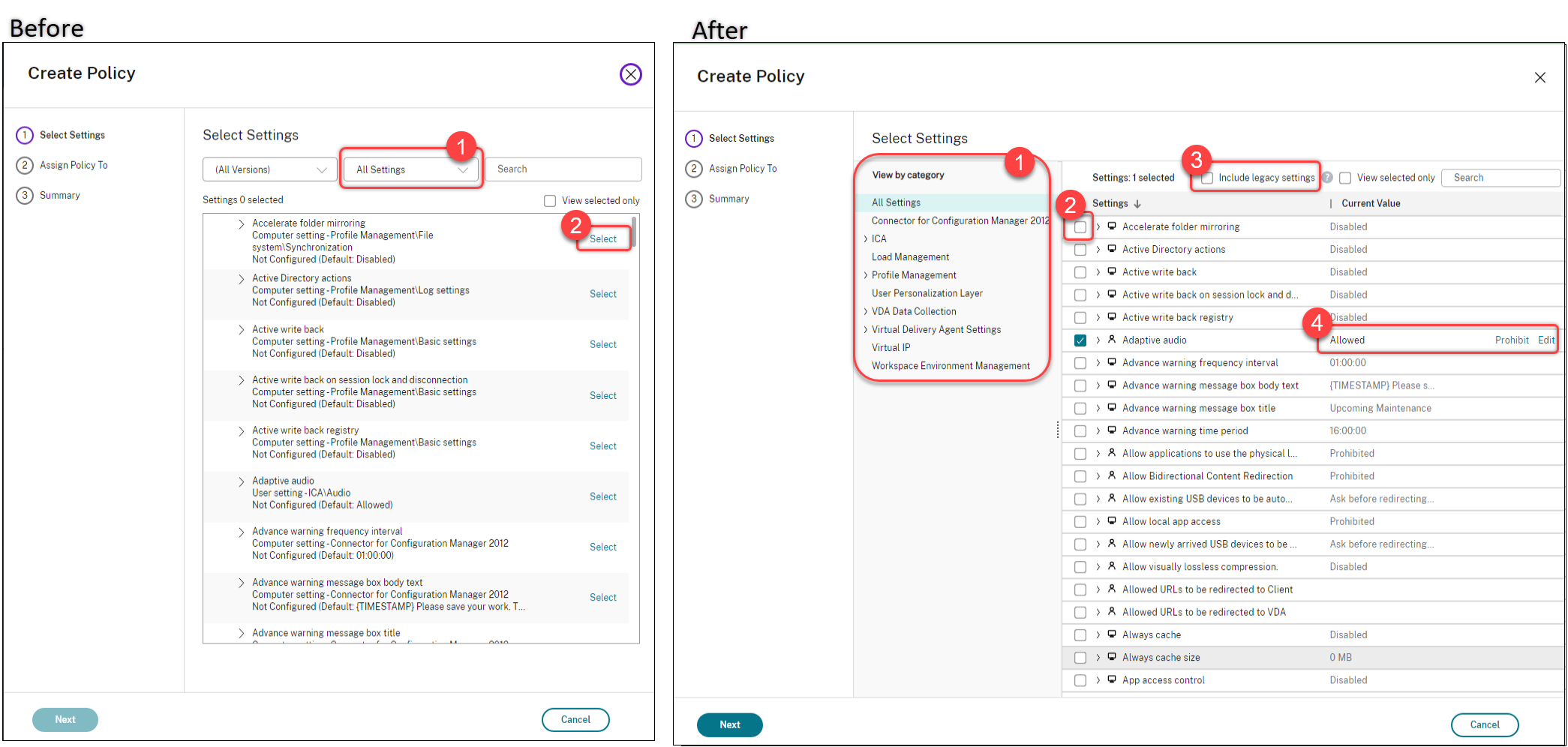
User experience improvements. To improve the user experience and make policy management more efficient, we've implemented the following improvements to the Policies node:
-
New UI design for the Create Policy and Create Template actions:
-
Expandable folder view for policy settings. On the Select Settings page, all settings appear by category in an expandable tree view, making it easier to find a setting.
-
To select a setting, you simply click a checkbox instead of using the Select button.
-
Legacy settings have been hidden by default so that only the most relevant settings are shown. If legacy settings are needed, select Include legacy settings.
-
An action button has been added next to a Boolean setting, enabling you to change its value directly in the settings list.
-
-
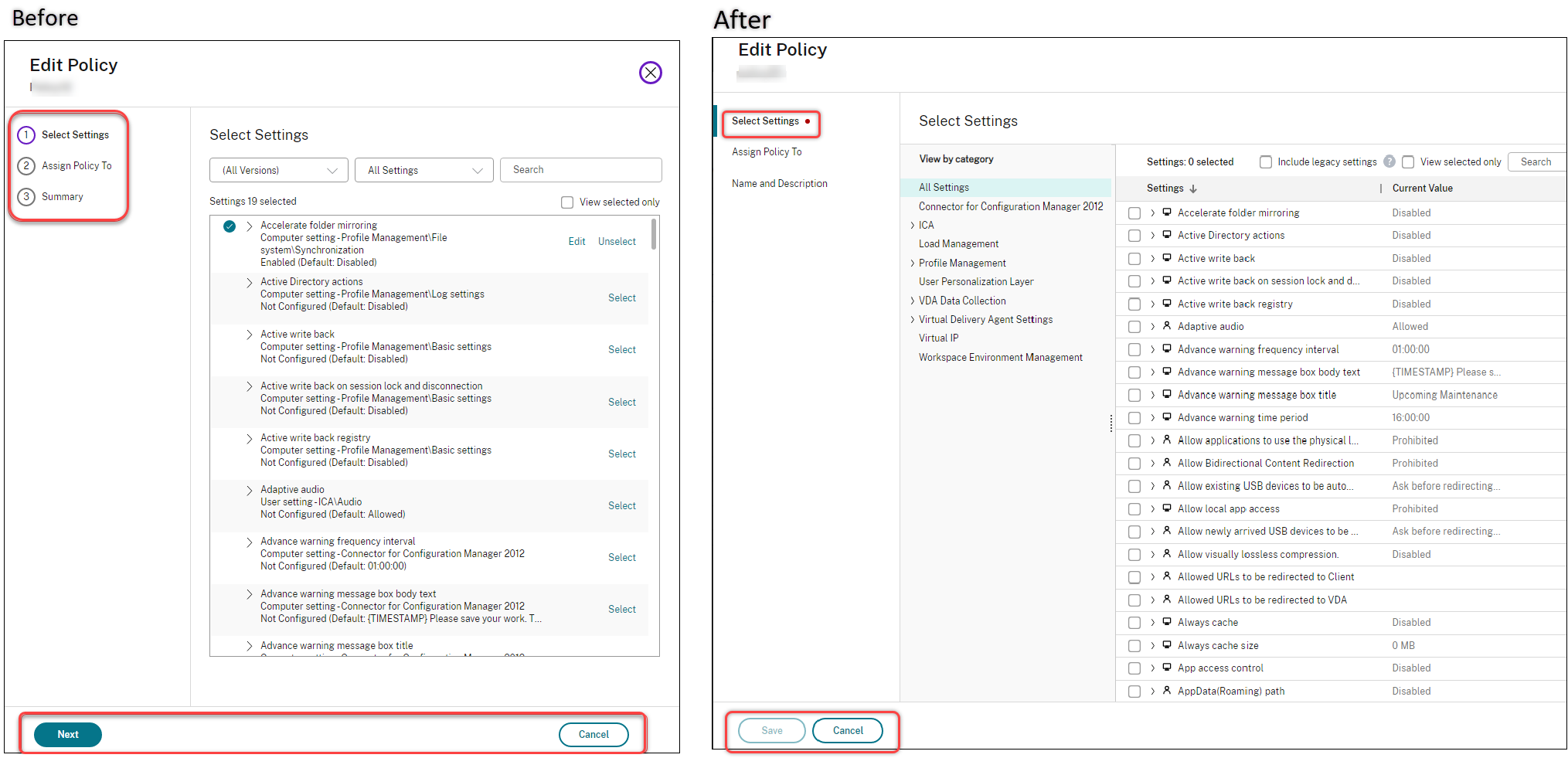
New UI design for the Edit Policy action:
-
The navigation menu has been updated to an unordered list. Each item in the list now includes a Save button on its page. With this new design, you can save changes made to an item without having to navigate through all items in the navigation menu. These improvements make policy management more efficient and streamlined.
-
Red dots appear next to the navigation items to indicate setting errors.
-
-
Drag to reprioritize policies. In the priority list, you can now change the priority of a policy by dragging it to a wanted position.
VDA version support on settings page of create/edit policy When configuring settings for a policy, you now have an option to view settings in the following categories:
-
All settings. View all settings applicable to all VDA versions.
-
Current settings only. View settings specific to the current VDA version.
-
Legacy settings only. View settings applicable only to the deprecated VDA versions.
Enhanced search functionality
We’ve revamped the search functionality to include interactions for filters, giving you a better user experience. The following additions are available:
-
Delete saved filter sets: You can now easily delete saved filter sets right within the search menu, without navigating to Manage filter sets.
-
AND/OR operator update: Match all (AND operator) and Match any (OR operator) options are now available in the filters panel, accessible with a single click the filters icon.
-
Streamlined criteria selection: You can now specify multiple criteria directly in the filters panel.
-
Cleaner interface: The filter pinning ability has been removed, reducing UI clutter and making your search experience more intuitive.
-
Quick filter addition: After applying filters, you can now use the plus sign to quickly add one more filter.
We've also extended these enhancements to other nodes such as Machine Catalogs, Delivery Group, Application Group, and Applications.
For more information, see Use Search in Studio.
Data caching for the Search node
We've introduced data caching for the Search node. This enhancement improves the performance of the search and the following lists the use cases that eases your regular tasks:
-
Quick display of search results after they are retrieved for the first time.
-
Retains pagination results after navigating out and back to the search node.
Removed the Azure Germany option
In line with the closure of Microsoft Cloud Deutschland on October 29, 2021, we've removed the Azure Germany option from the host connection creation page.
Support for creating Citrix Provisioning catalogs using Web Studio
To create a Citrix Provisioning catalog, you had to use the Citrix Virtual Apps and Desktops Setup Wizard. With this feature, you can now create a Citrix Provisioning catalog using Web Studio and PowerShell.
This implementation provides you the following advantages:
-
A single unified console to manage both MCS and Citrix Provisioning catalogs.
-
Have new features for Citrix Provisioning catalogs, such as, identity management solution, on-demand provisioning and so on.
Currently, this feature is available only for Azure workloads. For more information, see Create Citrix Provisioning catalogs in Citrix Studio.
Citrix Director
User interface improvements
The Citrix Director user interface is now refreshed with a modern look and feel. The new and improved user interface provides easier navigation and better data representation. The improved experience is intuitive and designed to easily comprehend the data required to monitor and troubleshoot a Citrix session.
Play back live and recorded sessions
Citrix Director now supports playing back recorded and live user sessions that are recorded using the Session Recording service. You can quickly understand the session-related issues encountered by the user from the replay. With this feature, you get ready access to recordings along with session-related metrics within the Director console. It helps corelate the issues discovered in the recordings with the performance metrics. It eliminates the requirement of searching for recordings across multiple session recording servers or looking for third-party apps to view the recordings.
This feature requires the following:
-
VDA and the Session Recording server are on version 2308 or later.
-
Delivery Controller™ and Director are on version 2311 or later.
Director stores the recordings in a centralized repository and displays them on the Session Selector modal. The Sessions with recordings link displays the recordings of sessions that were active during the last 24 hours or the last 2 days. The recording is played back on a new tab using the Citrix Session Recording playback server.
For more information, see Record sessions.
End-to-end Network Hop view
End-to-end network hop view is the next step towards enhancing troubleshooting workflows in Citrix Director. The User Details > Session Performance > Session Topology section provides a visual representation of the end-to-end network hop view for connected HDX sessions. The in-session path helps understand the components involved in the session path with their metadata, the link between the components, and the applications published on the VDA. The Session Topology helps the data flows and to identify the specific hop that might be bringing in performance issues.
In addition, ICA Latency and ICA RTT measurements are displayed for the session when it is in a connected state. For more information, see End-to-end Network Hop view.
Optimal screen resolution
The recommended optimal screen resolution for viewing Citrix Director is updated to 1440 x 1024. For more information regarding the system requirements of Director, see System Requirements.
MS Teams Optimization
Director displays if Microsoft Teams is optimized. This can be viewed in the User Details page > Session Details panel. This information is available for VDA version 2311 and later. Director displays the status of the Microsoft Teams optimization only if Microsoft Teams is running as a published app or inside a published desktop. This enhancement helps in reducing the time to resolve tickets and assists administrators to surface any critical metrics while troubleshooting. For more information, see Troubleshoot user issues.
Probes Overview enhancements
A summary of the Probe Metrics and the Probe Failure Stages in now available in the Probe > Overview page. The Probe Metrics shows the count of Scheduled, Failed, Skipped, and Successful runs. The graphical representation of the failure stages helps analyze the stages in which most failures have occurred. This information helps to quickly troubleshoot the probe results. For more information, see the Application and Desktop Probing article.
Revamped Session Logon Duration view
The new Session Logon tab in the User Details page has an enhanced visualization of the logon duration phases. The new representation shows the overlapping of the individual logon phases. Also provided is the description of the individual phases and drilldown into GPO and Profile Details subphase measurements. This visualization helps understand and easily troubleshoot issues related to logon duration. For more information, see Diagnose user logon issues.
Dynamic Session Recording
You can now record the current active session using the Session Recording controls from the User Details screen without the need to re-establish the session. This feature enables quicker and effective troubleshooting of session experience-related issues faced by users. This is useful to debug issues that are difficult to reproduce.
For more information about Dynamic Session Recording, see the Session Recording service article.
Machine Creation Services (MCS)
Preview features
Support for hibernation-capable VMs (Preview). In Azure environments, you can create an MCS machine catalog using Web Studio and PowerShell commands that supports hibernation. Using this feature, you can suspend a VM when the session is idle for some time, and then reconnect to the previous state of the VM when a user signs in again. For more information, see Create hibernation-capable VMs (Preview).
Support for Citrix-managed HPE Moonshot plug-in (Preview). Previously, you used HPE-managed Moonshot plug-in (HPE Moonshot Machine Manager) maintained by Hewlett Packard Enterprise (HPE) to perform the power management actions on HPE Moonshot chassis. The plug-in was based on legacy APIs that made MCS infrastructure projects difficult. With this feature, a Citrix-managed HPE Moonshot plug-in (HPE Moonshot) is introduced. With this plug-in, you can create connections to your HPE Moonshot chassis, create catalogs, and power manage machines in the catalog using Web Studio and PowerShell commands. For more information, see:
Managing machine catalogs
MCS support for managing different versions of a machine catalog. With this feature, you can manage the configuration versions of a machine catalog using PowerShell commands. Each configuration change using the
Set-ProvScheme results in a new configuration version. You can:
-
See the list of versions
-
Use any previous version to update a machine catalog
-
Manually delete a version if it is not used by a VM
-
Change the number of maximum versions to be retained by a machine catalog
For more information, see Manage versions of a machine catalog.
Support for converting a non-machine profile-based machine catalog to machine profile-based machine catalog in AWS environment. In an AWS environment, you can now use a VM or launch template as a machine profile input to convert a non-machine profile-based machine catalog to machine profile-based machine catalog. New VMs added to the catalog take property values from the machine profile. For more information, see Convert a non-machine profile-based machine catalog to machine profile-based machine catalog.
Repair the identity information of active computer accounts. With this feature, you can reset the identity information of active computer accounts that have identity-related problems. You can choose to reset only the machine password and trust keys, or reset all configuration of the identity disk. This implementation is applicable to both persistent and non-persistent machine catalogs. Currently, the feature is supported only for Azure and VMware virtualization environments. For more information, see Repair the identity information of active computer accounts.
Ability to reset the OS disk of a persistent VM in an MCS created machine catalog in AWS. In AWS environments, you can now use the PowerShell command
Reset-ProvVMDisk to reset the OS disk of a persistent VM in an MCS created machine catalog. The feature automates the process of resetting the OS disk. For example, it helps in resetting the VM to its initial status of a persistent development desktop catalog created using MCS.
For more information on using PowerShell command to reset the OS disk, see Reset OS disk.
Retrieve a list of orphaned resources
You can get a list of orphaned resources that are created by MCS but are no longer tracked by MCS. This is currently applicable to Azure environments. To get the list, you can use PowerShell commands. You can filter using connections. For more information, see Retrieve a list of orphaned resources.
MCS ability to change memory and disk cache size
With this feature, you can now change the memory and disk cache size of the Write-back cache (when MCSIO is enabled) using a PowerShell command without creating a new machine catalog. This implementation helps you to have the optimized cache configuration that is suitable for your business needs. This feature is applicable to:
-
GCP and Microsoft Azure environments, and
-
a non-persistent catalog with MCSIO enabled
For more information, see Change cache configuration on an existing machine catalog.
VMware support for storage migration of VMs
With this feature, in a VMware environment, you can move the disk storage of existing VMs from an old storage to a new storage. During migration, MCS retains VM capabilities such as power management, reset OS disk, and so on. You can also add new VMs to the machine catalog using the new disk storage service. To do this, use the PowerShell command
Move-ProvVMDisk. For more information, see Storage migration of VMs.
SCVMM support for machine profile
With this feature, you can now use a machine profile to create and update an MCS machine catalog in System Center Virtual Machine Manager (SCVMM) environments. You can also enable nested virtualization and vTPM. For more information, see Create a catalog with a machine profile.
Repair the user certificates of hybrid Azure AD joined machine identities
With this feature, you can use Powershell command to repair the user certificates of hybrid Azure AD joined machine identities if they corrupt or expire. For more information, see Create Hybrid Azure Active Directory joined catalogs.
You can run the
Get-ProvScheme command to get information about the user certificate expiration date of a hybrid Azure AD joined machine catalog.
Solution for SCCM duplicated GUID issue
After creating multiple VMs using MCS, the System Center Configuration Manager (SCCM) displayed only one VM on its console because of duplicated GUIDs. This issue is now resolved by adding a step in the image preparation. This step deletes the existing certificates and GUID information within master image. The step is enabled by default.
Profile Management
For information about new features, see the What’s new article in its own document.
Linux VDA
For information about new features, see the What’s new article in its own document.
Session Recording
For information about new features, see the What’s new article in its own document.
Workspace Environment Management™
For information about new features, see the What’s new article in its own document.
Citrix Provisioning
For information about new features, see the What’s new article in its own document.
Federated Authentication Service
For information about new features, see the What’s new article in its own document.