Azure Enterprise Application for AAD Conditional Access integration
This article describes how to set up and configure an Enterprise Application in Microsoft Azure to be used with the deviceTRUST Azure Conditional Access Integration.
Integrating deviceTRUST with Azure Conditional Access requires the dT Agent being able to send data to the Azure control plane. Therefor, an Enterprise Application is utilized.
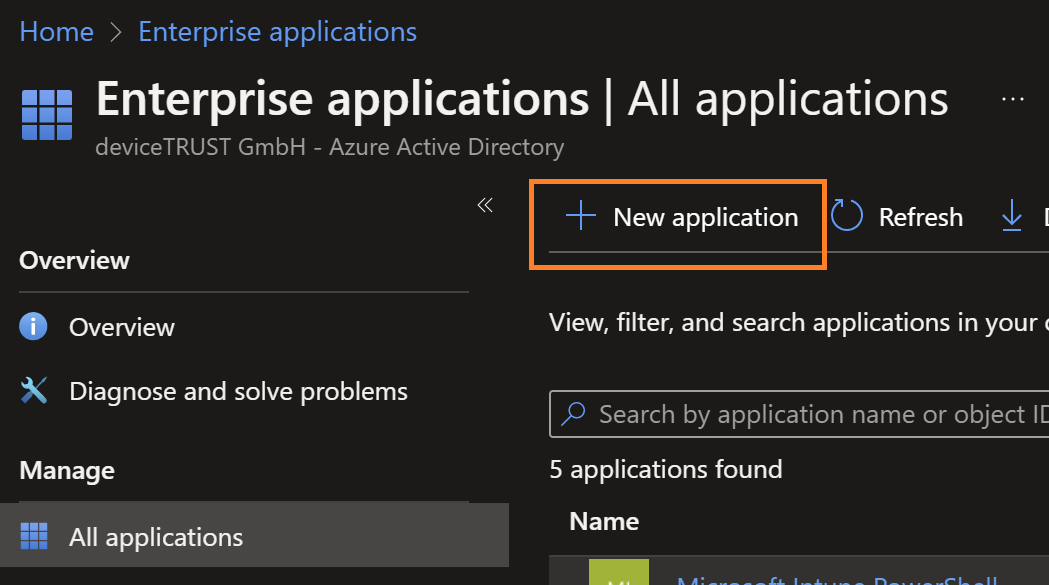
The first step is to log on to you Azure subscription with an appropriate account and head over to "Enterprise Applications". There you click "New application"
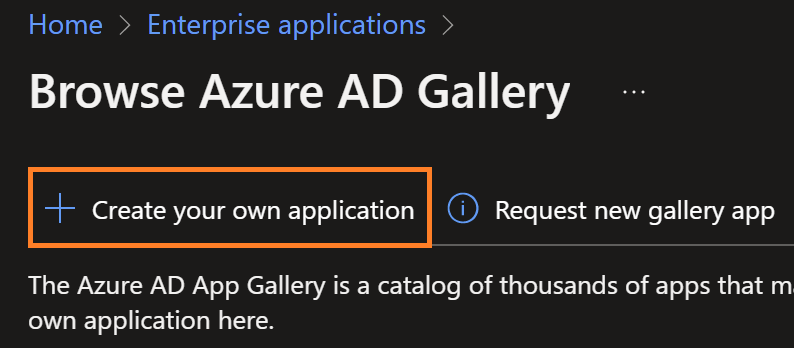
Choose "Create your own application"
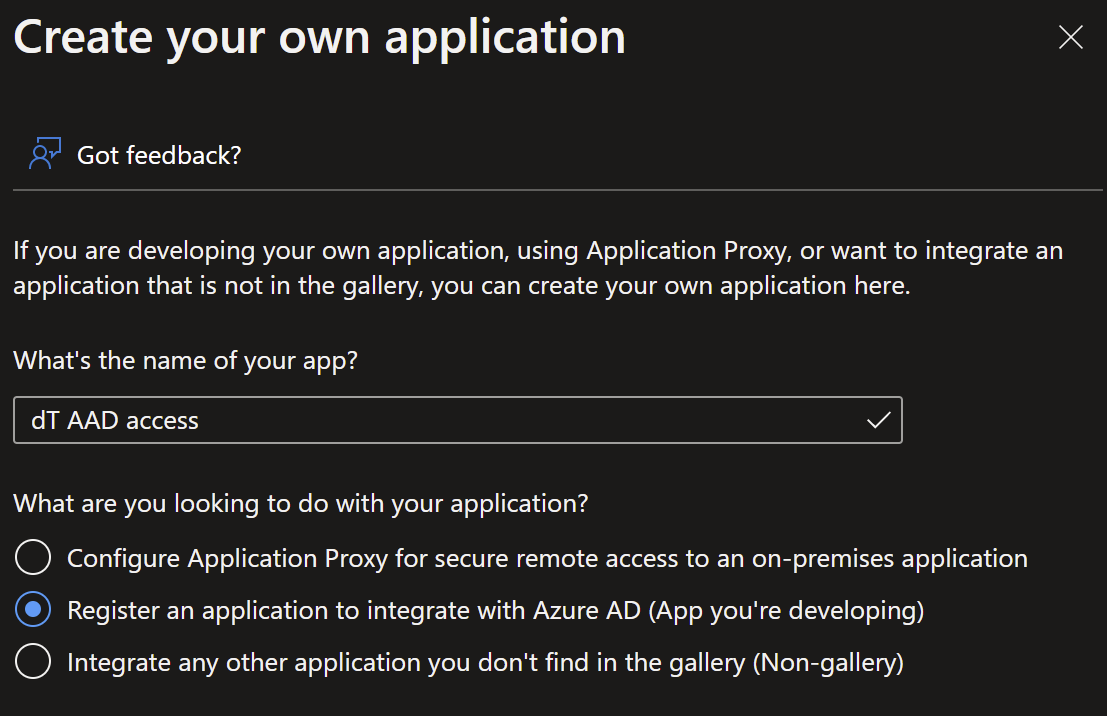
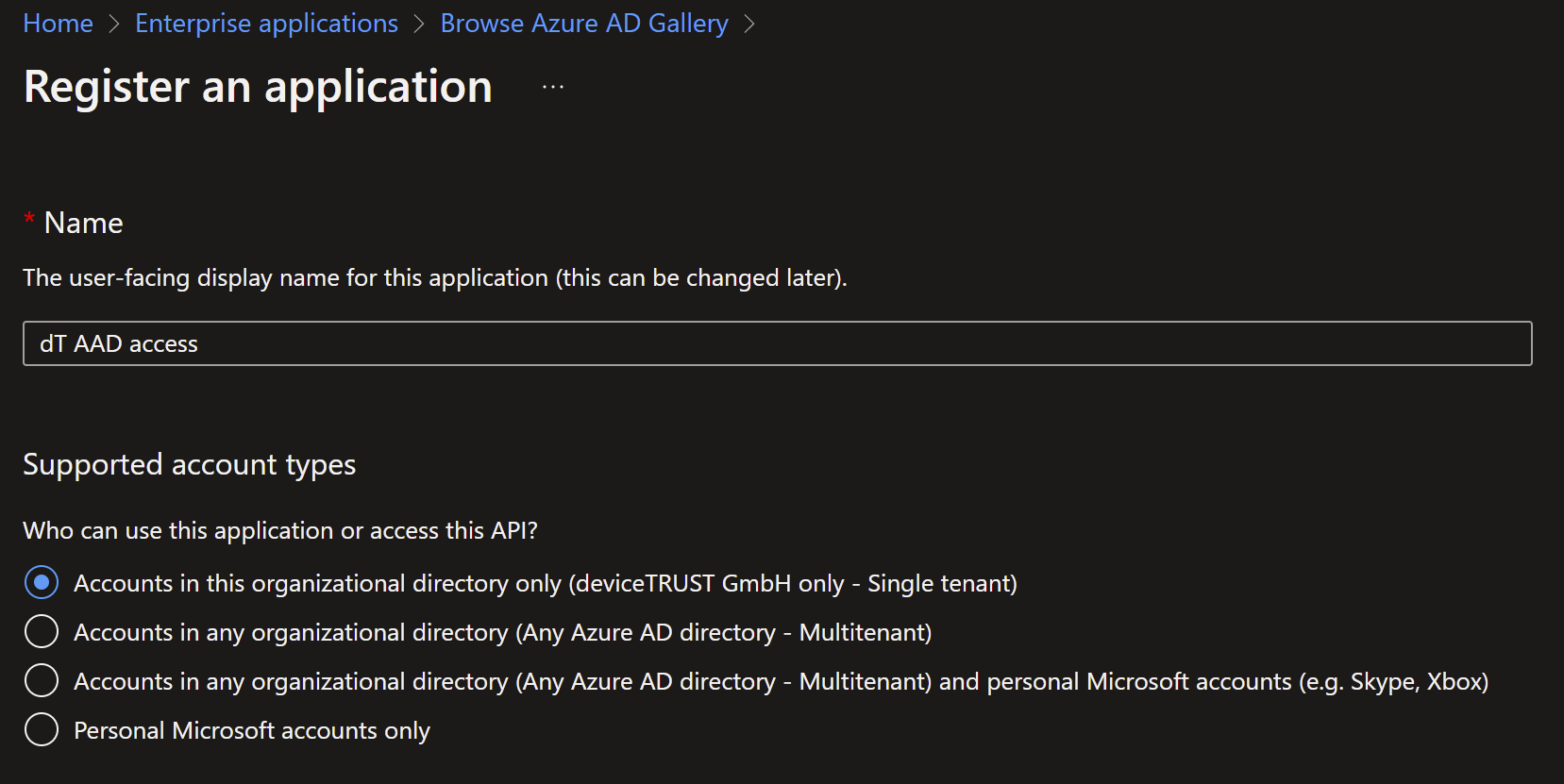
Give the application an name of your choice and select "Register an application to integrate with Azure AD (App you're deploying)"
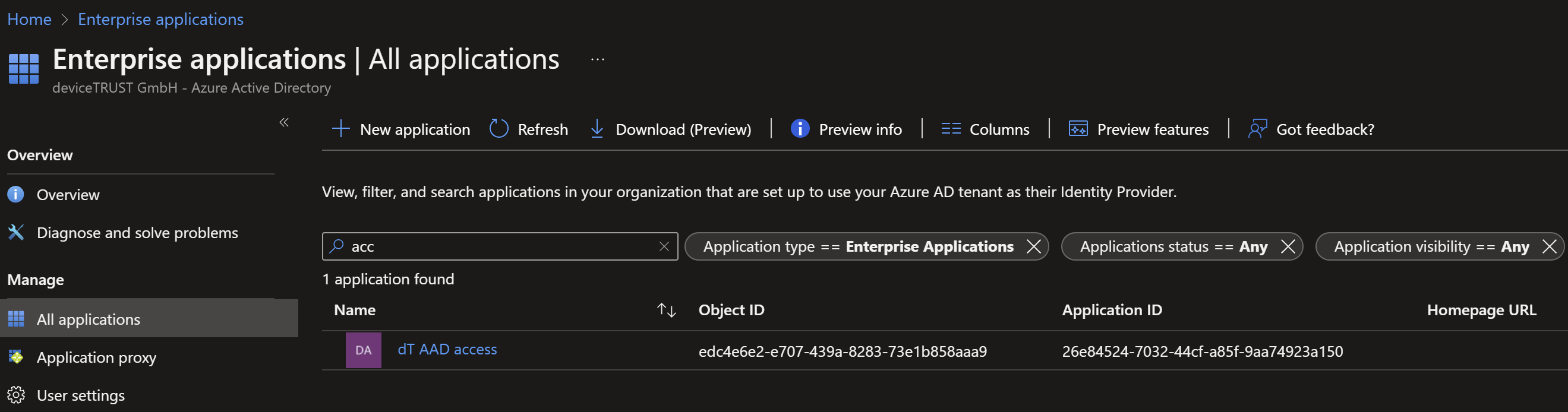
You'll find your application listed in the Enterprise Application menu
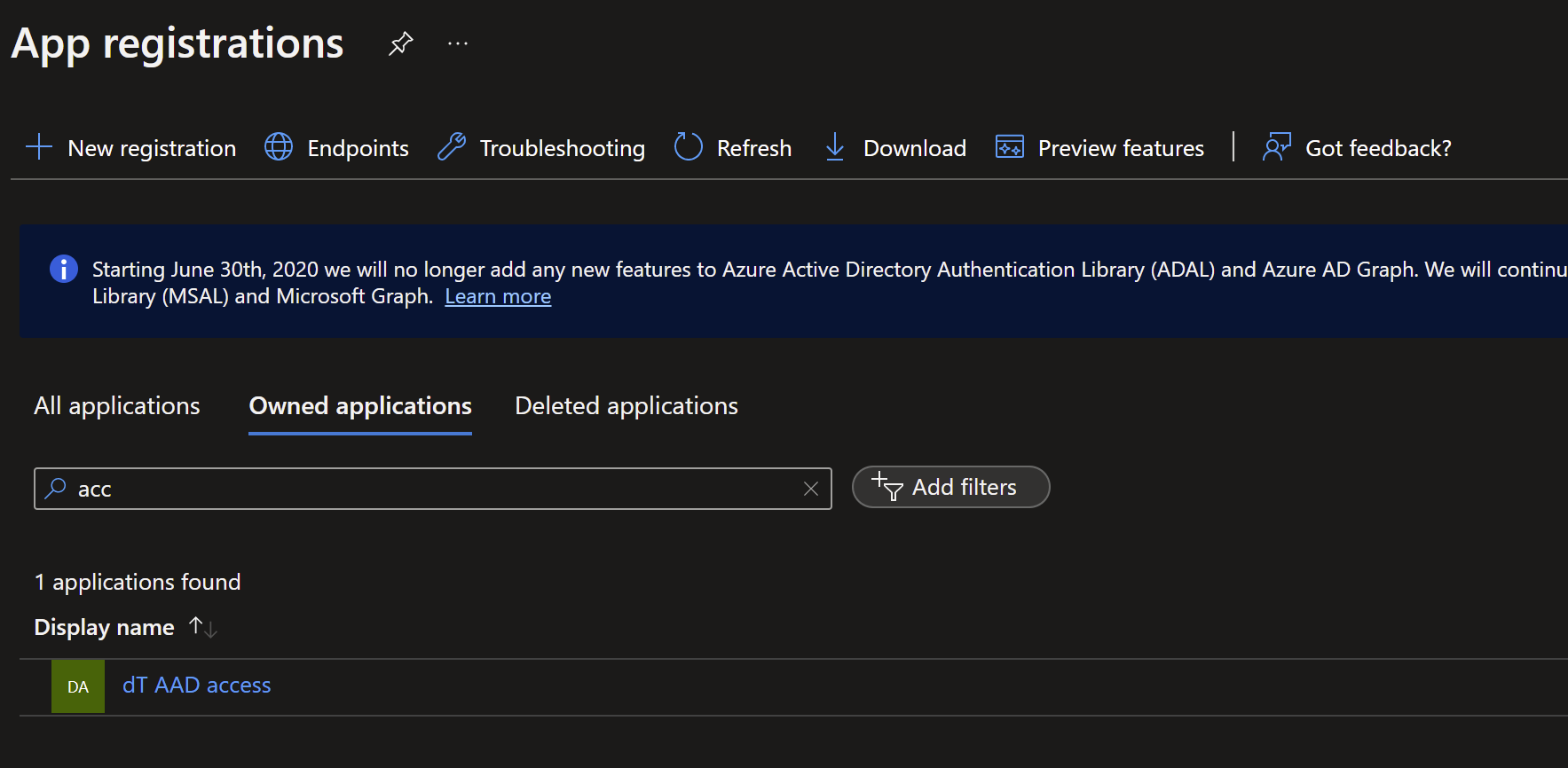
Now head over to "App registrations". There you'll find the created app:
Edit the app and select "API permission" from the menu on the left.
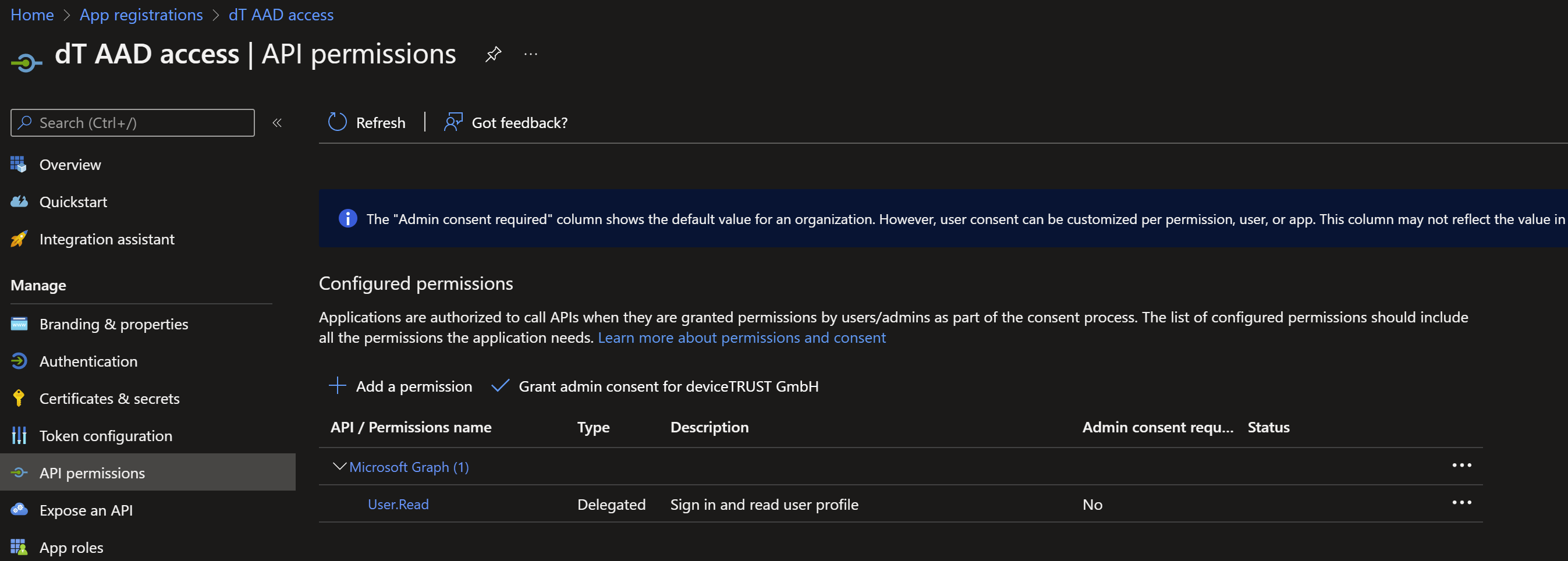
Eliminate "User.Read" here and add "Device.ReadWrite.All"


The newly added API permissions need to be consented.


Your app is now fully configured. Next, you'll have to create a secret which will let you use the apps remotely. In your app's menu, you'll find "Certificates and secrets". Click "New client secret" here.
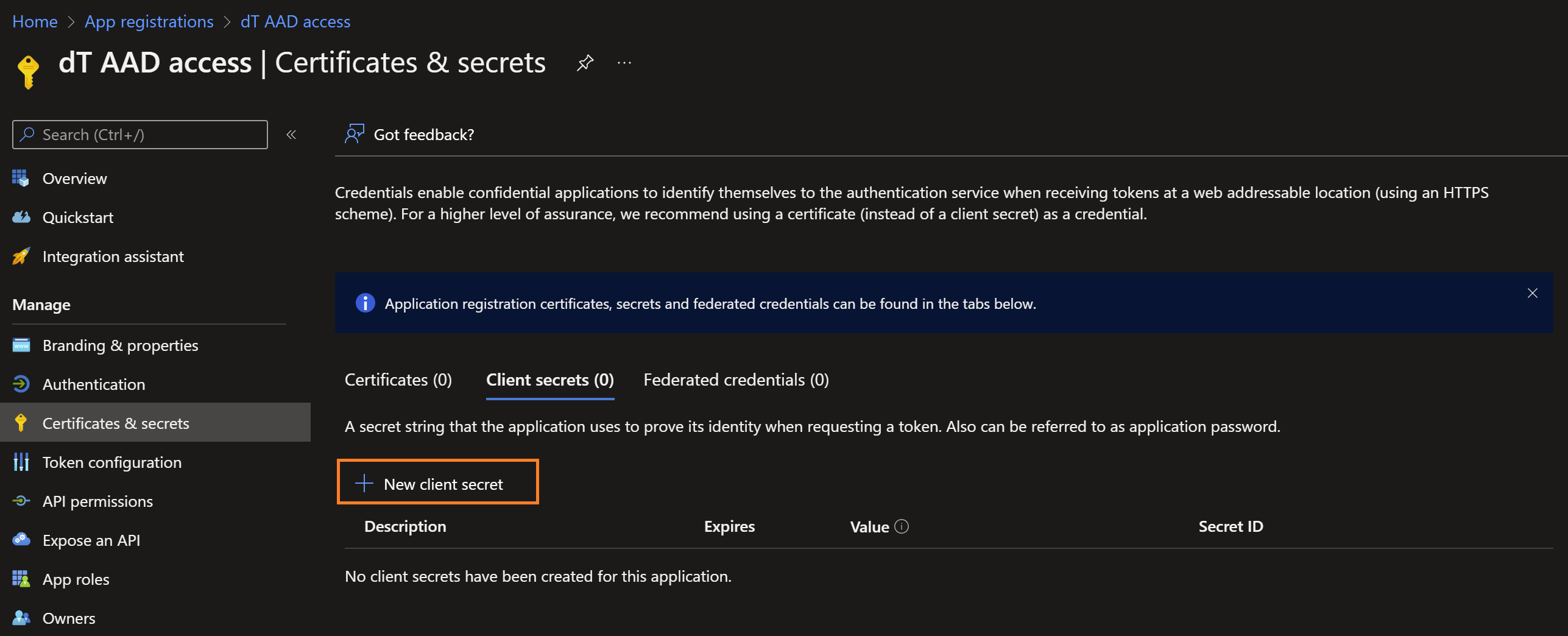
Set name and expiry to your likes. Be sure to remember the expiry date!
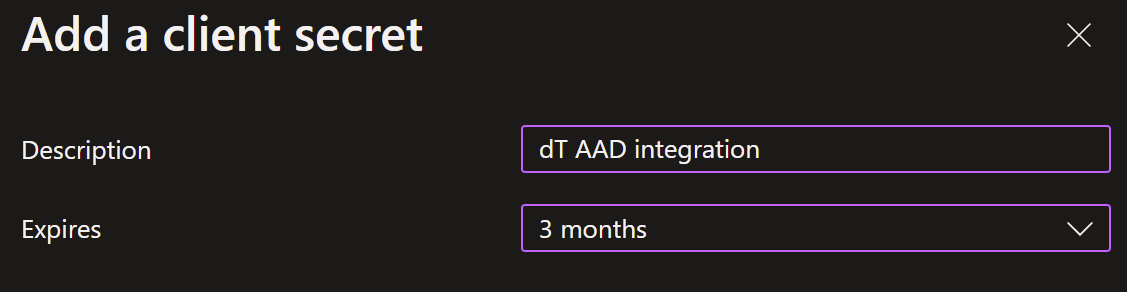
Copy the created "Value". It will only be displayed once!

You should no be able to provide the following information:
-
Tenant ID: Your AAD tenant's ID
-
Enterprise Application (client) ID: The ID of the newly created Enterprise Application
-
Secret: the "Value" from the generated client secret
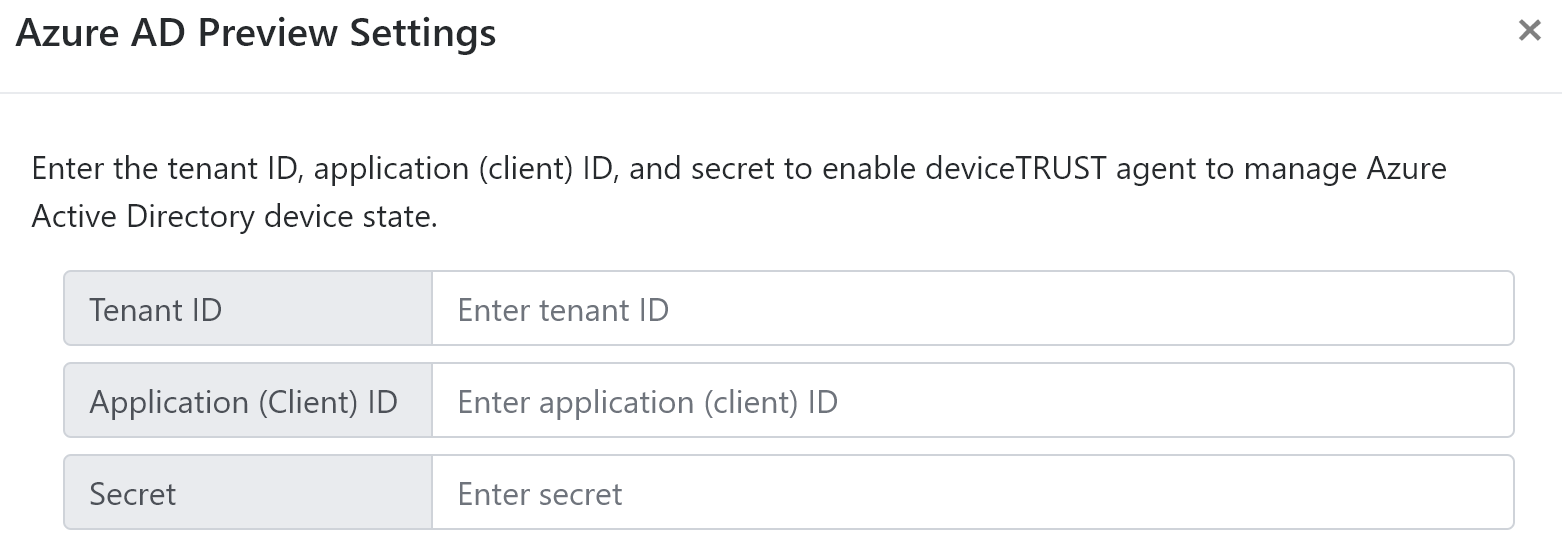
Finally, the details of the created Enterprise Application can be entered in the deviceTRUST Console (Settings\Azure AD Preview Settings):