
Certificate authority configuration
This article describes the advanced configuration of Federated Authentication Service (FAS) to integrate with certificate authority (CA) servers. Most of these configurations are not supported by the FAS administration console. The instructions use PowerShell APIs provided by FAS. You must have a basic knowledge of PowerShell before running any instructions in this article.
Set up multiple CA servers for use in FAS
You can use the FAS administration console to configure FAS with multiple CAs while creating or editing a rule:
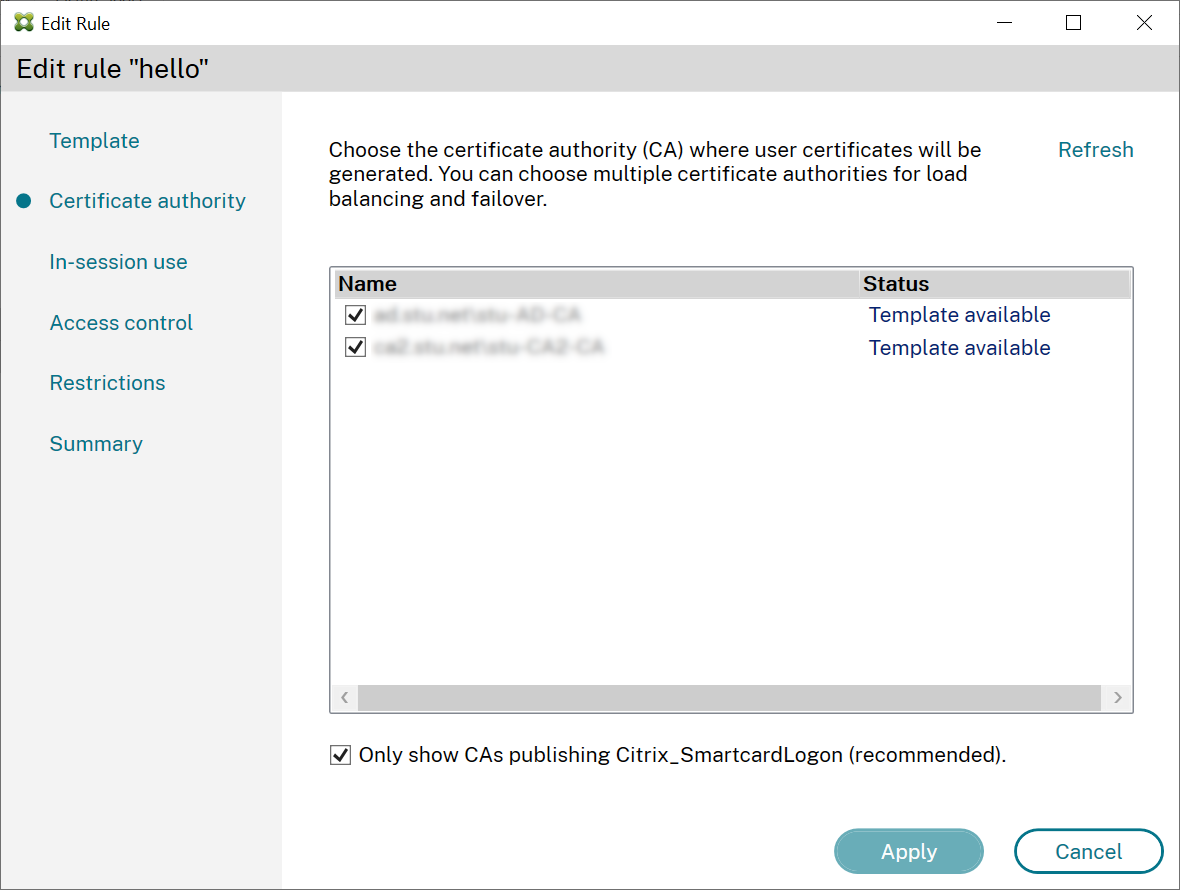
All the CAs you select must be publishing the Citrix_SmartcardLogon certificate template (or whatever template you have chosen in your rule).
If one of the CAs that you want to use is not publishing the desired template, perform the Setup a certificate authority step for the CA.
Note:
You do not have to perform the Authorize this service step for every CA, because the authorization certificate configured in this step can be used at any of your CAs.
Expected behavior changes
After you configure the FAS server with multiple CA servers, user certificate generation is distributed among all the configured CA servers. Also, if one of the configured CA servers fails, the FAS server switches to another available CA server.
Configure the Microsoft certificate authority for TCP access
FAS accesses the Microsoft CA using DCOM. DCOM uses port 135 to discover the port on which the service is listening. By default, the listening port is allocated dynamically. This can result in complexities when implementing firewall security. Therefore, Microsoft has a provision to configure a static port. To configure a static port on Microsoft CA, select Start > Run >
dcomcnfg.exe to open the DCOM configuration panel. Expand Computers > My computer > DCOM Config to show the CertSrv Request node. Then, edit the properties of the CertSrv Request DCOM application:
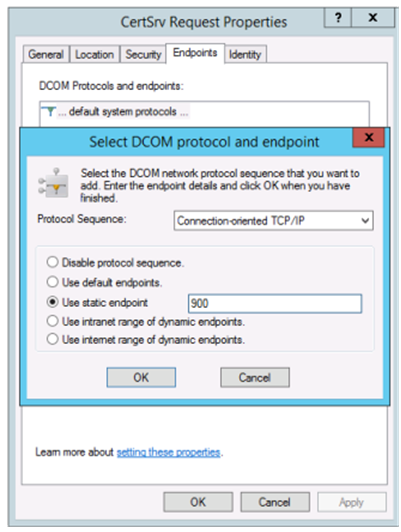
Change the Endpoints to select a static endpoint and specify a TCP port number (900 in the preceding graphic).
In this example, the firewall needs to allow port 135 and port 900.
Restart the Microsoft certificate authority to apply the change.
There is no need to configure the FAS server (or any other machines using the certificate authority) because DCOM has a negotiation stage using the RPC port 135. When a client needs to use DCOM, it connects to the DCOM RPC Service on the server and requests access to a particular DCOM server. This triggers port 900 (in this example) to be opened, and the DCOM server instructs the client to connect to that port.
Pre-generate user certificates
The logon time for users will significantly improve when user certificates are pre-generated within the FAS server. The following sections describe how it can be done, either for single or multiple FAS servers.
Get a list of Active Directory users
You can improve certificate generation by querying the AD and storing the list of users into a file (for example, a .csv file), as shown in the following example.
Import-Module ActiveDirectory

 $searchbase = "cn=users,dc=bvt,dc=local" # AD User Base to Look for Users, leave it blank to search all
 $filename = "user_list.csv" # Filename to save

 if ($searchbase -ne ""){
     Get-ADUser -Filter {(UserPrincipalName -ne "null") -and (Enabled -eq "true")} -SearchBase $searchbase -Properties UserPrincipalName | Select UserPrincipalName | Export-Csv -NoTypeInformation -Encoding utf8 -delimiter "," $filename
 } else {
     Get-ADUser -Filter {(UserPrincipalName -ne "null") -and (Enabled -eq "true")} -Properties UserPrincipalName | Select UserPrincipalName | Export-Csv -NoTypeInformation -Encoding utf8 -delimiter "," $filename
 }
Get-ADUser is a standard cmdlet to query for a list of users. The preceding example contains a filter argument to list only users with a UserPrincipalName and an account status of 'enabled.'
The SearchBase argument narrows which part of the AD to search for users. You can leave this if you want to include all users in AD.
Note:
This query might return a large number of users.
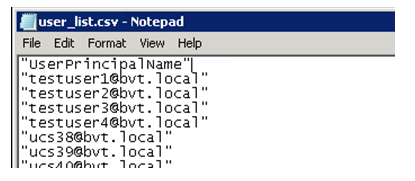
The CSV looks something like this:
FAS server
The following PowerShell script takes the previously generated user list and creates a list of user certificates.
Add-PSSnapin Citrix.A*
 $csv = "user_list.csv"
 $rule = "default" # rule/role in your admin console
 $users = Import-Csv -encoding utf8 $csv
 foreach ( $user in $users )
 {
     $server = Get-FasServerForUser -UserPrincipalNames $user.UserPrincipalName
     if( $server.Server -ne $NULL) {
         New-FasUserCertificate -Address $server.Server -UserPrincipalName $user.UserPrincipalName -CertificateDefinition $rule"_Definition" -Rule $rule
     }
     if( $server.Failover -ne $NULL) {
         New-FasUserCertificate -Address $server.Failover -UserPrincipalName $user.UserPrincipalName -CertificateDefinition $rule"_Definition" -Rule $rule
     }
 }
If you have more than one FAS server, a particular user's certificate is generated twice: one in the main server, and the other in the failover server.
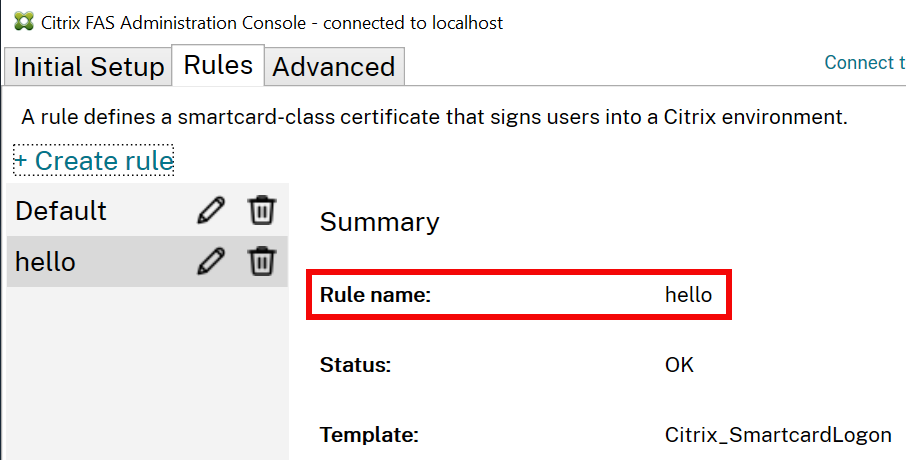
The script before this is catered for a rule named 'default'. If you have a different rule name (for example, 'hello'), change the
$rule variable in the script.
Renew FAS authorization certificate
You can renew a FAS authorization certificate without disrupting FAS users.
Using the FAS administration console
-
Click Reauthorize to generate a new FAS authorization certificate request:
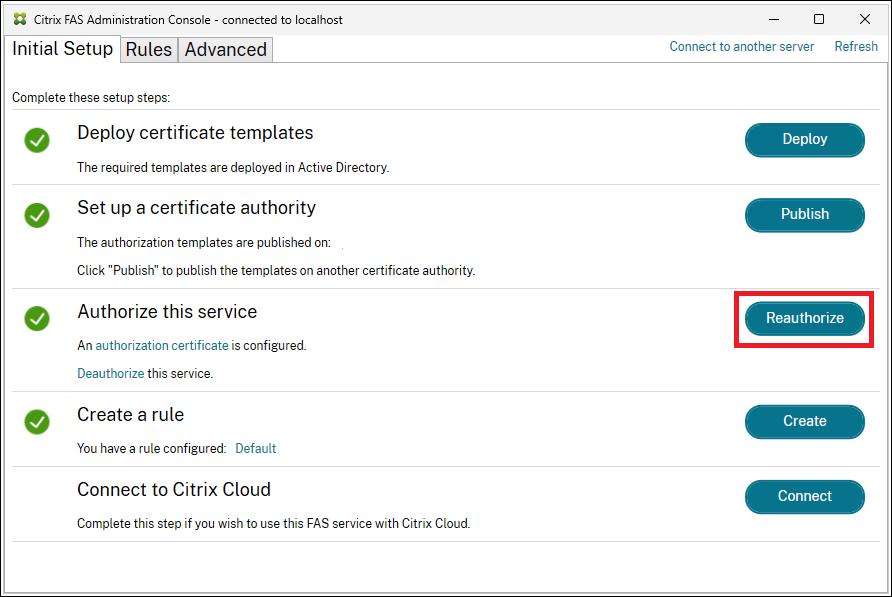
You need to manually approve the request at the CA. For more information, see Authorize Federated Authentication Service.
-
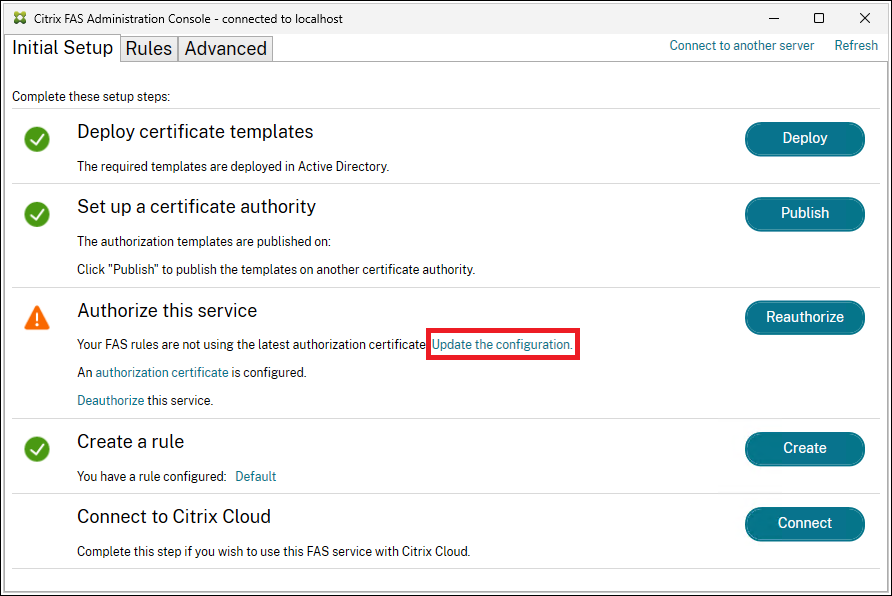
Once a new authorization certificate has been generated, FAS provides an indication that it is not yet associated with your rules. Click Update the configuration to associate the new authorization certificate with your rules.
Using PowerShell
Complete the following sequence:
-
Create an authorization certificate:
New-FasAuthorizationCertificate -
Note the GUID of the new authorization certificate, as returned by:
Get-FasAuthorizationCertificate -
Swap the new authorization certificate:
Set-FasCertificateDefinition –AuthorizationCertificate <GUID> -
Delete the old authorization certificate:
Remove-FasAuthorizationCertificate. Ensure to use theDeleteUserCerts $false option, so that the user activity is not disrupted.
Deauthorizing FAS and deleting FAS certificates
Using the FAS administration console
-
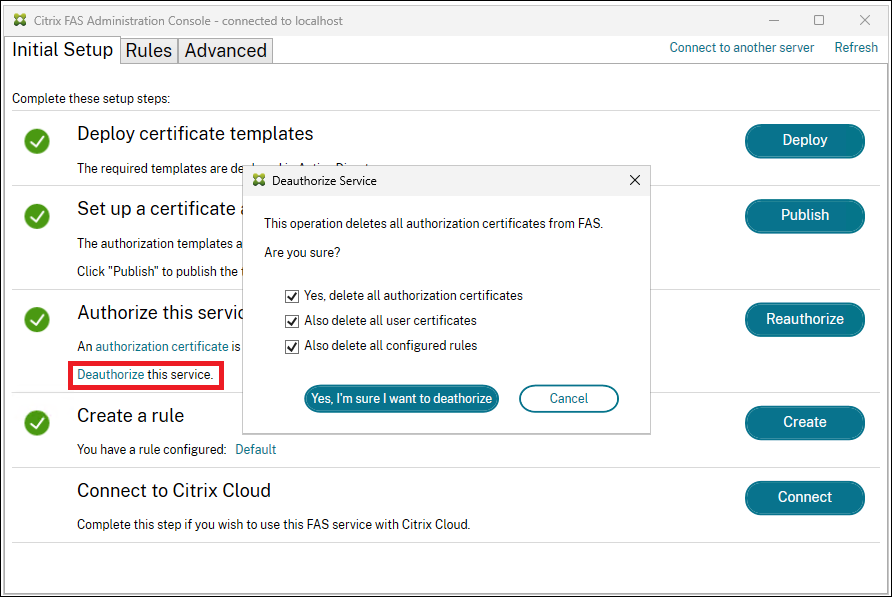
Click the Deauthorize link and delete the authorization certificates. You can delete all user certificates and all the rules (though it is not necessary for clearing out certificates).
-
If you do not delete the rules, when you later authorize FAS you get a warning:
The warning indicates that the authorization certificate is not yet associated with your rules. Click Update the configuration to associate the new authorization certificate with your rules.
Using PowerShell
Use the following PowerShell command to delete the authorization certificate and user certificates:
$AuthCert = Get-FasAuthorizationCertificate -Address localhost
 Remove-FasAuthorizationCertificate -Address localhost -Id $AuthCert.Id
Note:
Get-FasAuthorizationCertificate returns a list of authorization certificates and pending authorization certificate requests, for you to inspect the value of $AuthCert before proceeding with Remove-FasAuthorizationCertificate.
You can remove the authorization certificate, but retain the user certifcates, by setting the
DeleteUserCerts parameter to false:
Remove-FasAuthorizationCertificate -Address localhost -Id $AuthCert.Id -DeleteUserCerts $false
The remaining user certificates can still be usable by FAS for VDA sign-in and in-session certificates, which is useful when renewing FAS authorization. For more details, see Renew FAS authorization certificate.
-
You can remove user certificates thus:
Remove-FasUserCertificate -Address localhost
This command removes all user certificate from the FAS server. The command has options to filter the set of certificates removed.
Note:
When FAS removes an authorization or user certificate from its internal storage, it also deletes the associated keypair.
Offline authorization
The FAS authorization certificate can be requested offline using PowerShell. This is suitable for organizations that do not want their certificate authority to issue an authorization certificate through an online certificate signing request.
-
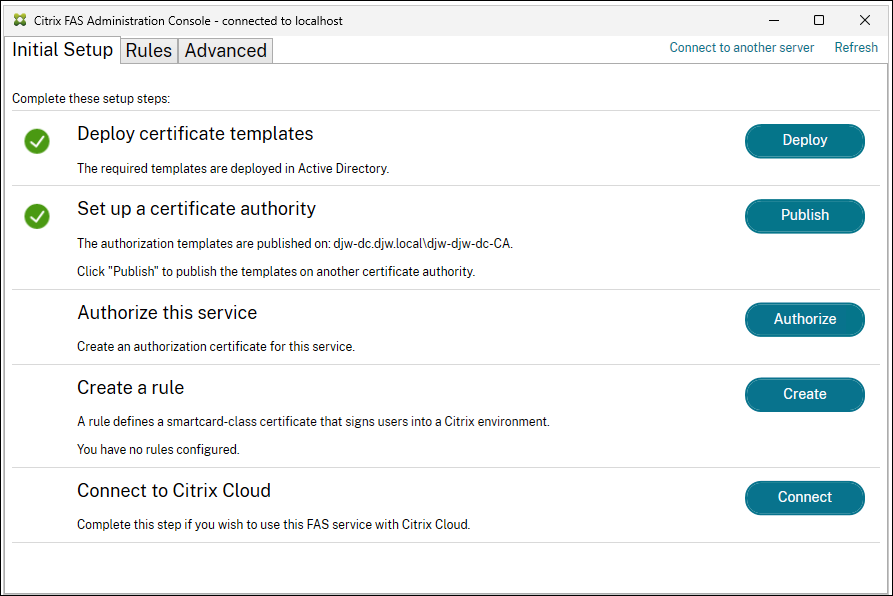
During the initial FAS configuration using the administration console, complete only the first two steps: Deploy certificate templates and Set up a certificate authority.
-
Load the following PowerShell cmdlets on the FAS server:
Add-PSSnapin Citrix.Authentication.FederatedAuthenticationService.V1` -
Generate the keypair and create the certificate signing request by entering the following PowerShell cmdlet on the FAS server:
$AuthCertRequest = New-FasAuthorizationCertificateRequest -Address localhost $AuthCertRequest
This results in: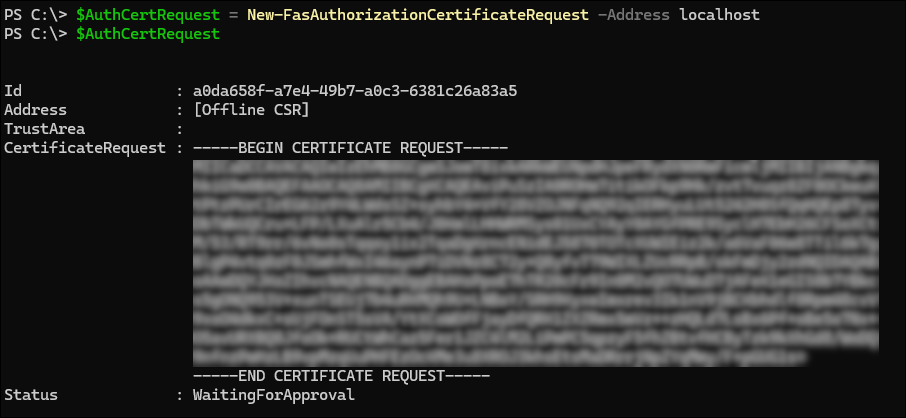 Note:The properties of the keypair generated are determined by the FAS authorization key configuration. For more details, see Private key protection.
 -
Copy the certificate request to disk:
`$AuthCertRequest.CertificateRequest > c:\temp\authcert.csr -
Present the certificate request file (in this example, authcert.csr) to your certificate authority, approve the request, and obtain a certificate response.The following five steps are specific to using a Microsoft Enterprise Certification Authority; for other CAs, contact your CA vendor for help.
-
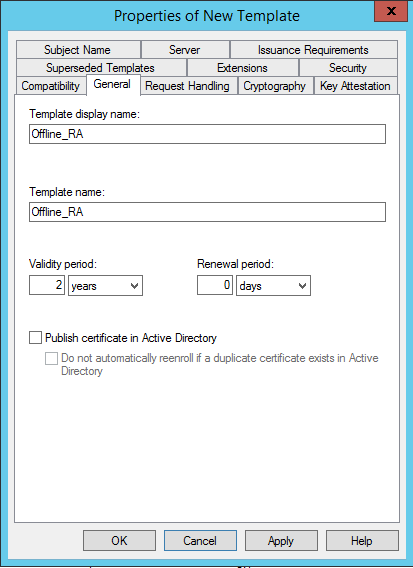
On your certificate authority server, add the Certificate Templates MMC snap-in. Right-click the Citrix_RegistrationAuthority_ManualAuthorization template and select Duplicate Template. Select the General tab. Change the name and validity period. In this example, the name is Offline_RA and the validity period is two years:
-
On your certificate authority server, add the certificate authority MMC snap-in. Right-click Certificate Templates. Select New, then click Certificate Template to Issue. Choose the template that you created.
-
Submit the certificate signing request to your certificate authority by typing the following into a PowerShell command prompt on the FAS server:
certreq -submit -attrib "certificatetemplate:<certificate template from step 5a>" <certificate request file from step 4>For example:certreq -submit -attrib "certificatetemplate:Offline_RA" C:\temp\authcert.csrRunning the preceding command results in: At this point a Certification Authority List window might appear. The certificate authority in this example has both DCOM (top) and HTTP (bottom) enrollment enabled. Select DCOM, if available, then click OK:
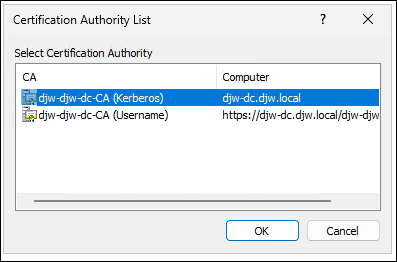 After the certificate authority has been specified, the command completes and displays the RequestID: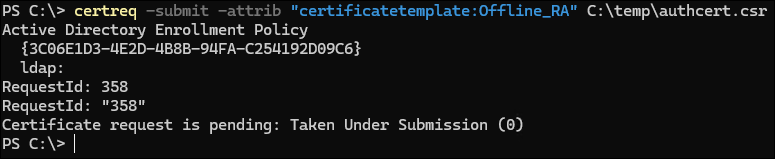
-
On the certificate authority server, in the certificate authority MMC snap-in, click Pending Requests. Find the Request ID. Then right-click the request and choose Issue.
-
Select the Issued Certificates node. Find the certificate that was issued (the Request ID must match). Double-click to open the certificate. Select the Details tab. Click Copy to File. The Certificate Export Wizard launches. Click Next. Choose the following options for the file format:
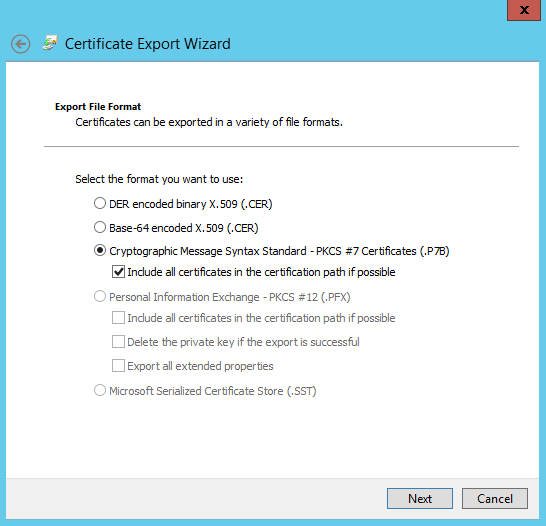
The format must be Cryptographic Message Syntax Standard – PKCS #7 Certificates (.P7B) and Include all certificates in the certification path if possible must be selected. -
-
Copy the exported certificate file onto the FAS server.
-
Import the registration authority certificate into the FAS server by entering the following PowerShell cmdlet on the FAS server:
Import-FasAuthorizationCertificateResponse -Address localhost -Id $AuthCertRequest.Id -Pkcs7CertificateFile <Certificate file from step 6>For example:Import-FasAuthorizationCertificateResponse -Address localhost -Id $AuthCertRequest.Id -Pkcs7CertificateFile C:\temp\response.p7bRunning this command results in:
-
Check the FAS admin console. It must show that FAS is now authorized.
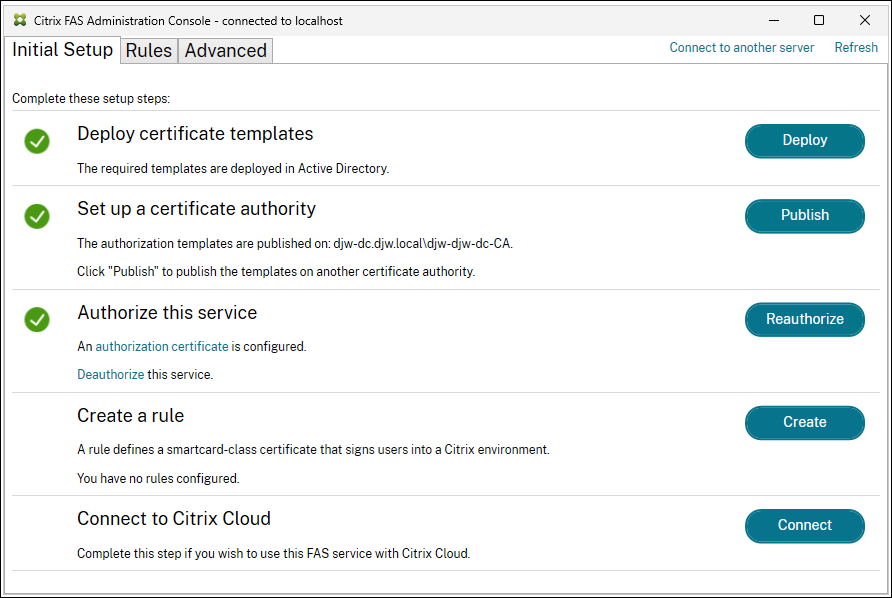 Note:The step Authorize this service has a green check mark next to it.
 -
Continue configuration by creating a rule. For more details, see Configure rules.
Related information
-
The Install and configure article is the primary reference for FAS installation and configuration.
-
The common Federated Authentication Service deployments are summarized in the Deployment architectures article.
-
Other how-to articles are introduced in the Advanced configuration article.