
FIDO2 (preview)
You can set up FIDO2 authentication to access websites using Google Chrome hosted on the Linux VDA.
Note:
The Linux VDA supports only the combination of FIDO2 and Google Chrome.
To set up FIDO2 authentication, complete the following steps:
-
Download the Citrix FIDO2 extension package.
-
Go to the Citrix Virtual Apps and Desktops download page.
-
Expand the appropriate version of Citrix Virtual Apps and Desktops.
-
Click Components to find the Linux VDA.
-
Click the Linux VDA to open its download page.
-
Download the sources package.
-
Unzip the sources package to find FIDO2-JavaScript-Extensions.zip.
-
Unzip the FIDO2 extension package. You can find the FIDO2 extension directory at extensions > chrome > fido2.
-
-
Add the Citrix FIDO2 extension in Google Chrome:
-
Open Google Chrome hosted on the Linux VDA.
-
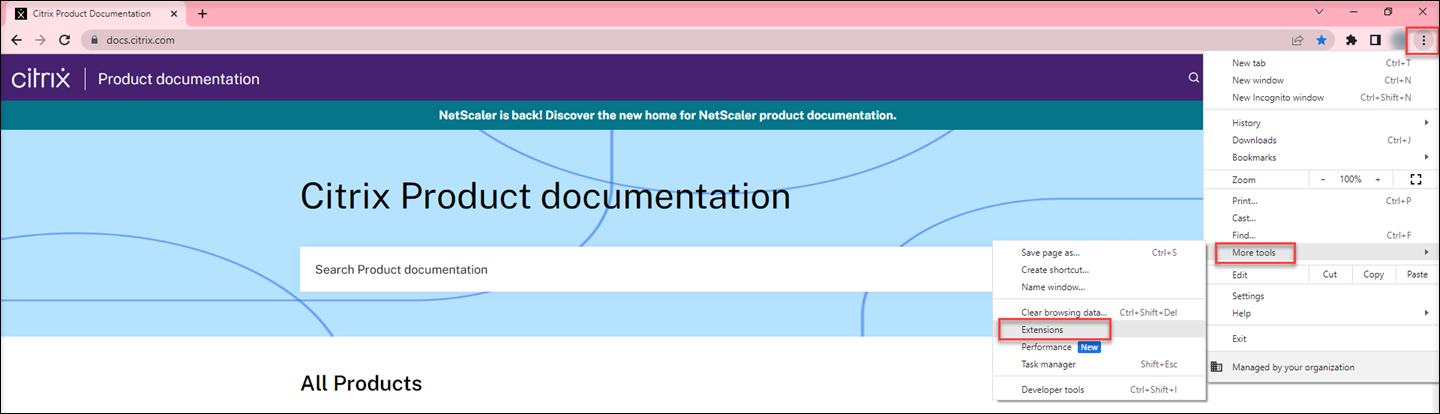
Click the three-dot menu to the right of the address bar and then select More Tools > Extensions.
-
Toggle on the Developer mode.

-
Click Load unpacked and select the extension directory at extensions > chrome > fido2.
-
-
In the website that you want to use FIDO2 authentication for, register a FIDO2 security key to use FIDO2 authentication.
-
Insert a FIDO2 security key to the client where Citrix Workspace™ app is installed.
-
Enable multifactor authentication and add FIDO2 as the authentication method.
-
After FIDO2 authentication is set up, you will be prompted to touch the security key to access the website successfully.