
Browser content redirection
Introduction
Browser content redirection (BCR) enhances the user experience of web browsing within Citrix Virtual Apps and Desktops™ environments. By offloading the rendering of web pages to the user's local machine, BCR reduces server load and improves performance, especially for complex or resource-intensive websites.
How it works
BCR uses the Citrix Workspace™ app to create a secure browsing environment on the user's device. When a user accesses an allowed web page, the viewport of the browser window is redirected to the client. The client-side browser engine then uses the local machine's resources to render the page, resulting in faster loading times and smoother interaction.
Note:
Only the browser viewport is redirected. The viewport is the rectangular area in your browser where the content is displayed. The viewport doesn't include items such as the address bar, favorites toolbar, and status bar. Those items are in the user interface, which still runs in the browser on the VDA.
Key benefits
Browser content redirection intelligently manages web traffic, delivering a superior experience for your users while reducing strain on your infrastructure. Here's how it can benefit your organization:
-
Cost savings: Offload resource-intensive web pages to user devices, freeing up valuable server resources and reducing bandwidth consumption. This translates to lower hardware and network costs.
-
Enhanced user experience: Provide your users with a smoother, more responsive browsing experience, even with graphics-intensive websites. Deliver native-like performance, eliminating lag and improving productivity.
-
Improved security: Maintain a secure environment while allowing access to both internal and external resources.
-
Increased flexibility: Support a wide range of use cases, from basic web browsing to complex web applications that require proxy traversal. Manage redirection settings with granular policy controls in Citrix Web Studio™.
System requirements
Server-side components
Linux VDA:
-
Linux VDA 2607 or later
Browser components:
-
Browser: Google Chrome
-
Browser redirection extension: available from the Google Chrome Web Store
-
We recommend using the latest version of the browser for the best experience.
Note:
The extensions in the Chrome Web Store are Generally Available (GA) and are relevant for production-level deployments. In addition to the GA extensions, Citrix® also publishes a Beta (GA + 1) extension on the Chrome Web Store.
Citrix recommends that customers have test users on the Beta version so that upcoming updates are tested and any issues are reported early. This ensures a smooth process when the GA extensions officially roll out.
Extension releases typically match the Citrix Workspace app releases.
Client-side components
Windows:
-
Windows 10 or 11
-
Citrix Workspace app
-
Minimum requirement: any Citrix Workspace app that is not end-of-life
-
Recommended:
-
Long Term Service Release: Citrix Workspace app for Windows 2402 CU4 or later, or Citrix Workspace app for Windows 2507
-
Current Release: Citrix Workspace app 2405 or later
-
-
Note:
-
Browser content redirection is not supported on Citrix Workspace app for Windows LTSR releases 1912 and 2203.1.
-
The client-side browser engine that browser content redirection requires is installed by default on Citrix Workspace app Current Releases.
-
The client-side browser engine is not installed by default on Citrix Workspace app 2402 LTSR. Administrators can use the
ADDLOCALswitch to install the BCR browser components on top of Citrix Workspace app. -
Starting with Citrix Workspace app 2507 for Windows, BCR is managed as a modular component but is still packaged with Citrix Workspace app. The BCR component is now installed by default on LTSR versions as well, ensuring consistency between CR and LTSR. Additionally, standalone BCR packages are published for situations that require independent updates or interim patches outside the regular Citrix Workspace app release cycle. For more information, see the Citrix Workspace app for Windows documentation.
Linux:
-
Citrix Workspace app
-
Minimum requirement: any Citrix Workspace app that is not end-of-life
-
Recommended: Citrix Workspace app 2408 or later. For more information, see the Citrix Workspace app for Linux documentation.
-
Note:
Starting with Citrix Workspace app 2601 for Linux, BCR is managed as a modular component. The BCR component continues to be packaged and installed by default with Citrix Workspace app for Linux, ensuring a consistent user experience. Additionally, standalone BCR packages are published for situations that require independent updates or interim patches outside the regular Citrix Workspace app release cycle. For more information, see the Citrix Workspace app for Linux documentation.
ChromeOS:
-
Citrix Workspace app: latest version from the Chrome Web Store
macOS:
-
Citrix Workspace app
-
Minimum requirement: Citrix Workspace app for Mac 2411 or later
-
Note:
-
On macOS, the BCR package is independent of Citrix Workspace app and is always the latest version. The package is compatible with multiple Citrix Workspace app versions above the specified minimum version.
-
Because BCR does not depend on Citrix Workspace app for Mac, the BCR version numbering does not match the Citrix Workspace app for Mac version.
-
The client-side browser engine is not packaged with Citrix Workspace app for Mac. Download and install the client side for Mac from Citrix Downloads.
-
Intel and ARM packages are separate. Install the package that suits the macOS endpoint.
-
Starting with Citrix Workspace app 2511.1 for Mac, the modular BCR component is installed by default but not packaged with Citrix Workspace app, which eliminates the need to manually download and install the component from Citrix Downloads. Standalone BCR packages are published for situations that require independent updates or interim patches outside the regular Citrix Workspace app release cycle. For more information, see the Citrix Workspace app for Mac documentation.
Steps to configure
-
Install the client-side and server-side components according to the system requirements.
-
Configure the Web Studio policies.
-
Web Studio policies offer a granular way to configure browser content redirection to suit a variety of use cases.
-
The basic policies allow you to configure the URLs that are allowed or not allowed with browser content redirection.
-
You can configure the URLs with wildcards.
For detailed steps, see Configure browser content redirection. -
-
Open a supported web browser and go to an allowed URL.
-
If a match is found in the allow list, the website is redirected to the client.
-
Citrix Workspace app blends the viewport onto the VDA-side browser for a seamless experience.
-
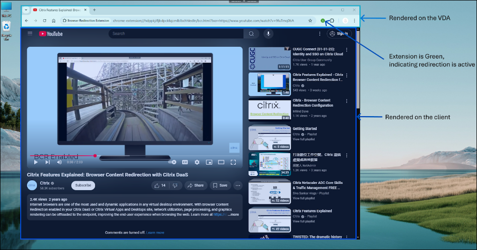
The color of the extension logo specifies the status of the content redirection:
-
Green: Active and connected
-
Gray: Not active or idle on the current tab
-
Red: Broken or not working
-
-
Note:
-
HTML5 video redirection and browser content redirection are independent features. The HTML5 video redirection policies aren't needed for this feature to work. However, the Citrix HDX™ HTML5 Video Redirection Service is used for browser content redirection.
-
We recommend doing all the configurations through Web Studio and not with registry keys.
Features and configuration options
Browser content redirection can be configured in several ways to suit the use cases of different customer environments. For detailed information about policy settings, see the Browser content redirection policy settings.
Redirection mechanisms
Client fetch client render
By default, browser content redirection operates in this mode. The client-side browser engine reaches out to the web page directly, which requires network access from the client to the web page. This scenario offloads all the network, CPU, and RAM usage from the VDA to the client and is the most optimal way to configure browser content redirection.
Policy configuration options:
-
Browser Content Redirection: Allowed
-
Browser Content Redirection ACL Configuration: Specify the URLs that need to be redirected. By default, YouTube is the only website configured for redirection.
-
Browser Content Redirection Blacklist Configuration: Optionally, block specific URLs or sub-URLs from redirection. Use this option together with the allow list to gain maximum customization.
Server fetch client render
In this case, the client-side browser engine contacts and fetches content from the web server through the VDA using a virtual channel. This option is useful when the client doesn't have Internet access (for example, thin clients). It lowers CPU and RAM consumption on the VDA, but bandwidth is consumed on the ICA® virtual channel.
There are three modes of operation in this scenario. The term proxy refers to a proxy device that the VDA accesses to gain Internet access.
Note:
The server fetch client render mode is not supported in the current release. Support is planned and will be added soon.
Policy configuration options:
In addition to the policies specified in the Client fetch client render section, configure the following:
-
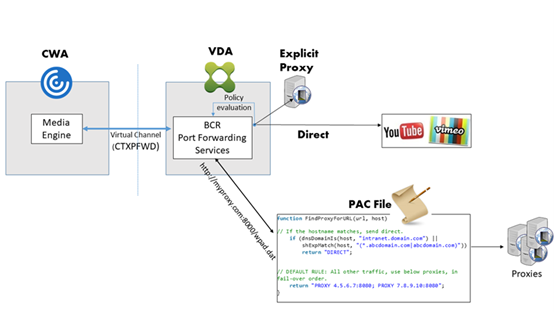
Browser Content Redirection Proxy Configuration:
-
Direct or Transparent: Configure this option if you want to use server fetch client render and you have direct or transparent proxy access to the web page from the VDA. Set the policy to the keyword DIRECT.
-
Explicit Proxy: Configure this option if you want to use server fetch client render and you have explicit proxy access to the web page from the VDA.
-
PAC files: Configure this option if you rely on PAC files so that browsers in the VDA can automatically choose the appropriate proxy server for fetching a specified URL.
-
Fallback mode
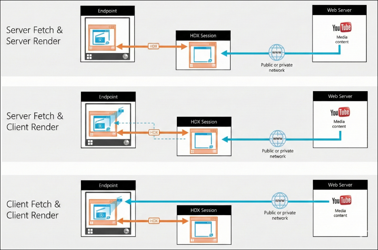
Client redirection might fail. For example, if the client machine doesn't have direct Internet access, an error response might go back to the VDA. In such cases, the browser on the VDA can reload and render the page on the server.
If you enable the Browser Content Redirection Proxy Configuration policy, Citrix Workspace app attempts server fetch and client render. If server fetch and client render fails, it falls back to client fetch and client render. If the client machine doesn't have access to the web server, the browser on the VDA can then reload and render the page on the server (server fetch and server render).
Authentication handling
Authentication sites
In the current implementation of browser content redirection, regardless of the redirection mechanism, you must configure authentication sites for browser content redirection to handle logging on to websites.
Example:
-
When only
https://www.youtube.com/*/is configured in Browser Content Redirection ACL Configuration and no authentication sites are configured, BCR falls back to server-side rendering when the user signs in to the website and continues there. -
For BCR to handle authentication sites, configure
https://www.accounts.google.com/*/and any other authentication sites, such as the IdP website, as needed. Each website's sign-in works differently, so make sure that you list all the sites that the sign-in flow uses. -
When configured, BCR handles the authentication. For example, with client fetch client render, the authentication also happens in the client-side browser engine for a seamless sign-in experience.
Policy configuration options:
Configure the Browser Content Redirection Authentication Sites policy in addition to the policies mentioned in Redirection mechanisms.
Note:
-
The BCR client-side browser does not persist cookies (including authentication) after the redirected window is closed. Users must log on to websites again when the BCR windows are completely closed and reopened.
-
The BCR client-side browser does not read cookies from the VDA-side browser. Therefore, user personalization and preferences don't synchronize with the VDA browser.
Single sign-on support
Single sign-on (SSO) is not supported on the Linux VDA.
Configure browser content redirection
To use browser content redirection, configure relevant policies and install the browser content redirection extension in Google Chrome. To do so, complete the following steps:
-
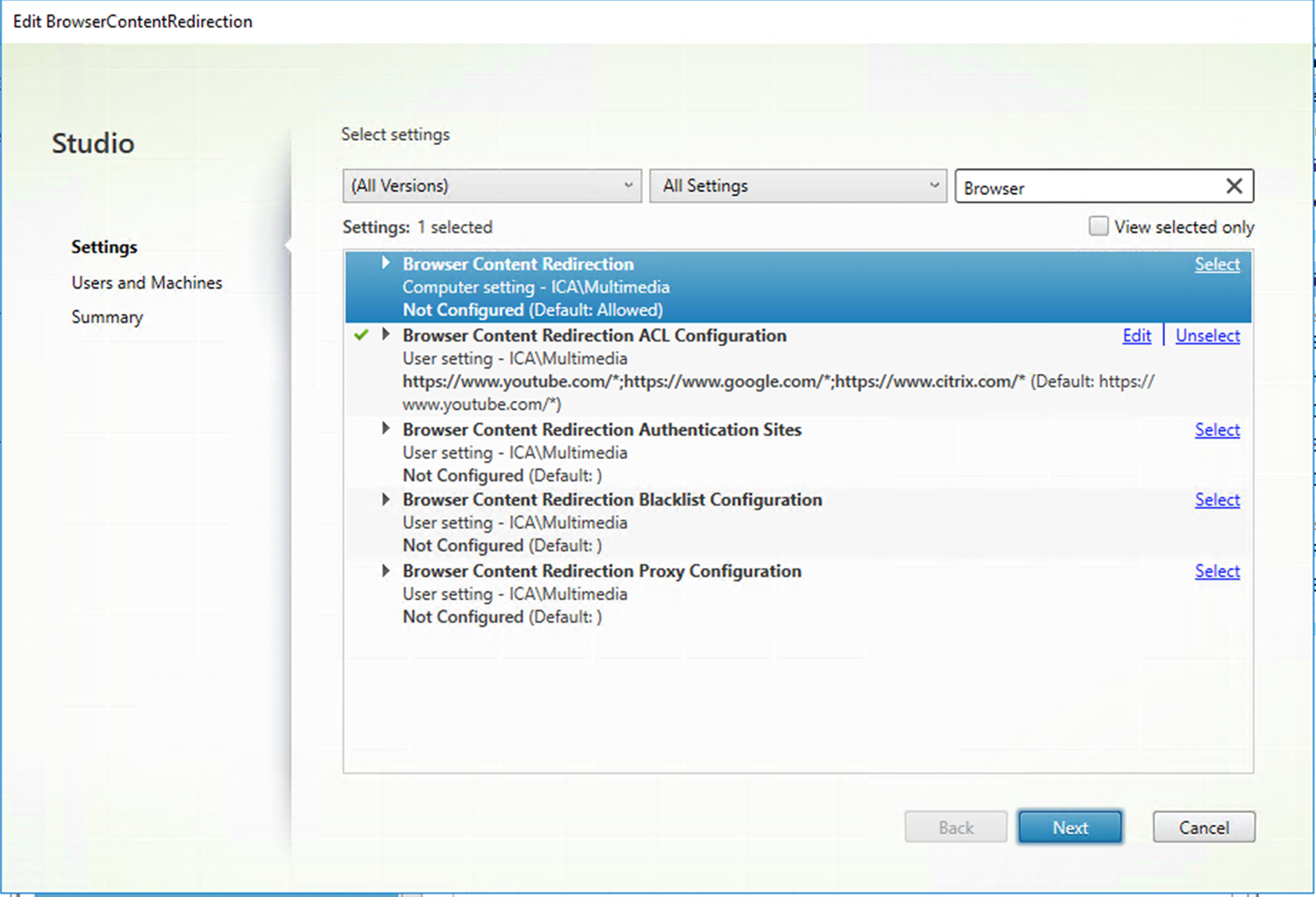
In Citrix Studio, set Browser Content Redirection to Allowed to enable browser content redirection.
-
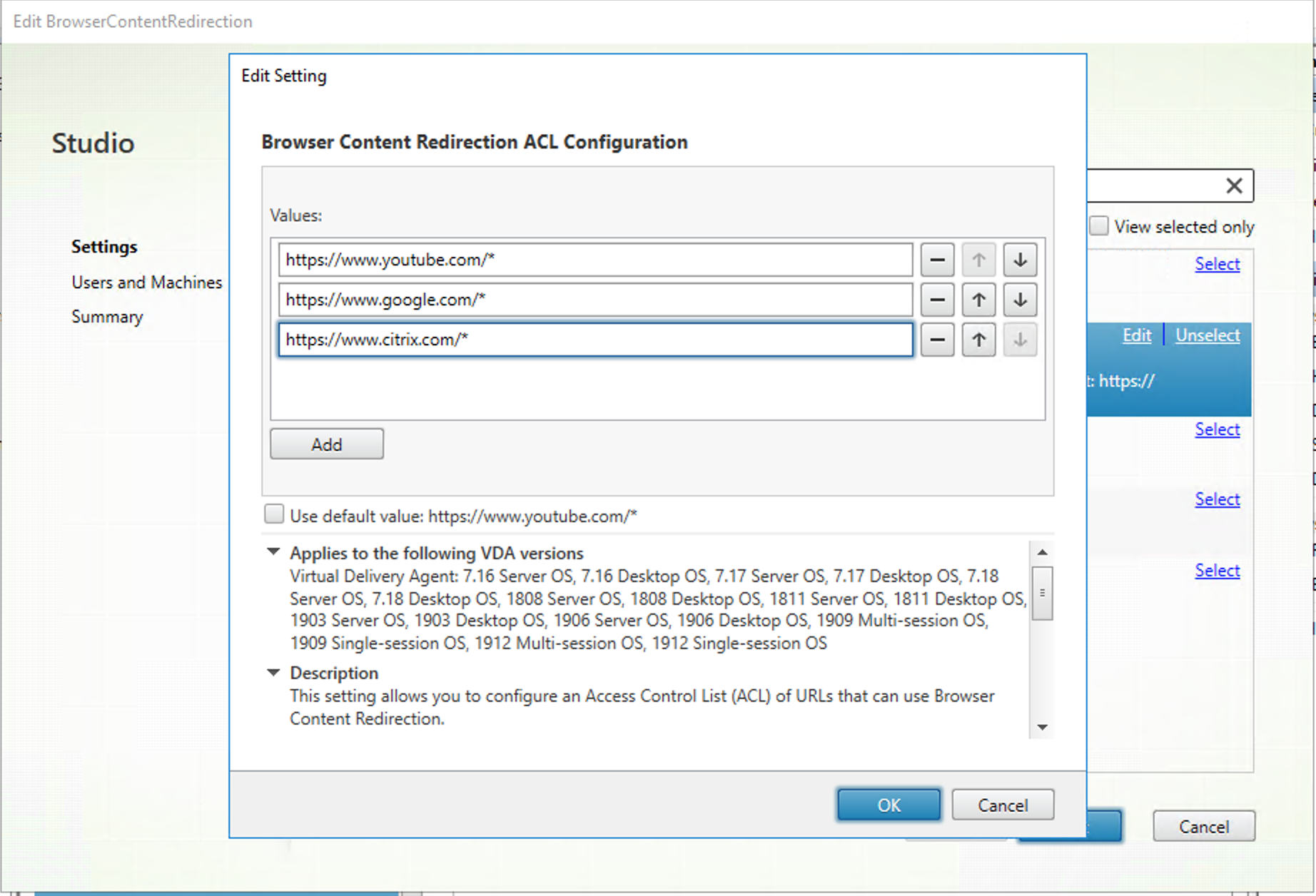
Specify an allow list of URLs whose content can be redirected to the client and a block list that disables redirection for specific URLs. Configuring a block list is optional.The Browser Content Redirection ACL Configuration setting specifies an allow list of URLs whose content can be redirected to the client. When specifying URLs, you can use the
*wildcard to represent all URL components except the protocol.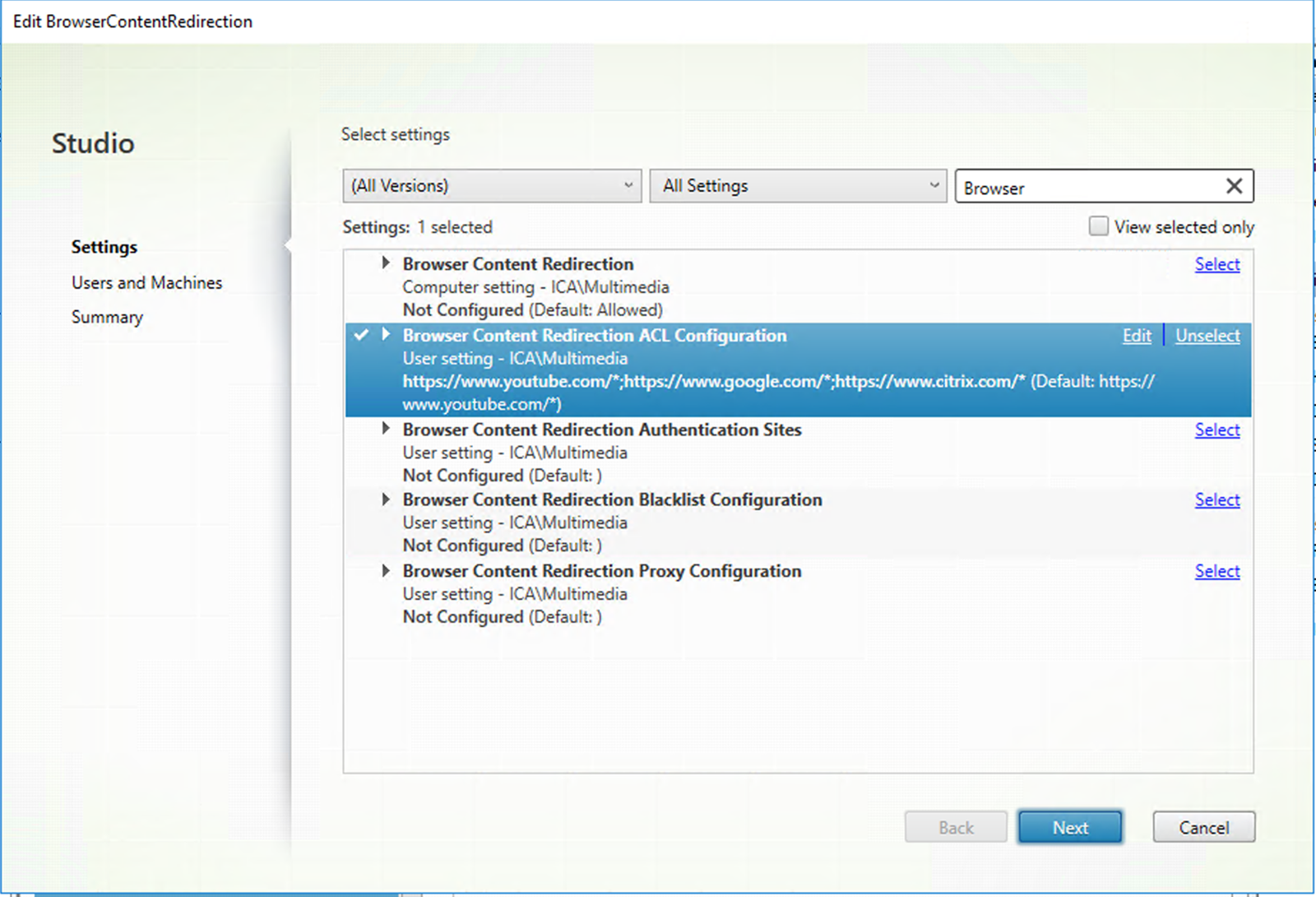 The following are allowed examples:
-
http://www.xyz.com/index.html(You can achieve better granularity by specifying paths in the URL. For example, if you specifyhttps://www.xyz.com/sports/index.html, only theindex.htmlpage is redirected.) -
https://www.xyz.com/* -
http://www.xyz.com/*videos* -
http://*.xyz.com/ -
http://*.*.com/
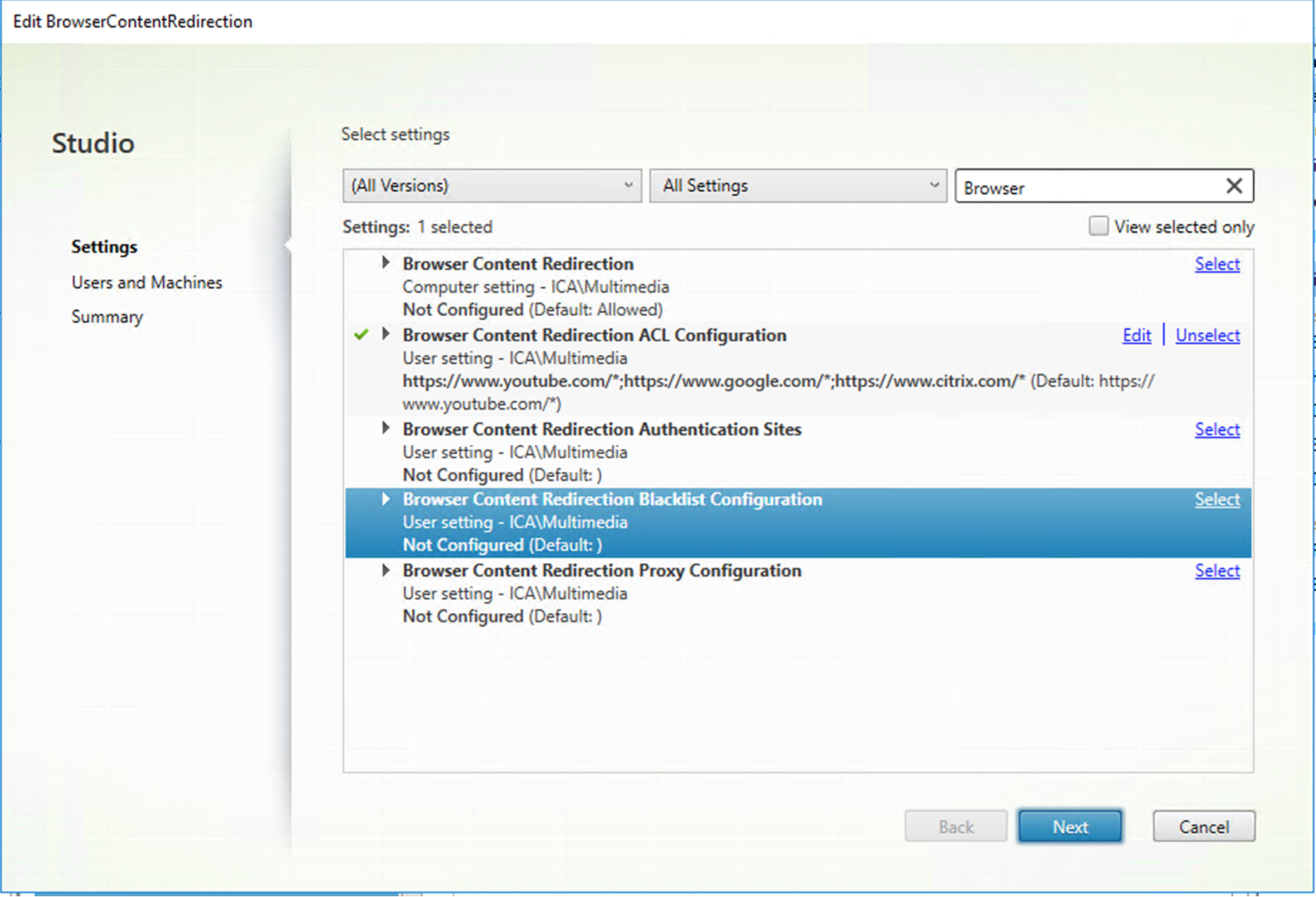
 The Browser Content Redirection Blacklist Configuration setting specifies a block list that disables redirection for specific URLs.
-
-
To enable server fetch and client render, configure the Browser Content Redirection Proxy Configuration setting.This setting provides configuration options for proxy settings on the VDA for browser content redirection. If enabled with a valid proxy address and port number, PAC/WPAD URL, or Direct/Transparent setting, Citrix Workspace app always attempts server fetch and client render first. For more information, see Fallback mode.If disabled or not configured and using a default value, Citrix Workspace app attempts client fetch and client render.By default, this setting is Prohibited.Allowed pattern for an explicit proxy:
http://<hostname/ip address\>:\<port\>Example:http://proxy.example.citrix.com:80 http://10.10.10.10:8080Allowed patterns for PAC/WPAD files:http://<hostname/ip address>:<port>/<path>/<Proxy.pac>Example:http://wpad.myproxy.com:30/configuration/pac/Proxy.pachttps://<hostname/ip address>:<port>/<path>/<wpad.dat>Example:http://10.10.10.10/configuration/pac/wpad.datAllowed patterns for direct or transparent proxies:Type the word DIRECT in the policy text box.Note:You can also set a proxy by editing the registry valueHKLM\Software\Citrix\HdxMediastream\WebBrowserRedirectionProxyAddress.Besides, theHKLM\Software\Citrix\HdxMediastream\AllowNonTlsPacUriregistry value lets you decide whether to allow PAC file downloads through HTTP. The default value is 0, which means HTTP is not allowed.Registries override options for policy settings. For a list of the relevant registry keys, see Browser content redirection registry key overrides. -
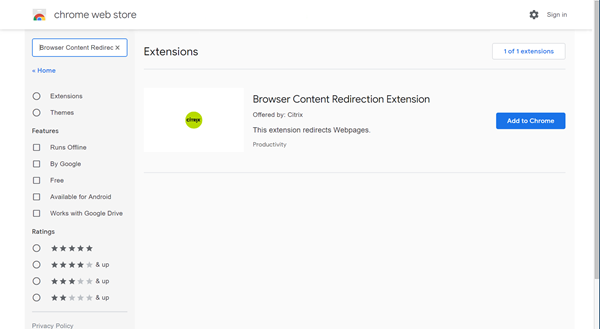
Click Add to Chrome on the VDA to add the Citrix browser content redirection extension from the Chrome Web Store. Doing so helps the browser on the VDA to detect whether a URL (being navigated to) matches an allow list or a block list.Important:The extension is not required on the client. Add it only on the VDA.\>Chrome extensions are installed on a per-user basis. Updating a golden image to add or remove an extension is not required.
Limitations
Server-side limitations (VDA)
Browser content redirection doesn't support the following use cases. If you require an enhancement for any of these scenarios or for new scenarios, contact the Citrix product team.
-
Pop-up windows are not supported with browser content redirection.
-
The HTML5 video redirection policy must be disabled when browser content redirection is in use.
-
After a session disconnects and reconnects, you must refresh the VDA browser window for BCR to take effect again.
-
Printing and file downloads from BCR windows are not supported.
-
Incognito or private browsing mode is not supported with browser content redirection.
-
Pop-up windows raised by Chrome (for example, the extension panel) might be covered by the BCR page. As a workaround, open a new empty tab to operate it.
Client-side limitations (Citrix Workspace app)
-
Browser content redirection is not supported on the ARMhf framework.
-
BCR supports a maximum of 25 redirected tabs in one browser and a combined 30 redirected tabs in two browsers.
Browser content redirection registry key overrides
Warning:
Editing the registry incorrectly can cause serious problems that might require you to reinstall your operating system. Citrix can't guarantee that problems resulting from the incorrect use of the Registry Editor can be solved. Use the Registry Editor at your own risk. Be sure to back up the registry before you edit it.
HKLM\Software\Citrix\HdxMediastream
| Name | Type | Value |
|---|---|---|
| WebBrowserRedirection | DWORD | 1=Allowed, 0=Prohibited |
| WebBrowserRedirectionAcl | REG_MULTI_SZ | / |
| WebBrowserRedirectionProxyAddress | REG_SZ | If you set it to any of the following modes, server fetch client render is enabled: Explicit Proxy - If you have a single explicit proxy in your data center. Direct or Transparent - If you do not have proxies, or if you use transparent proxies. PAC files - If you rely on PAC files so browsers in the VDA can automatically choose the appropriate proxy server for fetching a specified URL. |
| WebBrowserRedirectionBlacklist | REG_MULTI_SZ | / |
| AllowNonTlsPacUri | DWORD | Determines whether to allow PAC file downloads through HTTP. The default value is 0, which means HTTP is not allowed. If you set it to 1, HDXWebProxy.exe can download PAC files over HTTP (not strictly over HTTPS). |