
Replicate user stores
You can replicate a user store to multiple paths in addition to the path that the Path to user store policy specifies - upon each logon and logoff. The feature is implemented through the Replicate user stores policy. To synchronize to the user stores files and folders modified during a session, enable active write back. This feature does not currently support full container solutions. Enabling the policy can increase system I/O and might prolong logoffs.
You can configure the policy through Microsoft Active Directory Group Policy Management, Citrix Studio, and Workspace Environment Management™ (WEM).
-
To configure the Replicate user stores policy through Microsoft Active Directory Group Policy Management, complete the following steps:
-
Open the Group Policy Management Editor.
-
Under Computer Configuration > Administrative Templates > Citrix Components > Profile Management > Advanced settings, double-click the Replicate user stores policy.
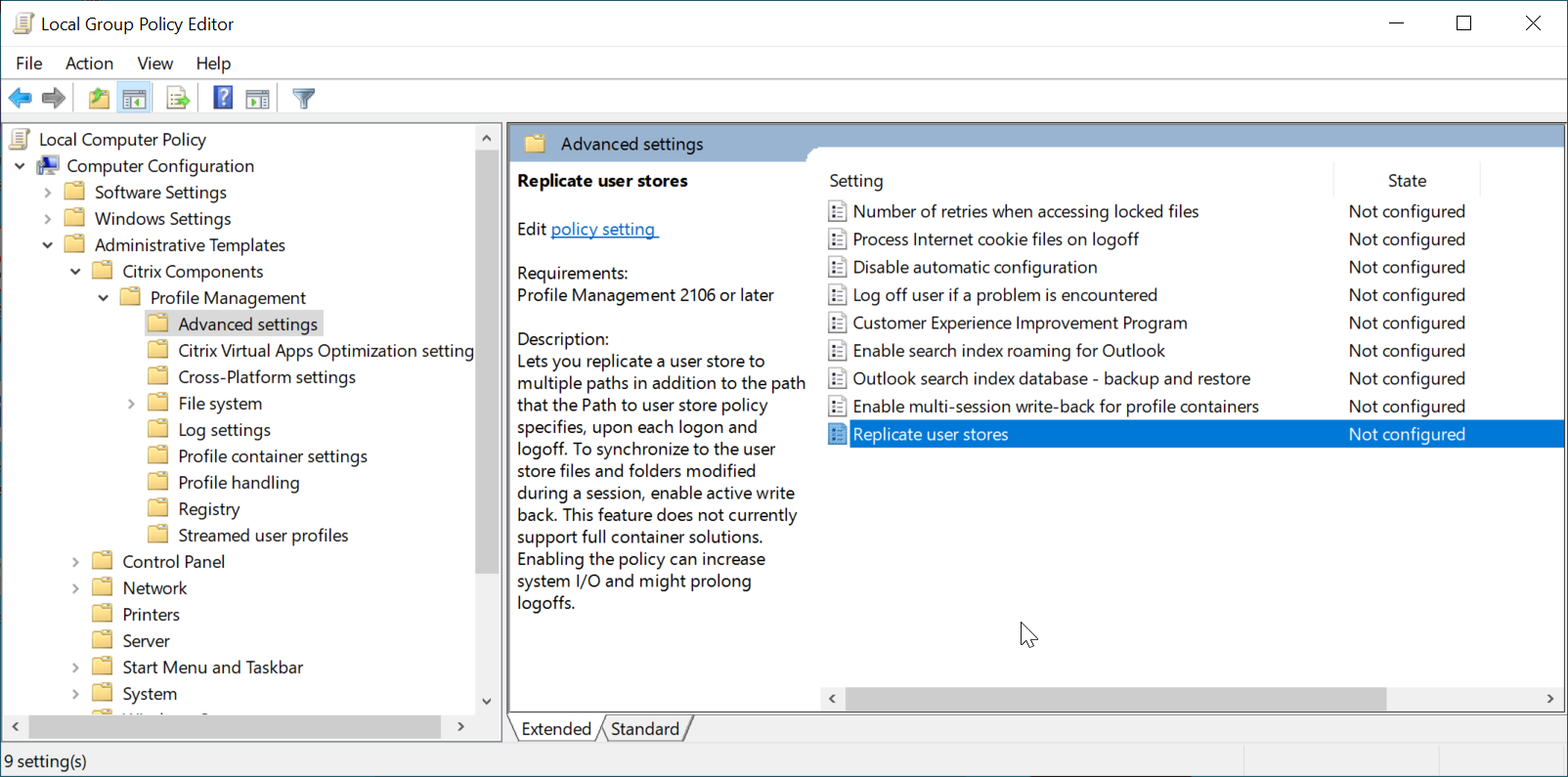
-
Set the policy to Enabled, set the paths to replicated user stores, and then click OK.
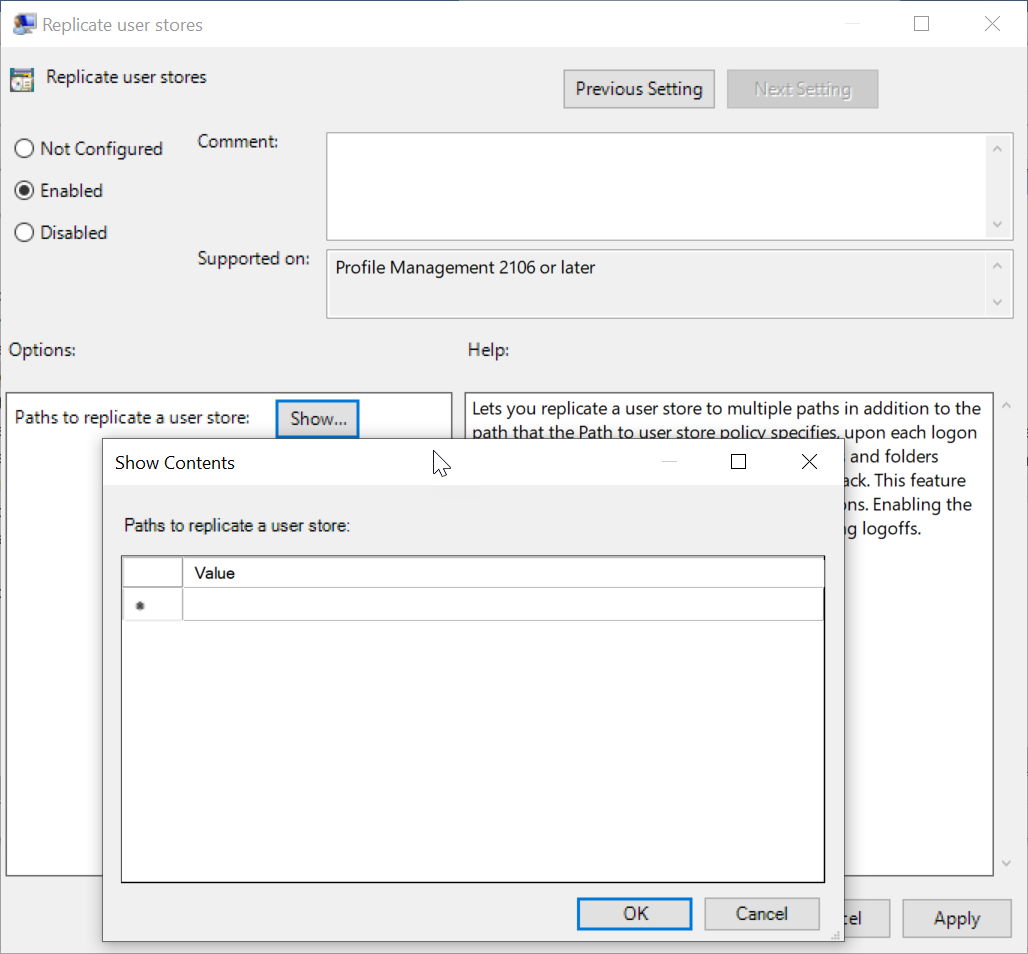 The paths to replicated user stores - along with the path that the Path to user store policy specifies - form a complete list of remote user profile storage.
 -
For your changes to take effect, run the gpupdate /force command from the command prompt on the machine where Profile Management is installed. Log off from all sessions and then log back on.
-
-
To configure the Replicate user stores policy in Citrix Studio, complete the following steps:
-
In the left pane of Citrix Studio, click Policies.
-
In the Create Policy window, type the policy in the search box. For example, type “Replicate user stores.”
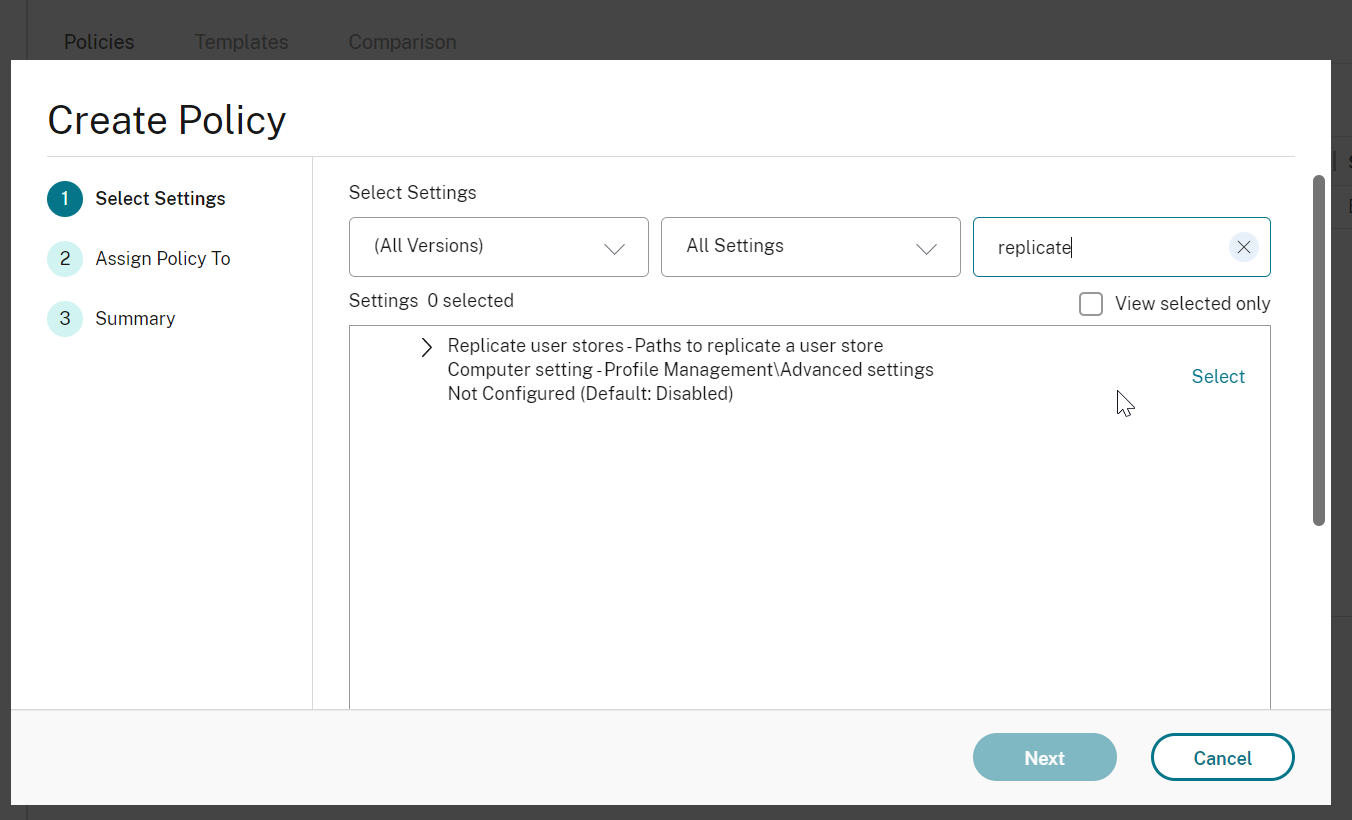
-
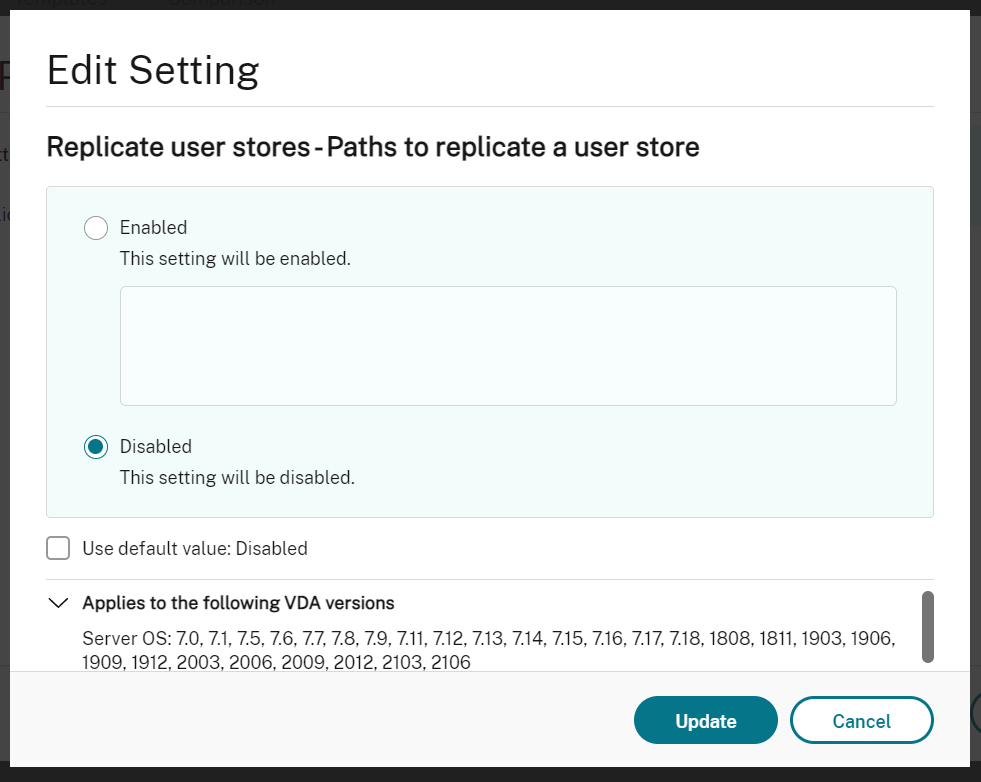
Click Select to open the Replicate user stores policy.
-
Select Enabled, type the paths to replicated user stores, and then click OK.Note:Press Enter to separate multiple entries.
-
-
To configure the Replicate user stores policy in WEM, complete the following steps:
-
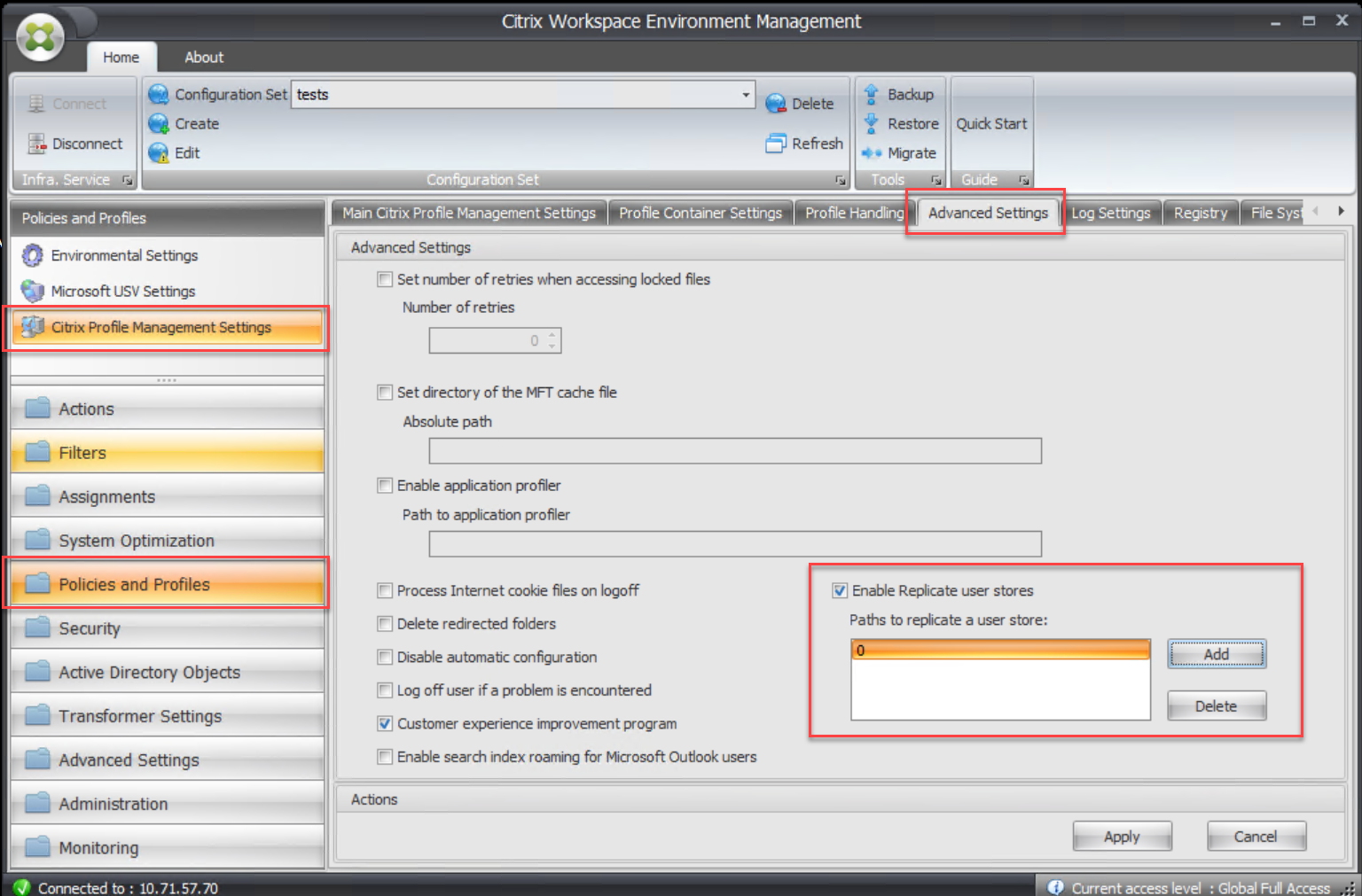
In the administration console, navigate to Policies and Profiles > Citrix Profile Management Settings > Advanced Settings.
-
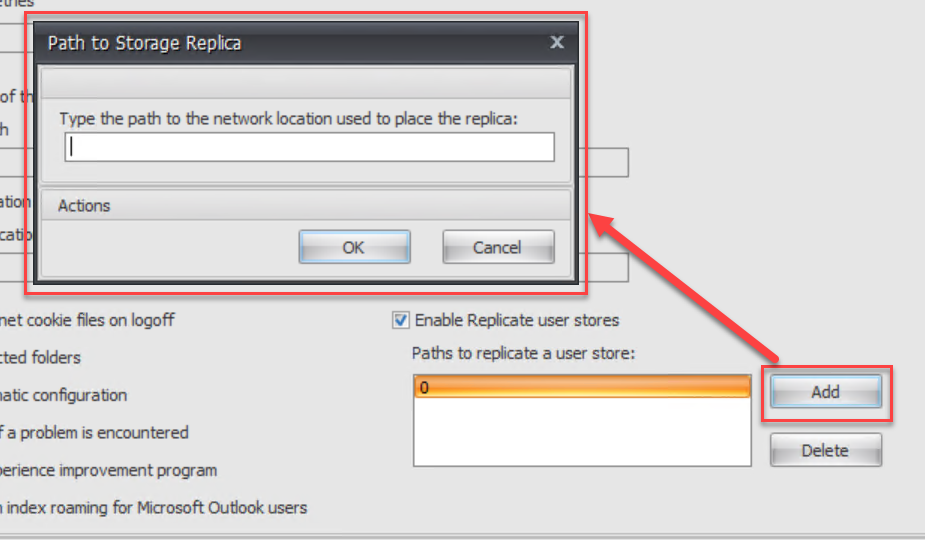
On the Advanced Settings tab, select or clear the Enable Replicate user stores check box and set the paths to replicated user stores.
-