
Citrix Provisioning™ console
Use the Citrix Provisioning console to manage components within a farm. The console can be installed on any machine that can access the farm. For more information about using the console to configure Citrix Provisioning, see the Console page.
Tip
To connect to a farm, see Farm Tasks.
Understanding the console window
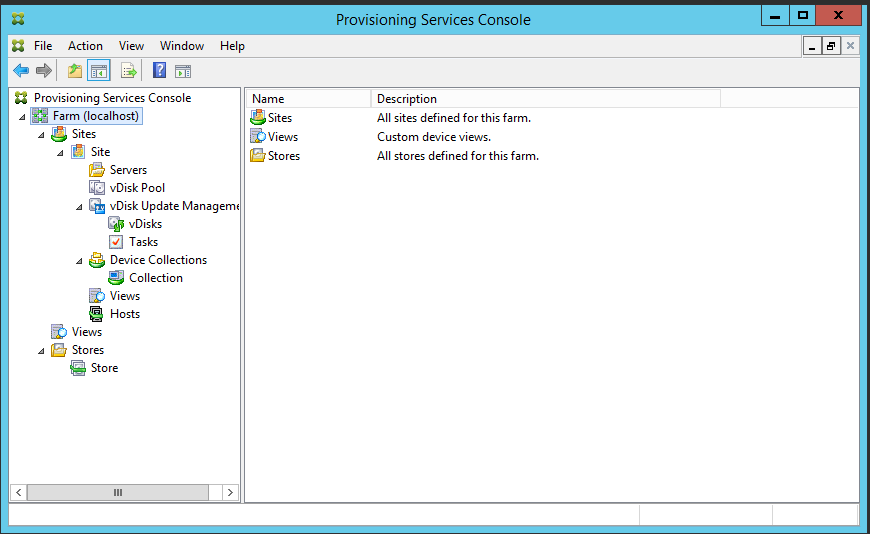
In the console window, you can perform tasks when setting up, modifying, tracking, deleting, and defining the relationships among vDisks, target devices, and Citrix Provisioning servers.
Using the console tree
The tree is located in the left pane of the console window. It displays a hierarchical view of your network environment and managed objects within your network. The Details view display depends on the object you have selected in the tree and your user role.
In the tree, click + to expand a managed object node, or click - to collapse the node.
Basic tree hierarchy
Farm administrators can create sites, views, and stores within the farm. The farm level tree is organized as follows:
-
Farm
-
Sites
-
Views
-
Stores
-
Site administrators generally manage those objects within sites to which they have privileges. Site’s contain provisioning servers, a virtual disk pool, device collections, and views. The site level tree is organized as follows:
-
Site
-
Servers
-
Device Collections
-
Virtual disk Pool
-
Virtual disk Update Management
-
Views
-
Using the details view
The right-hand pane of the console window contains the details view. This view provides information about the object selected in the tree, in table format. The types of objects that display in the view include provisioning servers, target devices, and vDisks. For more detailed information, right-click on the object, then select the Properties menu.
The tables that display in the details view can be sorted in ascending and descending order.
In the console, the objects that display and the tasks that you can perform depend on the assigned role.