Starting, stopping, or restarting Provisioning Services
Tip
Starting, stopping, or restarting Provisioning Services may result in unexpected behavior. Refer to Important considerations for more information.
To start, stop, or restart Provisioning Services on a Provisioning Server:
-
Highlight the Provisioning Server in the Console, then select the Stream Services menu option from the Actions menu, right-click menu, or Actions pane. The Provisioning Server Control dialog appears.
-
Select from the following menu options:
Option Description Start Starts the Stream Service Stop Places the Provisioning Server in off-line mode Restart After modifying Provisioning Server settings, such as adding or removing IPs, restart the Stream Service -
Highlight the Provisioning Servers that you want to take action on, then click that action's button.
-
Click Close to exit the dialog.
PVS console fails to restart or stop
Sometimes, the PVS console may fail to restart or stop services when running a stream service with a network service account. When this occurs, the service may appear in the started state, however, the console prevents you from restarting or stopping the stream service.
Tip
By default, a network service account does not have permissions to start/stop services.
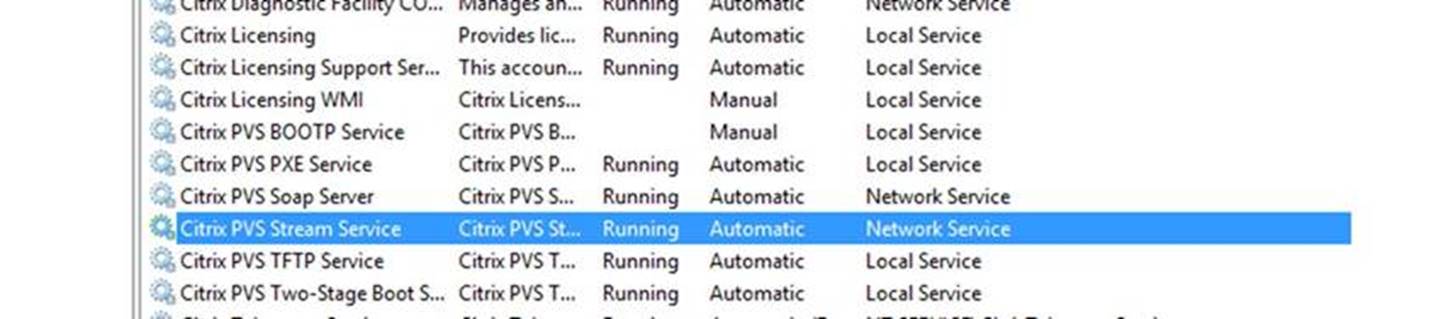
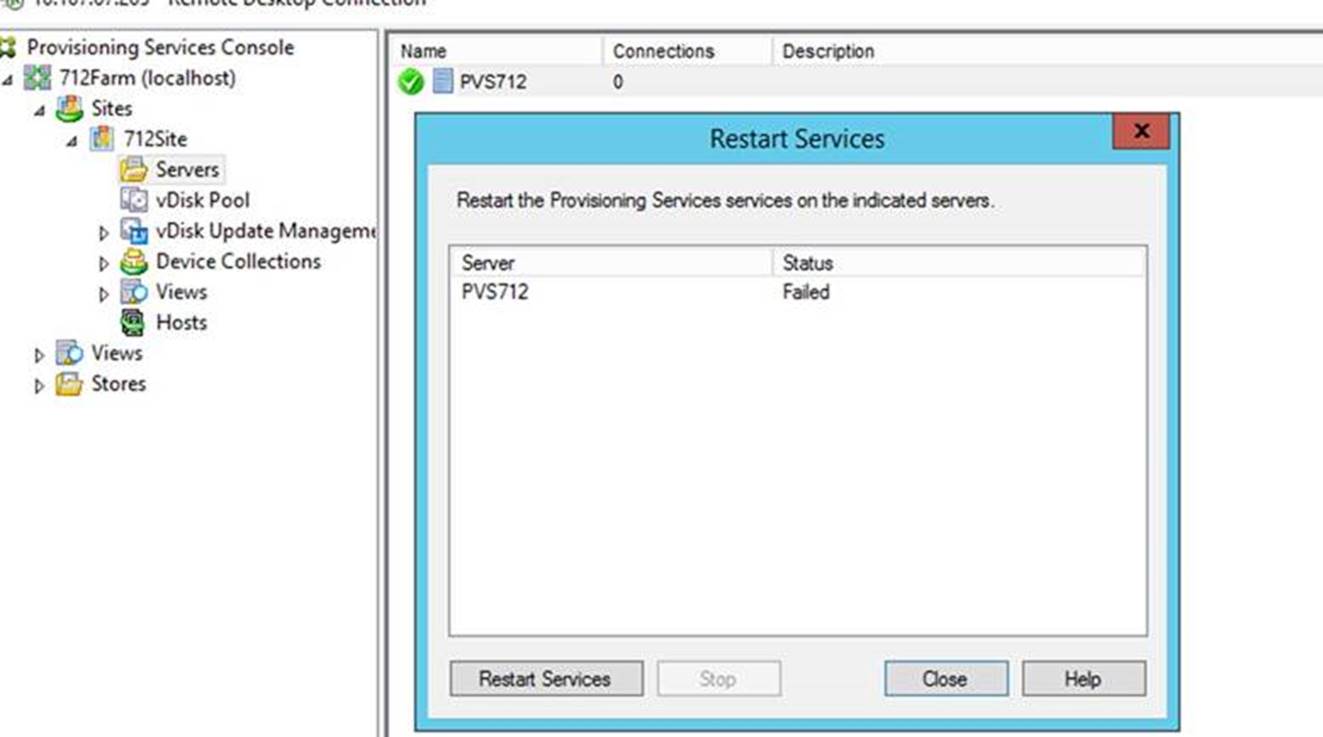
For example, if services are configured with a network services account, running the configuration wizard results in an error condition. The status appears as running and streaming the vDisk, however, the service cannot be restarted or stopped:
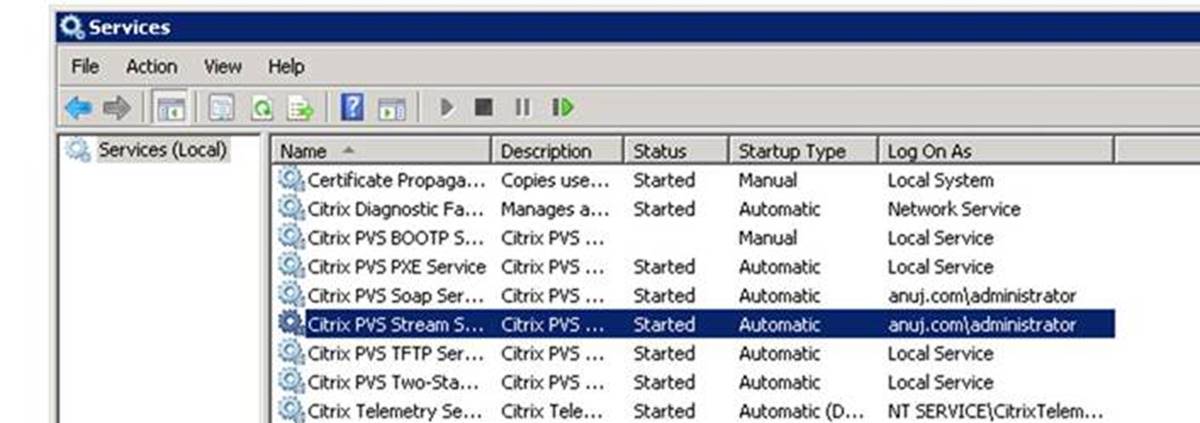
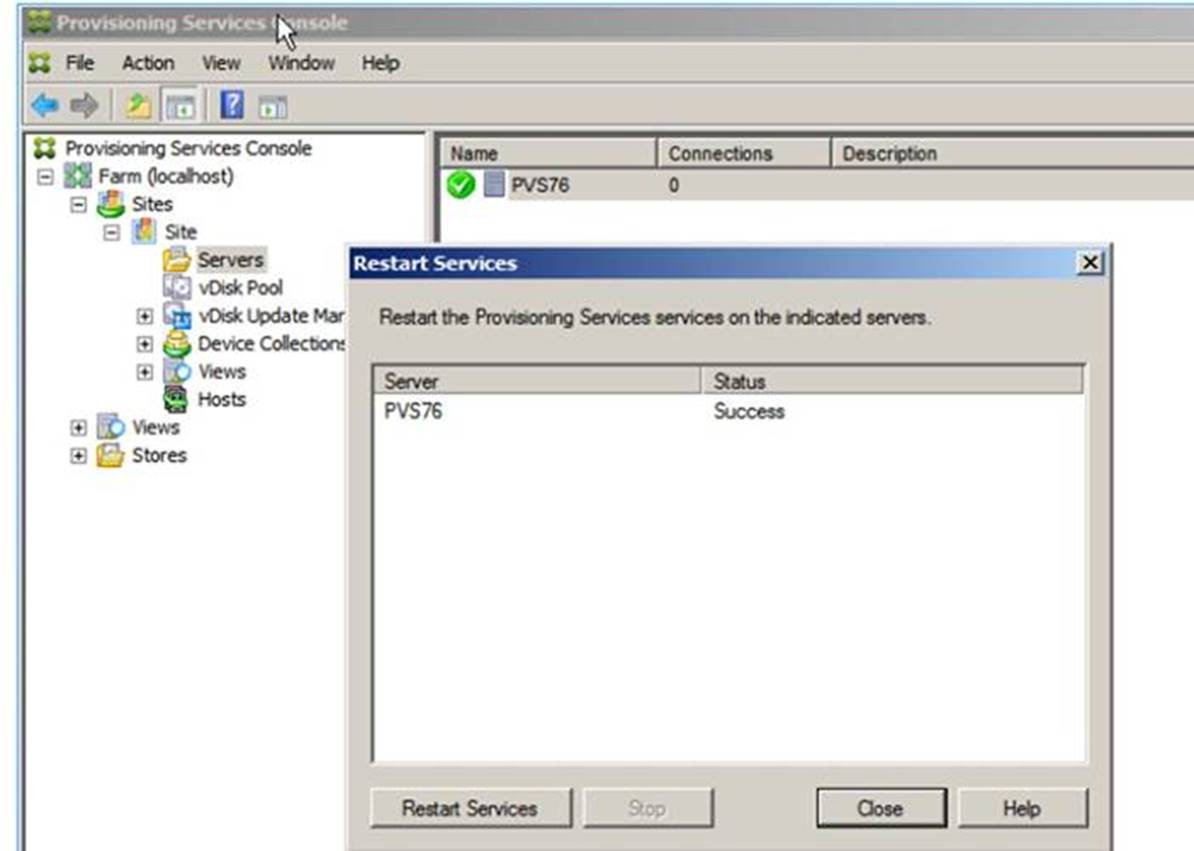
You may be able to resolve this issue by associating the stream service with a specific account which has the required permissions to access the database. For example, if the services are configured with a specific account (for example, anuj.com\\administrator), the status appears as started, and you can restart or stop the services from the PVS console: