
Open and play recordings
You can play live and completed recordings in the web player. On the recordings page, each recording has a play button on the right side, next to the Duration item.
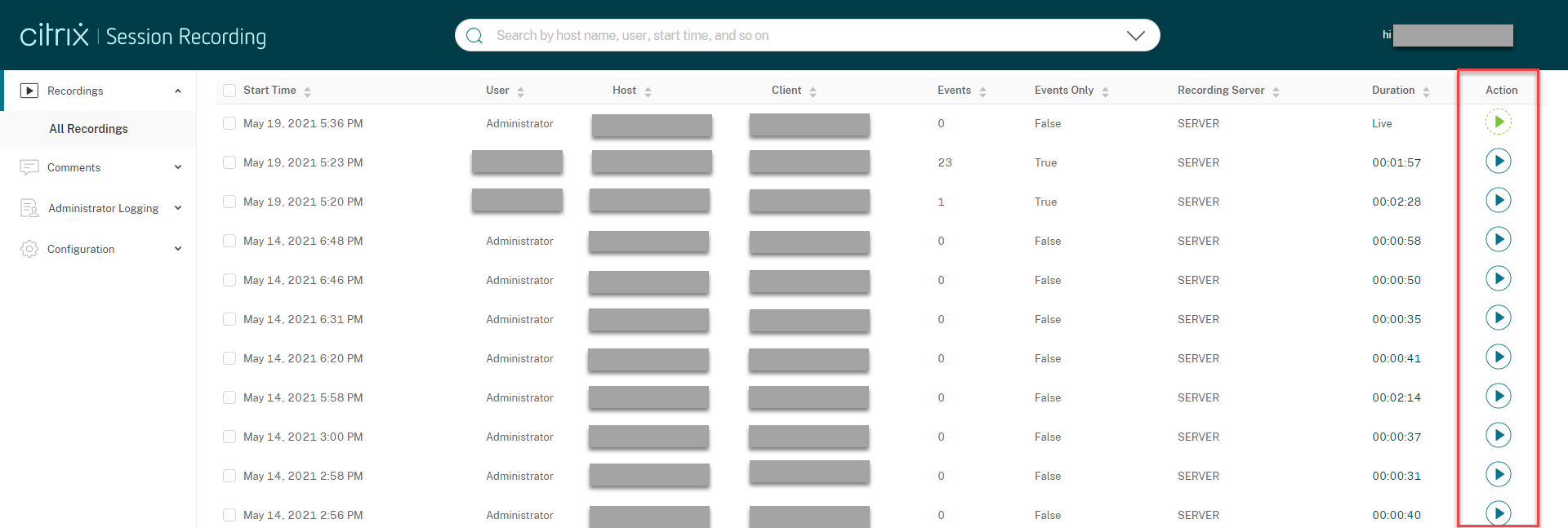
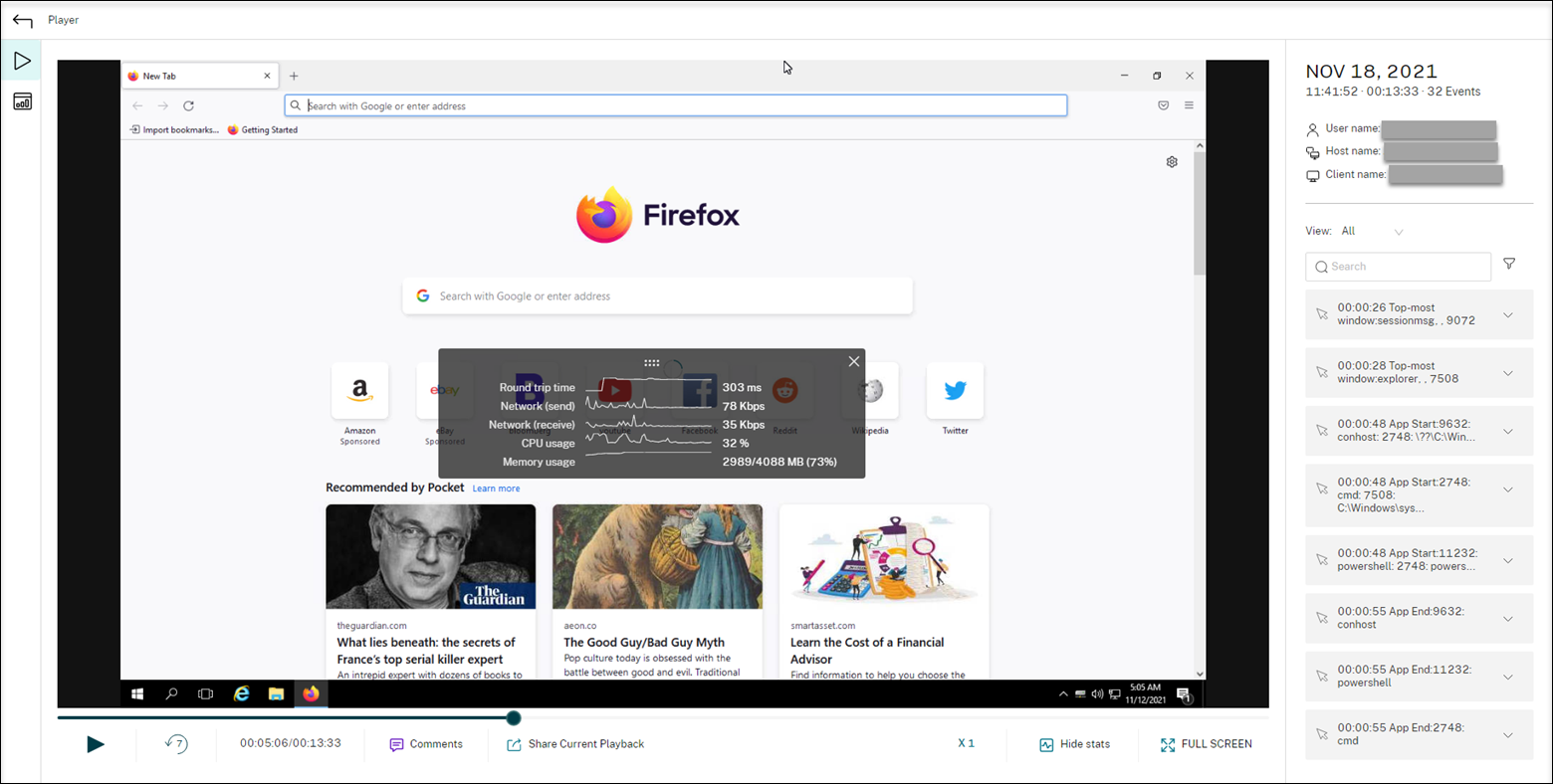
Click the play button. The playback page appears. Playback starts after memory caching.
Tip:
-
Clicking the session progress time lets you switch to the absolute date and time the session was recorded.
-
For an event-only recording, the play icon in the upper left corner is unavailable.
For a description of the player controls, see the following table:
| Player Control | Description |
|---|---|
 |
Plays the selected recording file. |
 |
Pauses playback. |
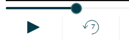 |
You can drag the progress bar during playback. Idle periods of recorded sessions are highlighted during playback. |
 |
Seeks backward 7 seconds. |
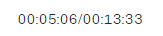 |
Indicates the current position of the recording playback and the total recording duration. The time format is HH:MM:SS. |
 |
Lets you click and leave a comment about the recording being played. |
 |
Lets you click and copy the URL of the current recording to the clipboard. |
 |
Shows the overlay that features data points related to the recorded session. |
 |
Hides the session data overlay. |
 |
Indicates the current speed of playback. Click the icon to switch between options including X0.5, X1, X2, and X4. |
 |
Displays the playback in full screen. |
 |
Displays the playback within the webpage. |
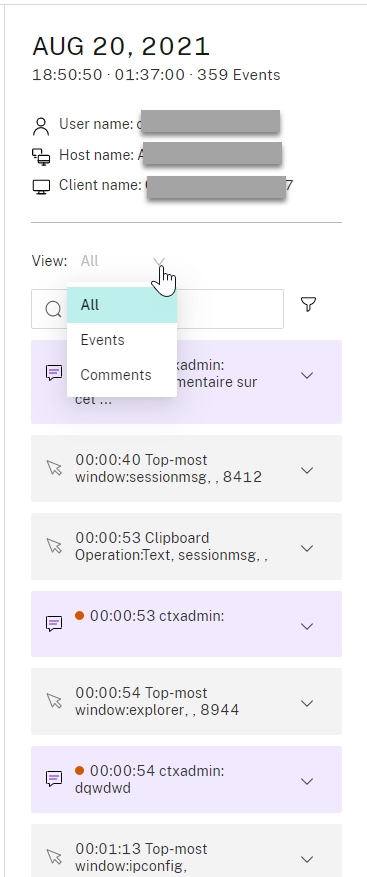
In the right pane of the playback page, the Events and Comments filters, quick search box, and some recording data are available:
-
The date and time on the web player machine. In this example, AUG 20, 2021 and 18:50:50.
-
The duration of the recording in playback. In this example, 01:37:00.
-
The number of events in the recording. In this example, 359 EVENTS.
-
The name of the user whose session was recorded.
-
The host name of the VDA where the recorded session was hosted.
-
The name of the client device where the session was running.
-
Options for sorting search results: Select All, Events, or Comments to sort search results.
-
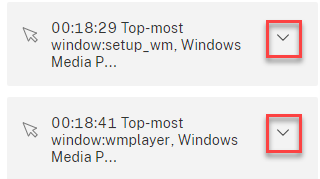
Event filters. You can select more than one filter to search for events in the current recording.Click the icon to expand displays of events. For example:
-
Event list. Clicking an event on the list takes you to the position of the event in the recording.
-
Quick search box. The search events quick search box helps to quickly narrow down a list of events in the current recording.