
Share recordings as links
Overview
You can share recordings as links so that other users can access the recordings directly, without the need to search among many recordings. You can share recordings as restricted and unrestricted links. If you share a recording as a restricted link, only users who already have playback permission can view the recording using the link. If you share a recording as an unrestricted link, anyone in your AD domain can view the recording using the link.
To facilitate managing unrestricted links, Session Recording lets you:
-
Set a validity period for each of the links.
-
(Optional) Enter a justification when generating the links.
-
Get an overview of which recordings have been shared as unrestricted links.
-
View all unrestricted links of a specific recording.
-
Know which users have accessed an unrestricted link.
-
Revoke unrestricted links that haven't expired.
-
Clear invalid links that have expired or revoked.
Note:
-
To share recordings as unrestricted links and to manage unrestricted links, you must be assigned the PrivilegedPlayer role.
-
To view a recording using an unrestricted link, users must enter a justification.
Share recordings as restricted links
To share recordings as restricted links, complete the following steps:
-
In the web player, open and play the recording that you want to share.
-
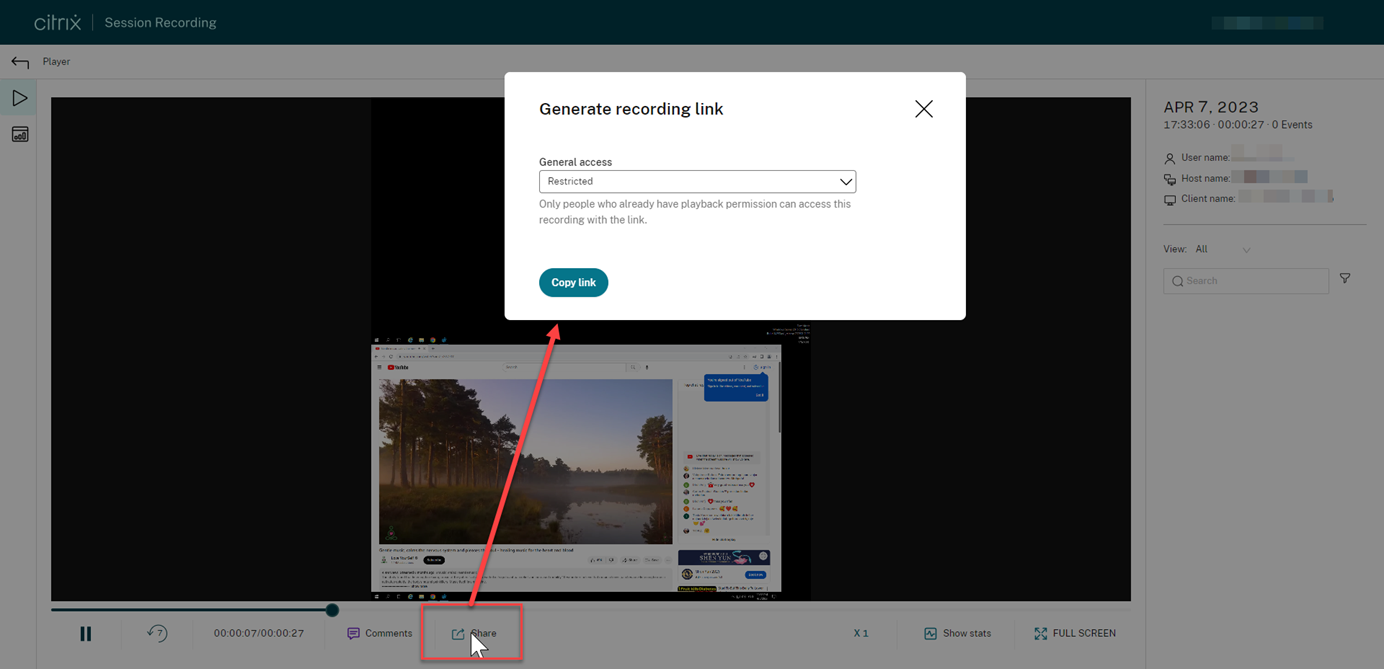
Click Share on the playback page of the recording. The Generate recording link dialog appears.
-
Select Restricted from the General access drop-down.
-
Click Copy link.After you click Copy link, either of the following messages appears, indicating a successful or failed operation respectively:
-
The URL to the shared recording has been copied to the clipboard
-
Sharing the recording URL failed
-
-
Apply secure sharing at the server level.To ensure secure sharing, set the following registry values under
HKEY_LOCAL_MACHINE\SOFTWARE\Citrix\SmartAuditor\Server:Registry value Description Default value Remarks LinkExpire Time span beyond which a generated URL link expires. Counted as timeticks in the unit of 10 microseconds. 1,728,000,000,000 (The default value equals 2 days.) - LinkSalt A security method to encrypt the preceding URL expiration time Kk2od974 Change the default value to an arbitrary string that preferably ends with digits. -
Share the generated URL link with users who already have playback permission.Pasting the link in the address bar lets you jump to the location where the link was copied.
Share recordings as unrestricted links
Note:
To share recordings as unrestricted links, you must be assigned the PrivilegedPlayer role.
To share recordings as unrestricted links, complete the following steps:
-
In the web player, open and play the recording that you want to share.
-
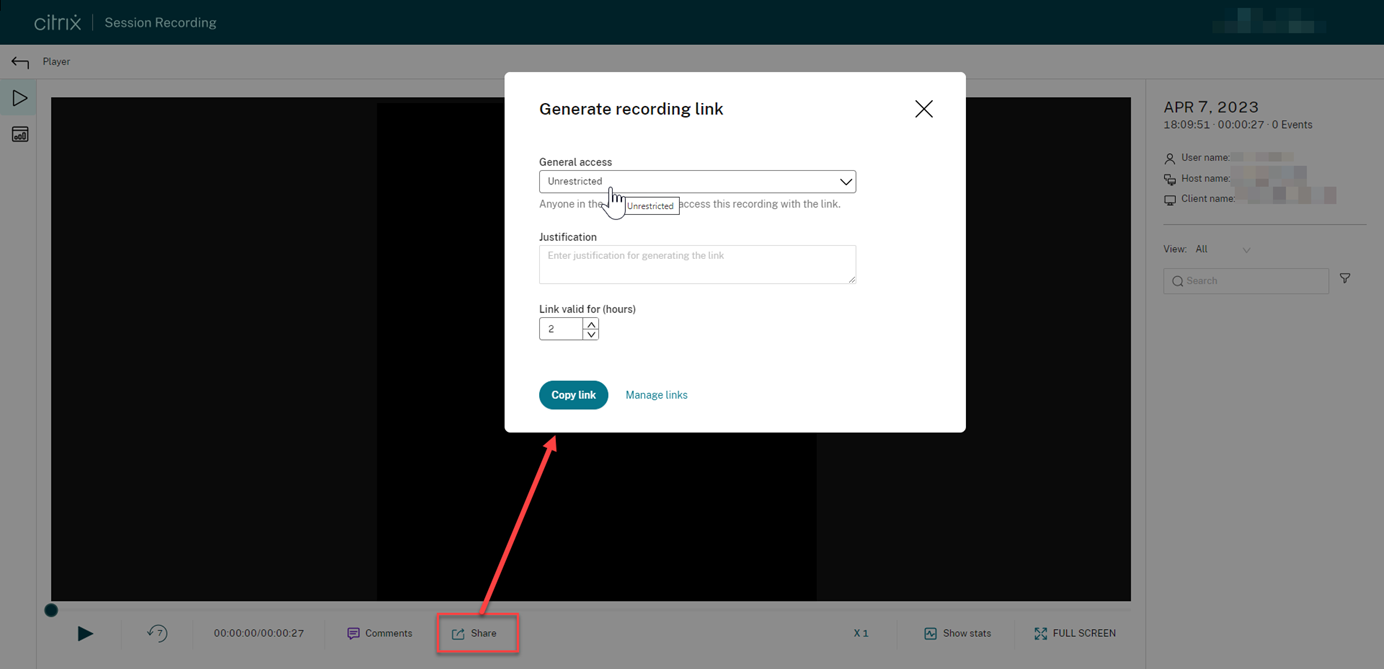
Click Share on the playback page of the recording. The Generate recording link dialog appears.
-
Select Unrestricted from the General access drop-down.
-
(Optional) Enter your justification for sharing the recording.
-
Set an expiration period for the link to be generated.
-
Click Copy link.After you click Copy link, either of the following messages appears, indicating a successful or failed operation respectively:
-
The URL to the shared recording has been copied to the clipboard
-
Sharing the recording URL failed
-
-
Share the generated URL link with anyone in your AD domain.Pasting the link in the address bar lets you jump to the location where the URL link was copied.Note:
-
To view a recording using an unrestricted link, users must enter a justification.
-
The actions of generating and accessing unrestricted links are logged under the playback logging sector of administrator logging.
-
Manage unrestricted links
Note:
To manage unrestricted links, you must be assigned the PrivilegedPlayer role.
View which recordings have been shared as unrestricted links
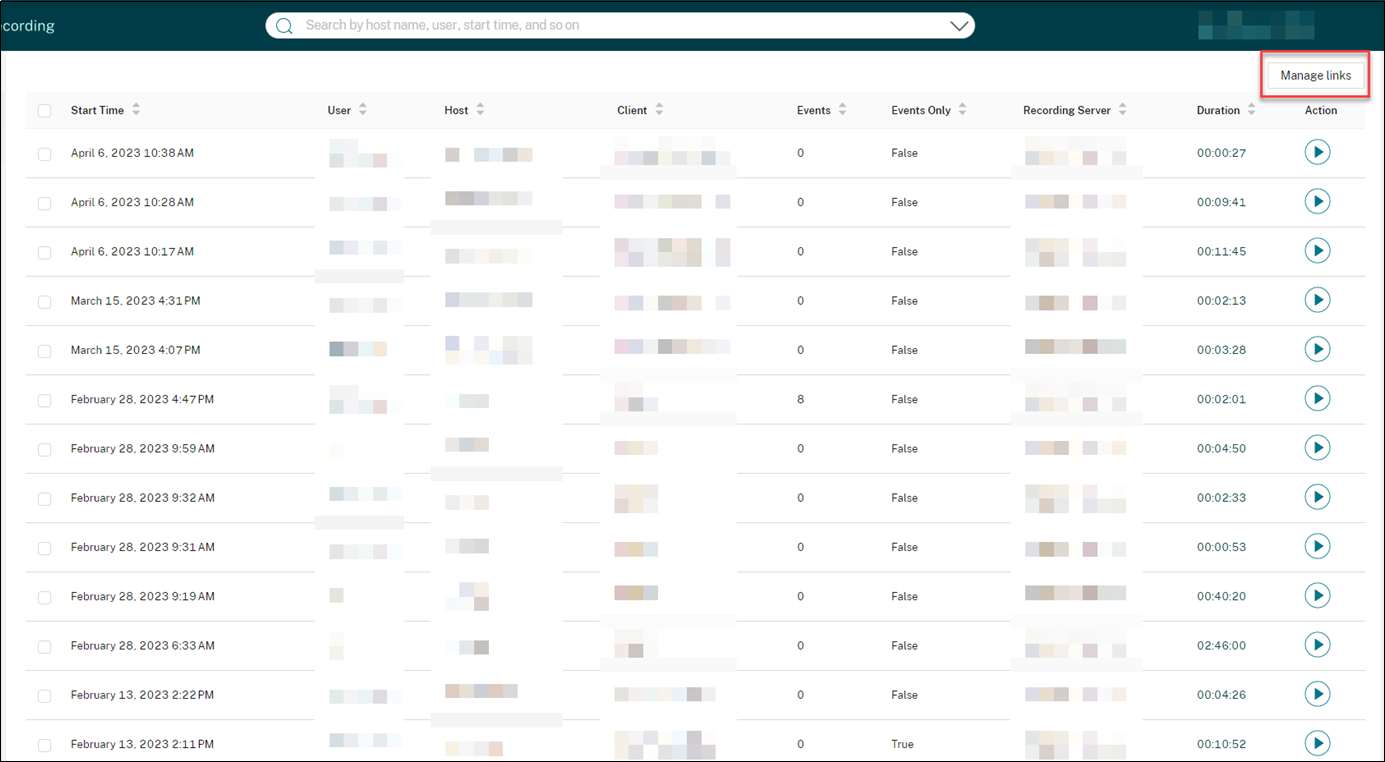
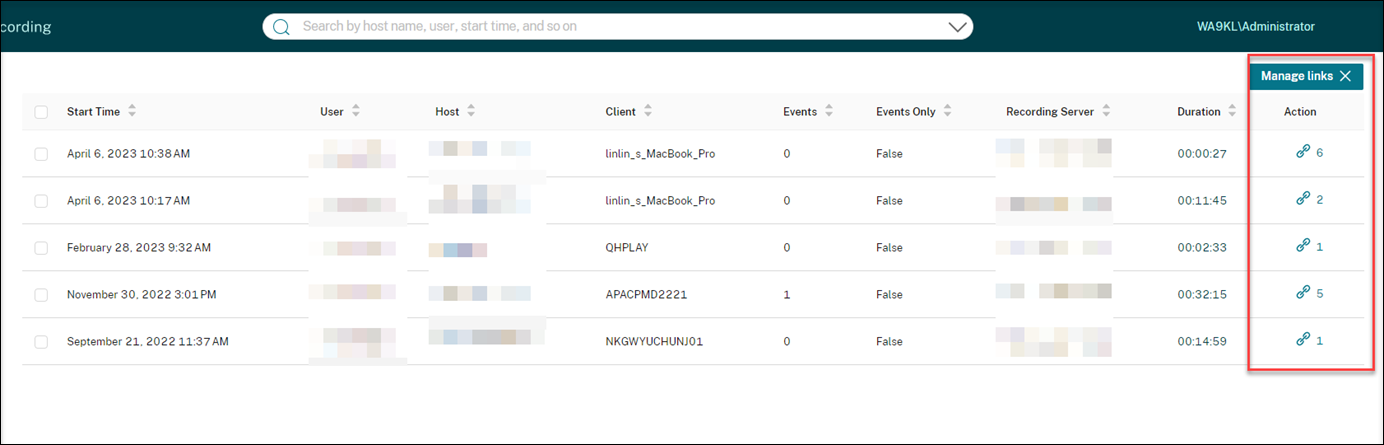
To get an overview of which recordings have been shared as unrestricted links, click Manage Links in the upper right corner of the All Recordings page.
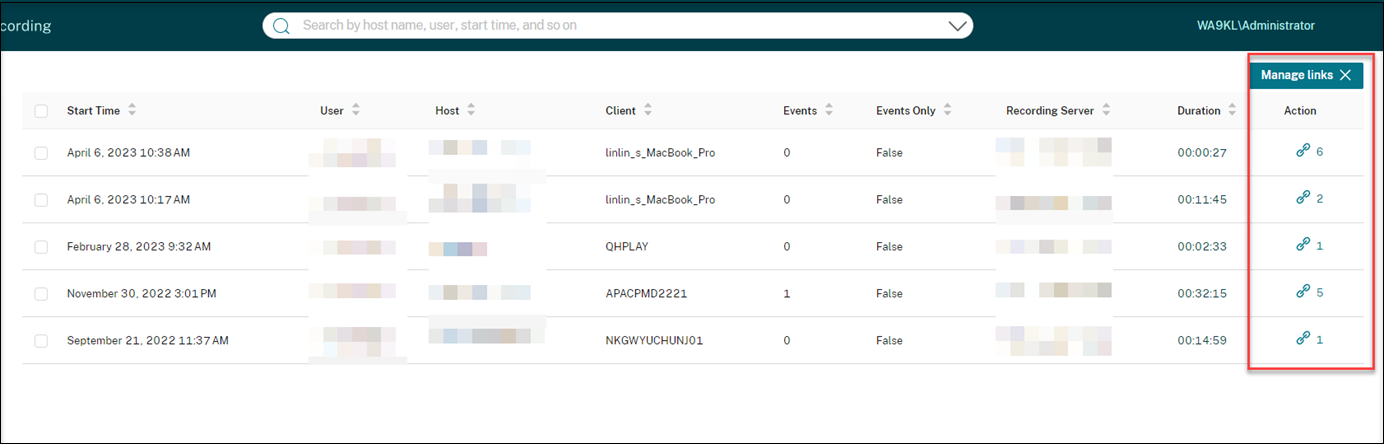
After you click Manage Links, only recordings that have been shared as unrestricted links are listed.
View and manage unrestricted links of a specific recording
-
Open the Manage unrestricted links page.Method 1: By clicking the link icon in the Action column on the All Recordings page
 Method 2: By clicking Manage Links in the Generate recording link dialog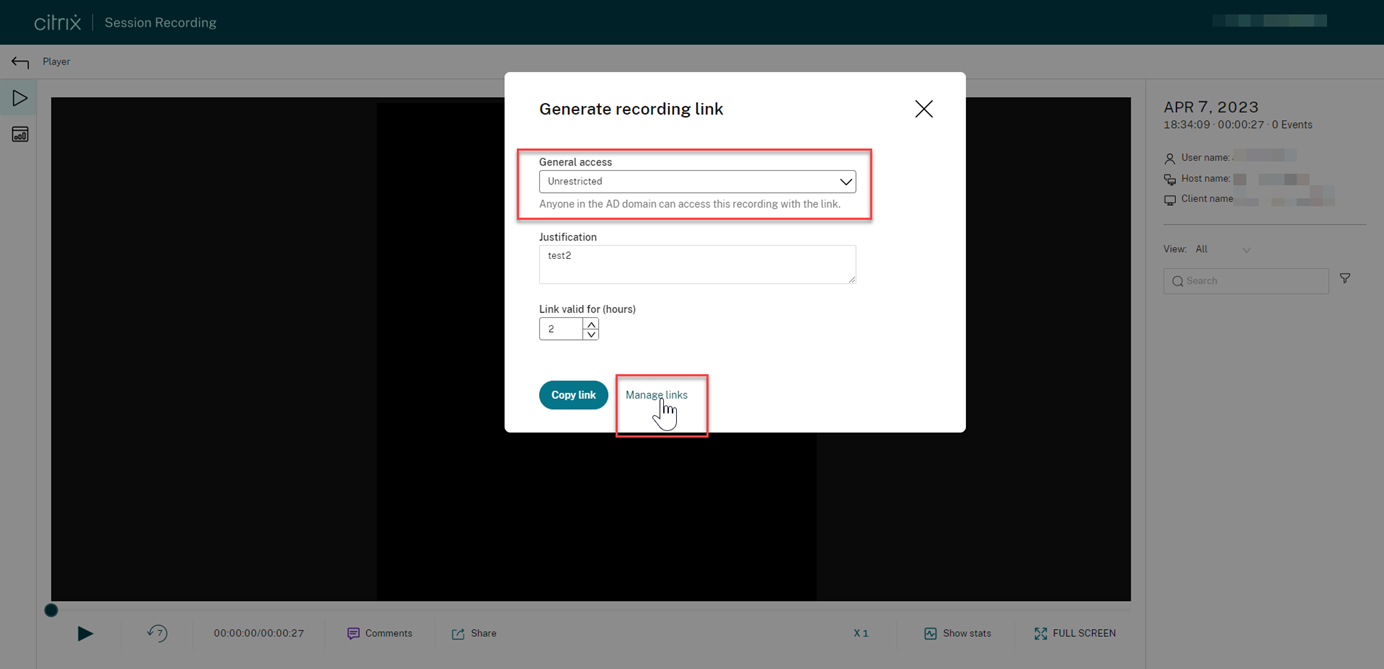
-
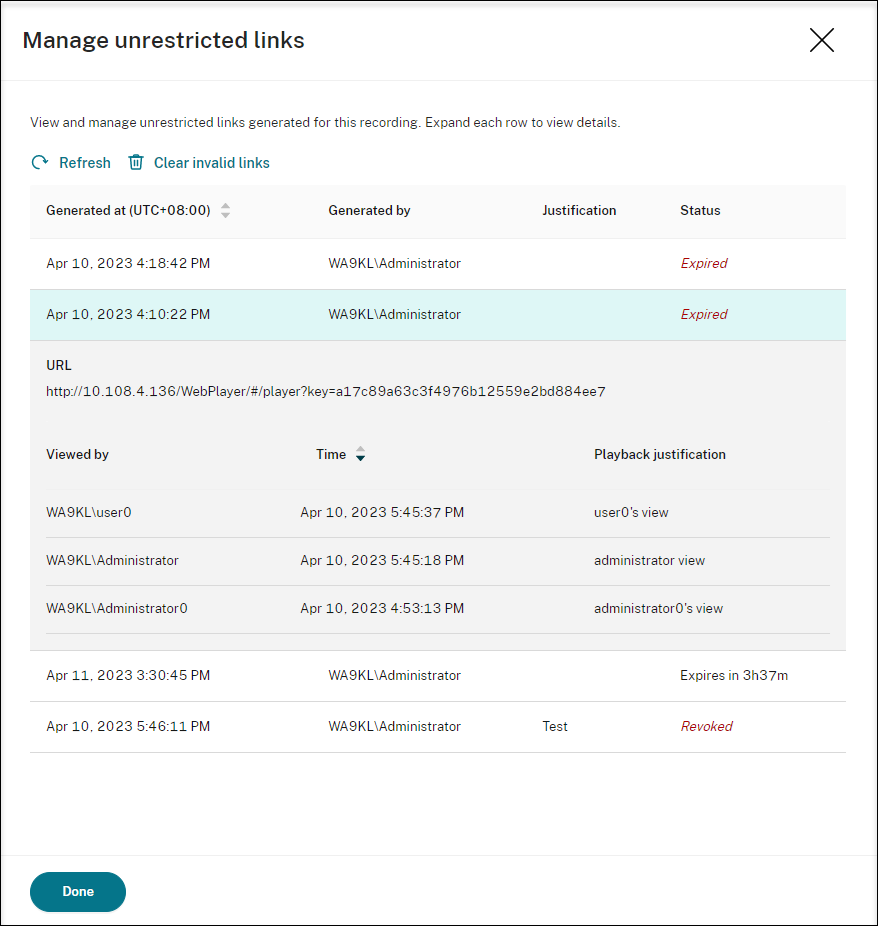
On the Manage unrestricted links page, expand each row to view details about the unrestricted links that are generated for the specific recording.
-
(Optional) To revoke a link, select it and then click Revoke that appears.
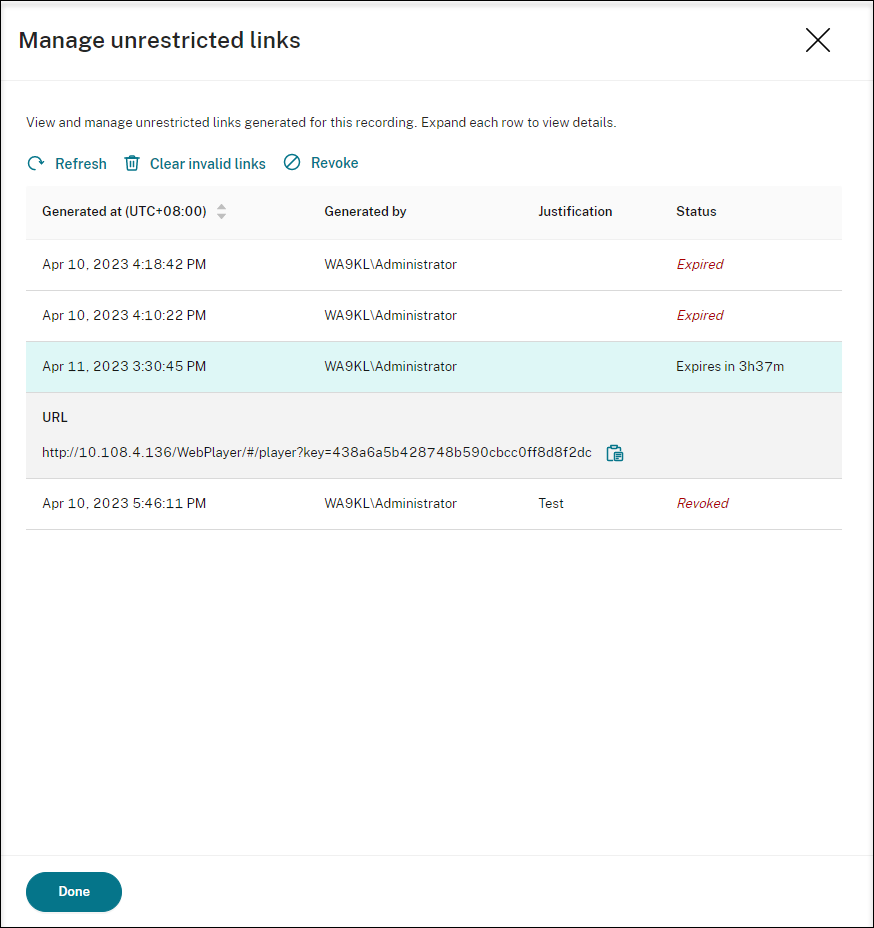 After you click Revoke, you are prompted to confirm the action.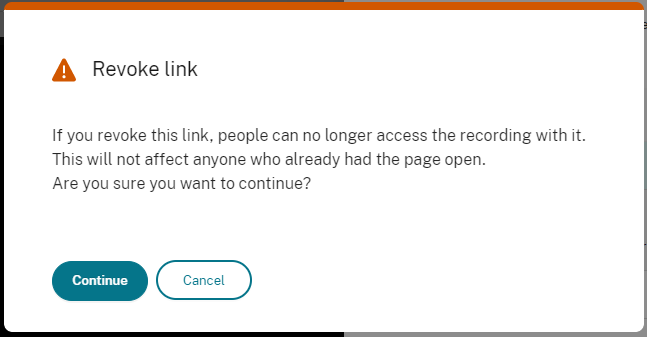
-
(Optional) To remove the links that have expired or revoked, click Clear invalid links.