
Enable or disable lossy screen recording
Lossy screen recording lets you adjust compression options to reduce the size of recording files and to accelerate navigating recorded sessions during playback. Lossy screen recording is suitable for use when:
-
the size of recording files per time unit is too large, or
-
there is a lag while you fast forward or rewind during recording playback.
You can now enable lossy screen recording in any of the following ways:
-
Activate a system-defined session recording policy that has lossy screen recording enabled.
-
Create and activate a custom session recording policy, and make sure to select Enable lossy screen recording when creating the custom policy.
-
Select Enable lossy screen recording when configuring an event response policy. When a monitored event is detected later, lossy screen recording is triggered.
For more information, see Configure session recording policies and Configure event response policies.
When the active session recording or event response policy doesn't have lossy screen recording enabled, compression options are unavailable.
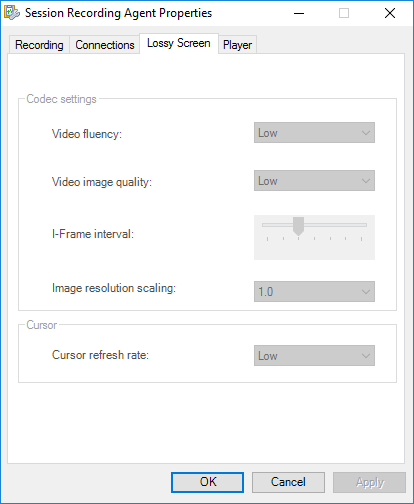
When the active session recording or event response policy has lossy screen recording enabled, compression options are available on the Lossy Screen tab of Session Recording Agent Properties.
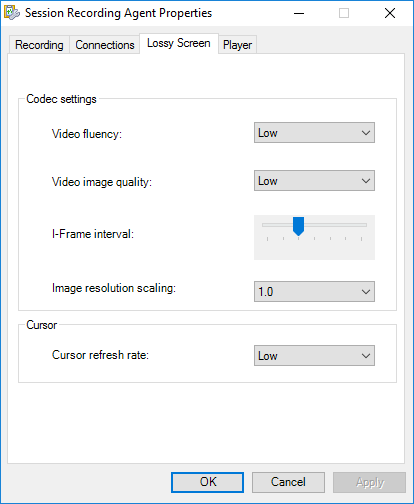
You can adjust the compression options to your needs. We recommend you use the default values unless there is a practical need to change the values.
For a description of compression options, see the following table:
| Compression option | Description | Default value | Remarks |
|---|---|---|---|
| Video fluency (FPS) | Low: 1; Medium: 5; High: 10 | Low | N/A |
| Video image quality | Low: bitrate:140 (kbps); Medium: bitrate:280 (kbps); High: bitrate:420 (kbps) |
Low | Session Recording uses Average Bitrate (ABR) for video bitrate encoding. Higher values mean less compression. You can also set a custom value between 40 kbps and 80,000 kbps by editing the Registry at HKEY_LOCAL_MACHINE\SOFTWARE\Citrix\SmartAuditor\Agent\SRGraphicsX264Bitrate. |
| I-Frame interval (seconds) | 60, 120, 300, 600, 1200, 1800, 3600 | 600 | The larger the I-Frame interval value, the smaller the storage space occupied by the compressed video. The smaller the I-Frame interval value, the better the seeking experience (fast forward and rewind). |
| Image resolution scaling | 1.0, 0.9, 0.8, 0.7, 0.6, 0.5, 0.4 | 1 | You can downscale the resolution of recorded screens to a percentage, for example, 0.9 means 90%. If you don't want to change the resolution, use the default value 1.0. You can also set the image resolution scaling by editing the Registry at HKEY_LOCAL_MACHINE\SOFTWARE\Citrix\SmartAuditor\Agent\SRGraphicsZoomFactor. |
| Cursor refresh rate (times per second) | Low: 3; Medium: 5; High: 10 | Low | N/A |