Session Remote Start local testing
Note:
Some features may require additional configurations. For more information, see Optional Configuration.
Open Session Remote Start Web Local Testing
Open
https://<Session Remote Start FQDN>/SessionRemoteStart/index.html, in a web browser and check if it loads successfully without any warnings.
There are three tabs on the top left: Enumerate and Launch, Launch Desktops, and Logoff.
-
Enumerate and Launch: Enumerate available resources for a User Principal Name (UPN) and allows launching a selected resource for the UPN.
-
Launch Desktops: Session Remote Start supports launching all desktops using three methods.
-
Launch All Desktops of a User Principal Name (UPN)
-
Launch All Desktops by Tags of a User Principal Name (UPN)
-
Launch All Desktops assigned to the UPNs in the specified AD groups
-
-
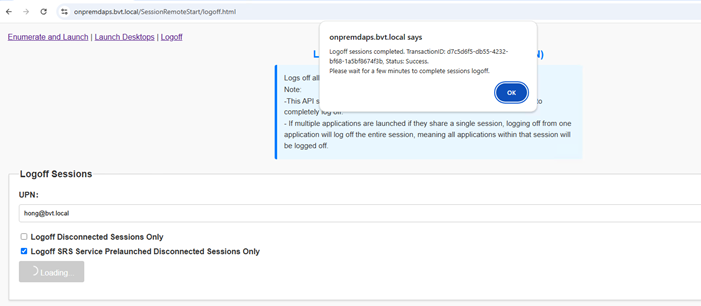
Logoff: Logs off all sessions for a given UPN and device name.
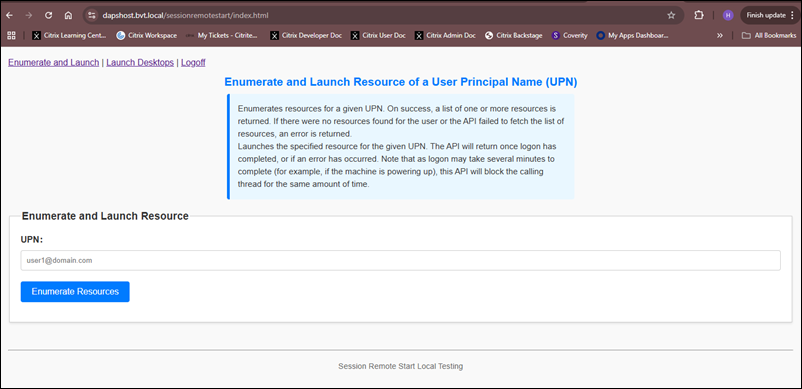
Enumerate and Launch Resource of a User Principal Name (UPN)
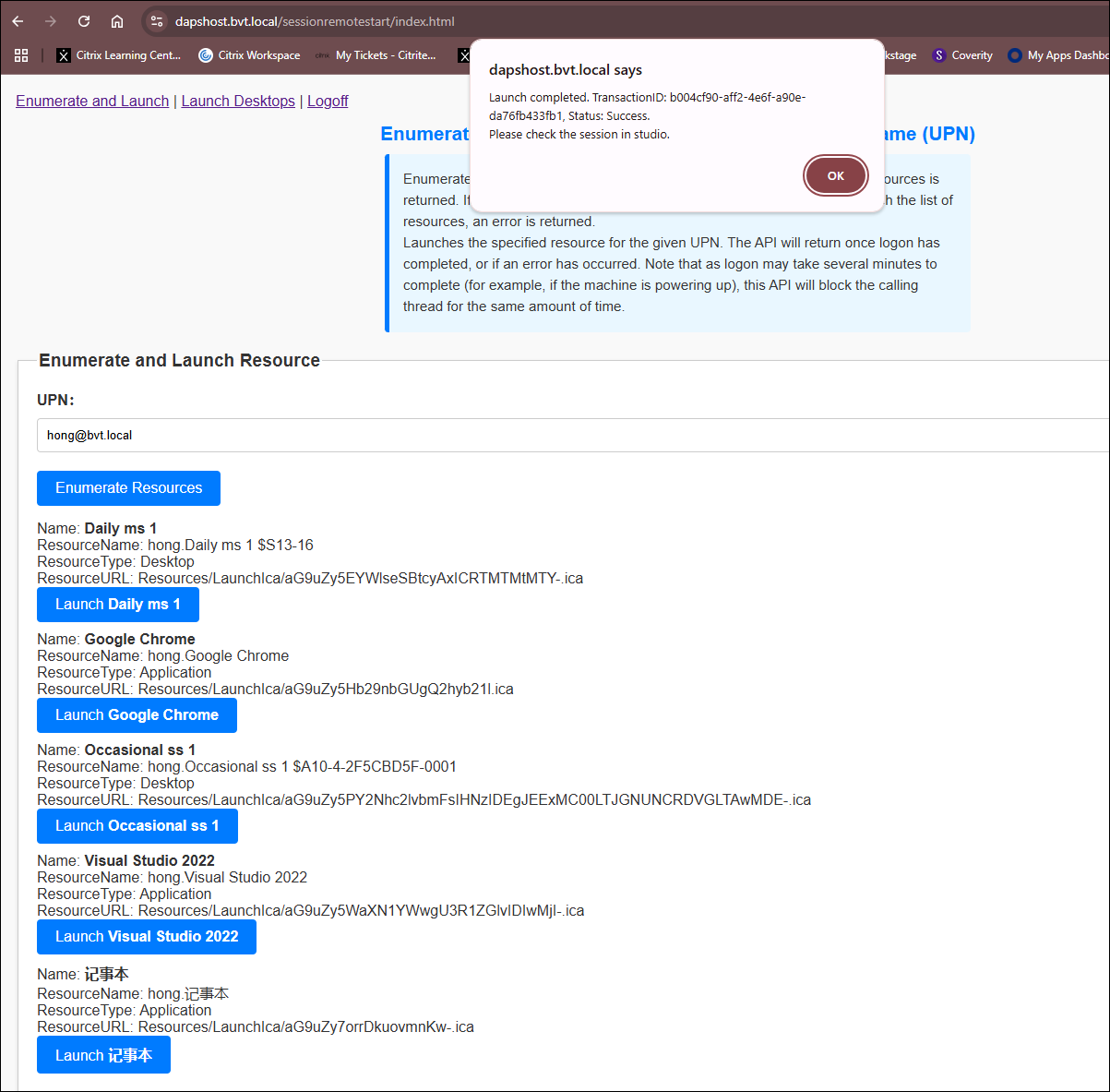
Input the User Principal Name (UPN), then click Enumerate Resources.
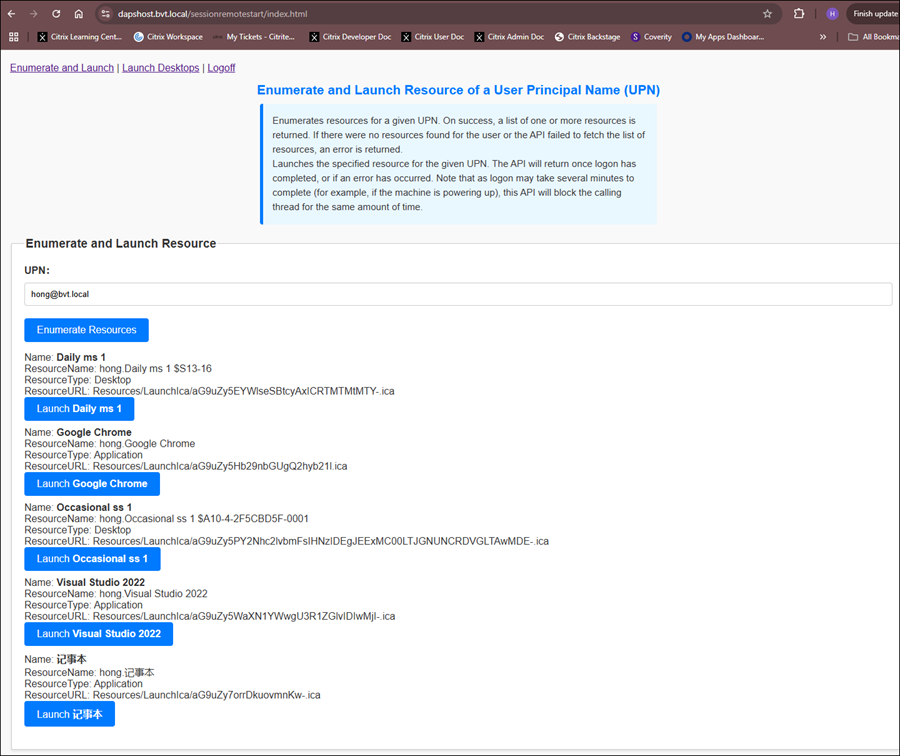
Then choose a resource, for example:
Daily ms 1 and click Launch Daily ms 1. The API waits for a logon notification from the VDA before returning to the caller.
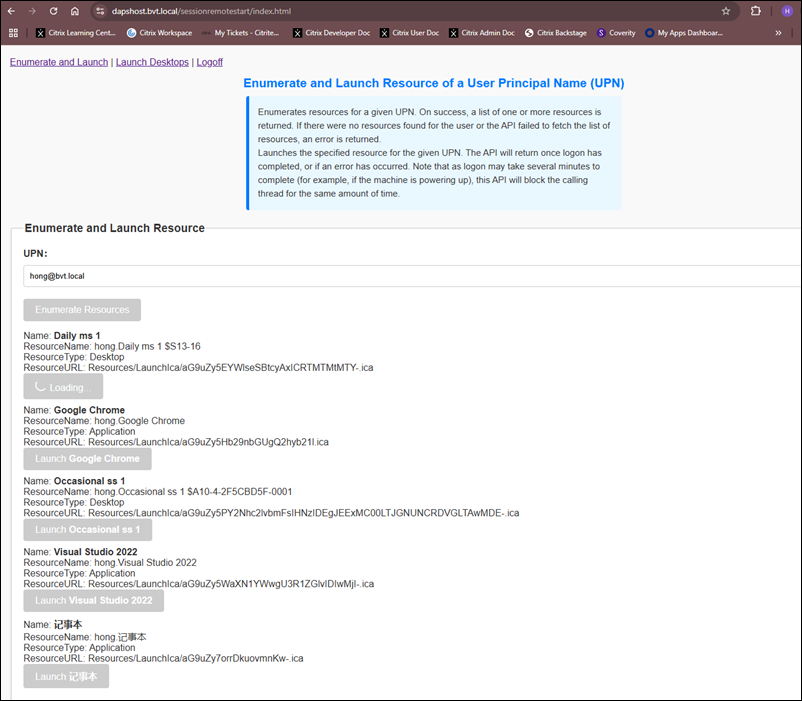
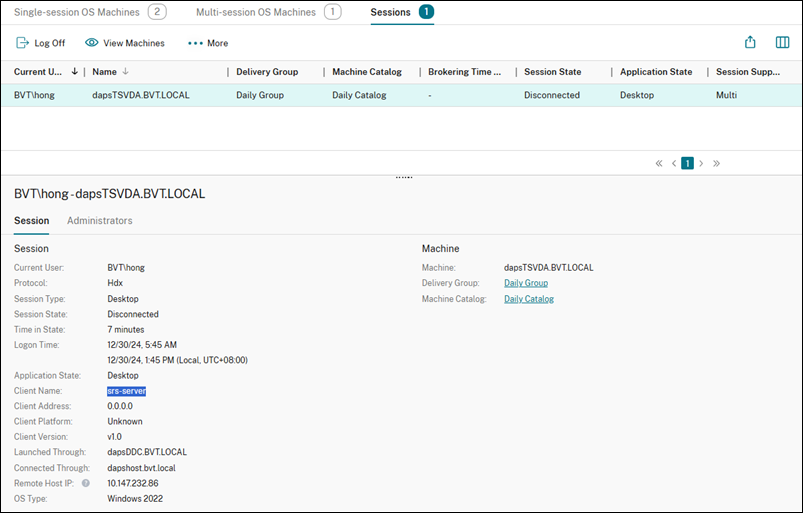
A prompt appears with a notification if the resource is launched successfully. Then, check the session in the studio.
Launch Desktops
Launch All Desktops of a User Principal Name (UPN)
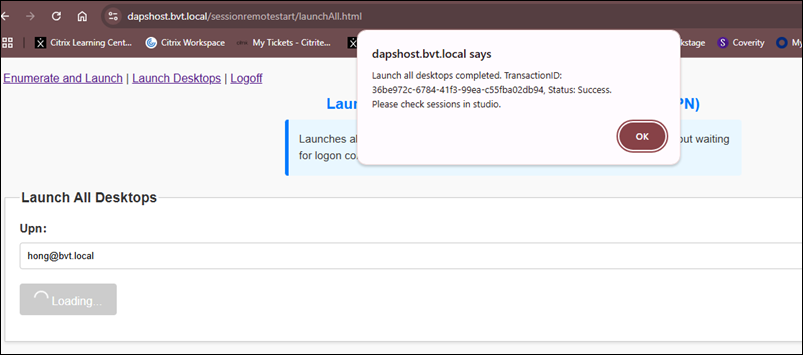
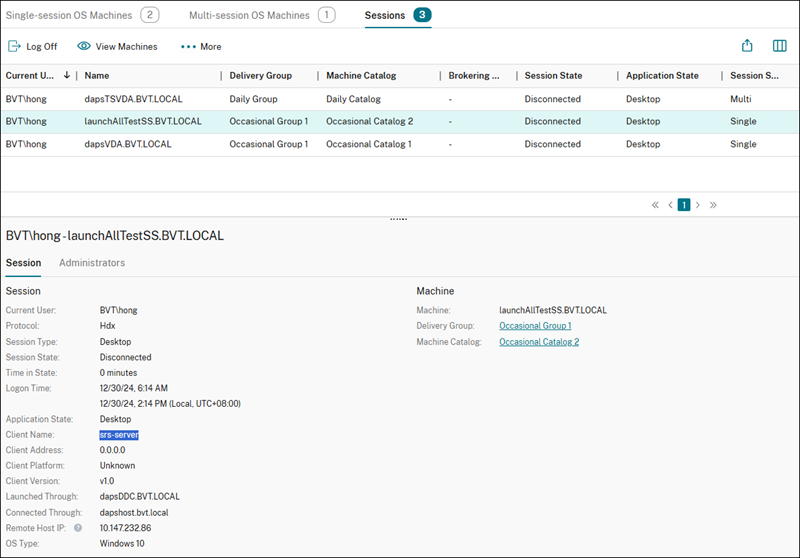
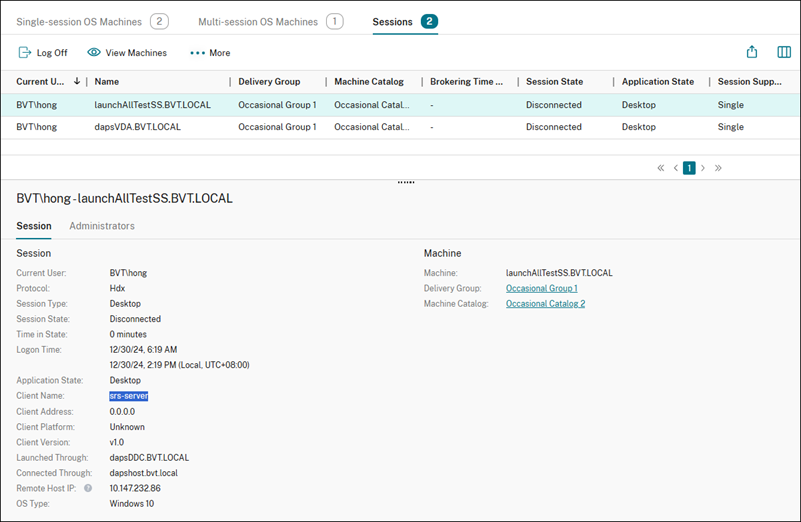
Enter the User Principal Name (UPN) and click Launch All Desktops. A prompt will confirm whether the resources launched successfully. Then, verify the sessions in Citrix Studio.
Launch All Desktops by Tags of a User Principal Name (UPN)
Enter the User Principal Name (UPN) and tags, scroll down and then click Launch All Desktops By Tags. A prompt will confirm whether the resource is successfully triggered. Then, verify the sessions in Citrix Studio.

Launch All Desktops of AD Groups
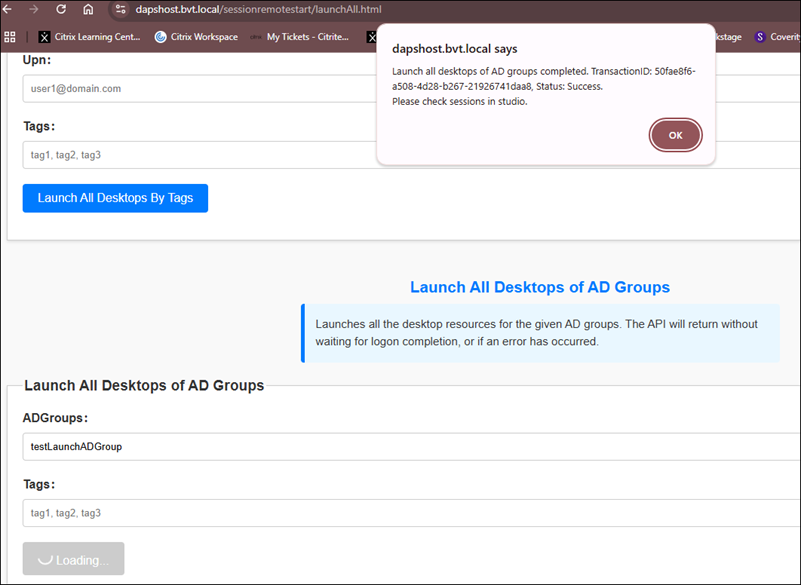
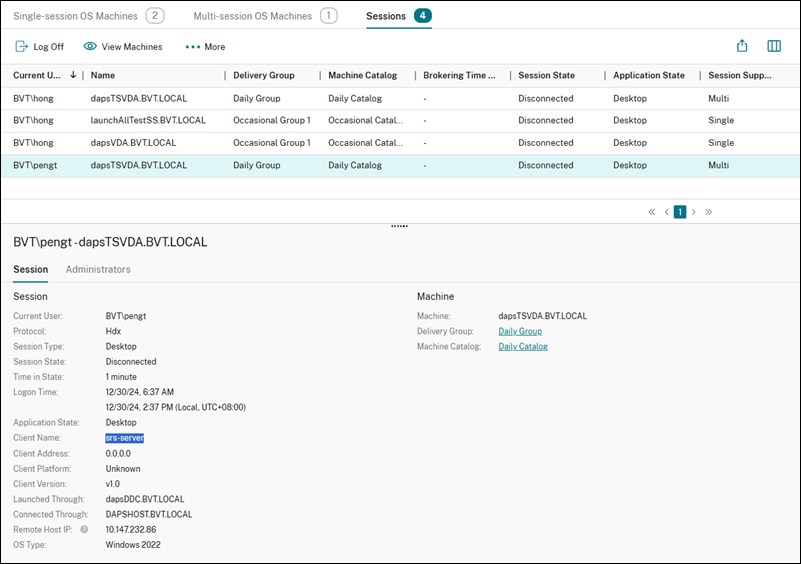
Enter the AD Groups, scroll down and then click Launch All Desktops of AD Groups. A prompt will confirm if the launch resources successfully triggered. Then, verify the sessions in Citrix Studio.
Logoff Sessions of a User Principal Name (UPN)
Enter the User Principal Name (UPN) and select whether to log off disconnected sessions only or Session Remote Start service-launched and disconnected sessions only. Then, click Logoff Sessions. A prompt will confirm if the logoff sessions request is successfully triggered. Finally, verify the sessions in Citrix Studio.