
Walkthrough: Building a Splunk Search
The following walkthroughs illustrate how to build a Splunk search from scratch\.
Scenario: we want to identify users who launch a specific executable more often than
n times in a given time range\.
Splunk SPL Search
Let's build the Splunk SPL search step by step\.
Step 1
We start with all events from uberAgent's index\.
Note: to facilitate changing the index name used by uberAgent, all our dashboards make use of the
uberAgent_index macro which contains the actual index name\. The macro is defined in macros.conf of the uberAgent searchhead app\.
index=`uberAgent_index`
Step 2
We filter for the process startup sourcetype which contains one event per started process\.
Note: The documentation of uberAgent's sourcetypes and fields can be found here\.
index=`uberAgent_index` sourcetype=uberAgent:Process:ProcessStartup
Step 3
We ignore processes started by SYSTEM, LOCAL SERVICE and NETWORK SERVICE\.
Note: The pseudo\-users
sys, lvc and nvc are defined in the lookup table systemusers.csv of the uberAgent searchhead app\. They are auto\-expanded to the proper user names SYSTEM, LOCAL SERVICE and NETWORK SERVICE in uberAgent's data model\.
index=`uberAgent_index` sourcetype=uberAgent:Process:ProcessStartup ProcUser!=sys ProcUser!=lvc ProcUser!=nvc
Step 4
We add a filter for the name of the process we are interested in,
Winword.exe in this example\.
index=`uberAgent_index` sourcetype=uberAgent:Process:ProcessStartup ProcUser!=sys ProcUser!=lvc ProcUser!=nvc ProcName=Winword.exe
Step 5
We count the number of (start) events per user\.
Note: The only purpose of adding the field
ProcName to the stats command is to make it part of the results table, too\.
index=`uberAgent_index` sourcetype=uberAgent:Process:ProcessStartup ProcUser!=sys ProcUser!=lvc ProcUser!=nvc ProcName=Winword.exe
 | stats count as Starts by ProcName ProcUser
Step 6
We only keep users with more than five starts in the results list\.
index=`uberAgent_index` sourcetype=uberAgent:Process:ProcessStartup ProcUser!=sys ProcUser!=lvc ProcUser!=nvc ProcName=Winword.exe
 | stats count as Starts by ProcName ProcUser
 | where Starts > 5
Step 7
We rename fields to make them look nicer\.
index=`uberAgent_index` sourcetype=uberAgent:Process:ProcessStartup ProcUser!=sys ProcUser!=lvc ProcUser!=nvc ProcName=Winword.exe
 | stats count as Starts by ProcName ProcUser
 | where Starts > 5
 | rename ProcUser as User ProcName as Process
Step 8
We sort the results so that the user with the highest number of starts is listed first\. The
0 in the sort command ensures that the output is not truncated after the 10,000th result\.
index=`uberAgent_index` sourcetype=uberAgent:Process:ProcessStartup ProcUser!=sys ProcUser!=lvc ProcUser!=nvc ProcName=Winword.exe
 | stats count as Starts by ProcName ProcUser
 | where Starts > 5
 | rename ProcUser as User ProcName as Process
 | sort 0 -Starts
The Result
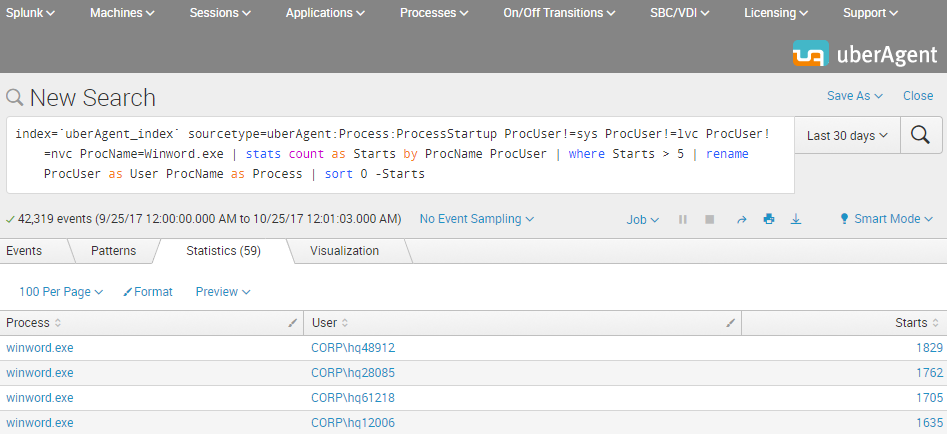
This is what the final Splunk SPL search for users with more than five starts of
Winword.exe looks like\. The screenshot below shows the search being run over the past 30 days\. In practice, you would adjust the time range to any relevant time interval\.
Accelerated Data Model Search
uberAgent comes with an accelerated data model\. Searching an accelerated data model is a lot faster than searching the underlying index (by \"a lot\" we mean at least 50x), but requires a different search syntax based on the
pivot or tstats commands\. We are using pivot because of the easier syntax compared to tstats\.
In this second example, we demonstrate how to search for starts of a \"modern\" UWP app, specifically the weather app that is part of Windows\. Most UWP apps cannot be identified by process name \- which is simply
backgroundTaskHost.exe\. Luckily uberAgent determines the real app name automatically\.
Step 1
We start with a count of all process starts\.
Note: The documentation for the Splunk pivot command can be found here\.
Note: the macro
uA_DM_Process_ProcessStartup resolves to the name of the data model containing the Process_ProcessStartup dataset\. We use this technique to facilitate moving datasets between data models\.
| pivot `uA_DM_Process_ProcessStartup` Process_ProcessStartup count(Process_ProcessStartup) as Starts
Step 2
We filter for the weather app\.
Note: An easy way to identify the name of the weather app is to dig around with a search like the following:
index=`uberAgent_index` sourcetype=uberAgent:Process:ProcessStartup AppName=*Weather*
| pivot `uA_DM_Process_ProcessStartup` Process_ProcessStartup count(Process_ProcessStartup) as Starts
    filter AppName is "Microsoft.BingWeather"
Step 3
We split by user so that we get a count of process starts per user (renaming the
ProcUser field to User in the process)\.
| pivot `uA_DM_Process_ProcessStartup` Process_ProcessStartup count(Process_ProcessStartup) as Starts
    filter AppName is "Microsoft.BingWeather"
    splitrow ProcUser as User
Step 4
We only keep users with more than five starts in the results list\. We also sort the results so that the user with the highest number of starts is listed first\. The
0 in the sort command ensures that the output is not truncated after the 10,000th result\.
| pivot `uA_DM_Process_ProcessStartup` Process_ProcessStartup count(Process_ProcessStartup) as Starts
    filter AppName is "Microsoft.BingWeather"
    splitrow ProcUser as User
 | where Starts > 5
 | sort 0 -Starts
Step 5
We add the application name as a row to the results table\.
| pivot `uA_DM_Process_ProcessStartup` Process_ProcessStartup count(Process_ProcessStartup) as Starts latest(AppName) as Application
    filter AppName is "Microsoft.BingWeather"
    splitrow ProcUser as User
 | where Starts > 5
 | sort 0 -Starts
 | table Application User Starts
The Result
The resulting output is very similar to the first example above: a table with the application, the users and the number of starts that can easily be exported to CSV or otherwise be processed further\.