
Creating an uberAgent® Support Bundle
It may happen that the uberAgent support team asks you to create an uberAgent support bundle. A support bundle is a collection of log files and registry items which helps the support team troubleshoot your case. For Windows there is a PowerShell module available which does the work for you. On macOS we provide a convenient shell script. Learn below how to use it.
Requirements
Windows
-
At least Windows 7 or Windows Server 2008 R2
-
PowerShell version 5 or above
-
Administrative permissions
-
Needed to collect process owners of all running uberAgent processes
-
-
The script execution policy must be set to either
RemoteSignedorUnrestricted. Check the script execution policy setting by executingGet-ExecutionPolicy. If the policy is not set to one of the two required values, run PowerShell as an administrator and executeSet-ExecutionPolicy RemoteSigned -Scope CurrentUser -Confirm
macOS
-
At least macOS Catalina
-
Z shell (Zsh)
-
Administrative permissions
Download & Installation
Windows
Via PowerShellGet
The uberAgent support module is available on the PowerShell Gallery and can be installed using the PowerShellGet module.
-
Open PowerShell and run
Install-Module uberAgentSupport -
If you see an error like "The term 'Install-Module' is not recognized as the name..." install PowerShellGet or update to at least PowerShell version 5.0.
-
To update to the latest module version use
Update-Module uberAgentSupport
Manually
-
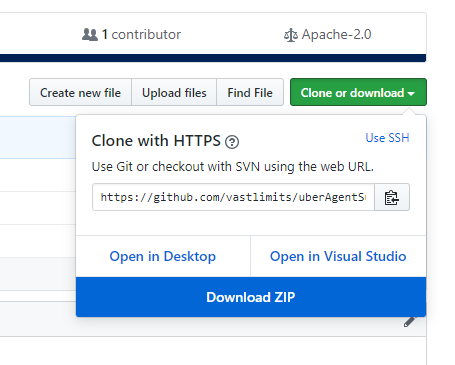
Download the module from GitHub as a zip file and unzip it somewhere
-
Run
Import-Module path-to-module\uberAgentSupport.psd1 -
To update to the latest module version use
Import-Module path-to-module\uberAgentSupport.psd1 -Forcewhen importing
macOS
-
Download the bundle from GitHub as a zip file and unzip it somewhere
-
Grant execute permissions for the script.
-
chmod +x path-to-folder/uberAgentSupport-macOS/uberAgentSupport.zsh
-
Usage
Windows
Open an elevated PowerShell and run
New-uASupportBundle. No parameters required. A zip file will be placed on your desktop.
macOS
Open a Terminal and run
sudo path-to-folder/uberAgentSupport-macOS/uberAgentSupport.zsh. No parameters required. A zip file will be placed on your desktop.
Deinstallation
Windows
To completely remove the module from your system run
$Module = Get-Module uberAgentSupport
 Remove-Module $Module.Name
 Remove-Item $Module.ModuleBase -Recurse -Force
macOS
Just delete the downloaded zip file, extracted folders, and files created on your desktop.