
Client management
Important:
Citrix Secure Access is now called Citrix SecurAccess™. We are updating our documentation and the UI screenshots to reflect this name change.
The Citrix SecurAccess client can be managed using solutions like Microsoft Endpoint Configuration Manager, formerly System Center Configuration Manager (SCCM) and Citrix Global App Configuration service (GACS).
Single sign-on to Citrix SecurAccess via Citrix Workspace app for Windows
Single sign-on to Citrix SecurAccess via Citrix Workspace™ app for Windows
Citrix Workspace app offers a unified client management experience for Citrix SecurAccess. When users log on to Citrix Workspace app, they are automatically signed on to Citrix SecurAccess and can access TCP/UDP applications seamlessly without the need to manually configure and sign in to multiple client applications.
How it works:
Citrix Workspace app installs, auto-updates, and signs on (SSO) to the Citrix SecurAccess client. End users are automatically logged on to Citrix SecurAccess without manual intervention and are notified upon a successful SSO.
This feature saves time as end users are expected to log on to just one application, providing a unified user experience. Also, there is no interaction between the end user and Citrix SecurAccess.
Prerequisite:
End users must use Citrix Workspace app for Windows 2405 or later versions.
Configuration:
Admins must configure the Global App Configuration Service (GACS) settings on Citrix Cloud™ to enable Citrix Workspace app installs, auto-updates, and signs on (SSO) to the Citrix SecurAccess client.
Enable installation and auto-update of Citrix SecurAccess via Citrix Workspace app:
-
Log on to Citrix Cloud.
-
Click the hamburger menu and navigate to Workspace Configuration > App Configuration.
-
Select the Updates and Plug-ins section and navigate to Secure Access Plug-in.
-
Enable the Windows checkbox. This step installs Citrix SecurAccess for Windows and automatically updates to the latest version.
-
Click Edit to configure the Windows plug-in settings.
-
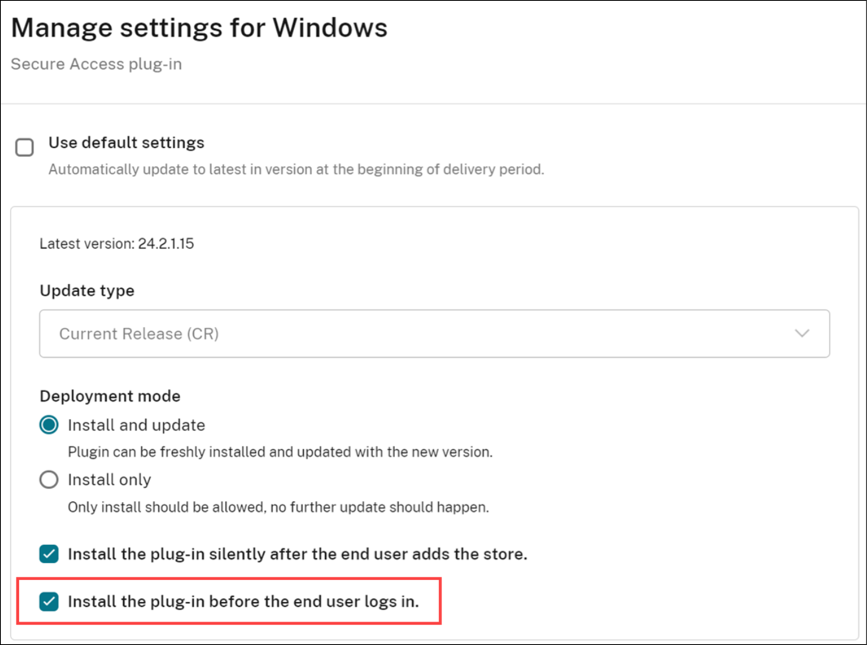
On the Manage settings for Windows page, enable the Install the plug-in before the end-user logs in option.
-
Click Save draft.
-
On the confirmation window that appears, click Yes.
Note:
Auto-updation of the Citrix SecurAccess client happens through the Beta channel. To subscribe to the Beta channel, refer to Installing Citrix Workspace app Beta program.
Enable SSO to Citrix SecurAccess via Citrix Workspace app
-
Log on to Citrix Cloud.
-
Click the hamburger menu and navigate to Workspace Configuration > App Configuration.
-
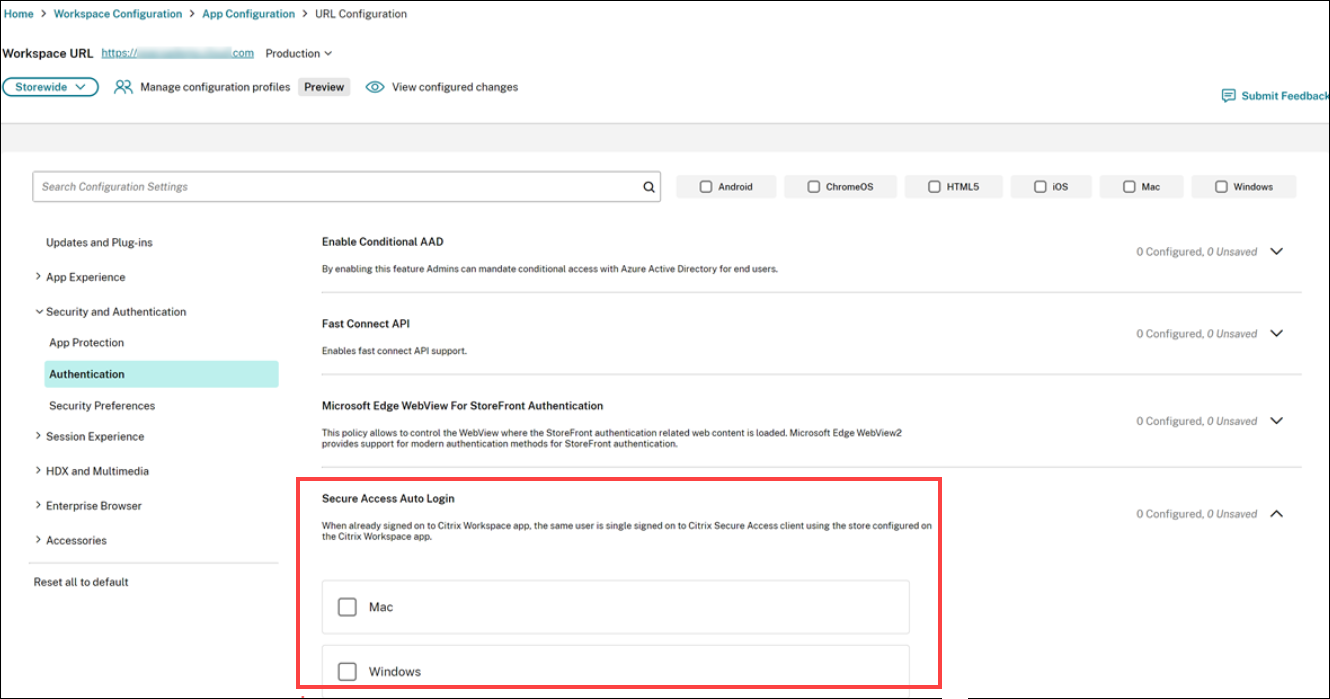
Navigate to Security and Authentication > Authentication.
-
In the Secure Access Auto Login section, enable the Windows checkbox.
For more information about GACS, see Configure Citrix Workspace app using Global App Configuration service.
Limitations:
-
SSO login from Citrix Workspace app to Citrix SecurAccess is supported only on a single primary domain. SSO on multiple domains is not supported.
-
Citrix Workspace app does not log Citrix SecurAccess client events (successful login or failure).
Enable SSO to Citrix SecurAccess via Citrix Workspace app using the registry
The registry details used to enable SSO to Citrix SecurAccess via Citrix Workspace app are as follows:
-
Citrix Workspace Application version - Citrix Workspace 22.10.5.14(2210.5) or above
-
Citrix SecurAccess version - 22.10.1.9 or later
-
Citrix SecurAccess Windows Registry - EnableCWASSO
The SSO feature is disabled by default. To enable this feature, add the following registry on the end-user machine.
-
Registry Name - EnableCWASSO
-
Registry Path - HKEY_LOCAL_MACHINE\SOFTWARE\Citrix\Secure Access Client
-
Registry Type - REG_DWORD
-
Registry Value - 1
Important:
Sometimes, the end user machines might need to reboot for successfully establishing single sign-on with Citrix Workspace app.
Single sign-on to Citrix SecurAccess through Citrix Workspace app for Mac - Preview
Starting from Citrix SecurAccess for macOS 24.03.1, a login to Citrix Workspace app can single sign-on (SSO) end-users to Citrix SecurAccess client, establish a user tunnel, and seamlessly provide access to TCP/UDP applications. If the end-users are connected to Citrix Workspace app, Citrix SecurAccess for macOS is automatically launched and the end-users can seamlessly log on using single sign-on.
When end-users log out of Citrix Workspace app, Citrix SecurAccess automatically logs out without user intervention. This feature saves time as end-users are expected to log on to just one application, thereby providing a unified experience.
Pre-requisites:
-
End-users must be using Citrix Workspace app for Mac](https://docs.citrix.com/en-us/citrix-workspace-app-for-mac) or later. For details about installation of Citrix Workspace app for Mac, see Citrix Workspace app for Mac.
-
End-users must be using Citrix SecurAccess for macOS 24.03.1)) or later.
-
To enable this feature through MDM, admins must use the following settings:
-
<key>EnableSecureAccessAutoLogin</key><true/>
-
Points to note:
-
If end-users are already logged on to Citrix Workspace app before enabling this functionality, they must re-login so that Citrix Workspace app can trigger SSO to Citrix SecurAccess client.
-
When there is a logoff from Citrix Workspace app due to reasons such as a timeout or manual user logout, Citrix SecurAccess is also logged out and the user session is disconnected (this is only if Citrix SecurAccess was automatically launched via Citrix Workspace app).
-
SSO login from Citrix Workspace app to Citrix SecurAccess is supported only on a single primary domain. SSO on multiple domains is not supported.
-
If you switch your Citrix Workspace app connection to a different URL after single sign-on to Citrix SecurAccess, you are prompted to select your Citrix Workspace app connection URL.
Client version control using Client app management
You can automatically update and manage the Citrix Secure Access client version for end users of the SecurAccess ZTNA service using the Client app management. For more information, see Citrix Secure Access - Client app management.
Supported clients
The following table lists the platforms and the corresponding versions that support Client app management:
| Platform | Version |
|---|---|
| Windows | 25.11.1.12 |