
Integrated packet capture tool for Citrix SecurAccess for connectivity troubleshooting
Important:
Citrix Secure Access is now called Citrix SecurAccess™. We are updating our documentation and the UI screenshots to reflect this name change.
The Citrix SecurAccess VPN client for Windows includes an integrated network packet capture tool to help troubleshoot connectivity issues. Captured files are automatically saved to the
logs\captures\ directory under the Citrix SecurAccess installation folder. Automatic file rotation helps limit disk usage. The packet capture files are also automatically included in the diagnostic log bundle when logs are collected for Citrix Support.
Note:
-
The network packet capture tool is available only in the new WebModule UI.
-
The Citrix SecurAccess installer includes the packet capture utility and the required WinDivert kernel driver dependencies. No separate installation is required.
Start a packet capture
-
Open the Citrix SecurAccess application.
-
Click the Settings tab.
-
In the left panel, select Troubleshooting.
-
In the right pane, go to the Network capture section.
-
Click Start network monitor to begin capturing network traffic.
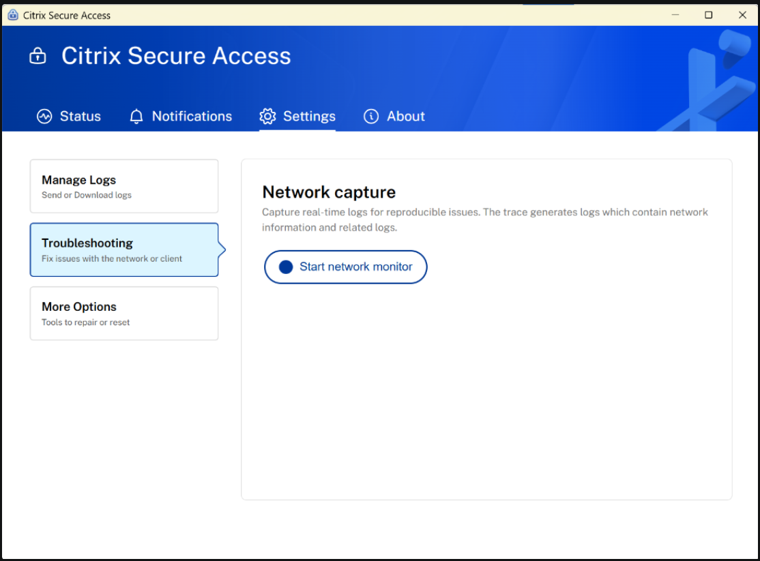
When capture starts, the status changes to Capture in progress... and the Stop button becomes available.
Stop a packet capture
-
In the Citrix SecurAccess application, navigate to Settings > Troubleshooting.
-
When capture is active, the Network capture panel shows Capture in progress... with a red indicator.
-
Click the Stop button to end the capture.
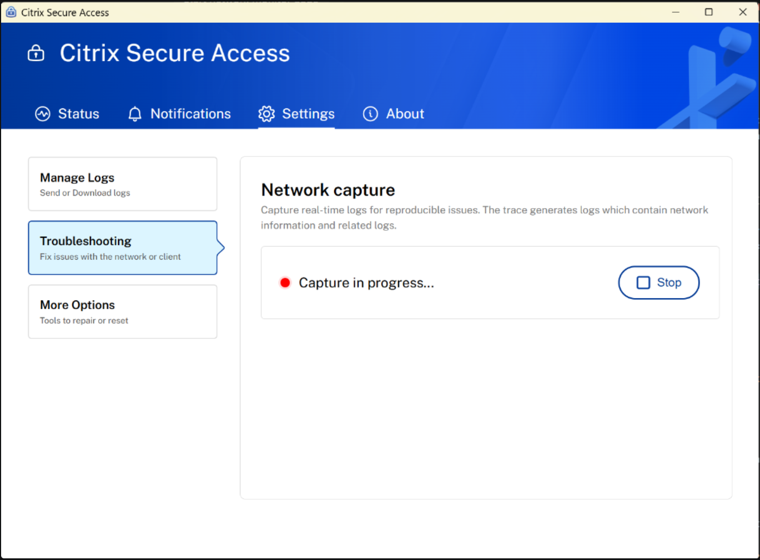
After capture stops: download or restart
Once the capture stops, the status changes to Capture complete (green indicator).
You can then choose one of the following options:
-
Download: Saves the capture file to your local machine.
-
Restart: Starts a new packet capture session immediately.
An information banner displays the full path where the capture file is saved. For example:
C:\Program Files\Citrix\Secure Access Client\logs\captures\csatrace_20260407_092046.pcap
The
.pcap file can be opened in a packet analysis tool such as Wireshark for further investigation or shared with Citrix Support.