Install Citrix SecurAccess
Important:
Citrix Secure Access is now called Citrix SecurAccess™. We are updating our documentation and the UI screenshots to reflect this name change.
-
For details on installing the Citrix SecurAccess client for Windows, see Install Citrix SecurAccess client for Windows.
-
For details on how to use the Citrix SecurAccess client for Windows, see How to use Citrix SecurAccess client for Windows.
Starting from 25.7.1.11, the Citrix SecurAccess application supports ARM64 Windows devices. The installer automatically detects the system architecture and installs the appropriate ARM64 version. This allows users on the ARM64 Windows devices to access NetScaler Gateway and Citrix SecurAccess ZTNA. Previously, the Citrix SecurAccess client was not compatible with ARM64 Windows devices.
Starting from 25.7.1.11, the Citrix SecurAccess application supports ARM64 Windows devices. The installer automatically detects the system architecture and installs the appropriate ARM64 version. This allows users on the ARM64 Windows devices to access NetScaler Gateway and Citrix SecurAccess™ ZTNA. Previously, the Citrix SecurAccess client was not compatible with ARM64 Windows devices.
How to connect to the Citrix SecurAccess client
End users must perform the following steps to launch the Citrix SecurAccess client on their machines:
-
Launch the Citrix SecurAccess client on the client device.
-
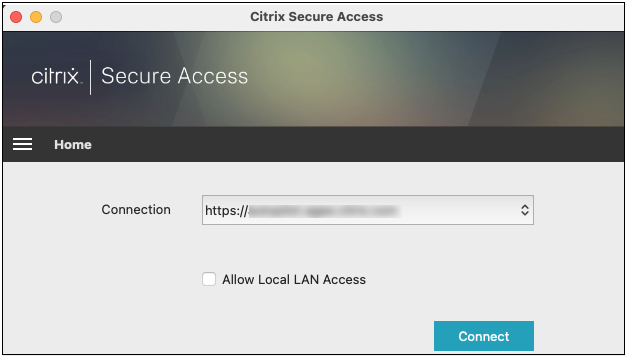
Enter the Workspace URL provided by the customer admin in the URL field in the Citrix SecurAccess client and click Connect. It is a one-time activity and the URL is saved for subsequent use.
-
The user is prompted for authentication based on the authentication method configured in Citrix Cloud.
Upon successful authentication, the user can access the configured private apps.
Note:
If the admin has configured SSO, then end users need not connect to Citrix SecurAccess as they are automatically logged in.
Install the Citrix SecurAccess client for macOS
-
For details on installing the Citrix SecurAccess client for macOS, see Install Citrix SecurAccess client for macOS.
-
For details on how to use Citrix SecurAccess for macOS, see How to use Citrix SecurAccess app from your macOS device.
Note:
-
The Citrix SecurAccess client for macOS is available from macOS 10.15 (Catalina) and later.
-
Preview builds are available in the TestFlight app.
-
If you are switching between the App Store app and the TestFlight preview app, you must recreate the profile you want to use with the Citrix SecurAccess app. For example, if you have been using a connection profile with
blr.abc.company.com, delete the VPN profile, and create the same profile again.
Install Citrix SecurAccess client for iOS
-
Download the Citrix SecurAccess app for iOS from the App Store.
-
Click Open once the download is complete.
For details on how to use Citrix SecurAccess for iOS, see How to use Citrix SecurAccess from your iOS device.
Note:
The Citrix SecurAccess client for iOS supports client certificate authentication with NetScaler Gateway. For more information, see Import and install certificates in Citrix SecurAccess app.
Install Citrix SecurAccess client for Linux
-
For details on installing Citrix SecurAccess client on Linux, see Install Citrix SecurAccess client.
-
For details on how to use Citrix SecurAccess for Linux, see Use Citrix SecurAccess client for Linux.
Install Citrix SecurAccess client for Android
Download the Citrix SecurAccess app for Android from the Google Play store.
For details on how to use Citrix SecurAccess for Android, see How to use Citrix SecurAccess from your Android device.
User notification messages
A pop-up notification message appears in the following scenarios:
-
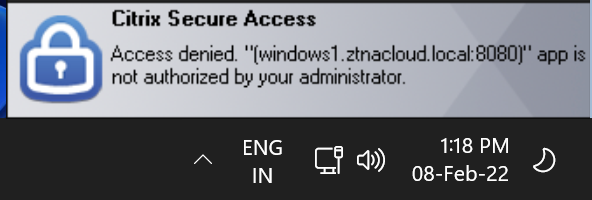
The app is not authorized by the admin for the user.Cause: The application configured for the accessed destination IP address or FQDN is not subscribed for the logged in user.
-
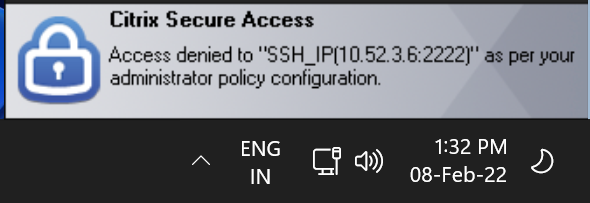
The access policy evaluation results in denial of access.Cause: Access to the destination IP address or FQDN is denied because the policy bound to the application is evaluated to "Deny Access" to the logged in user.
-
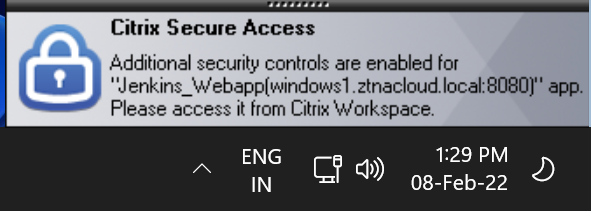
The enhanced security control is enabled for the app.Cause: The enhanced security control is enabled to the application for the accessed destination. The application can be launched using the Citrix Workspace™ App.