Clipboard container control
Deployments that use Chrome for web access and VDI for native applications can use the Clipboard container feature to control data sharing between the browser and VDI sessions. Clipboard data is transferred directly between Citrix sessions without being written to the local endpoint clipboard. This improves security while still giving users flexibility to work across both environments.
Supported deployments: Secure Private Access service and hybrid deployments.
Supported platforms: Windows.
Prerequisites
Ensure that the following prerequisites are met:
- Integration between Citrix Secure Access and Chrome Enterprise Premium (CEP) is complete.
- Citrix Workspace app 2603.10 or later.
- Windows VDA running 2607 LTSR or later (GA version for Clipboard Sharing Scope). For details, see Clipboard Sharing Scope.
-
Windows VDA running 2507 LTSR (Preview version for Clipboard Sharing Scope), enable the following:
- Cross clipboard container with DaaS feature. For details, see Cross clipboard container with DaaS. This feature is currently available as a preview in DaaS.
- Clipboard Sharing Scope registry. For details, see Enable the Clipboard Sharing Scope registry.
Enable Clipboard Container control
- Log in to the Secure Private Access admin console.
- Go to Policies > Browser Policies, and then click Create browser policy.
- Select Clipboard container, and then click Manage.
-
Click Add Rule to add rules for the clipboard share between VDA and browser.
- Enter the name for the rule and click Next.
- Select conditions based on your requirement such as user or group. You can also add conditions such as Geo-location, Network location, and Device posture check.
- Click Next.
-
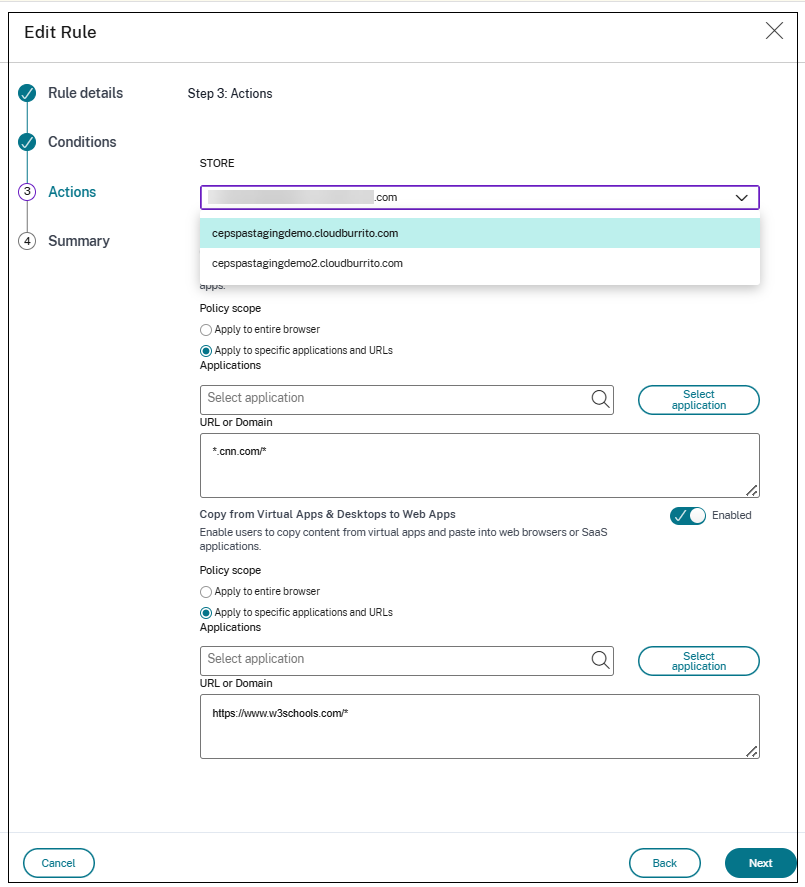
Define the URL and Secure Private Access applications to allow clipboard sharing.
- Select the policy scope.
- Apply to entire browser — The policy governs all clipboard activity in the managed profile.
-
Apply to specific applications and URLs — The policy is limited to selected applications and the URL/domain patterns entered.
- Select Application — Select the specific published applications using the application picker.
- URL or Domain - Enter the URL or the domains of the specific application.
-
Click Save.
The number of rules configured for the clipboard container policy appears in the Browser Policies > Clipboard container tab.
Enable Clipboard Sharing Scope
For VDA version 2607:
See How it works.
For VDA version 2507:
Enable this registry Clipboard Sharing Scope registry.
- Open the Windows Registry Editor using regedit.exe.
- Navigate to HKEY_LOCAL_MACHINE\Software\Citrix\Clipboard.
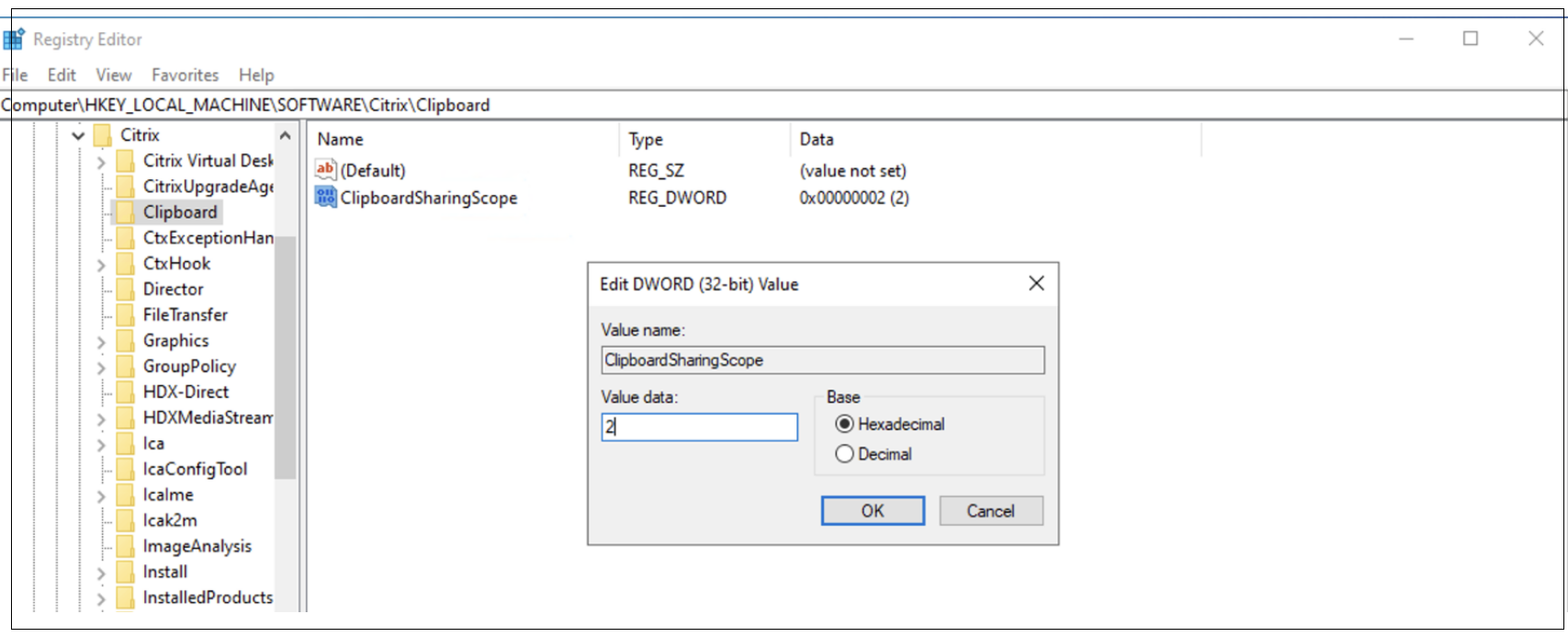
- Create a REG_DWORD [DWORD (32 bit)] value named
ClipboardSharingScope.
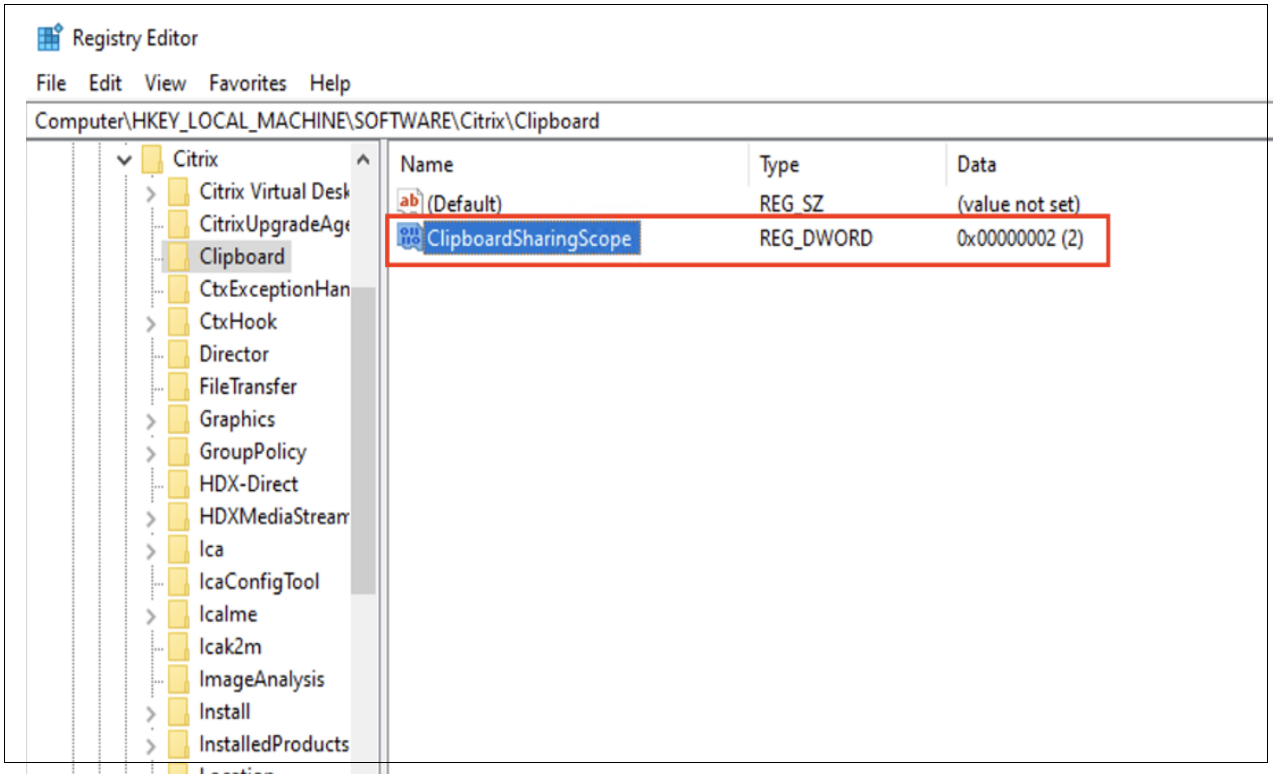
The ClipboardSharingScope policy controls where VDA clipboard data can be shared. Until the new DDC policy is available, this setting can be configured using the preceding registry key.
| Supported value | Scope | Description |
|---|---|---|
| 0 | Unlimited | Clipboard data is copied to the client system clipboard and can be accessed by the Client, VDA, and CEP. |
| 1 | VDA only | Clipboard data is accessible only to the VDA. The client system clipboard and CEP cannot access the clipboard content. |
| 2 | CEP only | Clipboard data is accessible only to CEP. The client system clipboard and VDA cannot access the clipboard content. |
| 3 | VDA and CEP | Clipboard data is accessible to both the VDA and CEP. The client system clipboard cannot access the clipboard content. |
Note:
The CEP only (2) and VDA and CEP (3) modes are designed to work with the Clipboard Container feature in the CEP extension.
When the Clipboard Container policy is enabled, only administrator-configured URLs are allowed to exchange clipboard data with the VDI.
- Content copied from the approved web applications can be pasted into the VDI.
- Content copied from the VDI can be pasted only into administrator-configured, paste-allowed URLs.
- If a user attempts to paste VDI clipboard content into a website that is not included in the policy, the paste operation is blocked and an error message appears.