Device Posture service integration with Chrome Enterprise device trust connector
The Device Posture service integrates with the Chrome Enterprise device trust connector. With this integration, Citrix® administrators can share device posture results with Google Workspace, enabling Chrome to enforce context-aware access and Data Loss Prevention (DLP) policies based on the posture of managed devices.
Posture signals shared by Citrix can be consumed by Chrome to make access decisions for:
- Managed Chrome browsers
- Managed Chrome profiles
For the list of signals that Chrome can receive from third-party connectors, see Google’s Endpoint Verification documentation.
Note:
Integration with the Chrome Enterprise device trust connector is supported only when the Device Posture service is in global mode.
Supported platforms and deployments
| Item | Support |
|---|---|
| Supported platforms | Windows with EPA client version 26.5.1.7 or later |
| Deployment | Secure Private Access service with Citrix Enterprise Premium |
Prerequisites
- A Citrix Cloud tenant with Device Posture service entitlement and configured.
- A Google Workspace tenant with Chrome Enterprise Premium (CEP) license and super admin privileges to the Google Admin console.
- Chrome Enterprise Premium is deployed for the customer.
- The Context-Aware Access access level is set to ON in the Google Admin console. For details, see Apply recommended access levels.
Configuration
The Citrix Device Posture service integration with the Chrome Enterprise Device Trust Connector involves the following high-level steps:
- Configure Chrome Enterprise Premium and Device Posture service
- Integrate Citrix Device Posture service with Chrome device trust connector
- Define context-aware rules for Citrix signals
Configure Chrome Enterprise Premium and Device Posture service
Before integrating with Chrome, ensure that the following configurations are complete:
- Deploy and configure Chrome Enterprise Premium (CEP) on managed Windows endpoints. For details, see Integration with Google Chrome Enterprise Premium.
- Configure Device Posture service policies that produce the signals you intend to share with Chrome (for example, OS version, antivirus state, geo or authorized country, custom checks). For details, see Configure Device Posture policies.
- Confirm that your Google Workspace tenant has Chrome Enterprise Premium (CEP) licensing, which is required to use the Device Trust Connector and context-aware access rules. For details, see Licenses, app versions, and extensions.
Integrate Citrix Device Posture service with Chrome device trust connector
To integrate Citrix Device Posture service with the Chrome device trust connector, you must enable the third-party connector in the Google Admin console.
- Sign in to the Google Admin console as a super admin.
-
Navigate to Devices > Mobile and endpoints > Settings > Third-party integrations.
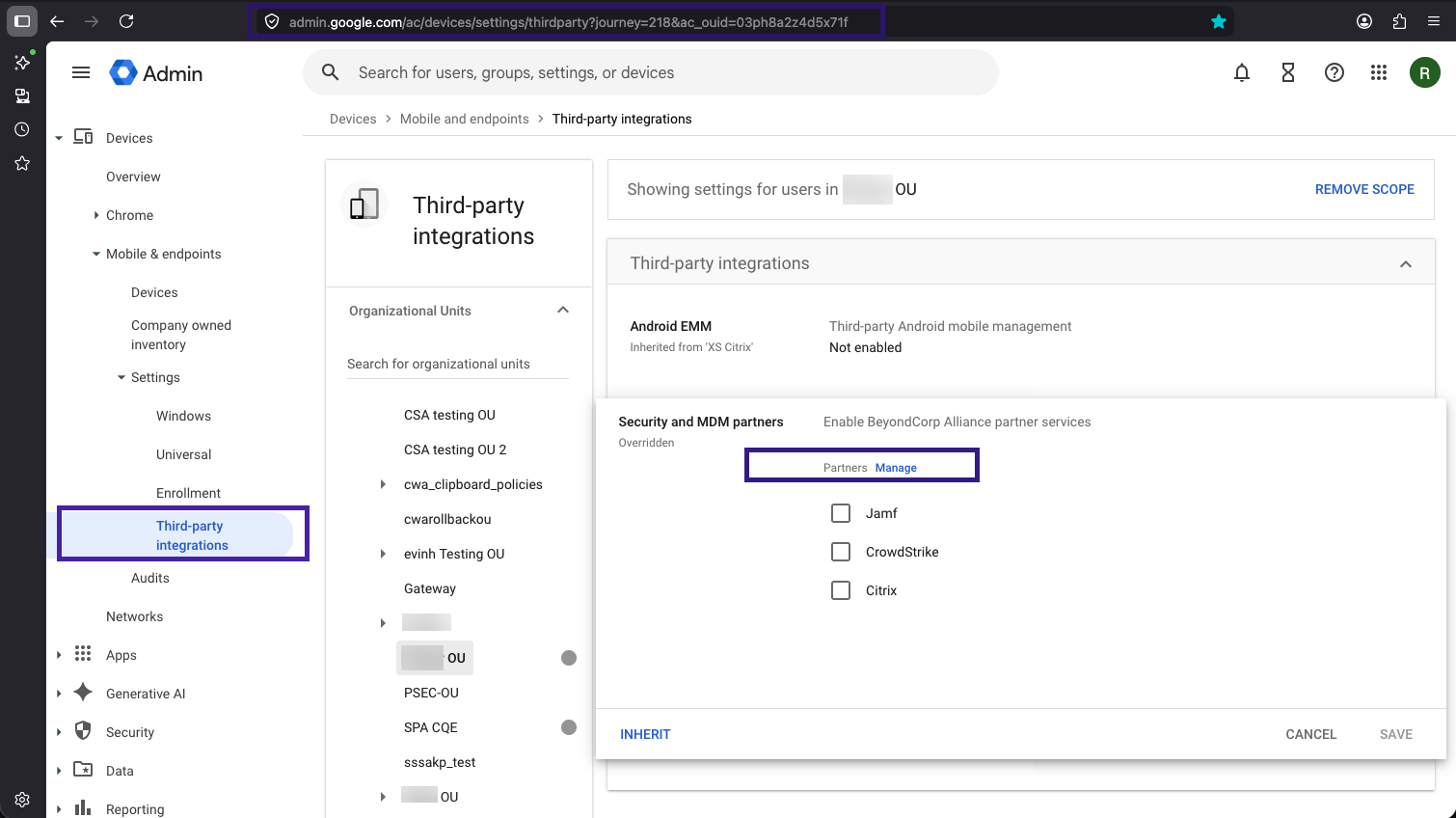
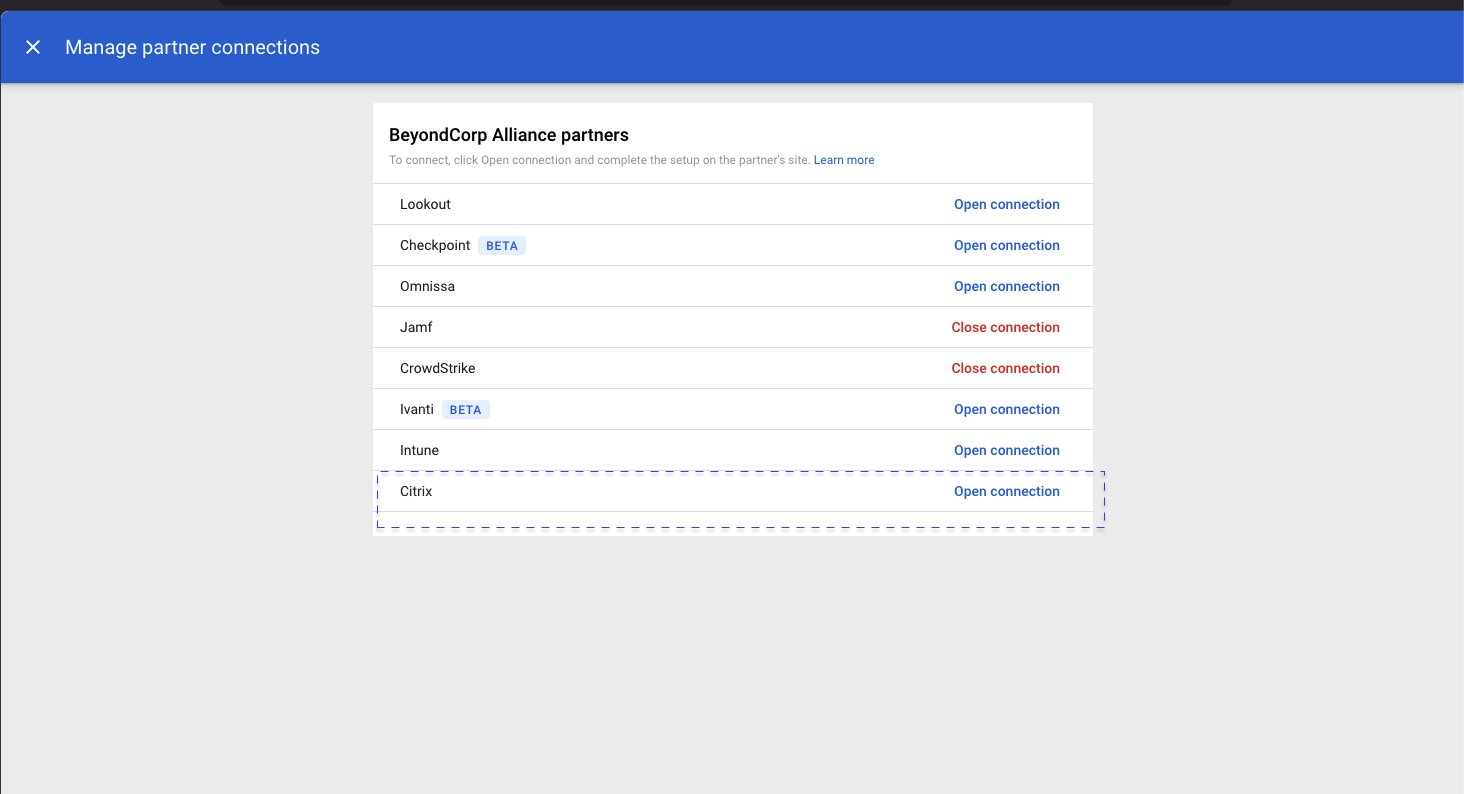
- Locate Citrix in the partner list and click Manage.
-
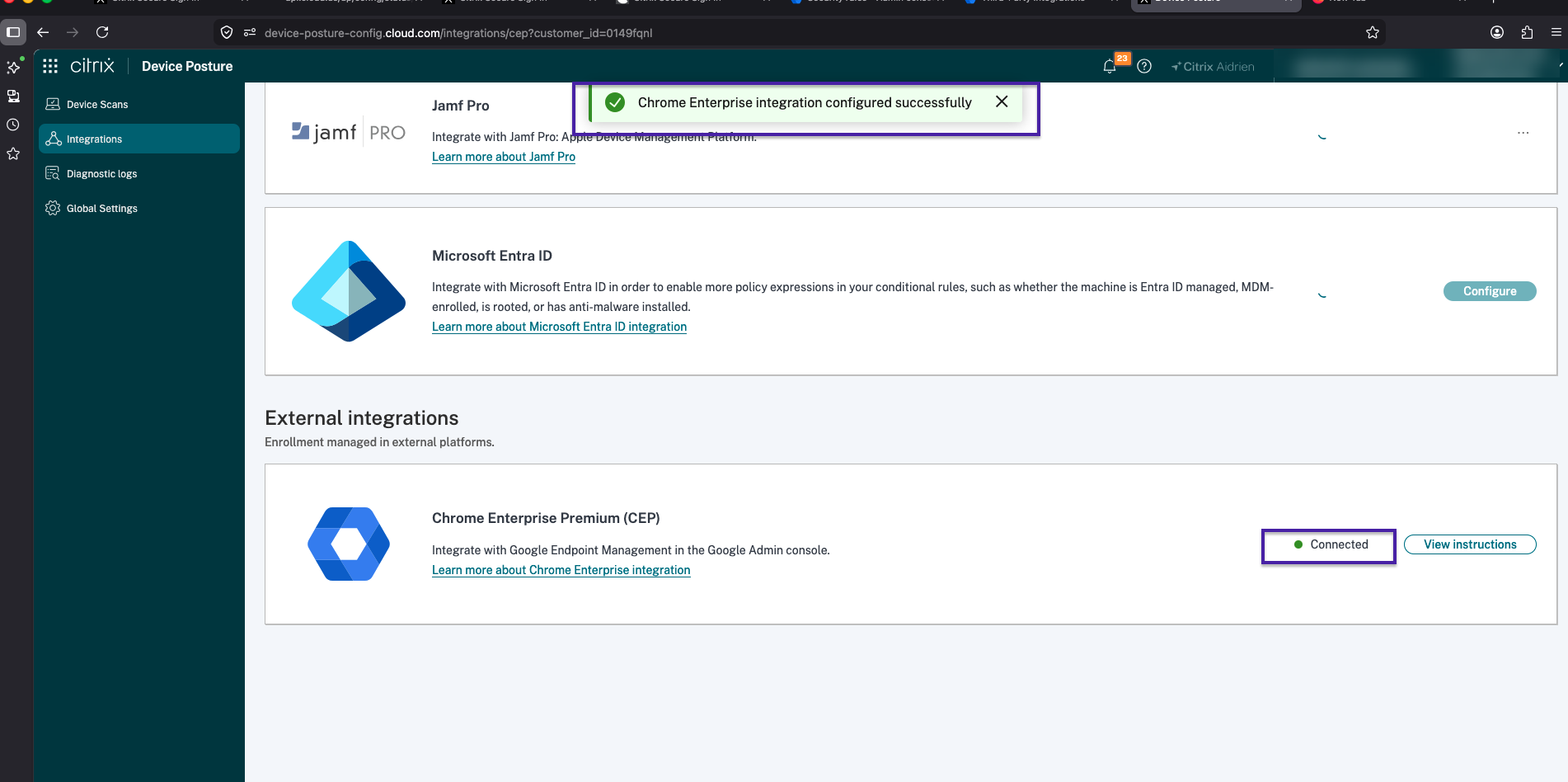
Follow the on-screen prompts to authorize the connection between your Citrix Cloud tenant and Google Workspace.
When the handshake succeeds, the integration status for Citrix changes to Connected.
For details, see Setup third-party partner integrations.
Define context-aware rules for Citrix signals
Context-aware access and DLP rules in Google Workspace are written using the Common Expression Language (CEL). Citrix posture data is exposed under the device.vendors["Citrix"].data[...] namespace.
For details, see the following topics:
Citrix signal keys
The following keys are published by the Citrix Device Posture service to Chrome device trust connector:
| Key | Description | Example values |
|---|---|---|
| OVERALL_OUTCOME
|
Aggregate posture result returned by the Device Posture service for the endpoint.
|
Compliant, Non-Compliant, Deny |
| Note: Values are case-sensitive. Enter them exactly as listed above. | ||
| OVERALL_OUTCOME_CONTEXT_NAME | Name of the Device Posture service policy or context that drove the overall outcome. | AUTHORIZED_COUNTRY, AV_STATUS, OS_VERSION, Google-DTC-Demo-Deny, (custom policy name) |
| Citrix-DeviceId | The unique identifier of the endpoint registered with the Citrix Device Posture service. | 6c813458-c27b-4299-87c6-55832a95ae7e |
| Citrix-TransactionId | The unique identifier of the posture evaluation transaction that produced the signal. | 75b1e3f6-4224-484a-8c47-9a35c4e5eabd |
Note:
- The exact context names depend on the policies you defined in the Device Posture service in step 1.
- Citrix-DeviceId and Citrix-TransactionId are correlation identifiers. They are not intended for use in policy decisions. Use them when troubleshooting on the Citrix Device Posture dashboard to look up the exact scan that produced a given outcome.
Common Expression Language (CEL) examples for Citrix
Example 1 — Block access when Citrix reports Non-Compliant:
Deny access to a Google Workspace app when the Citrix overall outcome is Non-Compliant.
device.vendors["Citrix"].data["OVERALL_OUTCOME"] == "Non-Compliant"
Use this expression in a context-aware access level with the action set to Block.
Example 2 — Block only when non-compliance is caused by an unauthorized country:
Combine the outcome with the context name to scope the rule to geographic violations.
device.vendors["Citrix"].data["OVERALL_OUTCOME"] == "Non-Compliant" && device.vendors["Citrix"].data["OVERALL_OUTCOME_CONTEXT_NAME"] == "AUTHORIZED_COUNTRY"
Example 3 — Allow access only when Citrix reports Compliant:
Grant access only when the Device Posture service explicitly returns a compliant result (fail-closed).
device.vendors["Citrix"].data["OVERALL_OUTCOME"] == "Compliant"
Example 4 — DLP: prevent file download on Non-Compliant devices:
In a DLP rule for Google Drive, attach the following condition to the Download / Print / Copy trigger to block exfiltration from a Non-Compliant endpoint:
device.vendors["Citrix"].data["OVERALL_OUTCOME"] == "Non-Compliant"
Example 5 — Tiered policy with multiple Citrix contexts:
Block when posture failed for either antivirus or OS version, but allow other non-compliance reasons to be handled by a separate, less restrictive rule.
device.vendors["Citrix"].data["OVERALL_OUTCOME"] == "Non-Compliant" && ( device.vendors["Citrix"].data["OVERALL_OUTCOME_CONTEXT_NAME"] == "AV_STATUS" || device.vendors["Citrix"].data["OVERALL_OUTCOME_CONTEXT_NAME"] == "OS_VERSION" )
Example 6 — Block an explicit Deny outcome from a named Device Posture service policy:
Match the exact Deny outcome produced by a specific Device Posture service policy (for example, the Google-DTC-Demo-Deny policy used during proof-of-concept):
device.vendors["Citrix"].data["OVERALL_OUTCOME"] == "Deny" && device.vendors["Citrix"].data["OVERALL_OUTCOME_CONTEXT_NAME"] == "Google-DTC-Demo-Deny"
Example 7 — Combine Citrix posture with Google native signals:
Citrix signals can be combined with built-in Chrome / Endpoint Verification attributes.
device.vendors["Citrix"].data["OVERALL_OUTCOME"] == "Compliant" && device.encryption_status == ENCRYPTED && device.os_version.major >= 10
To apply the rule
- In the Google Admin console, go to Security > Access and data control > Context-Aware Access (or Data protection for DLP).
-
Create an Access level (or DLP rule) and paste the CEL expression into the Advanced / conditions editor.
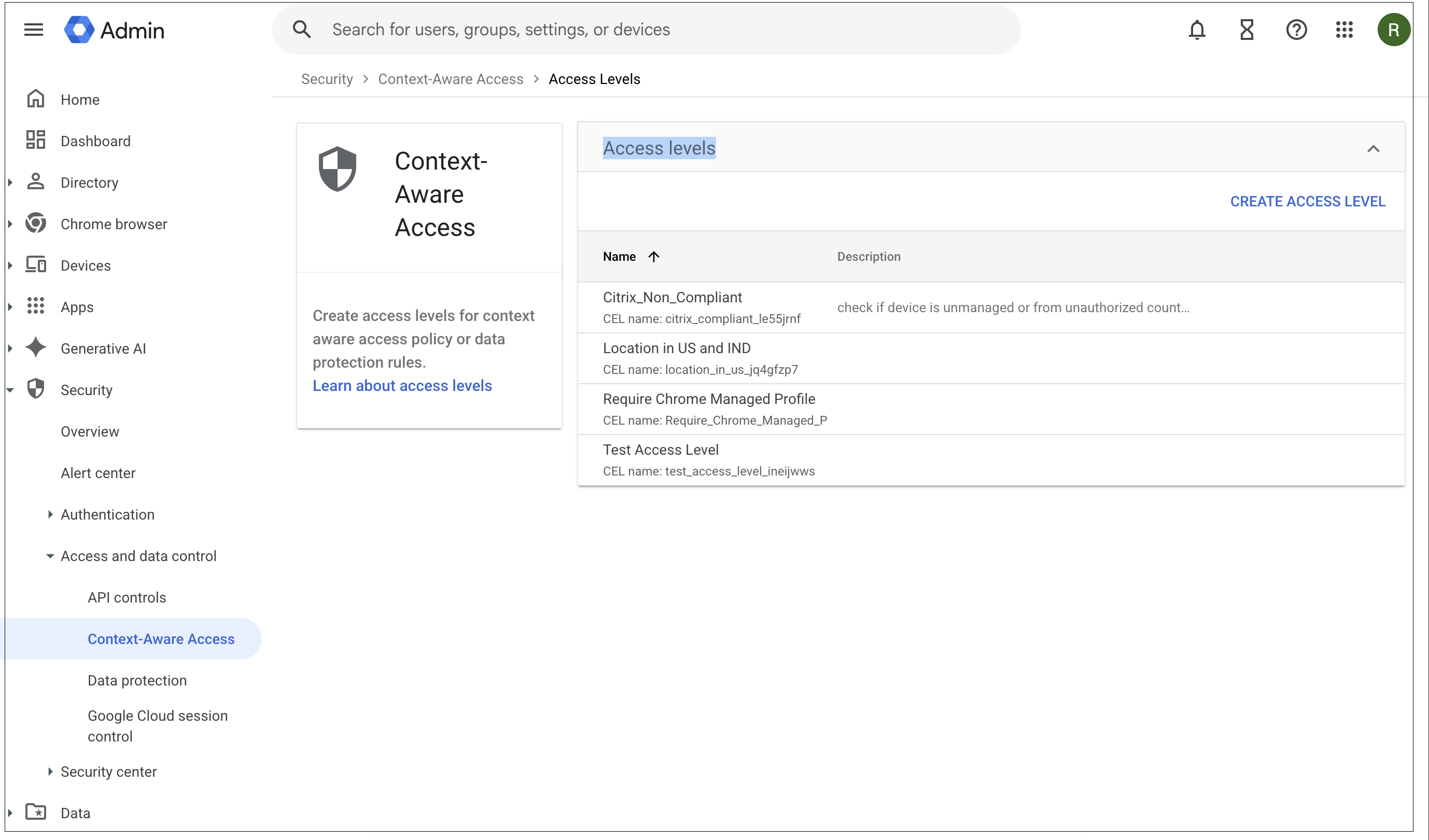
- Assign the access level to the target Google Workspace app (Drive, Gmail, and so on) and the relevant organizational unit or group.
- Save and roll out. Allow a few minutes for the propagation.
Validate the integration
- From a managed Windows endpoint running CEP, deliberately fail a Device Posture service scan (for example, sign in from an unauthorized country or disable antivirus).
- Attempt to access the protected Google Workspace app from the Chrome browser or profile on that endpoint.
- Confirm that Chrome enforces the action defined by your CEL rule (block, warn, or allow).
- Review the audit log under Reporting > Audit and investigation > Access transparency / Rule log events to confirm the Citrix signals were evaluated.
Troubleshooting
| Symptom | Likely cause | Resolution |
|---|---|---|
| Integration status stays Not connected | OAuth/admin consent not completed | Re-run step 2 with a super-admin account |
| Rule never matches | CEL key name typo or policy not enabled in Device Posture service | Verify the key in the Admin console Rule log events. Confirm that the policy is active in the Device Posture service |
| Signals missing on endpoint | CEP not installed or user not signed in | Verify CEP deployment and Device Posture service enrollment on the endpoint |
| Unexpected Non-Compliant or Deny | A different Device Posture service policy is failing | Inspect OVERALL_OUTCOME_CONTEXT_NAME to identify the failing check |
Note:
If you need to investigate a specific access decision, capture
Citrix-DeviceIdandCitrix-TransactionIdfrom the Chrome / Workspace audit log and look them up on the Citrix Device Posture dashboard to view the full scan result, policy hits, and timestamps.
Using Citrix-DeviceId and Citrix-TransactionId for troubleshooting
When a Chrome access or DLP decision needs investigation:
- Open Google Admin console > Reporting > Audit and investigation > Rule log events (or the Access transparency log) and locate the relevant event.
- Copy the
Citrix-DeviceIdandCitrix-TransactionIdvalues reported in the event payload. - Sign in to Citrix Cloud > Device Posture > Dashboard.
- Search by Device ID to view the endpoint’s enrollment, OS, and recent scan history.
- Search by Transaction ID to view the exact scan instance — including which policies were evaluated, which signals were collected, and the resulting OVERALL_OUTCOME and OVERALL_OUTCOME_CONTEXT_NAME that were sent to Chrome.
This correlation lets you confirm whether an unexpected Chrome decision was caused by the Citrix posture result, by the CEL expression, or by the Workspace policy binding.
Limitations
A maximum of 10 Google resource IDs per host can be pushed from the Citrix Device Posture service to the Chrome device trust connector.
To push device posture signals to more than 10 Google resource IDs per host, contact Citrix Support to request an extension.