License Activation Service
The License Activation Service (LAS) is a modern, cloud-based licensing solution for on-premises Citrix License Servers. Designed as a streamlined alternative to traditional Citrix legacy licensing, LAS introduces new modules for product activation, ensuring a seamless approach to license management.
Instead of manually managing license file lifecycles, you can connect your License Server to Citrix Cloud™ for Online activation. Once registered, the License Server communicates regularly with the LAS endpoint to ensure activations remain up to date and aligned with your entitlement expiry or contract end date.
Key Benefits of LAS
- Reduced operational overhead: LAS simplifies the licensing experience by eliminating the need to download, upload, or manage license activation codes and product-specific license files.
- Automated activation: You only need to upgrade your License Server and register with Citrix Cloud. Compatible products pointed to the server are activated automatically and configured for LAS.
-
Hybrid compatibility: The License Server supports both the License Activation Service and Citrix legacy licensing (license files) simultaneously, allowing for a flexible transition.
Note:
Legacy license files will reach End of Life (EOL). We recommend migrating to the License Activation Service (LAS) to ensure uninterrupted service. For more details, refer to announcement
- Performance and scalability: The service is designed to improve performance and scalability for products utilizing this technology as there is no more license check in and check out operation.
- Airgapped support: For environments where the License Server can’t connect to Citrix Cloud, LAS provides an offline activation option. Customers should contact their Citrix representative for this option.
- Multi-server support: You can configure multiple License Servers for LAS within your environment. This is supported as long as there is a valid license purchase associated with the Citrix Cloud tenant the servers are registered to.
- Capacity limits: LAS does not limit a product’s capacity or usage. Any such limitations are subject to, and enforced in accordance with the license terms applicable to the relevant product. Because LAS does not require a check-out operation to track individual licenses, real-time usage metrics are not available within the License Server or Citrix Cloud. Application usage details can still be viewed in the individual product consoles..
- Premium features: LAS will provide premium features by default for all CVAD customers.
- Seamless renewals: Customers do not need to perform any operational activities during renewals. Entitlements and new validity dates are automatically updated.
Register License Server for online activation
Prerequisites: Before registering the License Server for online activation, ensure the following requirements are met:
-
Please make sure your environment is according to the version matrix below.
Citrix License Server Version LAS supported Products LTSR versions (listed and future releases) CR releases (listed and future releases) Product Specific version (listed and future releases) 11.17.2 build 51000 CVAD NA CVAD 2411 NA 11.17.2 build 52100 CVAD NA CVAD 2503 NA 11.17.2 build 53100, 54100, 55100 and later CVAD, PVS, XenServer, WEM, Unicon Scout, Xenmobile CVAD 2203 CU7, CVAD 2402 CU3, CVAD 2507, CVAD 2507 CU1 PVS 2203 CU7 LTSR, PVS 2402 CU3 LTSR, PVS 2507 LTSR, CVAD 2511 XenServer 8.4, XenCenter version 2025.3 or later, WEM 2507, Scout 15 2508 LTSR, XenMobile 10.16 Rolling Patch 7 and 10.15 Rolling Patch 13 For more detailed information please refer to LAS FAQ
-
Citrix Cloud account and entitlements
- Account: You must have a valid Citrix Cloud account. Review existing cloud accounts or onboard new cloud accounts. For more information, see Account management.
- Entitlements: The Organization ID (Org ID) linked to Citrix Cloud account used for registration must possess valid purchased entitlements. To view current entitlements, see Search for licenses.
- Registration Limit: A License Server can only be registered to one Citrix Cloud ID (CCID).
Important:
If you need to change your Org ID later, you must remove the existing registration and re-register with the new account.
-
Firewall configuration:
Configure your firewall to allow outbound traffic on Port 443 to the following endpoints:
Citrix Cloud commercial Endpoints
-
https://las.cloud.com:443(Default endpoint) -
https://api-eu.cloud.com(EU specific endpoint for Citrix Cloud EU tenants only) -
https://api-ap-s.cloud.com(APS specific endpoint for Citrix Cloud APS tenants only) https://customers.citrixworkspacesapi.net:443https://trust.citrixnetworkapi.net:443https://trust.citrixworkspacesapi.net:443https://api.analytics*.cloud.comhttps://*.servicebus.windows.nethttps://core.citrixworkspacesapi.net:443
Citrix Cloud Japan Endpoints:(Only for Citrix Cloud Japan tenants)
https://las.citrixcloud.jphttps://trust.citrixnetworkapi.jp:443https://trust.citrixworkspacesapi.jp:443https://customers.citrixworkspacesapi.jp:443https://api.analytics*.cloud.comhttps://*.servicebus.windows.net
Citrix Cloud Government Endpoints:(Only for Citrix Cloud Government tenants)
https://las.cloud.ushttps://trust.citrixnetworkapi.us:443https://trust.citrixworkspacesapi.us:443https://customers.citrixworkspacesapi.us:443https://cis.citrix.com:443
If your OS certificates are up to date, ignore the following URLs
http://ocsp.digicert.com:80http://crl3.digicert.com:80http://crl4.digicert.com:80http://ocsp.entrust.net:80http://crl.entrust.net:80
Note:
If any of the above end points are not reachable, citrix cloud registration wont be successful. For more information, see Firewall considerations.
Citrix Cloud Japan specific configuration changes
- Open SimpleLicenseServiceConfig.xml at
<LS-Installation-Folder>\WebServicesForLicensing\SimpleLicenseServiceConfig.xml. - Replicate the below configuration (Copy and paste the new configuration lines).
<Configurations>
    <EncoreConfiguration>
        <SamplingPeriod>15</SamplingPeriod>
        <RetentionTime>365</RetentionTime>
        <Enabled>true</Enabled>
    </EncoreConfiguration>
    <SARenewalConfigOptions>Notify</SARenewalConfigOptions>
     <CloudRegistrationServerPort>trust.citrixnetworkapi.jp:443</CloudRegistrationServerPort>
     <CloudTrustServerPort>trust.citrixworkspacesapi.jp:443</CloudTrustServerPort>
    <LASServer>las.citrixcloud.jp</LASServer>
    <CloudCoreServerPort>customers.citrixworkspacesapi.jp:443</CloudCoreServerPort>
</Configurations>
<!--NeedCopy-->
- Restart Citrix Web Services for Licensing Service.
Citrix Cloud Government specific configuration changes
- Open SimpleLicenseServiceConfig.xml at
<LS-Installation-Folder>\WebServicesForLicensing\SimpleLicenseServiceConfig.xml. - Replicate the below configuration (Copy and paste the new configuration lines).
<Configurations>
    <EncoreConfiguration>
        <SamplingPeriod>15</SamplingPeriod>
        <RetentionTime>365</RetentionTime>
        <Enabled>true</Enabled>
    </EncoreConfiguration>
    <SARenewalConfigOptions>Notify</SARenewalConfigOptions>
     <CloudRegistrationServerPort>trust.citrixnetworkapi.us:443</CloudRegistrationServerPort>
     <CloudTrustServerPort>trust.citrixworkspacesapi.us:443</CloudTrustServerPort>
    <LASServer>las.cloud.us</LASServer>
    <CloudCoreServerPort>customers.citrixworkspacesapi.us:443</CloudCoreServerPort>
</Configurations>
<!--NeedCopy-->
- Restart Citrix Web Services for Licensing Service.
Citrix Cloud EU specific configuration changes
- Open SimpleLicenseServiceConfig.xml at
<LS-Installation-Folder>\WebServicesForLicensing\SimpleLicenseServiceConfig.xml. - Replicate the below configuration (Copy and paste the new configuration lines).
<Configurations>
    <EncoreConfiguration>
        <SamplingPeriod>15</SamplingPeriod>
        <RetentionTime>365</RetentionTime>
        <Enabled>true</Enabled>
    </EncoreConfiguration>
    <SARenewalConfigOptions>Notify</SARenewalConfigOptions>
    <LASServer>api-eu.cloud.com</LASServer>
</Configurations>
<!--NeedCopy-->
- Restart Citrix Web Services for Licensing Service.
Migrate License Servers Pointing to the US Region to the EU Region
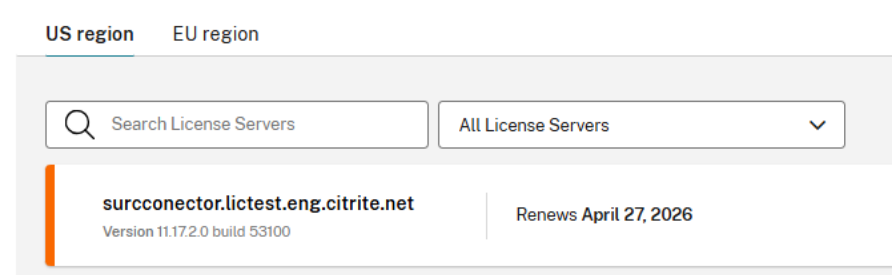
- If your EU tenant has License Servers pointing to LAS endpoints in the US region, Citrix displays two tabs: one for the US region and one for the EU region. The license Servers are segregated as shown below. If the EU tenant does not have any License Servers, the tabs do not appear.
-
Follow the steps mentioned under Citrix Cloud EU specific configuration.
-
After you update the configuration, the License Server points to the LAS EU region instead of the US region.
-
After 24 hours, products activated through this License Server appear in Citrix Cloud. During this time, there will be no issues with LAS activations, and they will continue to receive daily renewals.
- Remove the License Server from the US region tab. Click the three dots next to the server and then click Remove as shown below.
- After you migrate all license servers that point to the US region to the EU region, both US region and EU region tabs will disappear. All License servers in the EU region then appear on the default screen.

Note:
If a Citrix Cloud EU tenant does not have any License Servers poining to US region and you are registering your first License Server, it is recommended that you follow the above Citrix Cloud EU specific configuration changes section. This avoids an additional migration step in the future.
Citrix Cloud APS specific configuration changes
- Open SimpleLicenseServiceConfig.xml at
<LS-Installation-Folder>\WebServicesForLicensing\SimpleLicenseServiceConfig.xml. - Replicate the below configuration (Copy and paste the new configuration lines).
<Configurations>
    <EncoreConfiguration>
        <SamplingPeriod>15</SamplingPeriod>
        <RetentionTime>365</RetentionTime>
        <Enabled>true</Enabled>
    </EncoreConfiguration>
    <SARenewalConfigOptions>Notify</SARenewalConfigOptions>
    <LASServer>api-ap-s.cloud.com</LASServer>
</Configurations>
<!--NeedCopy-->
- Restart Citrix Web Services for Licensing Service.
Migrate License Servers Pointing to the US Region to the APS Region
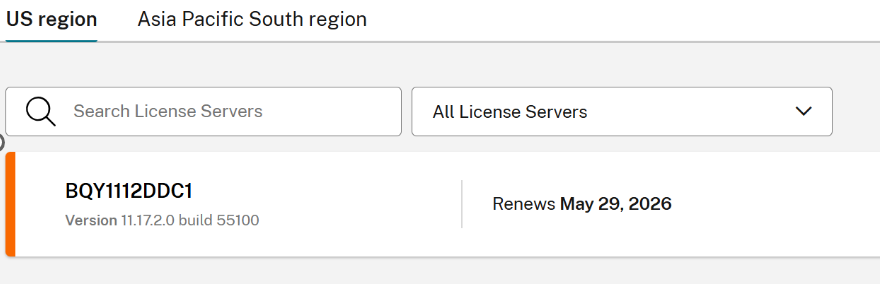
- If your APS tenant has License Servers pointing to LAS endpoints in the US region, Citrix displays two tabs: one for the US region and one for the APS region. The license servers are segregated as shown below.
-
Follow the steps mentioned under Citrix Cloud APS specific configuration.
-
After you update the configuration, the License Server points to the LAS APS region instead of the US region.
-
After 24 hours, products activated through this License Server appear in Citrix Cloud. During this time, there will be no issues with LAS activations, and they will continue to receive daily renewals. Until that time, the License Server status displays Not activated (blue color).
-
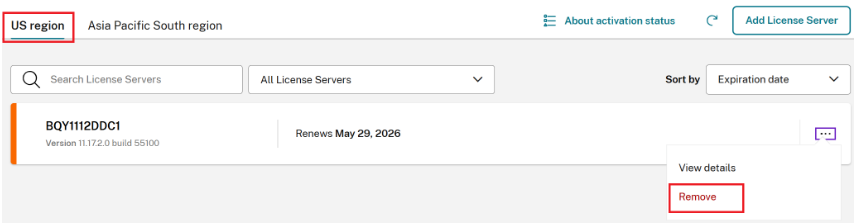
After the product activations appear, you can remove the License Server from the US region by clicking the three dots and then clicking Remove as shown below. (Do not remove the registration from the License Server.)
Step-by-step registration and activation
Follow these mandatory steps to register the License Server for online activation.
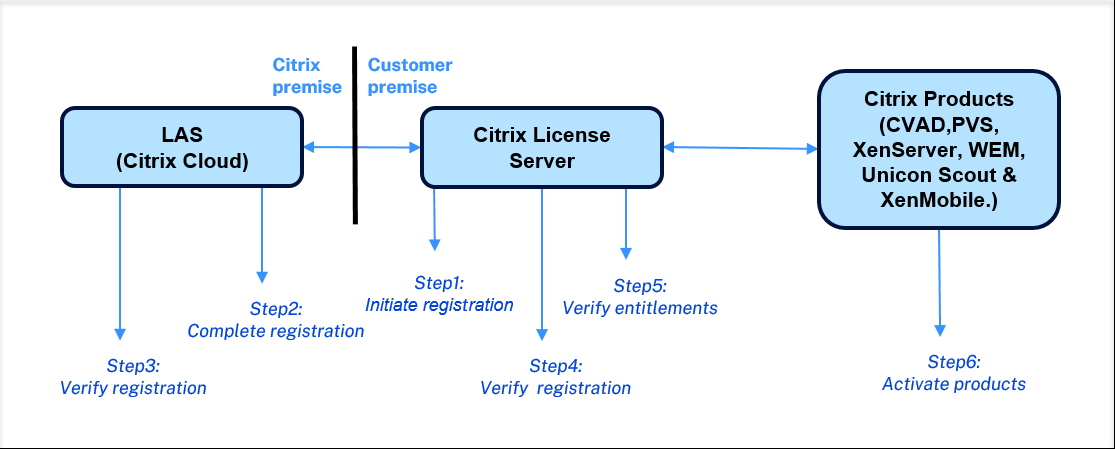
Step1: Initiate registration from License Server
-
Log in to the Citrix Licensing Manager (License Server GUI).
-
Navigate to Dashboard > License Activation Service tab.
-
Click Go to Registration.
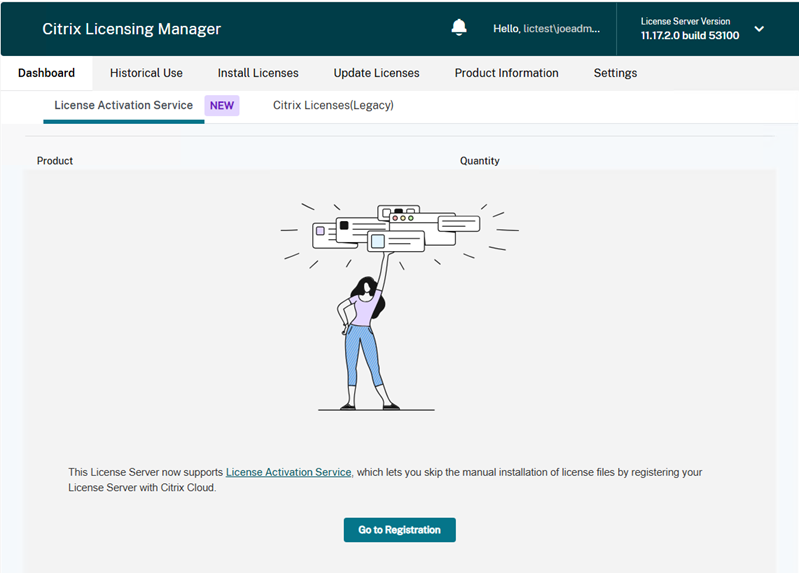
- Click Register and copy the 8-character alphanumeric code displayed.
Step2: Complete the registration in Citrix Cloud
- Log in to Citrix Cloud.
- Navigate to Licensing > Licensed deployment > License Servers > Add License Server.
Alternatively: Go to Identity and Access Management > API Access > Product Registrations > Register.
- Paste the 8-character alphanumeric code copied earlier.
- Review the registration details and click Register.
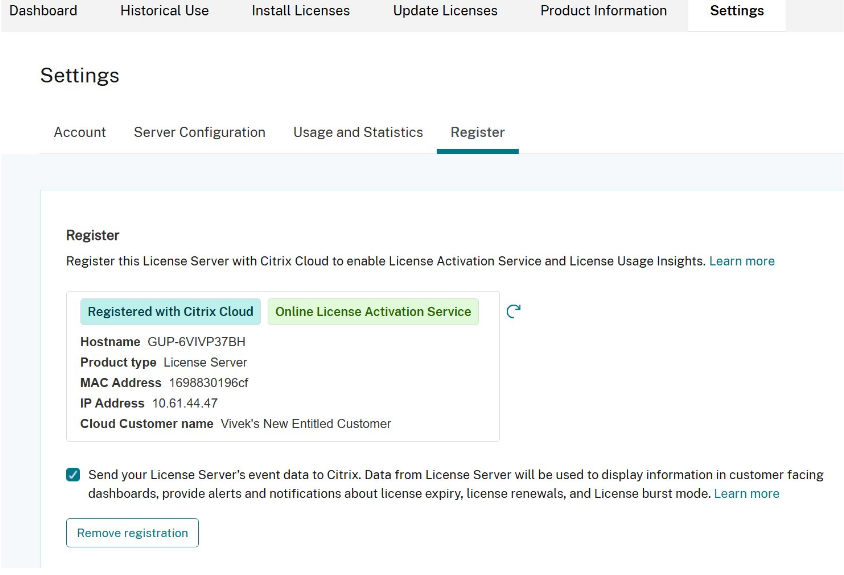
Step3: Verify Citrix Cloud registration status in License Server
You can view the current registration state with Citrix Cloud using the following statuses directly on the Citrix Licensing Manager dashboard:
| Status | Description |
|---|---|
| Not registered | Indicates that the License Server is not currently registered with Citrix Cloud. |
| Registered with Citrix Cloud | Indicates that the License Server has successfully registered with Citrix Cloud. |
| Online License Activation Service | Indicates that the License Server is registered and successfully online activated for LAS. |
Step4: Verify the status of registered License Servers in Citrix Cloud
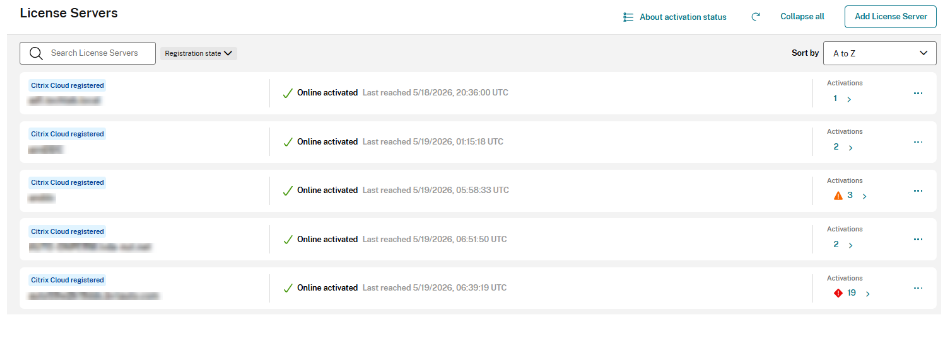
In the Citrix Cloud, navigate to Licensing > Licensed deployment > License Servers to view all registered License Servers. This console displays their Citrix Cloud registration status and activation type. Additionally, it shows License Server reachability to LAS (including the last reached timestamp), and the total number of activations delivered by each specific License server.
Note:
Date shown here is LAS activation or renewal date, not the actual entitlement expiry or renewal.
Registered License Servers are color-coded to indicate the activation status.
| Status Color | Meaning | Action |
|---|---|---|
| Green | All LAS products are active and renewed on time. | NA |
| Blue | Registered, but LAS endpoint is unreachable OR no products are activated(Not activated is shown on the screen). | Please complete the step6 below |
| Orange | One or more products will expire in less than 30 days. | Make sure all the products configured with License Server are connected |
| Red | One or more products have expired or will expire in less than 7 days. | Make sure all the products configured with License Server are connected |
| Grey | All product activations have expired. | Perform the Step 6 |
Step5: Verify entitlements in License server**
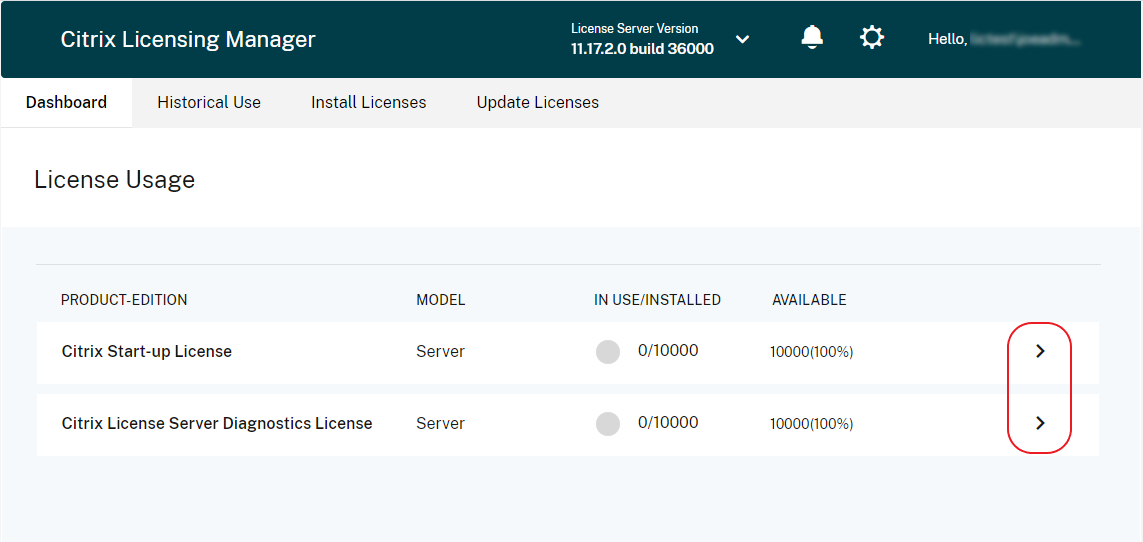
After the registration is complete, return to the Citrix Licensing Manager dashboard and select the License Activation Service tab. Confirm that your purchased entitlements are now visible, indicating that the entitlements have successfully synced from Citrix Cloud.
The License Server communicates with LAS, and entitlements are updated every 12–24 hours.
Step6: Activate Products with LAS
After successful License Server registration with Citrix Cloud or LAS and confirmation of entitlements in the License Server, proceed to activate products with LAS. Refer to the LAS articles for each product to begin using the License Activation Service.
- Citrix Virtual Apps and Desktops 2411 or LTSR Releases (CVAD 2203 CU7 or CVAD 2402 CU3 or CVAD 2507) and higher.
- Citrix Provisioning (PVS)
- Unicon Scout
- Workspace Environment Management
- XenServer
- XenMobile Server
Note:
The License Server supports both License Activation Service and Citrix legacy licensing (license files) simultaneously.
LAS connectivity notifications
The system monitors the connection between your License Server and the cloud.
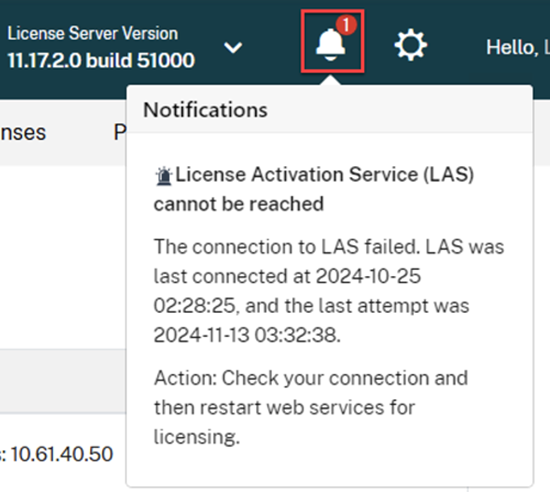
- Alert Condition: If the License Activation Service (LAS) is not reachable by the License Server, the Citrix Licensing Manager displays an alert message stating that LAS cannot be reached.
- Error Details: The notification typically includes the timestamp of the last successful connection and the time of the last failed attempt.
- Recommended Action: If you see this alert, check your network connection and restart the Citrix Web Services for Licensing service.
Automatic renewal and activation validity
Once registered, the License Server and LAS work together to keep your environment licensed automatically.
- Sync Frequency: When the License Server is online, entitlements are updated from LAS every 12–24 hours.
-
Activation Period: Each product instance receives an activation period of up to 30 days.
- Rolling Renewal: As long as the License Server is connected to LAS, the activation is automatically extended for a rolling 30-day period.
- Short-term Entitlements: If an entitlement is valid for less than 30 days, the activation period matches the specific entitlement expiry date.
- Connection Requirement: You must maintain connectivity between the License Server and LAS to ensure these automatic renewals occur .
- Activation Guarantee: The activation process is designed to be successful as long as your specific entitlement remains valid.
Telemetry
Compliance with the telemetry program is required to ensure full functionality. For more info, see Citrix Licensing Data Collection Programs.
Critical system dependencies
The online activation is tied to specific properties of the operating system on which license server is installed. If these operating system properties or the installation configuration change, the activation becomes invalid.
Important:
If the license server’s system properties are modified, its installation configuration is changed, or the server is migrated (for example, adjusting VM settings), the existing activation will become immediately invalid. In such cases, LAS will automatically issue new activations for all products previously authenticated through this server.
- Fully Qualified Domain Name (FQDN) (Only this is stored. Below properties are not stored)
- MAC Address
- CPU ID
- Motherboard Serial Number
- Hard Drive Serial Number
- BIOS Serial Number
- Install time of License Server
License Caching Mode
In the event of activation issues, the system enters license caching mode, which is designed to prevent customer outages due to issues activating the product.
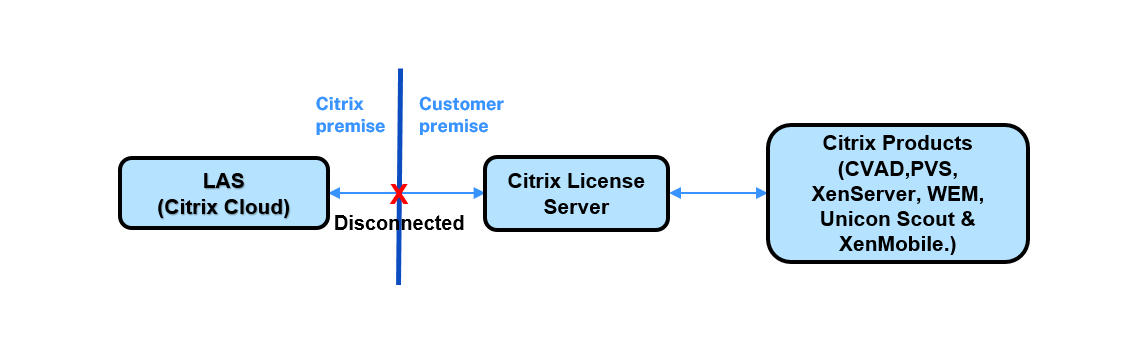
Scenario 1: LAS cloud service unreachable from License Server:
-
If the License Server cannot connect to Citrix Cloud (LAS):
- Existing Activations: Product instances that are already active will continue to function.
- New Activations: New product instances are denied until the connection to LAS is restored.
- Time Window: The License Server has 30 days to reconnect to LAS before activations become invalid.
- Hardware Changes: If system properties change while in caching mode, all activations (new and existing) are denied immediately.
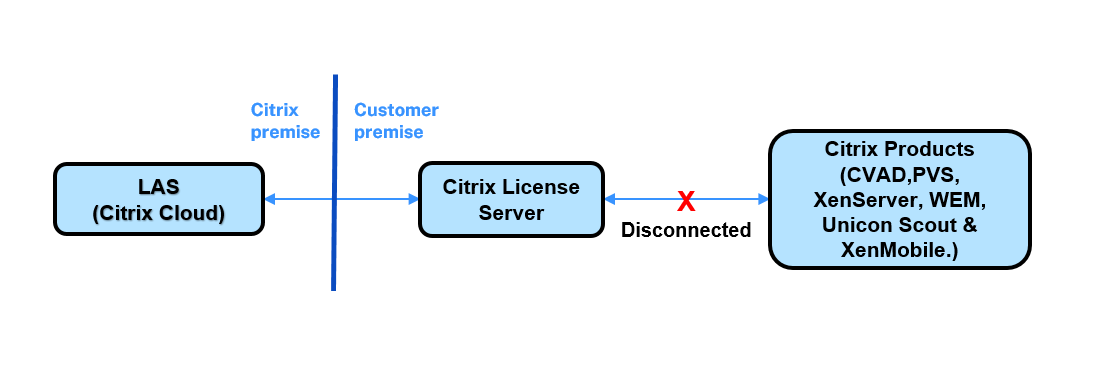
Scenario 2: Product unable to connect to License Server:
-
If a Citrix product (for example, Citrix Virtual Apps and Desktops) can’t connect to the License Server:
- Behavior: The product enters caching mode and operates using its current activation data.
- Time Window: The product has 30 days to restore the connection to the License Server.
Activation is bound to the License Server based on License Server system properties and the product instance properties. The software’s activation is guaranteed as long as there is a continuous connection to the LAS. This connection is required to monitor and maintain the activation status.
You must maintain the License Server to LAS connection to avoid service impact. Additionally, the product to License Server connection must also be maintained to ensure continued functionality.
Disable LAS status alerts
If you use the License Server only for Citrix legacy licensing, you can suppress alerts regarding LAS unreachability.
Note:
Disabling the LAS alert also suppresses LAS-related errors. This could lead to an outage if LAS activation is needed later.
To disable the alert:
- Open the configuration file
%installation path%/WebServicesForLicensing/SimpleLicenseServiceConfig.xml. -
Add the desired alert setting within the Configurations section of the XML file. If the following command is not included, the alert is enabled by default.
<NoLASStatusAlert>0</NoLASStatusAlert>or
<NoLASStatusAlert>1</NoLASStatusAlert> - Save the changes and restart the Citrix Web Services for Licensing (WSL) to apply the new configuration.
Troubleshooting
If the status of the License Server displays anything other than green, follow these steps to review the details of activations that may have issues:
- In Citrix Cloud, navigate to Licensing > Licensed Deployments > License Servers.
- Click “>” across license server to see the products activated and click “>” to the DDC level activations (in case of Citrix Virtual Apps and Desktops) as shown in the picture.
- Click “View Details” across the License Server as shown in the picture to see the products activated through this License Server.
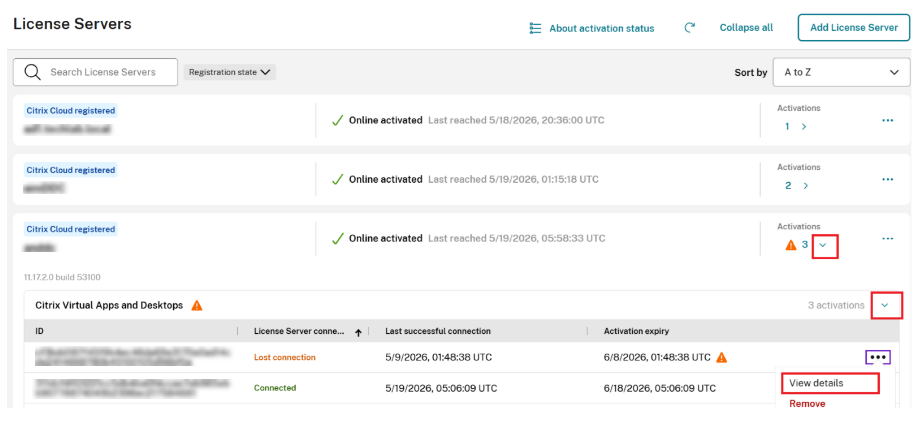
Refer to the following product documentation for more information on troubleshooting and specific license activation scenarios:
- Citrix Virtual Apps and Desktops
- Citrix Provisioning (PVS)
- Unicon Scout
- Workspace Environment Management
- XenServer
- XenMobile Server
Remove activation entries
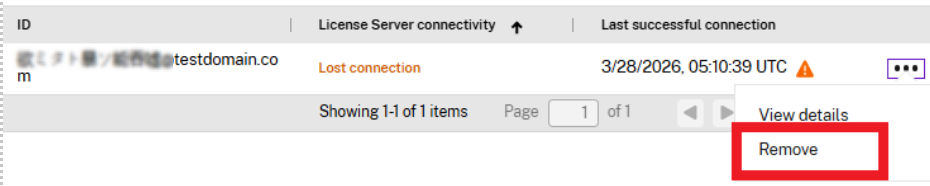
To remove an activation entry from the product activations page, click Remove for the entry. Use this action to clean up entries that are no longer relevant, such as those showing Lost connection.
This action only removes the activation from the list and does not affect its functionality. If the License Server reconnects to LAS and the activation is valid, it appears in the list again.