Preferences
On the Navigation Panel, on the bottom section,you will find the Preferences entry with preferences for various functions.
Devices
General device and filter settings, especially with regard to onboarding devices
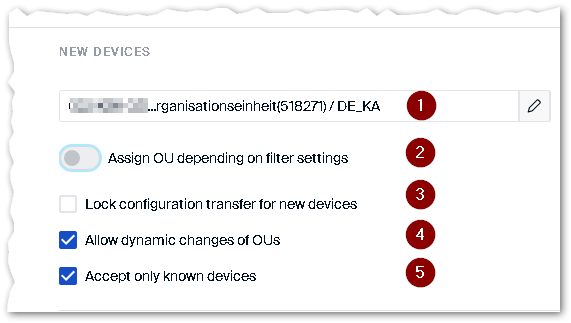 |
|
|---|---|
| 1 | OU new devices are assigned to, by default |
| 2 | Activates the OU filter for new devices. The OU filter has priority over other methods. The OU filter is configured using subnets and masks or using specific asset information of the devices. |
| 3 | Newly added devices are not synchronized with the server’s device configuration |
| 4 | Allows dynamic assignment of devices via DHCP |
| 5 | The Scout Server accepts only devices with registered MAC addresses. |
This section corresponds to the Advanced Options > Devices > New devices dialog in the Scout Console.
Logging
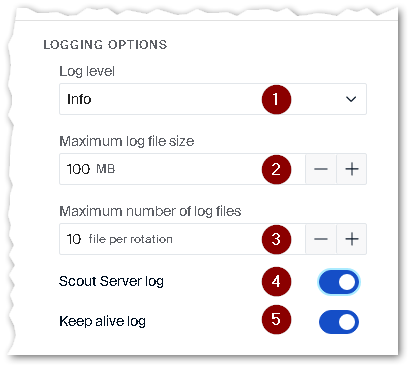
On the Scout Server machine, server activities of the Scout Server and the Scout Keep Alive service are logged.
 |
|
|---|---|
| 1 | Log level Error: Only error messages, Info: Error messages and additional information (default), Debug: Log files with extended content |
| 2 | Configure log file rotation / File size |
| 3 | Configure log file rotation / Number of files |
| 4 | Enable Scout Server logging (eluxd.log) |
| 5 | Enable Keepalive logging (keepAlive.log) |
Predefined commands
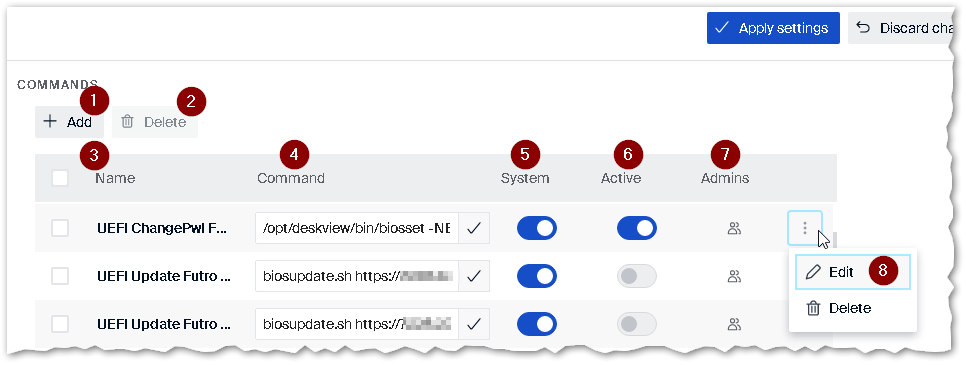
User-defined commands can be centrally predefined and provided as ready-to-use commands for administrators managing their devices remotely. All active commands in this list can be applied by administrators to individual devices, to OUs, or to Dynamic Device Groups.
A predefined command is shared with all administrators by default, but can be restricted to specific groups. For the executing administrators, the name of the command is displayed instead of the command.
 |
|
|---|---|
| 1 | Add new entry |
| 2 | Delete selected entries |
| 3 | Name of a command |
| 4 | Command definition (syntax) |
| 5 | The command requires system rights |
| 6 | The command will be displayed in the list-field for predefined commands. |
| 7 | Restrict command to specific administrators or administrator groups |
| 8 | Edit the name or syntax of an entry |
To create a predefined command, click Add (1), and then in the new entry, specify the Name (3), Command (4) and further options (5, 6, 7).
For further information, see Creating predefined commands in the Scout guide.
Firmware preferences
For Device Configuration > Firmware, you may predefine values that operational administrators are allowed to use. If you restrict the administrators’ object rights so that only predefined entries can be selected, no custom values can be created. For further information, see Protecting firmware configuration in the Scout guide.
The following values can be predefined:
| Image types | Description and example |
|---|---|
| Image files
|
Names of images which may be used for firmware updates and upgrades |
Example: recovery_x.idf
|
|
| Container for software packages and images
|
Container paths which may be used to select images |
Example: elias/UC_RC6_X64
|
|
| UEFI files
|
Names of .udf files which may be used to update the devices UEFI firmware with matching binary data. |
Example: uefi.udf
|
To create a predefined firmware value, click Add, and then in the new entry, enter the exact name or path. The entry must correspond in spelling to the existing file and path names. Note the following:
- File and path names are case-sensitive
- Do not use spaces.
- Specify file names with their extensions such as
.idf.
The Active option allows you to specify for each defined entry whether it will be displayed or hidden in the Firmware dialog.
OU filter
If Assign OU depending on filter settings is on, Filter Type chooses how Scout assigns new and reconnecting devices to an OU: Subnet filter (by device network address) or User-defined filter (by configured asset information).

With User-defined filter, the table’s toolbar offers two ways to create a filter:
-
Add filter creates a typed filter: an expression such as
ELUX_HOSTNAME=pc-01, matching the syntax used in the legacy Scout Console. For the full syntax and the list ofELUX_variables, see OU filter as a user-defined filter. -
Add rule-based filter opens a visual rule builder. Each condition has Property,
Operator and Value; link conditions in a block with AND or OR, and add
further blocks with the AND / OR control between them. The dialog shows the generated
expression and validates the rule before adding it. A Destination OU is required for each
rule-based filter.
-
Property offers the device properties also used by typed filters (such as Hostname, IP
Address, Device Type), plus In Subnet (IP Check) (value: a CIDR network, for example
192.168.1.0/24) and Custom Property (a property name your own custom package adds). - Rule-based filters can only match
ELUX_properties and customer-defined_CUSTOM.properties from a custom eLux package. Server-sideSCOUT_properties are not available at OU-assignment time. - Operators for ordinary properties are Contains, Equals, Starts With, Ends
With and Regex; matching ignores case. Round brackets cannot be used in a value with
any operator — for alternatives, write
t640|t740instead of(t640|t740), or add one condition per alternative linked with OR.
-
Property offers the device properties also used by typed filters (such as Hostname, IP
Address, Device Type), plus In Subnet (IP Check) (value: a CIDR network, for example
- Typed and rule-based filters are listed together and evaluated in one Sequence order, lowest first; the first active filter that matches decides the OU. If a typed and a rule-based filter share the same Sequence and both match, the typed filter wins.
- Both the Subnet filter and User-defined filter tables have a Search filters field (a plain contains-search, not case-sensitive) and row-per-page options of 25, 50, 75, 100 or All, remembered per table.
This section corresponds to the Scout Console’s Advanced Options > Devices > New devices dialog, which shows subnet filters and typed user-defined filters only — it cannot create, edit or display rule-based filters.
Device names
A device gets its name from a name template, applied the first time it contacts Scout. The template can use the device’s hardware properties, so names can reflect the serial number, manufacturer, model or asset tag instead of only the MAC address, IP address or a counter.
 |
|
|---|---|
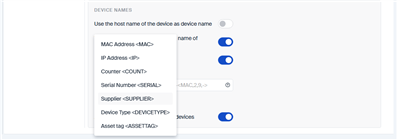
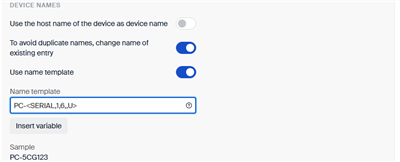
| 1 | Turn on Use name template, then enter a template in Name template |
| 2 | Insert variable adds the selected variable, without arguments, at the cursor position |
| 3 | Sample shows the name the template gives an example device |
Click a variable in the Insert variable menu to add it to the template:
| Variable | Shows |
|---|---|
<MAC> |
The MAC address (12 characters) |
<IP> |
The IP address |
<COUNT> |
An incrementing number |
<SERIAL> |
The serial number |
<SUPPLIER> |
The manufacturer |
<DEVICETYPE> |
The model |
<ASSETTAG> |
The chassis asset tag, or the baseboard asset tag if the chassis has none |
Each variable takes up to four optional, comma-separated arguments: <VARIABLE,from,to,separator,case>.
-
from / to: the first and last character to use, counting from 1. A value past
either end is moved to the nearest valid position, so
<SERIAL,1,255>is the whole serial number. -
separator: inserted after every second character. For
<IP>, this is the character between the parts of the address. -
case:
Ufor upper case,Lfor lower case. -
<COUNT,start,max,fill>uses a different set of arguments: a number from start (default 0) up to max (default 99999), padded with the fill character (default 0).
An argument left empty counts as zero, not as its default. For example, <SERIAL,,,,U> gives only
the first character; for the whole serial number in upper case, write <SERIAL,1,255,,U>.
 |
|
|---|---|
Template PC-<SERIAL,1,6,,U> gives the sample device the name PC-5CG123
|
A template can be up to 255 characters long. After the variables are filled in, every character other than a-z, A-Z, 0-9 and the hyphen becomes a hyphen, and a hyphen at the start or end of the name becomes the letter A. A variable whose value the device does not report expands to nothing.
-
Apply name template only to new devices (on by default): a new device is named from the
template. With this off, a device is also renamed at its next check-in if its name no longer
matches the template, except for templates containing
<COUNT>. - If the template would give a device a name that another device already has, Scout does not apply it to that device. A registered device keeps its current name.
- A template can also be set for a single OU, see Advanced device configuration > Management in that OU’s context menu. Turn on Use parent to use the template for all devices, or enter a template for that OU only.
This section corresponds to the Advanced Options > Devices > Device name dialog in the Scout Console, which does not offer the four hardware variables above.
Enrollment settings
Enrollment settings is where you create enrollment tokens and manage device certificates for devices that connect to UniconOS Management Cloud. On-premises installations don’t show this entry. For details, see Enrollment settings.