OktaをIDプロバイダーとして使用したCitrix Workspaceへのドメインパススルー
OktaをIDプロバイダー (IdP) として使用して、Citrix Workspaceへのシングルサインオンを実現できます。
前提条件:
- Citrix Cloud™
- Cloud Connector
注: Citrix Cloudを初めて使用する場合は、リソースの場所を定義し、コネクタを構成します。実稼働環境には、少なくとも2つのCloud Connectorを展開することをお勧めします。Citrix Cloud Connectorのインストール方法については、「Cloud Connectorのインストール」を参照してください。
- Citrix Workspace
- Federated Authentication Service (オプション)。詳しくは、「Citrix Federated Authentication Serviceを使用したワークスペースのシングルサインオンの有効化」を参照してください。
- Citrix DaaS (旧称Citrix Virtual Apps and Desktops™ Service)
- ADドメイン参加済みVDAまたは物理AD参加済みデバイス
- Oktaテナント
- Okta IWAエージェント (Integrated Windows Authentication)
- Okta Verify (Okta Verifyはアプリストアからダウンロードできます) (オプション)
- Active Directory
- Okta ADエージェントの展開:
- Okta管理ポータルで、[Directory] > [Directory Integrations] をクリックします。
- [Add Directory] > [Add Active Directory] をクリックします。
- ワークフローに従ってインストール要件を確認します。これには、エージェントアーキテクチャとインストール要件が含まれます。
- [Set Up Active Directory] ボタンをクリックし、次に [Download Agent] をクリックします。
- 「Okta Active Directoryエージェントのインストール」に記載されている手順に従って、Okta ADエージェントをWindowsサーバーにインストールします。
注:
エージェントをインストールする前に、「Active Directory統合の前提条件」に記載されている前提条件が満たされていることを確認してください。
- Integrated Windows Authentication (IWA) のセットアップ:
- Okta管理ポータルで、[Security]、次に [Delegated Authentication] をクリックします。
- ロードされたページで [On-prem Desktop SSO] の部分までスクロールし、[Download Agent] をクリックします。
- IWAのルーティングルールを設定します。詳しくは、「IDプロバイダーのルーティングルールの構成」を参照してください。
- Oktaカスタマーポータルを起動します。
注:
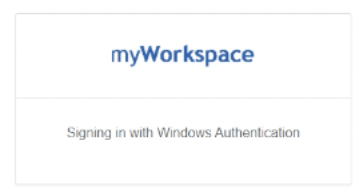
- Okta IWAエージェントをインストールしてステータスが有効になっている場合、Windowsドメイン参加済みデバイスからサインインできます。この構成により、ログインをスキップし、IWAログインページに直接移動してユーザー資格情報が渡されます。
- 問題のトラブルシューティング方法について詳しくは、「デスクトップシングルサインオン用のOkta IWA Webエージェントのインストールと構成」を参照してください。
-
https://citrix.cloud.comでCitrix Cloudにサインインし、OktaをIdPとして有効にします。詳しくは、Citrix Tech Zoneドキュメントの「Tech Insight: Authentication - Okta」を参照してください。注:
Citrix Workspaceアプリまたはブラウザのいずれかからサインインできます。どちらもTech Zoneドキュメントに従ってパススルーエクスペリエンスを提供します。
- 仮想アプリとデスクトップへのSSOを実現するには、FASを展開するか、Citrix Workspaceアプリを構成することができます。
注:
FASがない場合、ADユーザー名とパスワードの入力を求められます。詳しくは、「Citrix Federated Authentication Serviceを使用したワークスペースのシングルサインオンの有効化」を参照してください。 FASを使用しない場合は、「SSOをサポートするようにCitrix Workspaceアプリを構成する」を参照してください。
OktaをIDプロバイダーとして使用したCitrix Workspaceへのドメインパススルー
コピー完了
コピー失敗