
Manage catalogs
Note:
This article describes the tasks you can use to manage catalogs that were created in the Citrix DaaS Flex interface. For information about catalog management using the Web Studio management interface, see Manage machine catalogs.
Add machines to a catalog
While machines are being added to a catalog, you cannot make any other changes to that catalog.
-
From the Quick Deploy > Microsoft Azure dashboard, click a catalog.
-
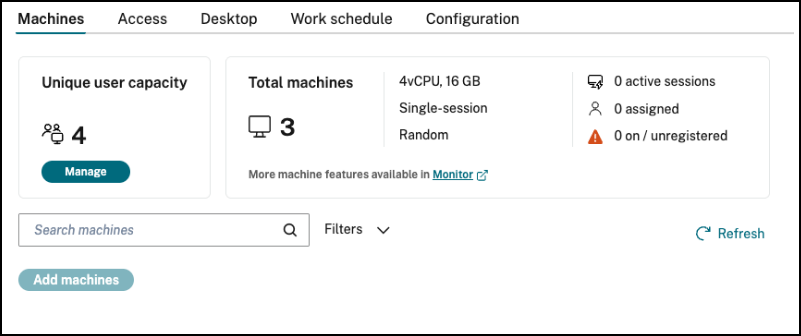
On the Machines tab, click Add Machines.
-
Enter the number of users you want to add to the catalog.
-
If the VDAs in the catalog are Active Directory domain-joined, input a service account and password for adding the newly created VDAs to the domain.
-
Click Add Machines.
Manage user capacity in a catalog
-
From the Citrix DaaS Flex dashboard, select a catalog.
-
On the Machines tab, select Manage under the Unique user capacity section, then select Change user capacity:
-
Increase capacity: Increase the number of users that need to be added to that machine catalog. The corresponding number of machines are created to match the selected capacity.
-
Valid domain credentials or a Service Account is required.
-
By default, the Organizational Unit entered during initial catalog creation will be displayed. You can either accept the default entry or modify the Organizational Unit, which will apply to all new machines created within the catalog.
-
-
Decrease capacity: Decrease the number of users that have access to that machine catalog. The corresponding number of machines are removed to match the selected capacity. You cannot reduce the total number of users currently assigned to that machine catalog. Any machines chosen for deletion are presented to you prior to deletion for final acknowledgment.
-
Note:
-
You are prompted with a message if your network connection does not have the available IP addresses required to provision the requested increased user capacity.
-
Machines with active user sessions cannot be removed. They must be placed into maintenance mode and drained of sessions before being deleted.
-
Estimated monthly credits are displayed based on the current machine catalog persona originally selected when the machine catalog was created.
Update a catalog with a new image
The behavior of updating the image of a catalog is determined by the catalog delivery model:
-
For a random catalog, all the machines currently in the catalog are updated with the latest image. If you add more desktops to that catalog, they are based on the latest image.
-
For a static catalog, the machines currently in the catalog are not updated with the latest image. Machines currently in the catalog continue to use the image they were created from. However, if you add more machines to that catalog, they are based on the latest image.
You can update a catalog containing machines with gen1 images with a gen2 image, if the catalog’s machines support gen2. Similarly, you can update a catalog containing gen2 machines with a gen1 image, if the catalog’s machines support gen1.
To update a catalog with a new image:
-
From the Citrix DaaS Flex dashboard, select a catalog.
-
On the Desktop tab, click Update Image.
-
Select an image.
-
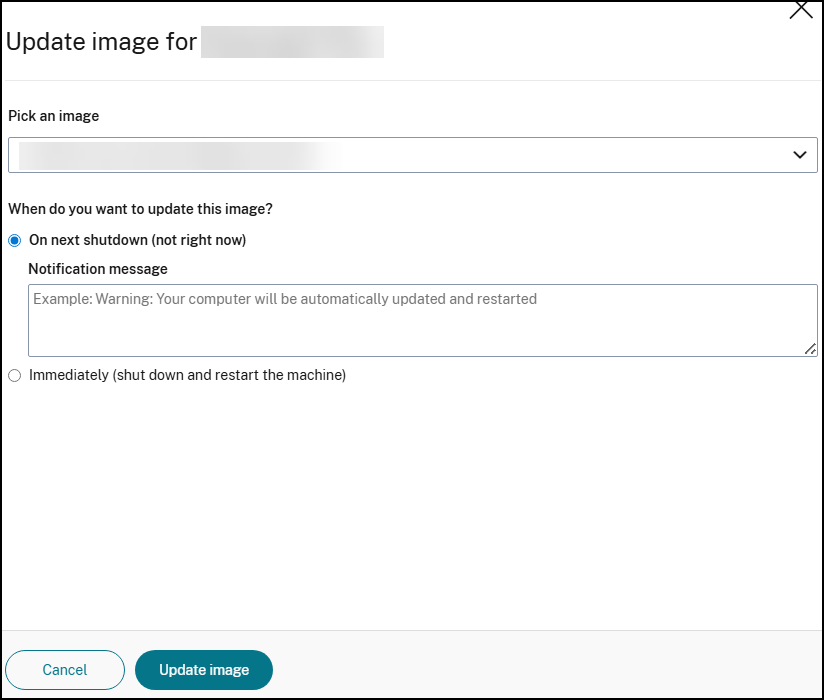
For random or multi-session catalogs: Select when you want to update the image:
-
On next shutdown and enter notification message to the users
-
Immediately and select the desired distribution time.
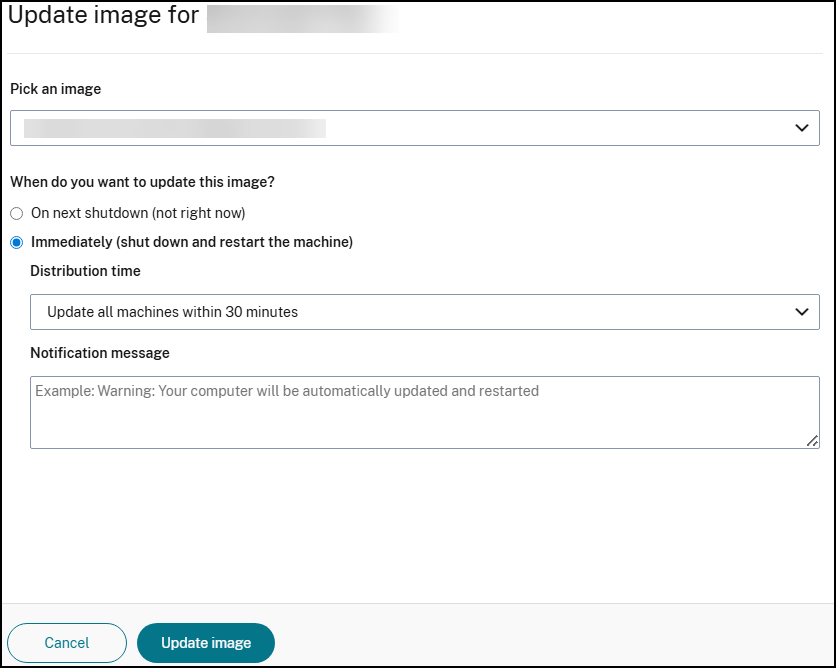
After Citrix DaaS Flex completes the initial image processing, users receive a warning to save their work and log off from their desktops. -
-
Click Update Image.
Update a catalog identity type
You can convert an existing Active Directory (AD) only Citrix DaaS Flex catalog to Entra Hybrid Join (Hybrid Azure AD Join) without rebuilding it. The Machine Creation Services (MCS) provisioning engine runs the conversion as a scheduled maintenance cycle, so the catalog stays intact and its machines remain domain-joined while gaining Entra registration. The new identity type applies to newly provisioned VDAs immediately, and existing VMs are updated as they roll through their maintenance windows.
Prerequisites
Ensure that the catalog meets all of the following requirements before you begin the conversion:
-
Source catalog: Citrix-managed (MCS), AD-joined only (not already Entra- or Azure AD–joined), single- or multi-session.
-
VDA version: 2212 or later. The VDA must advertise the
AgentManagedHybridAzureAdJoincapability. -
Identity pool: A non-shared pool that has an Active Directory service account configured.
-
Admin permissions: Provisioning-scheme maintenance rights on the site, the same rights needed to schedule an image update.
-
Site feature:
OrchMaintenanceCyclemust be enabled. It is on by default in Citrix DaaS.
You can start the conversion in either of the following ways:
Method 1 – Remote PowerShell SDK
Use the
New-ProvIdentityUpdate cmdlet from the Citrix DaaS Remote PowerShell SDK. Before you run it, load the snap-ins with asnp Citrix* and authenticate with Get-XDAuthentication. For more information, see the New-ProvIdentityUpdate cmdlet reference.
New-ProvIdentityUpdate `
     -Operation MigrateActiveDirectoryToEntraHybridJoin `
     -ProvisioningSchemeName "<your-provisioning-scheme-name>" `
     -AllVMs `
     -MaintenanceCycleDescription "Convert AD catalog to Entra Hybrid Join" `
     -MaxDurationInMinutes 200
Key parameters:
-
-Operation MigrateActiveDirectoryToEntraHybridJoin: Required. Specifies the conversion operation. -
-ProvisioningSchemeNameor-ProvisioningSchemeUid: Identifies the catalog's provisioning scheme. -
-AllVMs: Applies the conversion to every VM in the scheme. To target specific machines instead, use-VMName. -
-ScheduledStartTimeInUTC: Optional. Sets a UTC start time. Omit it to start immediately. -
-OU: Optional. Specifies the AD OU for new computer accounts after conversion. Omit it to keep the existing OU.
Method 2 – Citrix DaaS REST API
The same conversion is available through the Citrix DaaS (Orchestration) REST API. Authenticate with a CWSAuth bearer token and pass your customer ID in the request headers. For more information, see ScheduleProvisioningSchemeIdentityUpdate.
Send a POST request to the following endpoint:
POST /{customerId}/{siteId}/provisioningSchemes/{nameOrId}/$scheduleIdentityUpdate
Include at least the following fields in the request body:
{
     "Operation": "MigrateActiveDirectoryToEntraHybridJoin",
     "Description": "Convert AD catalog to Entra Hybrid Join"
 }
The response returns a maintenance-cycle task ID. Poll the Tasks endpoint to track the task as it moves through the
Scheduled, InProgress, and Successful or PartiallyCompleted states.
What changes after conversion
-
The catalog's identity type changes from AD-joined to Entra Hybrid–joined. No machines are deleted or recreated.
-
Newly provisioned VDAs come up as Entra Hybrid–joined right away.
-
Existing VMs gain Entra registration as they cycle through their maintenance windows, so there is no single point at which every machine is converted.
Important:
The conversion cannot be reversed through the API. VDAs that have not yet cycled through a maintenance window remain AD-only until they do. To monitor per-machine status, use the SubJobs endpoint (REST API) or the
Get-ProvTask cmdlet (PowerShell SDK).
Manage machines in a catalog
-
From the Citrix DaaS Flex dashboard, select a catalog.
-
On the Machines tab, find the machine you want to manage. In the ellipsis menu for that machine, select the desired action:
-
Restart: Restart the selected machine.
-
Start: Start the selected machine. This action is available only if the machine is powered off.
-
Shutdown: Shut down the selected machine. This action is available only if the machine is powered on.
-
Turn maintenance mode on or off: Turn maintenance mode on or off for the selected machine.By default, maintenance mode is turned off for a machine. Turning on maintenance mode for a machine prevents new connections from being made to that machine. Users can connect to existing sessions on that machine, but they cannot start new sessions. You might place a machine in maintenance mode before applying patches, or for troubleshooting.
-
Delete and adjust unique user capacity: Delete the selected machines. This action is available only when the machine’s session count is zero. Confirm the deletion by acknowledging the message boxes and entering your domain credentials, when required.When a machine is deleted, all data on the machine is removed. You cannot delete a machine when it is the last machine in the catalog.
-
Force restart: Force a restart of the selected machine. Select this action only if a Restart action for the machine failed.
-
Add apps to a catalog
-
From the Citrix DaaS Flex dashboard, select a catalog.
-
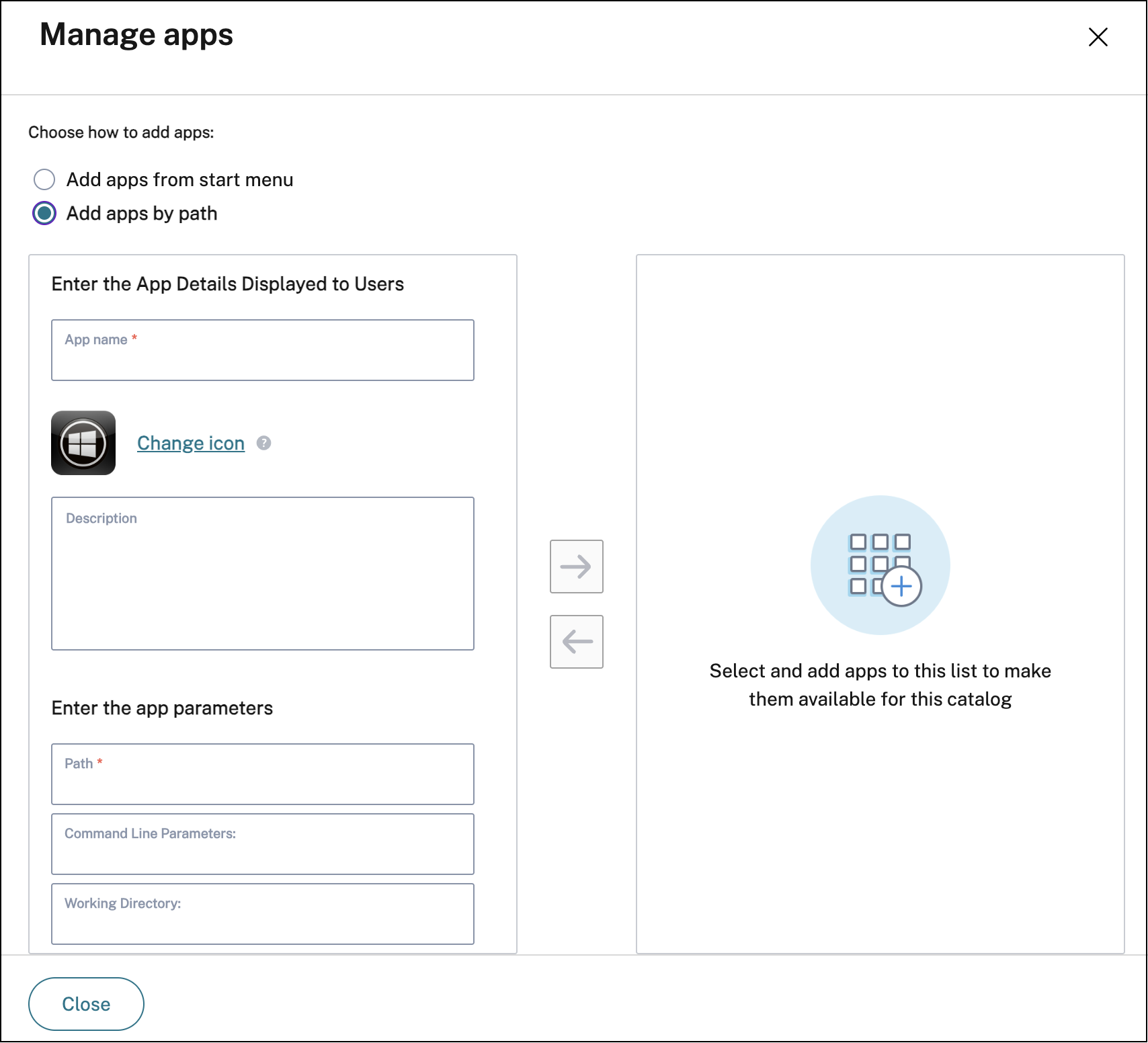
On the Desktop and apps tab, click Manage apps.
-
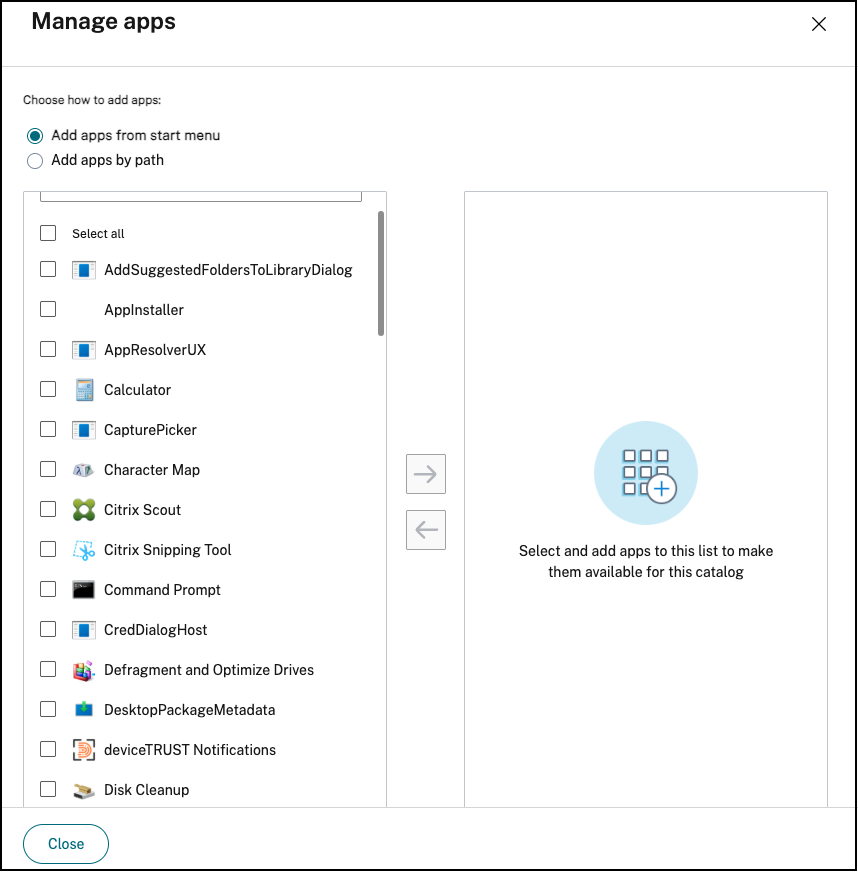
Select how you are adding apps:
-
Add apps from Start Menu
-
Add apps by path
-
-
To add apps:
-
From the Start menu:
-
Select available apps in the left column. Use Search to tailor the apps list. Click the right arrow between the columns. The selected apps in the right column are available in the Workspace or StoreFront portal for users assigned to the catalog.
-
To remove apps, select them in the right column. Click the left arrow between columns.
-
If the Start menu has more than one version of the same app, with the same name, you can add only one. To add another version of that app, edit that version to change its name. Then you can add that version of the app.
-
-
By path:
-
Enter the name for the app. This is the name users see in the Citrix Workspace or StoreFront portal.
-
The icon shown is the icon users see in Citrix Workspace. To select another icon, click ‘Change icon’ and navigate to the icon you want to display.
-
Enter a description of the application (optional).
-
Enter the path to the app. Optionally, add command line parameters and the working directory. For details about command line parameters, see Pass parameters to published applications.
-
-
-
When you’re finished, click Close.
Edit an app in a catalog
-
From the Quick Deploy > Microsoft Azure dashboard, select a catalog.
-
On the Desktop and apps tab, click the row containing the app you want to edit.
-
Click the pencil icon.
-
Type changes in any of the following fields:
-
Name: The name of the application users see in Citrix Workspace.
-
Description
-
Path: The path to the executable.
-
Command line parameters: For details, see Pass parameters to published applications.
-
Working directory
-
-
To change the icon users see in their Citrix Workspace, click Change icon and navigate to the icon you want to display.
-
When you’re done, click Save.
Pass parameters to published applications
When you associate a published application with file types, the percent and star symbols (enclosed in double quotation marks) are appended to the end of the command line. These symbols act as a placeholder for parameters passed to user devices.
-
If a published application does not launch when expected, verify that its command line contains the correct symbols. By default, parameters supplied by user devices are validated when the symbols are appended.
-
For published applications that use customized parameters supplied by the user device, the symbols are appended to the command line to bypass command-line validation. If you do not see these symbols in a command line for the application, add them manually.
-
-
If the path to the executable file includes directory names with spaces (such as “C:\Program Files”), enclose the command line for the application in double quotation marks to indicate that the space belongs in the command line. Add double quotation marks around the path, and another set of double quotation marks around the percent and star symbols. Add a space between the closing quotation mark for the path and the opening quotation mark for the percent and star symbols.
-
For example, the command line for the published application Windows Media Player is: “C:\Program Files\Windows Media Player\mplayer1.exe” “%*”
-
Remove apps from a catalog
Note:
Removing an app from a catalog does not remove it from the machines. It just removes it from users’ Citrix Workspace or StoreFront portal.
-
From the Citrix DaaS Flex dashboard, select a catalog.
-
On the Desktop and apps tab, click the trash icon next to the apps you want to remove.
Delete a catalog
Note:
When you delete a catalog, all the machines in the catalog are permanently destroyed. Deleting a catalog cannot be reversed.
-
Select a catalog.
-
On the Machines tab, click Delete Catalog on the lower portion of the window.
-
Confirm the deletion by selecting the acknowledgment check boxes and then clicking the confirmation button.
VDA snapshot and restore
The Citrix DaaS Flex snapshot and restore features provide a way to recover from unplanned data loss or other failures in VDAs that deliver desktops and apps. The snapshot operation takes and stores a snapshot of the machine. Later, a restore operation uses a snapshot you select.
You can configure daily and weekly snapshot schedules for all the machines in a catalog. These snapshots are called automatic snapshots. A snapshot is taken of each machine in the catalog. There are no default snapshot schedules.
You can take a manual snapshot of a single VM in a catalog on demand. You can create a manual snapshot of a machine even if the catalog it belongs to has scheduled snapshots. Scheduled snapshots can only be configured at the catalog level, not on individual machines.
Note:
The Citrix DaaS for Azure snapshot and restore features are supported only for machines in static catalogs and assigned to users.
Snapshot schedules
Snapshot schedules apply to all machines in a catalog. Snapshot schedules are not configured by default.
To manage snapshot schedules:
-
From the Citrix DaaS Flex dashboard, select a catalog.
-
On the Configuration tab, click Schedule Snapshots.
-
On the Schedule Snapshots page, configure schedules for weekly or daily automatic snapshots, or both:
-
To add or change weekly snapshots, move the slider for Weekly automatic snapshots until a check mark appears. Select the day of the week and the start time.
-
To add or change daily snapshots, move the slider for Daily automatic snapshots until a check mark appears. Select the start time.
-
To remove weekly snapshots, move the slider for Weekly automatic snapshots until an X appears.
-
To remove daily snapshots, move the slider for Daily automatic snapshots until an X appears.
-
-
When you’re done, click Save.
Manual snapshots
A manual snapshot is for a single machine in a catalog.
-
From the Quick Deploy > Microsoft Azure dashboard, select a catalog.
-
On the Machines tab, find the machine you want to take a snapshot of. Select Snapshots in the ellipsis menu for that machine.
-
Provide a name for the snapshot. Choose a name you can easily identify later.
-
Confirm your request.
View and manage snapshots
-
From the Citrix DaaS Flex dashboard, select a catalog.
-
On the Machines tab, find the machine you want to take a snapshot of. Select Snapshots in the ellipsis menu for that machine.
-
-
If there are no snapshots for the machine, a message guides you to either create a manual snapshot for this machine, or create scheduled snapshots for all of the machines in the catalog containing this machine.
-
You can select one of the snapshots and restore the machine. See Restore.
-
You can delete snapshots. Select the check boxes for one or more snapshots and then click Delete in the table header. Confirm your request.Note:When you delete a catalog, all snapshots are destroyed.
-
Restore
You can restore a machine from any available snapshot for that machine. During a restore, the machine is powered off. None of the actions in a machine’s ellipsis menu are available while a snapshot is being restored.
-
From the Citrix DaaS Flex dashboard, select a catalog.
-
In the Machines tab, find the machine you want to take a snapshot of. Select Snapshots in the ellipsis menu for that machine.
-
Click Restore in the table header.
-
Confirm the request.
The Status column on the Machines tab indicates the progress and outcome of the restore operation. If a machine fails to restore a snapshot, try again.