
Microsoft Licensing requirements
Citrix DaaS Flex supports Windows 11 Bring Your Own License (BYOL), letting organizations reuse their existing Microsoft licensing agreements while migrating workloads to a streamlined, managed Azure infrastructure. Under this model, administrators use Citrix-generated or custom Windows 11 images to run single-session virtual desktops across the different Flex personas.
All customers who want to take advantage of the Windows 11 BYOL program must complete a license verification process.
To ensure compliance with Citrix and Microsoft licensing requirements, Citrix has implemented a verification workflow requiring customers to submit a
.CSV file detailing authorized users with active Windows 11 licenses who will be accessing Citrix DaaS Flex Windows single-session machines. This is a mandatory requirement and condition of customer's Citrix license entitlement under the Citrix End User Agreement.
Note:
You must upload your initial
.csv authorized user list within 30 days of onboarding. You can submit updates at any time, but you must keep the list up to date to ensure accurate monthly validation against your active Windows 11 VDAs. Failure to maintain compliance with this requirement might result in suspension or termination of the customer's Citrix license entitlement.
To begin the verification process, complete the following steps to submit the
.CSV file to Citrix for compliance checks.
Option 1: Create an Entra ID application in your own Azure tenant
With this option, you create an Entra ID application in your own Azure tenant and provide Citrix with the required credentials. You retain full control: deleting the application or its secret in Entra ID revokes Citrix access immediately.
-
In your Azure portal, navigate to Entra ID > App registrations > New registration.
-
Register a new application.Note:The Azure administrator must have multifactor authentication configured within their Azure portal.
-
On the overview page, copy and save the following values:
-
Application (client) ID
-
Directory (tenant) ID
-
-
In the left sidebar, click Certificates & Secrets > New client secret.
-
Fill in the Description field and choose an expiration duration for the client secret.Note:Keep a record of the expiry date because compliance reporting stops working when the secret expires.
-
Immediately copy the Value column. This is your client secret and is shown only once.
-
In the left sidebar, click API permissions > Add a permission > Microsoft Graph > Application permissions.
-
Search for and select the following permission:
-
User.Read.All— required to read user license assignments
-
-
Click Add permissions.
-
On the API permissions page, click Grant admin consent for
<tenant name>, then click Yes to confirm.Note:Verify that the permission shows a green checkmark under the Status column.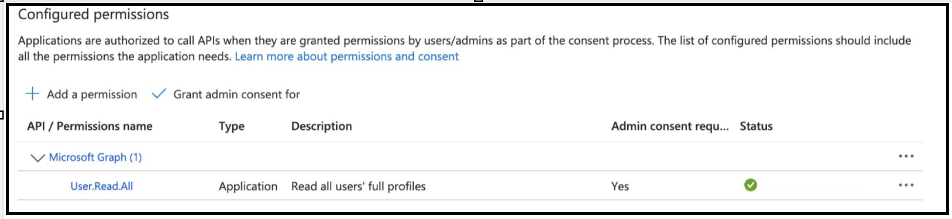
-
Generate a
.CSVfile containing a list of authorized and licensed users who are accessing Windows 11 machine catalogs, in the following format:The first row must be the headerUPN, followed by one user per row.Note:For each UPN in the uploaded CSV, the audit reads that user's assigned licenses from Microsoft Graph and places the user in one of four statuses:Compliant,NonCompliant,UserNotFound, orError.A user isCompliantwhen at least one assigned Microsoft license is found. The following table lists the acceptable licenses:Service plan ID License Name Entitlement 21b439ba-a0ca-424f-a6cc-52f954a5b111WIN10_PRO_ENT_SUB Windows 10/11 Enterprise (Original), in Microsoft 365 E3/E5 e7c91390-7625-45be-94e0-e16907e03118Virtualization Rights for Windows 10 (E3/E5+VDA) Windows 10/11 Enterprise, including the education SKUs 8e229017-d77b-43d5-9305-903395523b99WINBIZ Windows 10/11 Business, in Microsoft 365 Business Premium -
Using the following Citrix API, provide the newly created Azure app values along with your
.CSVfile containing authorized users with active Windows 11 licenses:-
Directory (tenant) ID
-
Application (client) ID
-
Client Secret Value
POST https://api.cloud.com/catalogservice/<CustomerID>/<SiteID>/licenseCompliance/uploadsRequired HTTP headers:Content-Type: application/json
Authorization: CwsAuth Bearer <token>
X-AZURE-TENANT-ID: <Directory (tenant) ID>
X-AZURE-APP-CLIENT-ID: <Application (client) ID>
X-AZURE-APP-CLIENT-SECRET: <Client Secret Value>Required body:Filename.csvExpected output:{
"userCount": 210
}Note:Any changes to the original list of authorized users (additions or deletions) can be resubmitted through the API in this step at any time. -
Check user status
After you upload your authorized users list, you can run a compliance report at any time using the following Citrix API:
GET https://api.cloud.com/catalogservice/<CustomerID>/<SiteID>/licenseCompliance/uploads/report
Required HTTP headers:
Content-Type: application/json
 Authorization: CwsAuth Bearer <token>
Expected output:
{
     "counts": {
         "compliant": 190,
         "nonCompliant": 15,
         "userNotFound": 5,
         "error": 0
     }
 }
Revoke Citrix access
To revoke Citrix access immediately, delete either the application or its client secret in Entra ID. To rotate an expiring secret, create a new secret and upload it again. The new secret replaces the old one.