Get started
Account
To create an account do the following:
-
Enter a valid store URL or your email address in the Address field. For example, storefront.organization.com. Fill the other fields with necessary details.
-
Enter the user credentials.
Access to
For information about configuring access to {{page.sf}} through {{page.cgtwy}}, see:
Email-based account discovery
You can configure Citrix Workspace app to use email-based account discovery. When configured, users enter their email address rather than a server URL during initial Citrix Workspace app for Android installation and configuration.
Citrix Workspace app for Android determines the {{page.cgtwy}} or {{page.sf}} server associated with the email address based on Domain Name System (DNS) Service (SRV) records. It then prompts the user to sign in, to access their hosted applications, desktops, and data.
Provision file
You can use {{page.sf}} to create provisioning files that have connection details for accounts. You can make these files available to your users to enable them to configure Citrix Workspace app for Android automatically.
After installing Citrix Workspace app for Android, users simply open the .cr file on the device to configure Citrix Workspace app for Android. If you configure Workspace for websites, users can also get Citrix Workspace app for Android provisioning files from those sites.
For more information, see the {{page.sf}} documentation.
Provide users with account information to enter manually
When you provide users with account details that they need to enter manually, make sure that you distribute the following information. The following information enables users to connect to their hosted desktops successfully:
-
The {{page.sf}} URL or XenApp and XenDesktop Site hosting resources; for example: servername.company.com.
-
To access using {{page.cgtwy}}, provide the {{page.cgtwy}} address and the required authentication method.See the {{page.cgtwy}} documentation for more information.
When a user enters the details for a new account, Citrix Workspace app tries to verify the connection. If successful, Citrix Workspace app prompts the user to log on to the account.
Provide access to
Citrix Workspace app requires configuration of {{page.sf}} to deliver apps, desktops, and files from your {{page.cvad}} or {{page.cdaas}} (formerly {{page.cvad}} service) deployment.
You can configure {{page.sf}} to provide authentication and resource delivery services for Citrix Workspace app, which enables you to create centralized enterprise stores to deliver:
-
Desktops and applications through {{page.cvad}} or {{page.cdaas}}.
-
XenMobile® Apps and mobile apps you’ve prepared for your organization through XenMobile.
Authentication between Citrix Workspace app and a {{page.sf}} store can be handled using various solutions:
-
Users inside your firewall can connect directly to {{page.sf}}.
-
Users outside your firewall can connect to {{page.sf}} through {{page.cgtwy}}.
-
Users outside your firewall can connect through {{page.cgtwy}} to {{page.sf}}.
Connecting to
Citrix Workspace app for Android supports launching sessions from Workspace for Web, if the web browser is compatible with Workspace for Web. If launches do not occur, configure your account through Citrix Workspace app for Android directly.
Tip
When Workspace for Web is used from a browser, sessions aren’t launched automatically when downloading an .ICA® file. The .ICA file must be opened manually, right after it's downloaded for the session to be launched.
With {{page.sf}}, the stores you create consist of services that provide authentication and resource delivery infrastructure for Citrix Workspace app. Create stores that count and aggregate desktops and applications from XenDesktop sites and XenApp, making these resources available to users.
For administrators who need more control, Citrix provides a template you can use to create a download site for Citrix Workspace app for Android.
Configure stores for {{page.sf}} just as you configure {{page.cvad}} and {{page.cdaas}}. No special configuration is needed for mobile devices.
Connect through
Citrix Workspace app for Android supports {{page.cgtwy}} 11 and later with access to:
-
XenApp and XenDesktop® Sites
-
{{page.sf}} 2.6, 3.0, 3.5, 3.6, 3.7, 3.8, 3.9 and 3.11 stores
You can create multiple session policies on the same virtual server depending on the following:
-
the type of connection (such as ICA, clientless VPN, or VPN)
-
the type of Workspace deployment (Workspace for Web or locally installed Citrix Workspace app).
The policies can be achieved from a single virtual server.
When your users create accounts on Citrix Workspace app, they need to enter their email address or the matching FQDN of your {{page.cgtwy}} server. For example, if the connection fails when using the default path, enter the full path to the {{page.cgtwy}} server.
VPN functionality
You can access the internal Web, Software-as-a-Service (SaaS) apps, and websites hosted by your company - regardless of your access location. You can access these resources, hosted by your company, without a VPN connection. This feature is available only for customers on cloud stores.
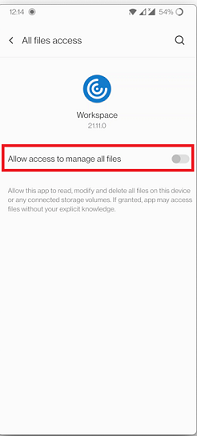
Allow access to manage all files
We’ve introduced the permission option – Allow access to manage all files. We recommend that you enable this permission for optimal performance. Your files remain secure.