Settings
Modify and configure the following settings in the Citrix Licensing Manager:
-
Account: Configure user and group accounts.
-
Server configuration: Configure ports and Customer Success Services renewal license actions.
-
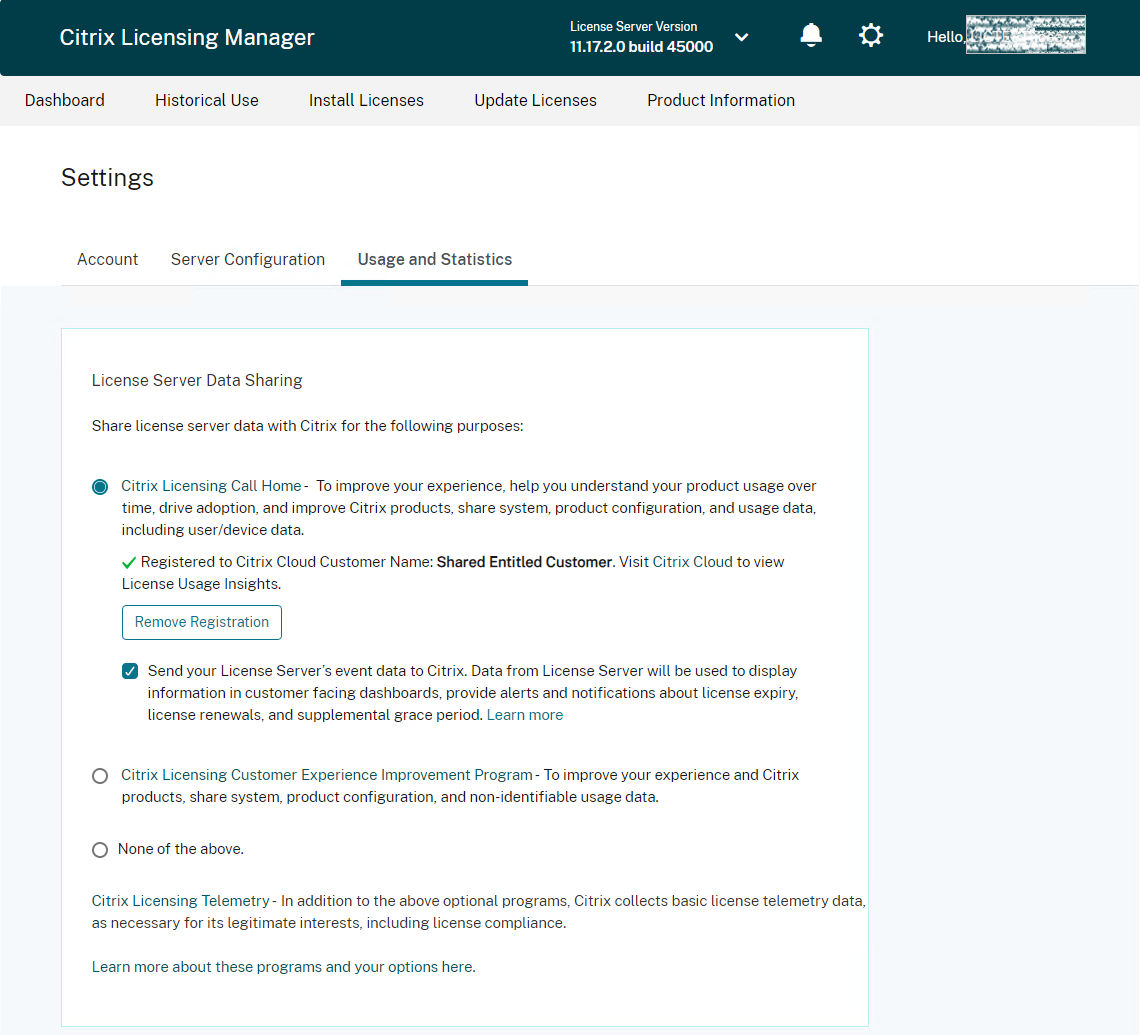
Usage and statistics: Register your License Server with Citrix Cloud and configure the historical data retention by selecting a retention period.
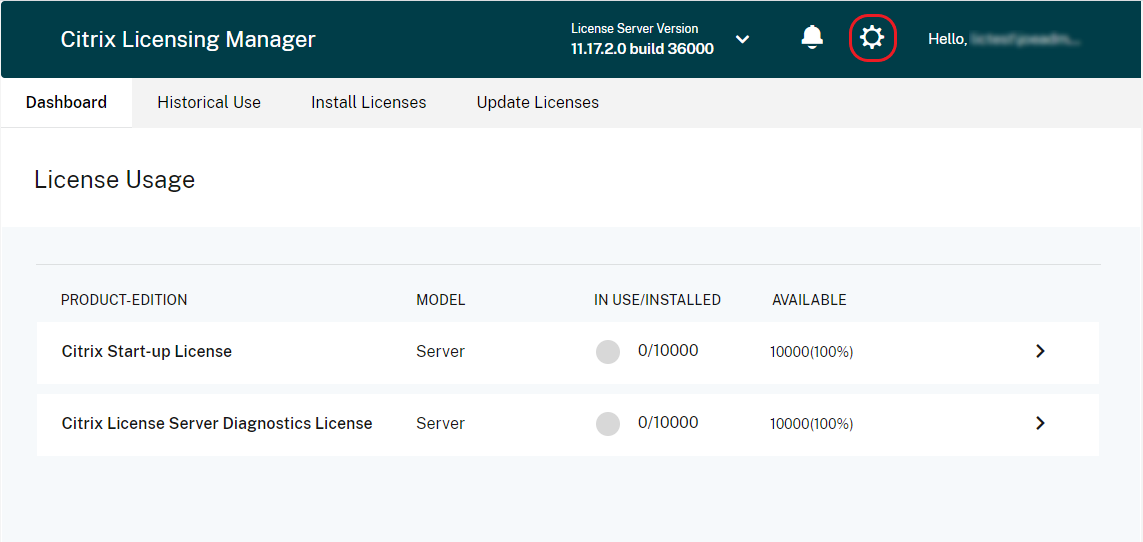
To configure these settings, click the settings icon on the top right corner of the title bar.
Account
On the Account tab, configure users and group access for both local Windows users and groups and Active Directory users and groups.
Note:
Active Directory users and groups are part of an Active Directory or network authentication system. To support them, ensure that the Windows License Server is a member of a Microsoft Active Directory domain.
Administrator and User roles
You can add the User and Group accounts with specific roles. User and Group accounts created with an Administrator role can:
-
Choose a console display language.
-
View system information.
-
Add and remove users.
-
Configure the License Server port.
-
Configure the vendor daemon port.
-
Configure the Web Services for Licensing port.
-
Configure and add licenses.
User and Group accounts created with a User role cannot log into Citrix Licensing Manger. These accounts have only read-only access to Licensing through Citrix Studio.
Note:
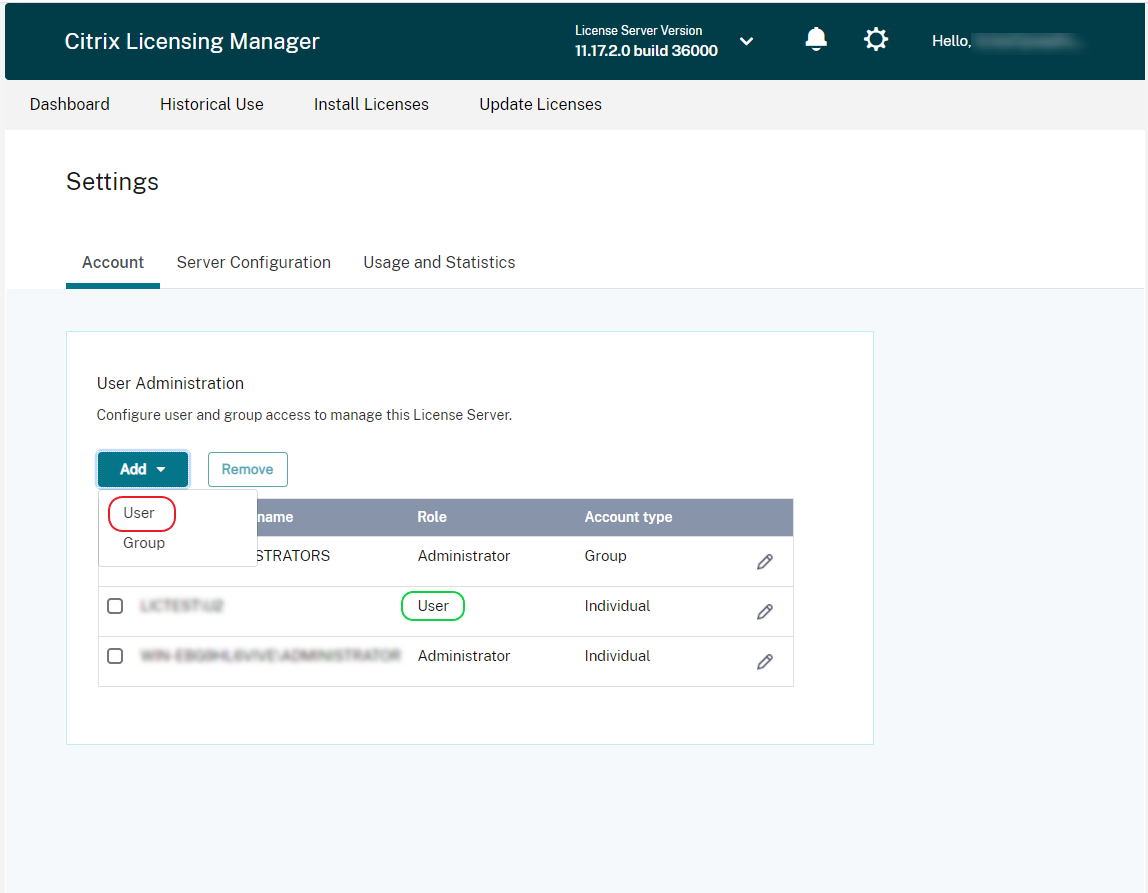
User as an account (red color) is different from User as a role (green color) as indicated in the preceding image.
To add and remove users and groups
To add a user or a group, click Add, choose User or Group, enter Domain\Username, and then click Finish.
To remove a user or a group, click User or Group from the list and then click Remove.
To edit the role of an existing user or group, click the edit button, choose the role, and click Update.
Server configuration
Use the Server Configuration setting to make the following changes:
-
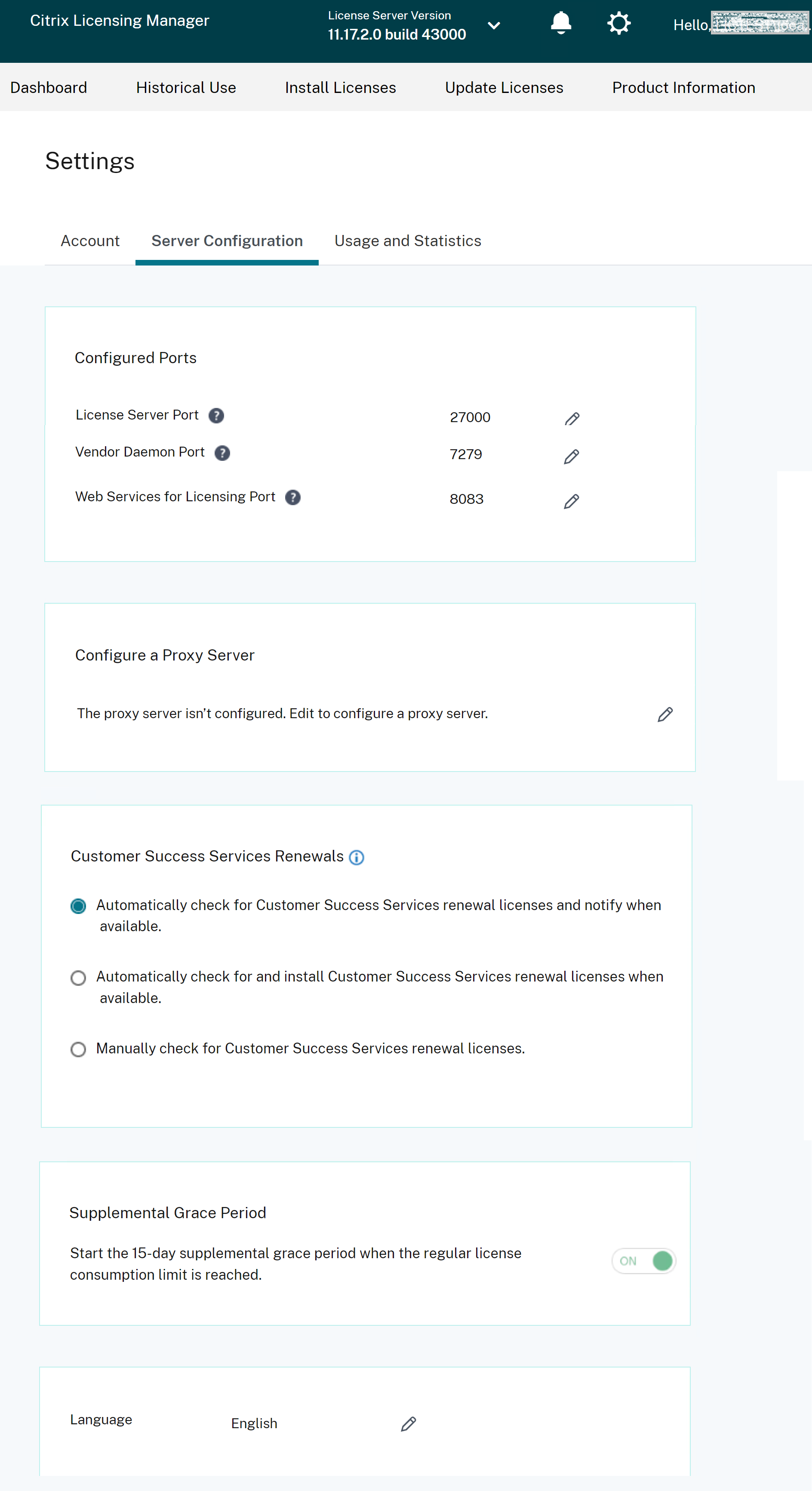
Configure the License Server, Citrix vendor daemon, and Web Services for Licensing ports.
-
Configure a proxy server.
-
Configure Customer Success Services renewal license actions.
-
Enable and disable the License burst mode.
-
Choose the console display language.
Configure port numbers
You can edit the following default ports:
-
License Server. This port number is used by the Citrix Licensing Manager. License Server Manager handles the initial communication among the products, starts the Citrix vendor daemon, and relays check out and check in requests to the vendor daemon. By default, this port number is 27000.
-
Citrix vendor daemon. This port number is used by the Citrix vendor daemon. The vendor daemon is responsible for the core operations of the License Server, including license allocation. By default, this port number is 7279. However, if you have a firewall or if the number is already in use, you must change the port number.
-
Web Services for Licensing. Port used by the Web Services for Licensing. The Web Services for Licensing hosts the Citrix Licensing Manager, so users connecting to the Citrix Licensing Manager use this port. Director and Studio use this port to communicate with the License Server using Web Services for Licensing. By default, this port number is 8083.
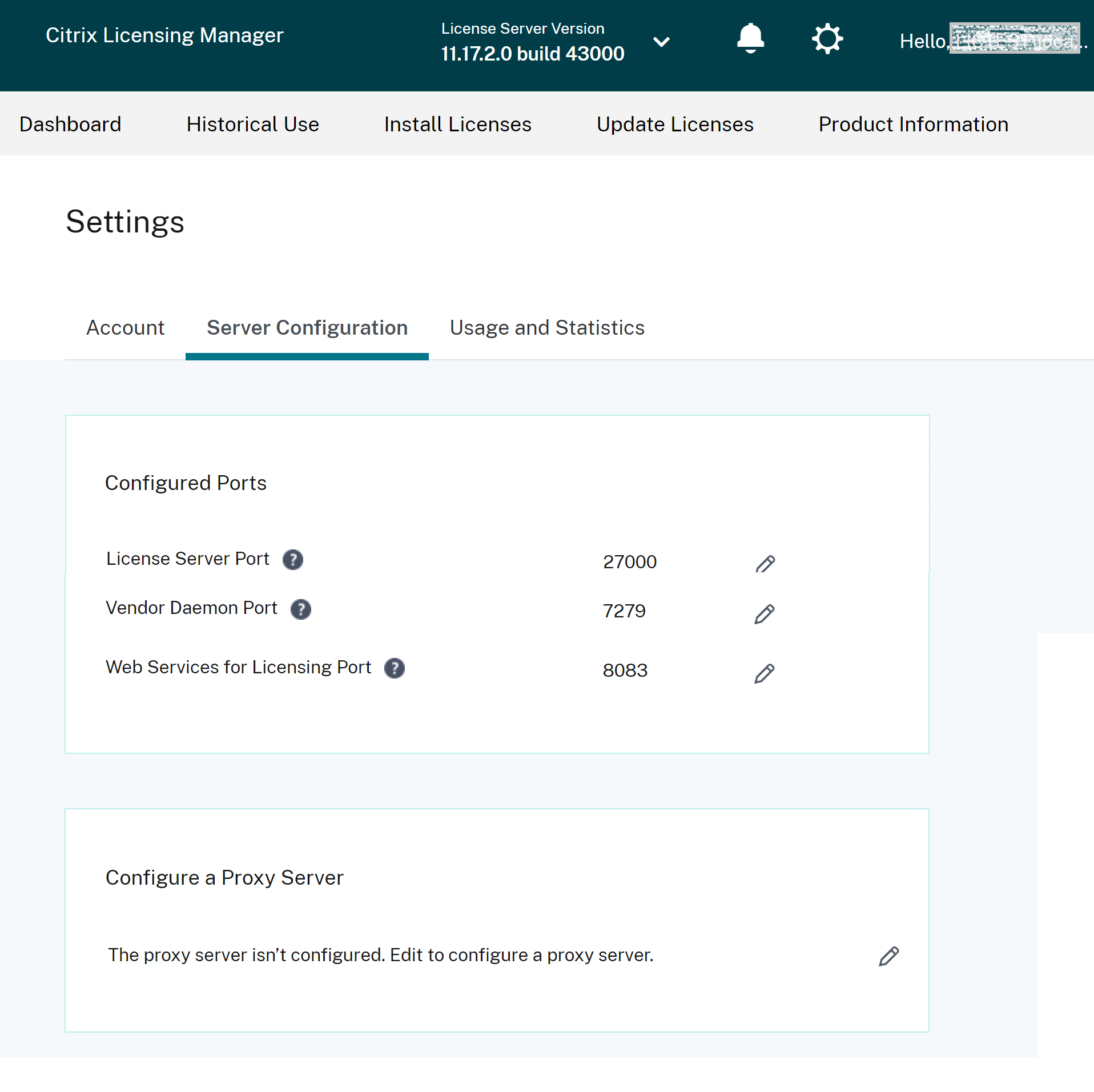
Configure a proxy server within Citrix Licensing Manager
You can view and configure proxy server settings from the Citrix Licensing Manager UI. You can edit the settings to add, modify, or remove a proxy server as needed.
Do the following to configure a proxy server:
-
In the Citrix Licensing Manager, click the Settings
 in the upper right of the UI.
-
Click Server Configuration.
-
Navigate to Configure a Proxy Server section.
-
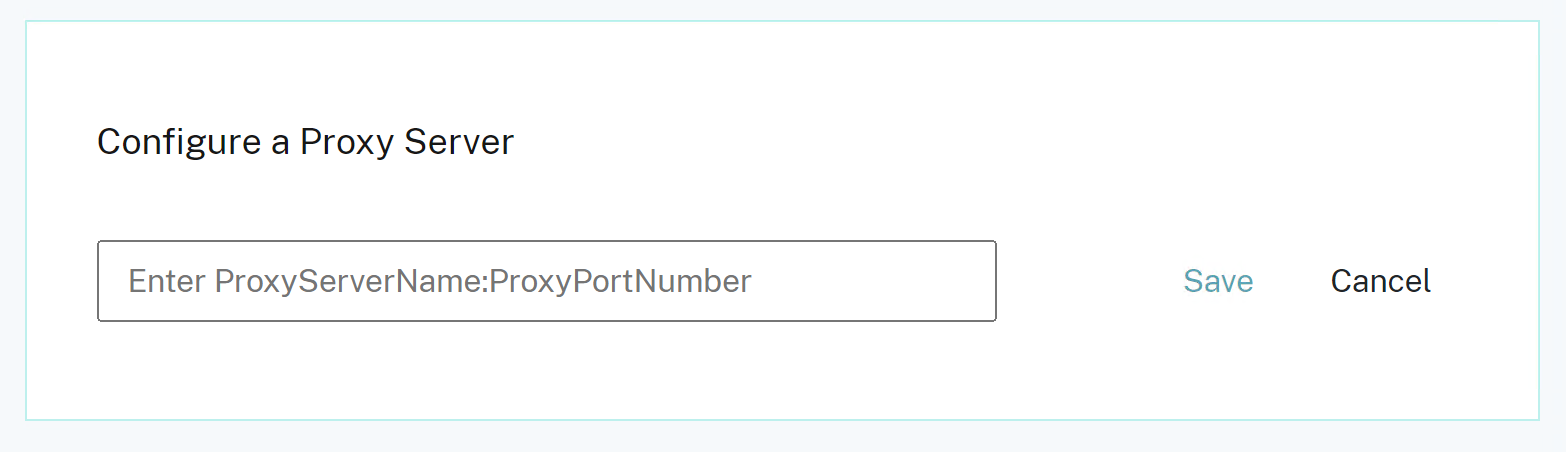
Click the Edit
 to configure a new proxy server or to update an existing proxy server.
-
Enter the proxy server name and proxy port number in the following format:proxy server name:port numberFor example: 10.211.55.5:808. (This port can be
IPAddress:PortorHostname:Port.) -
Click Save. The proxy server configuration is saved successfully.
Note:
If you are using a proxy with SSL interception, ensuer the proxy's certificat is imported into the local Windows Certificate store on the License Server.
License burst mode
You can use the License burst mode feature to start the 15-day License burst mode, when you reach the regular license consumption limit. During the License burst mode, the product allows unlimited connections for 15 days, enabling you to fix the issue. Ensure you check your product documentation to determine if your product supports the License burst mode.
Language
You can change the default language of the Citrix Licensing Manager display, which applies to all the console users. The following languages are available:
-
Chinese (Simplified)
-
English
-
French
-
German
-
Japanese
-
Spanish
Support Bundle
A support bundle is a .zip file that contains information that required to troubleshoot and debug any License Server issues by the Citrix support team. You can use this file to initiate a Citrix support call or to provide documentation to Citrix or its agents for license compliance purposes. The .zip file generated includes configuration information, a copy of the licensing directory, server logs.
To generate and download a support bundle, go to the Citrix Licensing Manager > Settings > Server Configuration > Support Bundle. Click Generate and Download to download the bundle (.zip file).
The support bundle contains various files. See the following table for a list of files that are of high importance in the bundle:
| File name | Description |
|---|---|
| LS\conf | Includes server configuration and certificates. |
| LS\logs | Contains license server logs. |
| LS\resource\cache | Contains user/device data, renewal database, and vendor daemon extension data. There are also upload result files that contain the status of the last telemetry transfer. |
| LS\resource\Historical | Contains Web Services for Licensing/Citrix Licensing Manager analytics and historical use databases. |
| LS\MyFiles | Contains all installed customer license files and the CITRIX.opt (options file – contains LS configuration). |
| WebServicesForLicensing | SimpleLicenseServiceConfig.xml Web Services for Licensing Configuration file. |
| WebServicesForLicensing\Apache\conf | Contains Web Services for Licensing web server configuration and certificates. |
| WebServicesForLicensing\Logs | Contains Web Services for Licensing web server logs. |
Register your Citrix License Server
Use the Register option in the Usage and Statistics section to register your Citrix License Server with Citrix Cloud. Once registered, the screen indicates that you are registered. Use the Remove Registration option if you want to remove the License Server registration. For more information, see Register Citrix License Server with Citrix Cloud.
Remove registration
There are reasons that you might want to remove the License Server registration with the Citrix Cloud. For example, you've registered your License Server to CompanyA, which is now merged into another organization. You want to consolidate your license usage data into one Citrix customer account. To do that, remove your registration, and then register with a new Citrix Cloud account. For more information, see Remove registration of your License Server.
Collect License Server event data
After you register your License Server with Citrix Cloud, you can choose to send your License Server's event data to Citrix. This option is enabled by default and is available only after registration. This data is used to display information in customer-facing dashboards. It's also used to provide alerts and notifications about license expiry, license renewals, and License burst mode.