Configure VDA with Enterprise / Domain Certificates
Besides DDC self-signed certificates, there is another option to configure VDA with AD CS issued CA certificates, so that you can configure all Citrix components with one CA certificate. Follow the instructions to Configure VDA with Enterprise/Domain certificates.
Install Active Directory Certificate Services
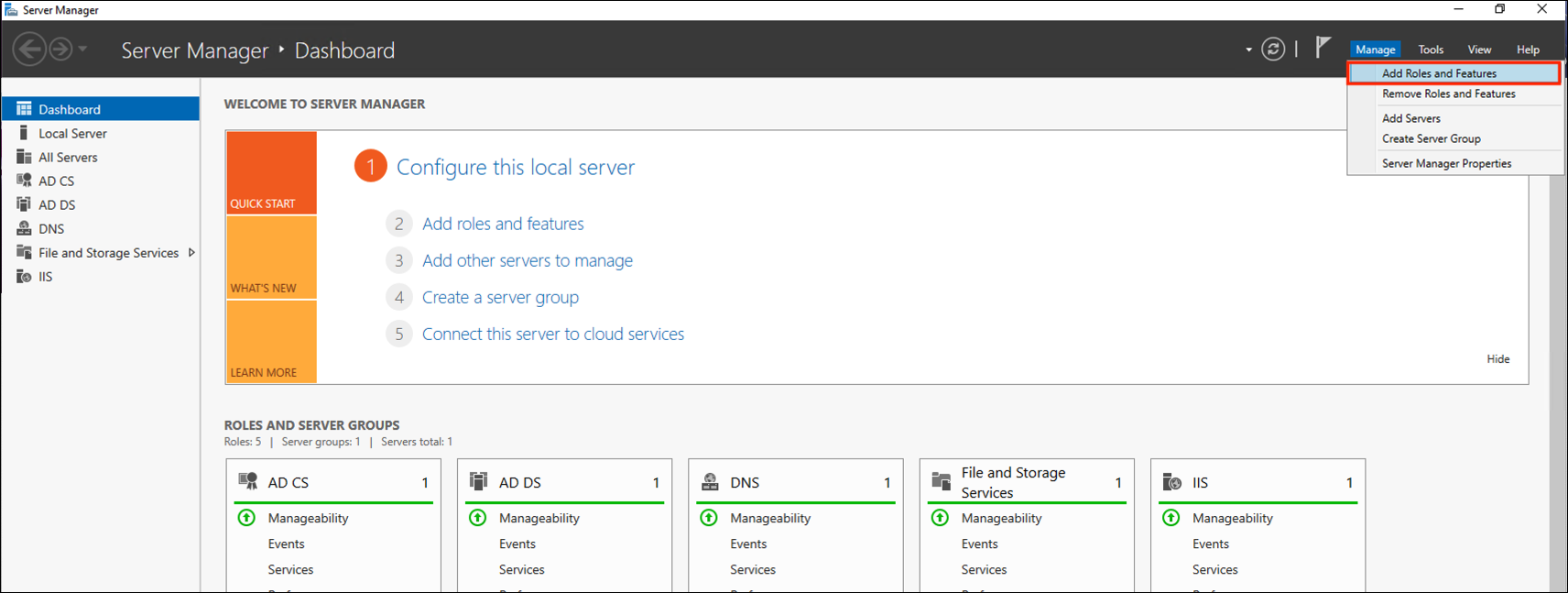
Log on Active Directory Server, Open Server Manager and click Manage, and then click Add Roles and Features. The Add Roles and Features Wizard opens.
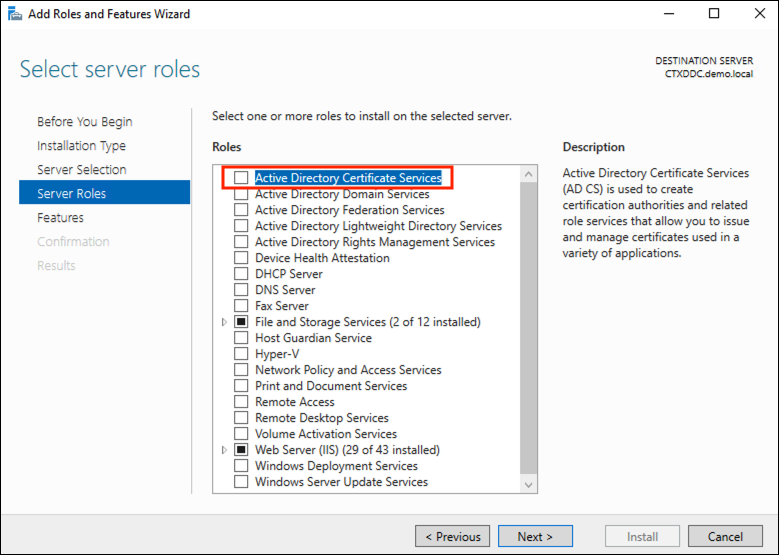
In Select Server Roles, in Server Roles, select Active Directory Certificate Services.
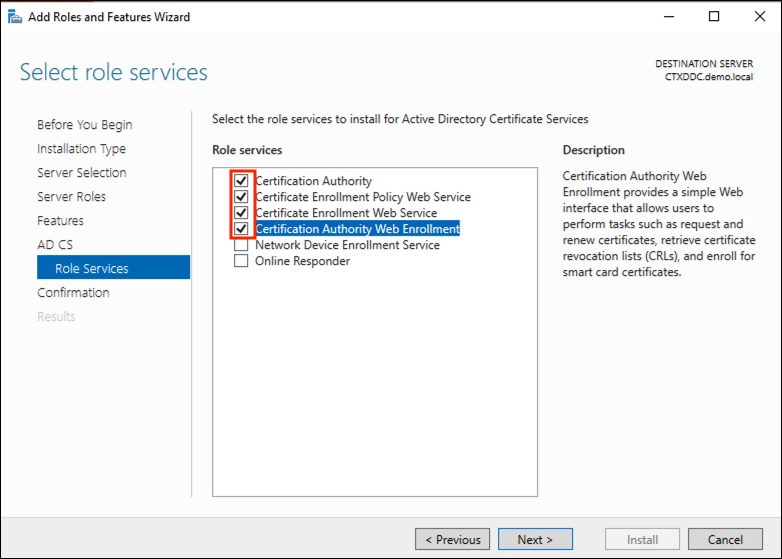
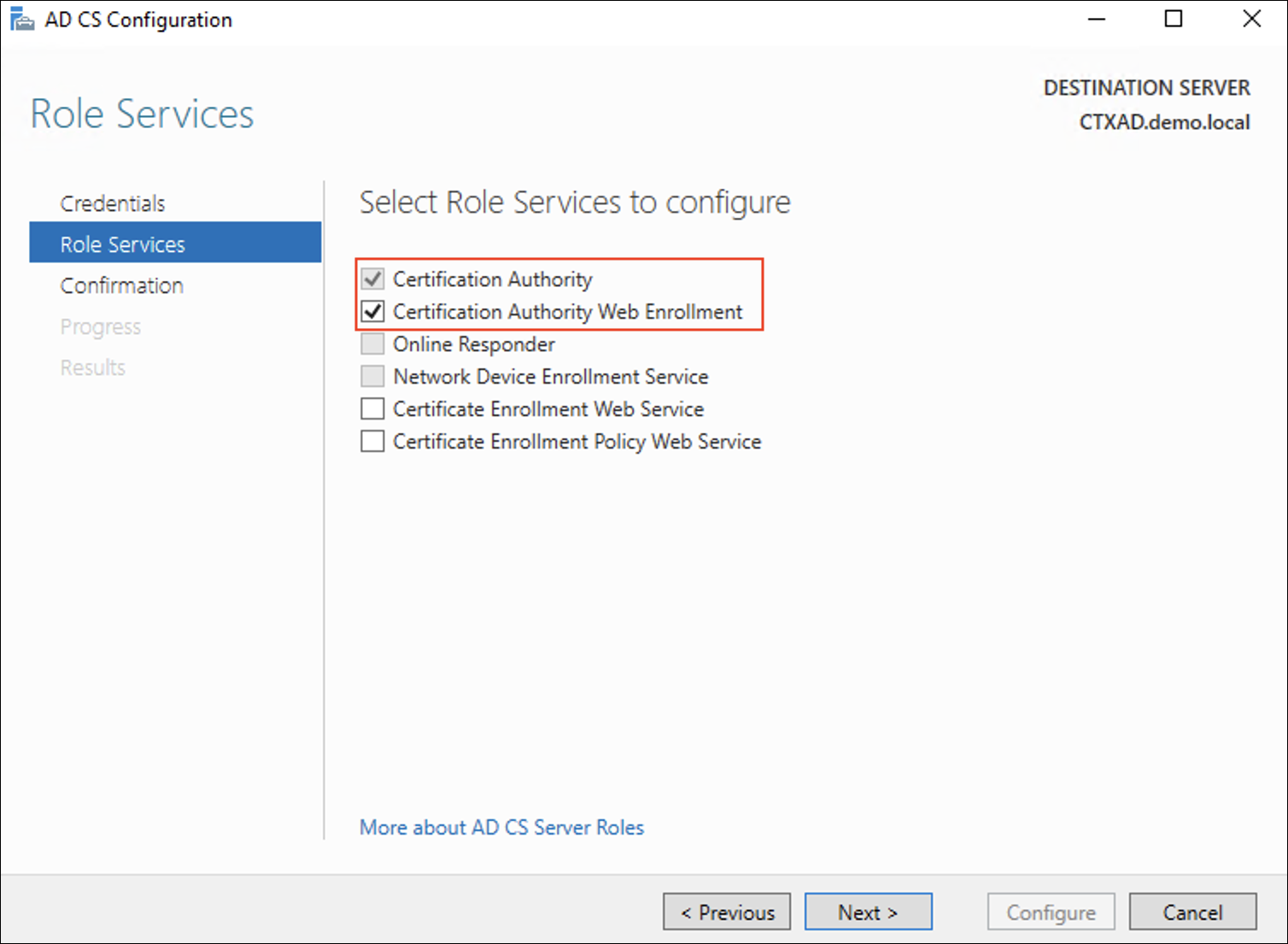
In Role Services, Click following items
In Confirmation,, Click Install
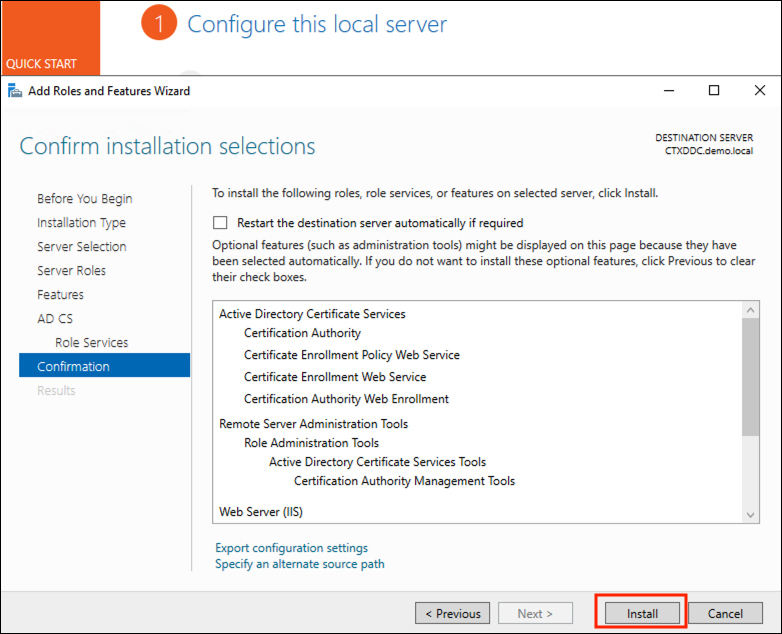
For more information, see Install the certification authority.
Configure Active Directory Certificate Services
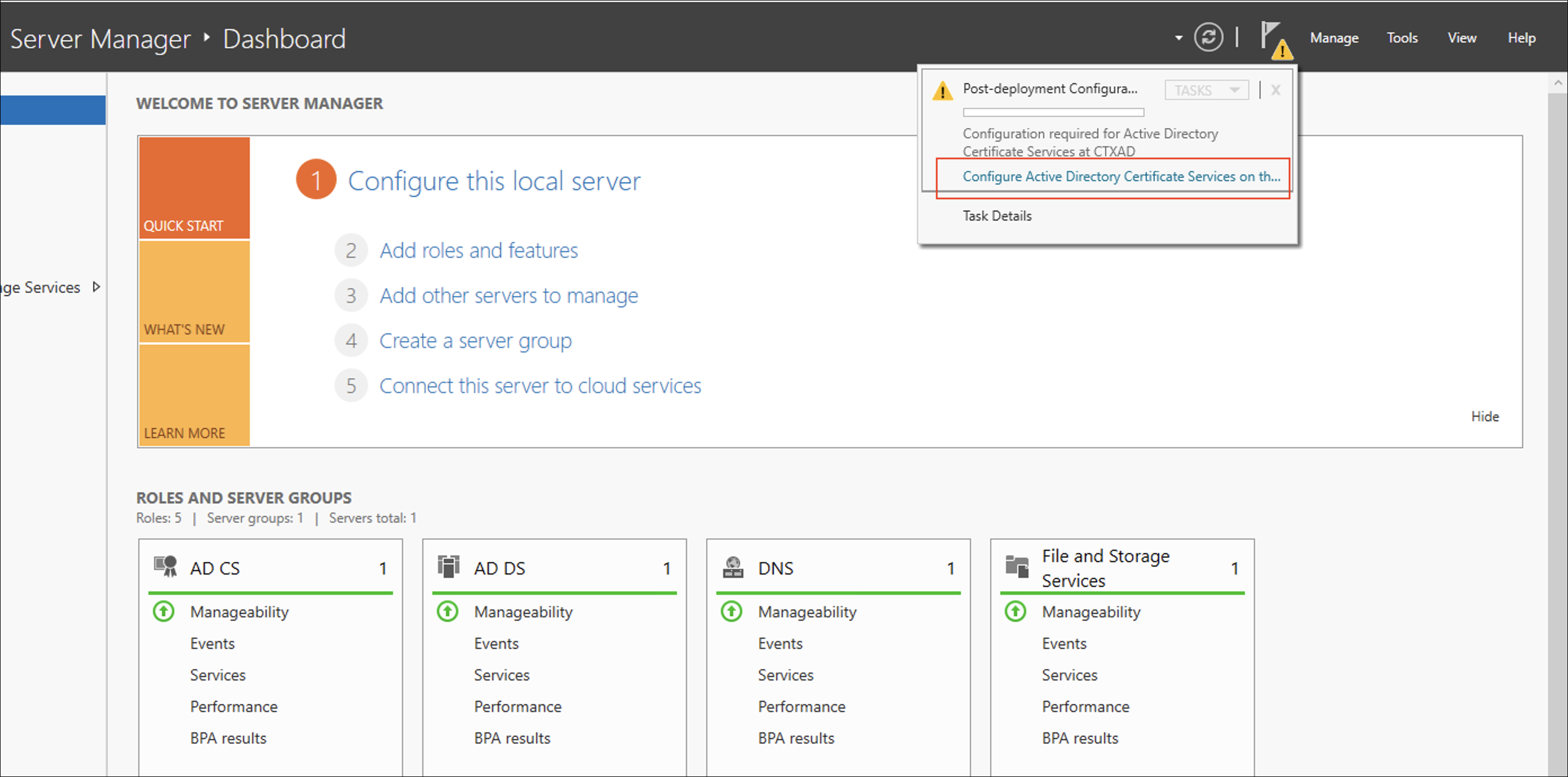
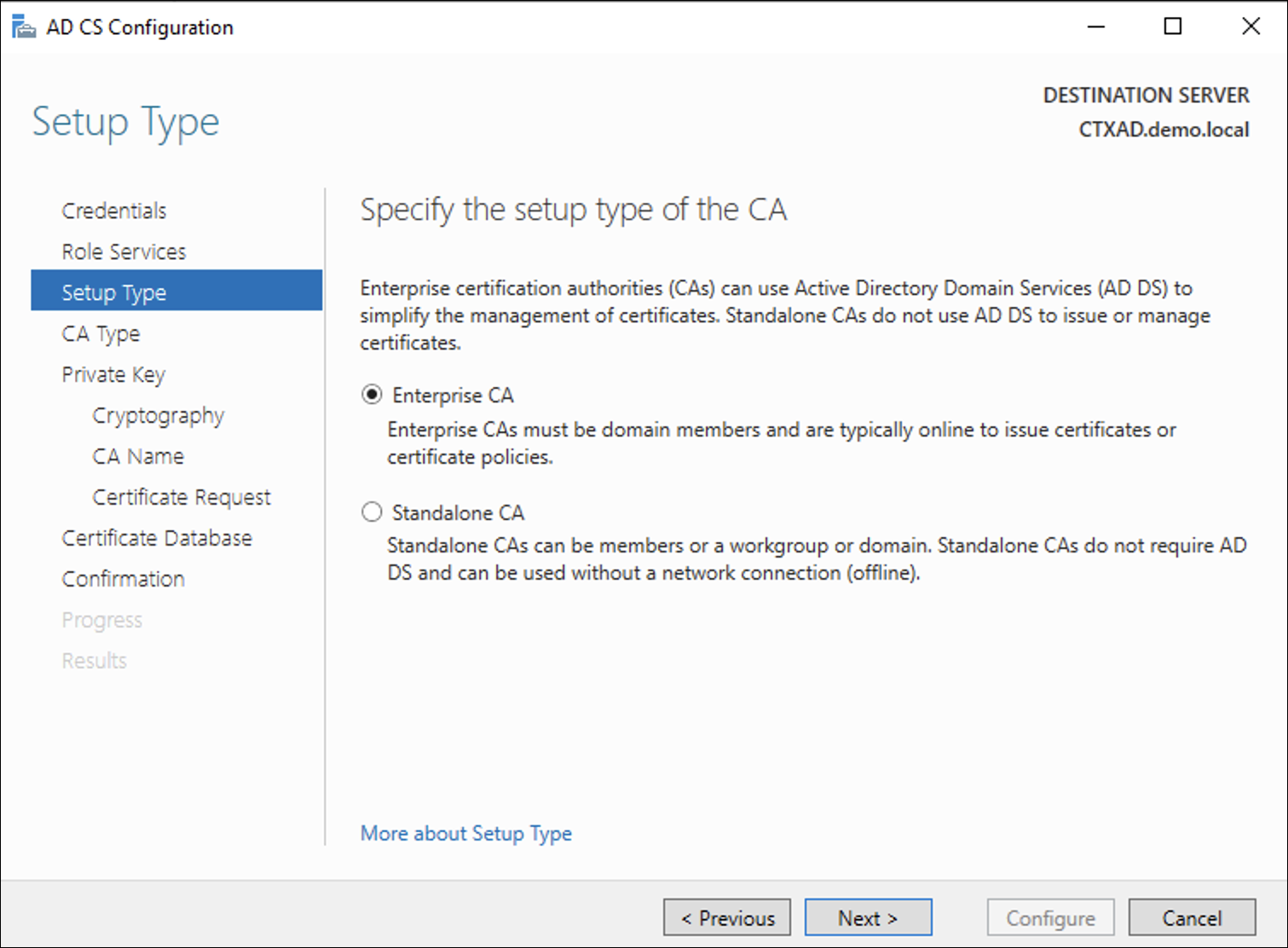
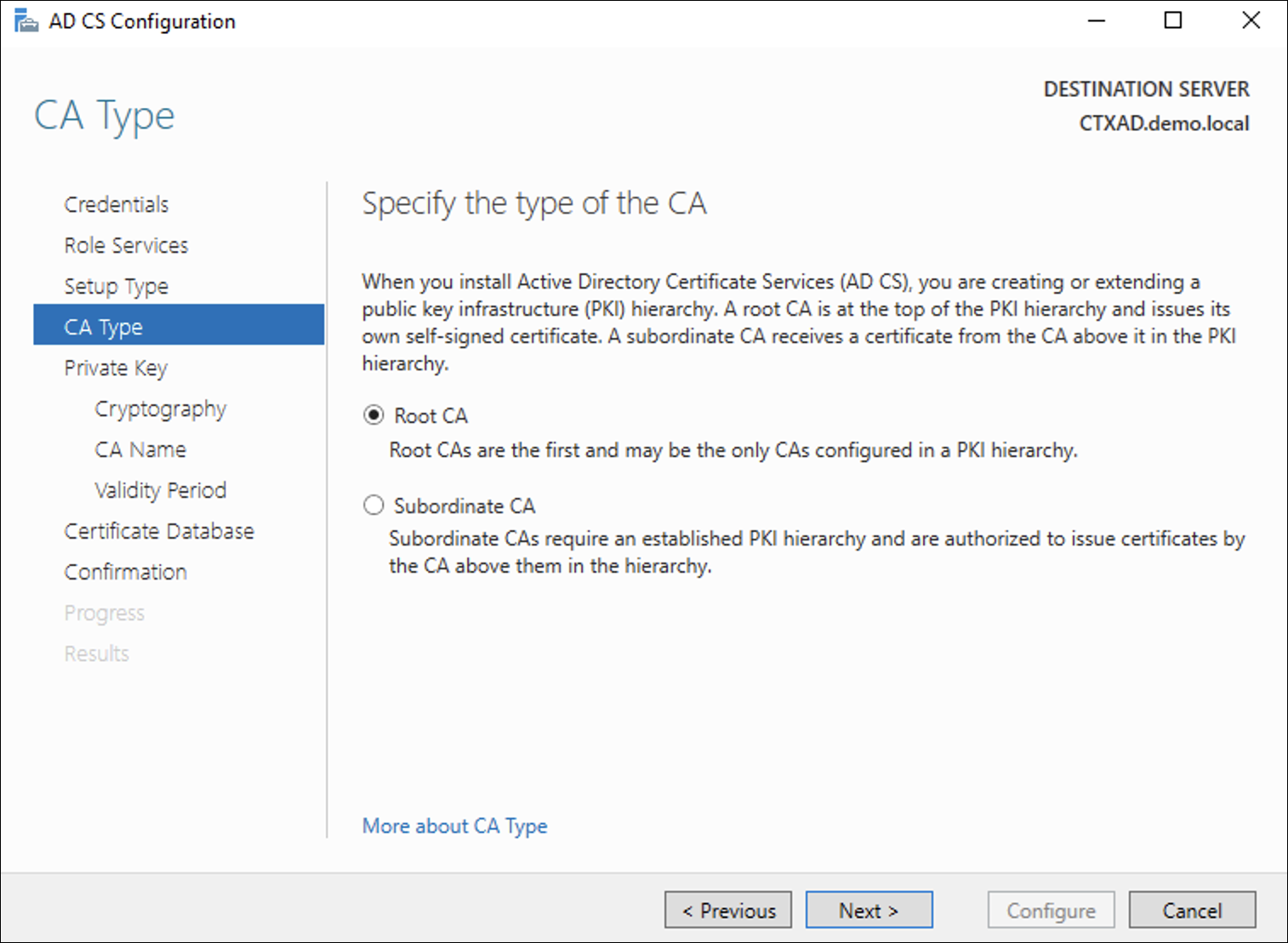
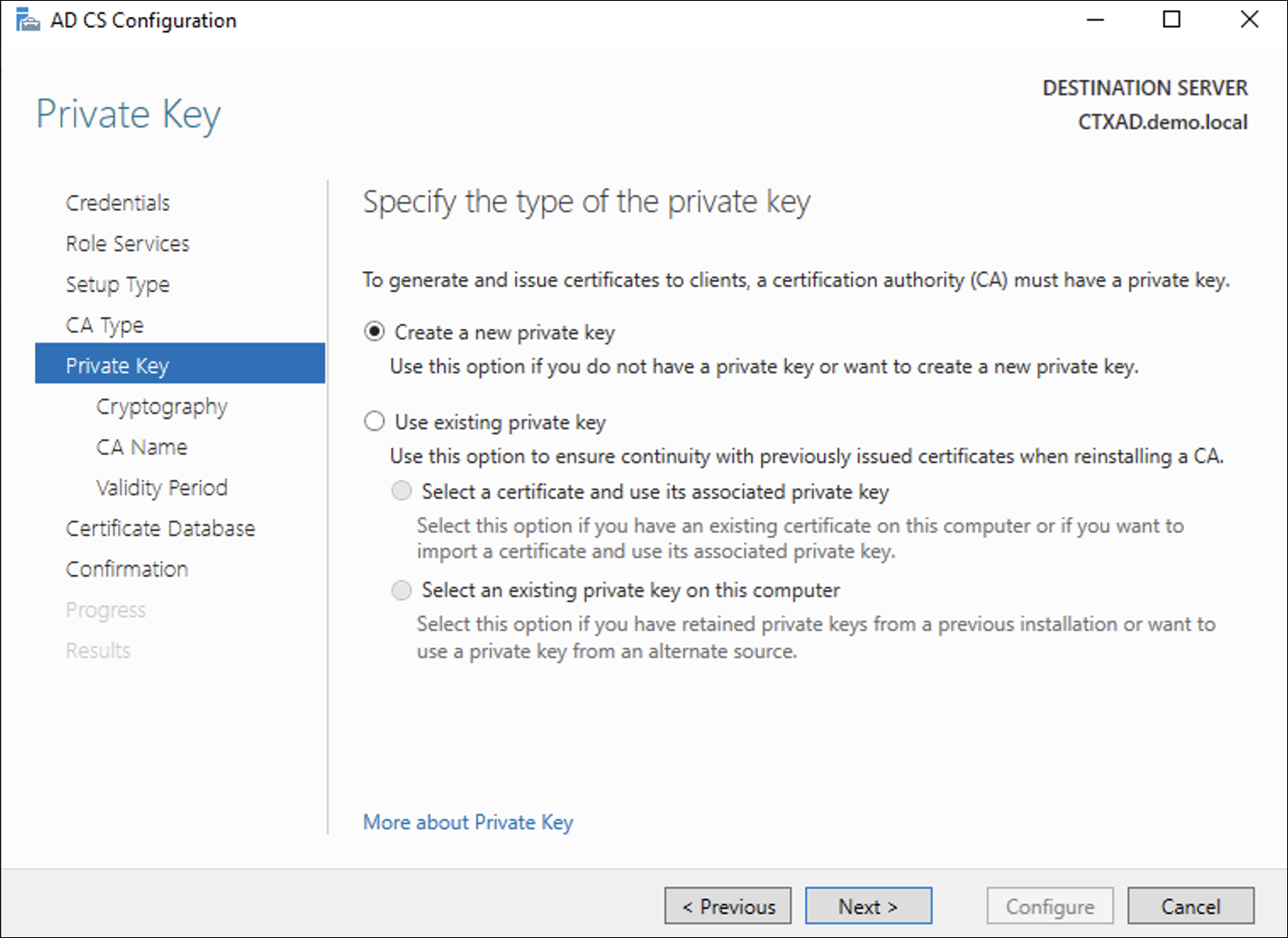
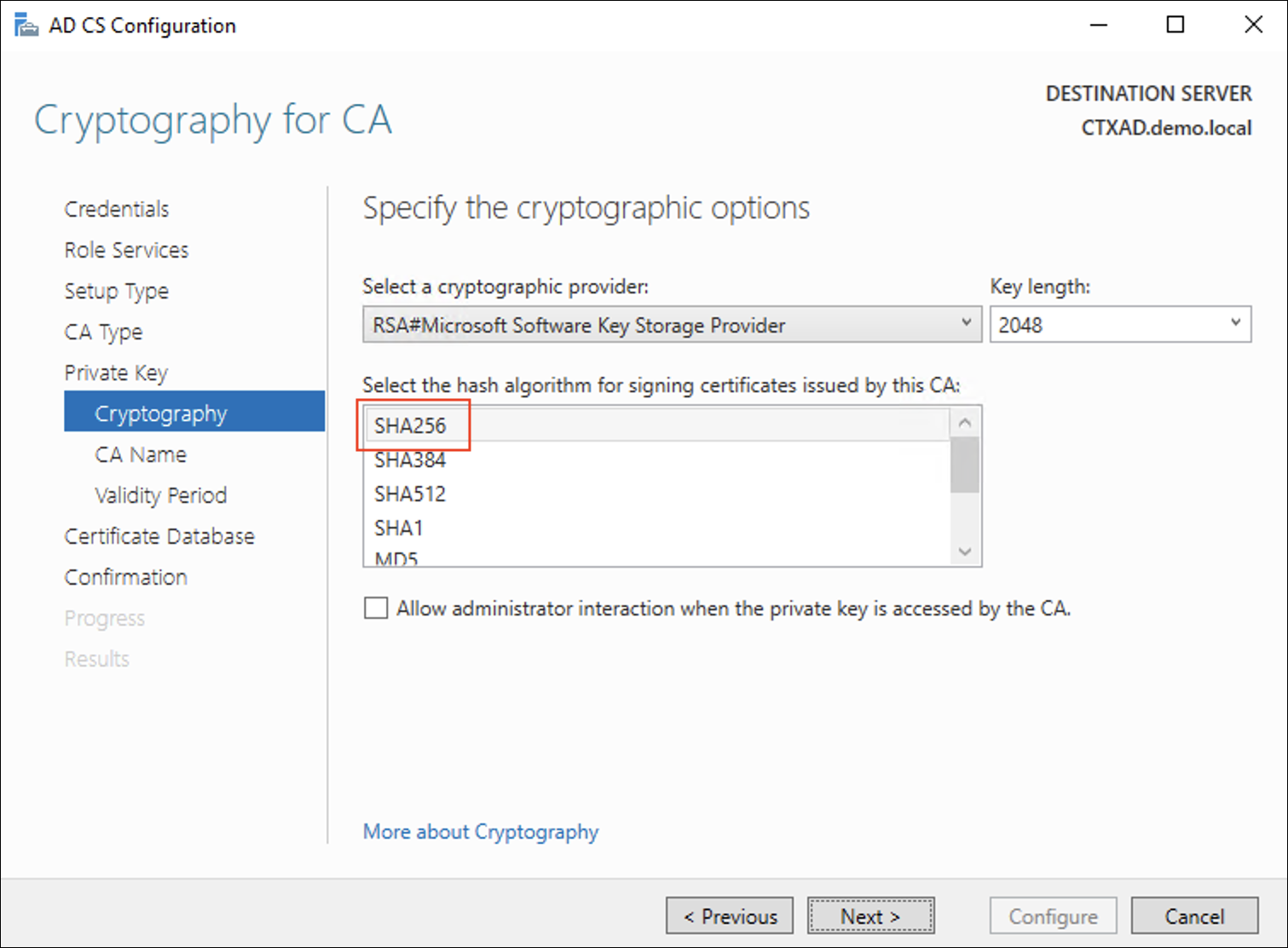
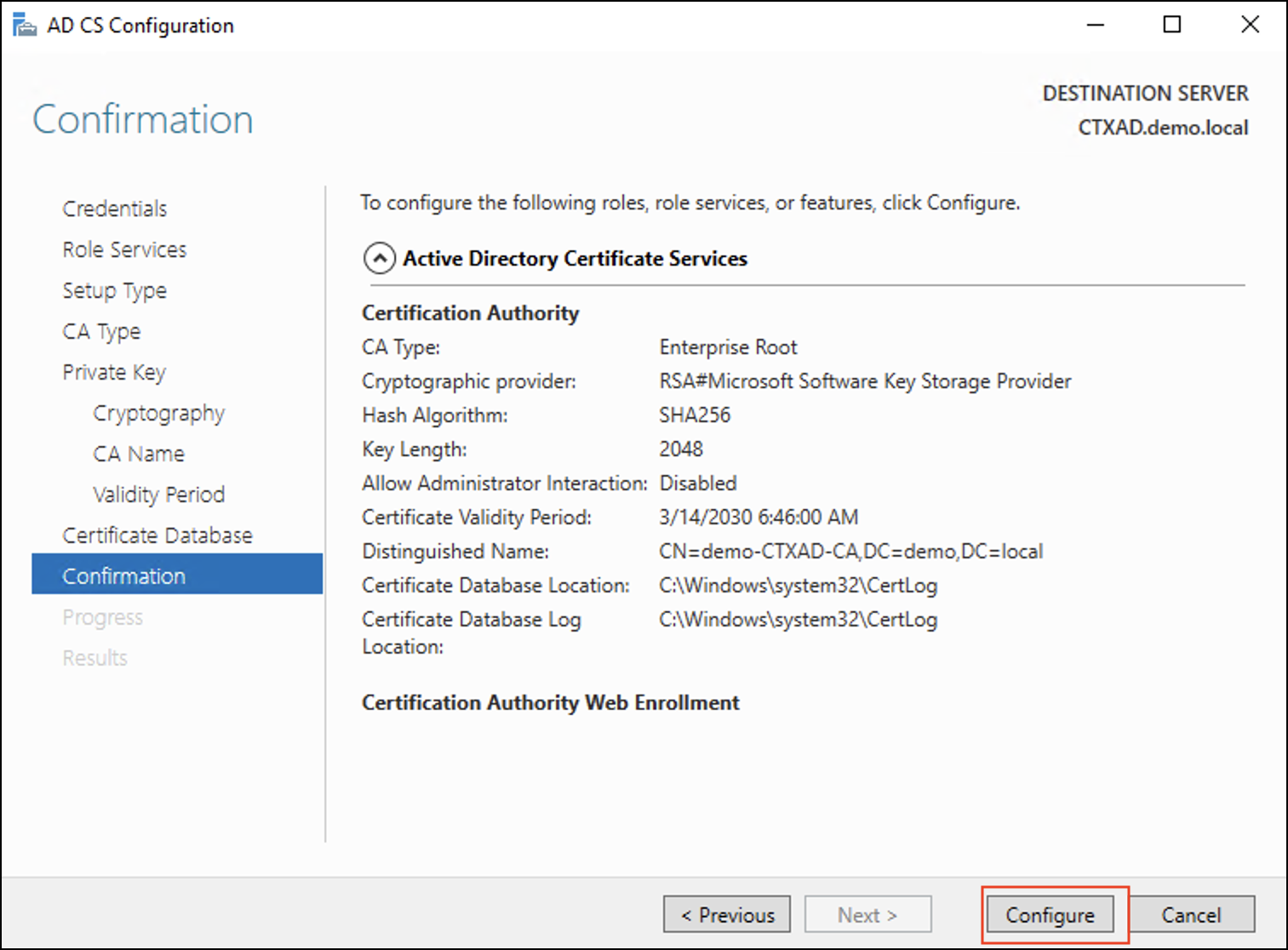
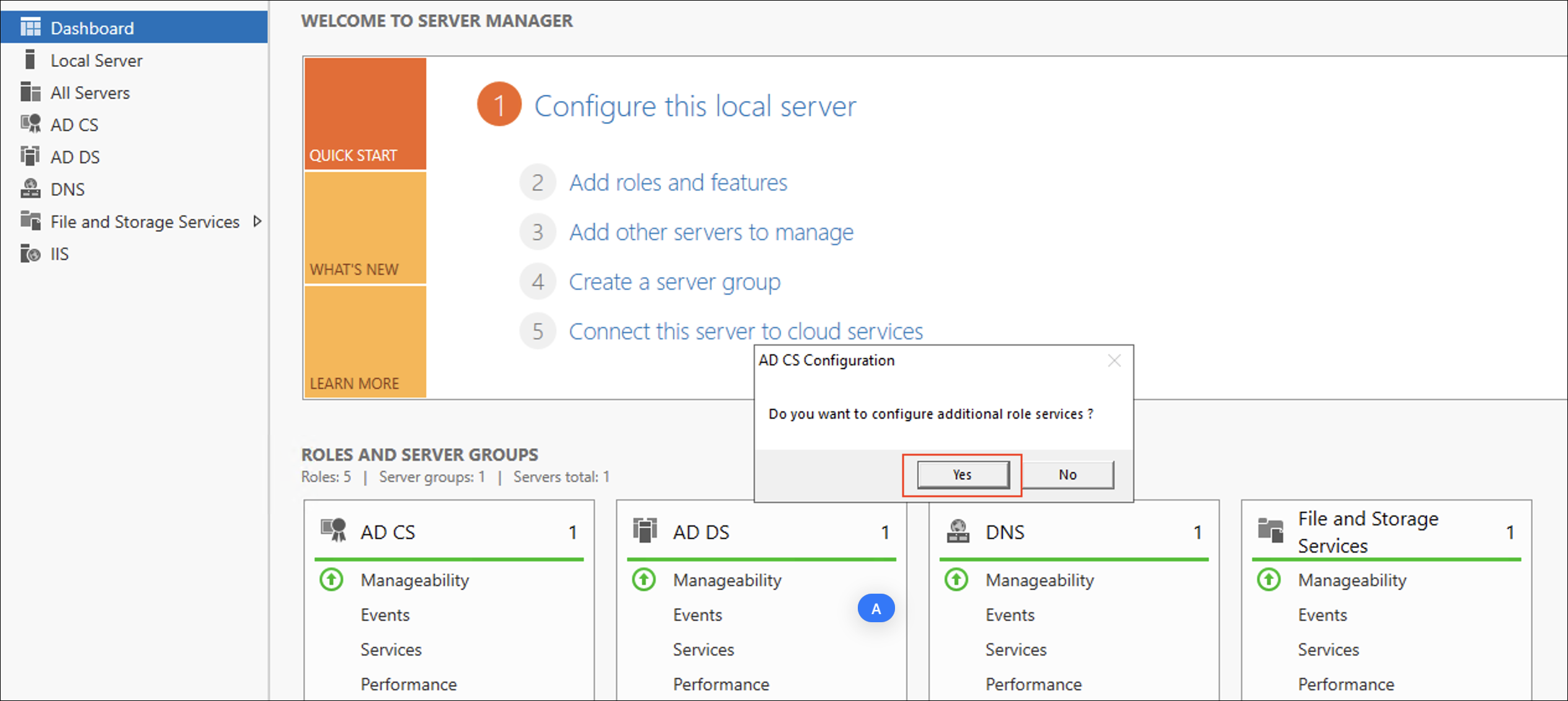
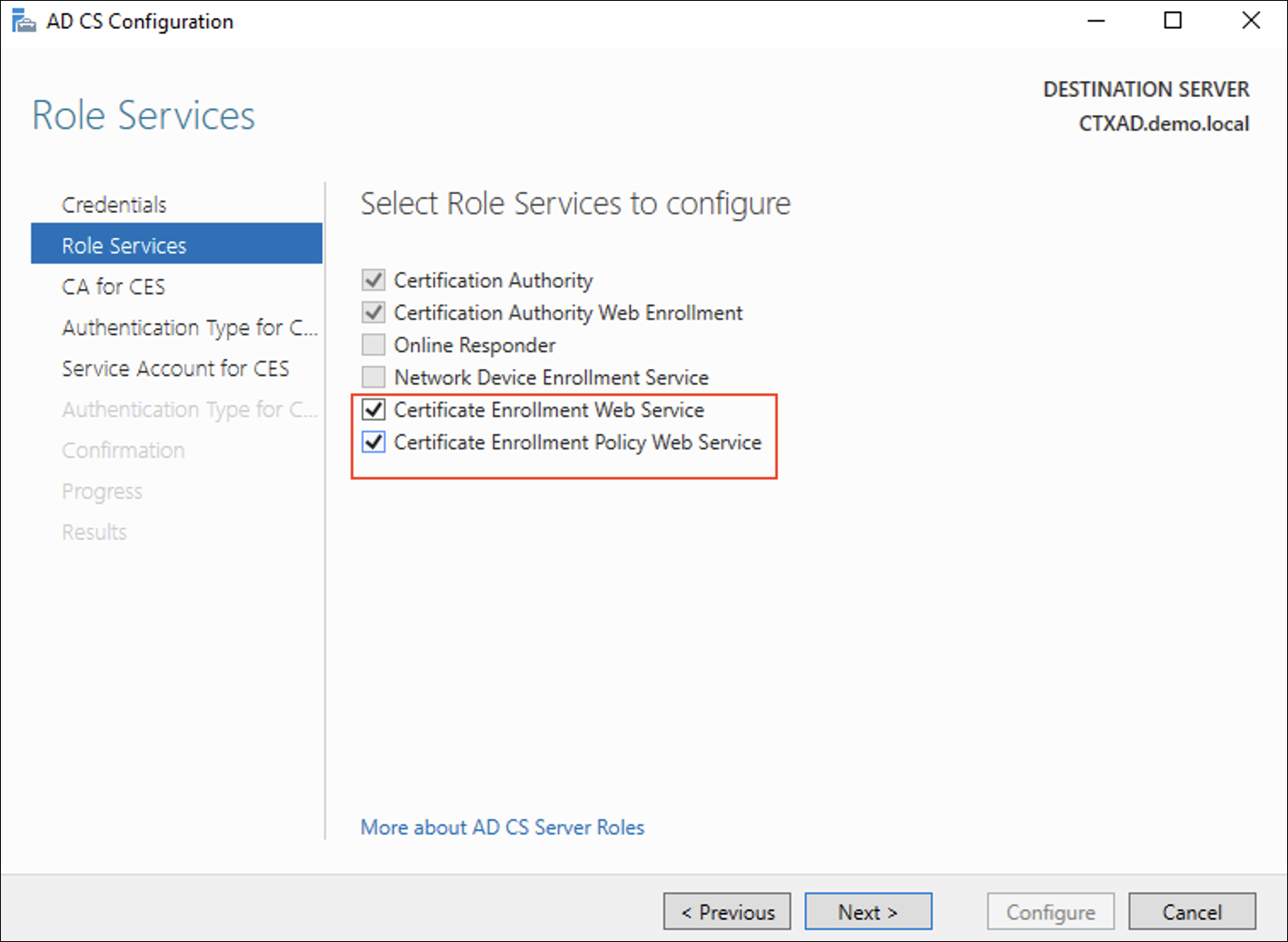
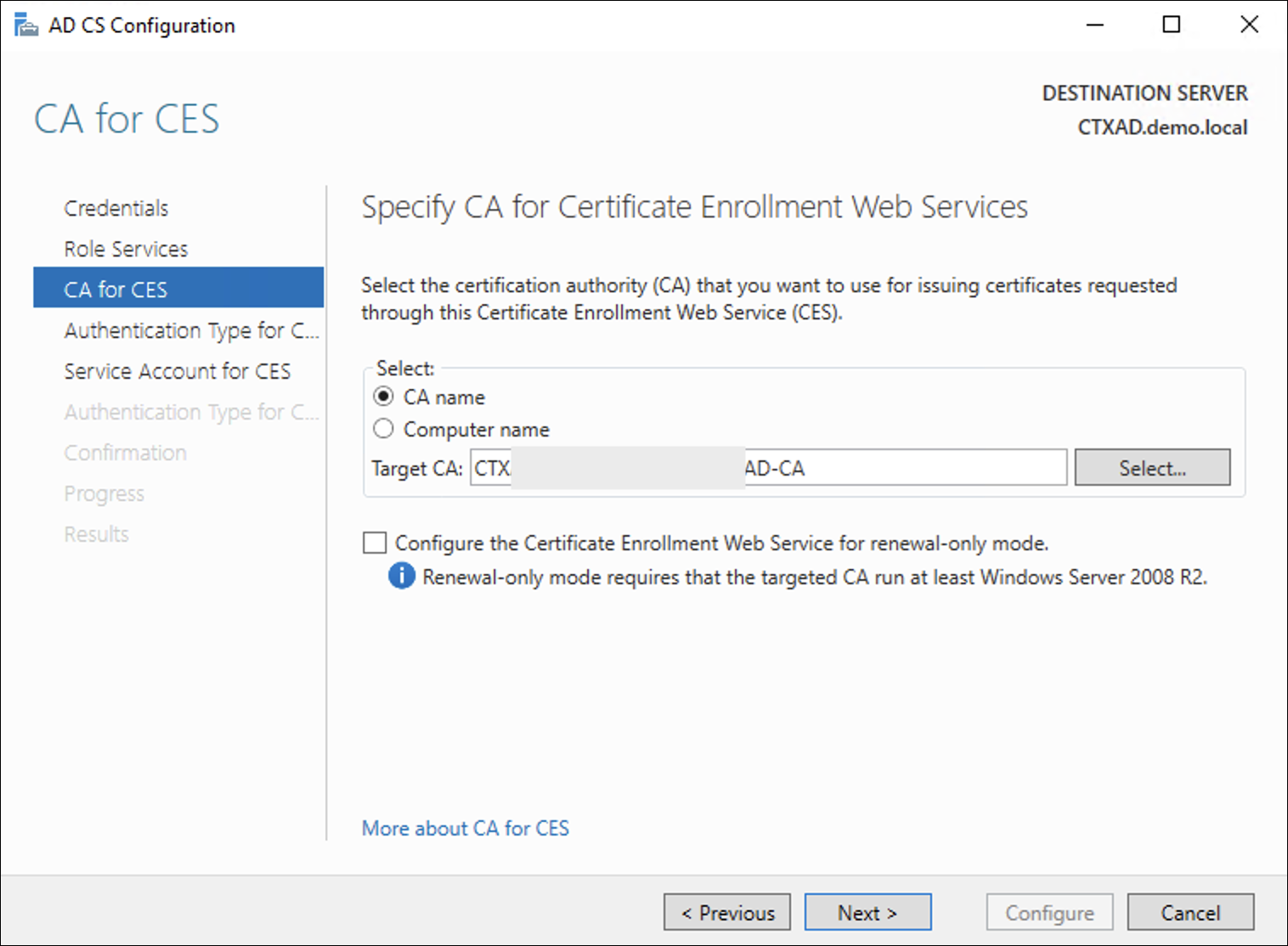
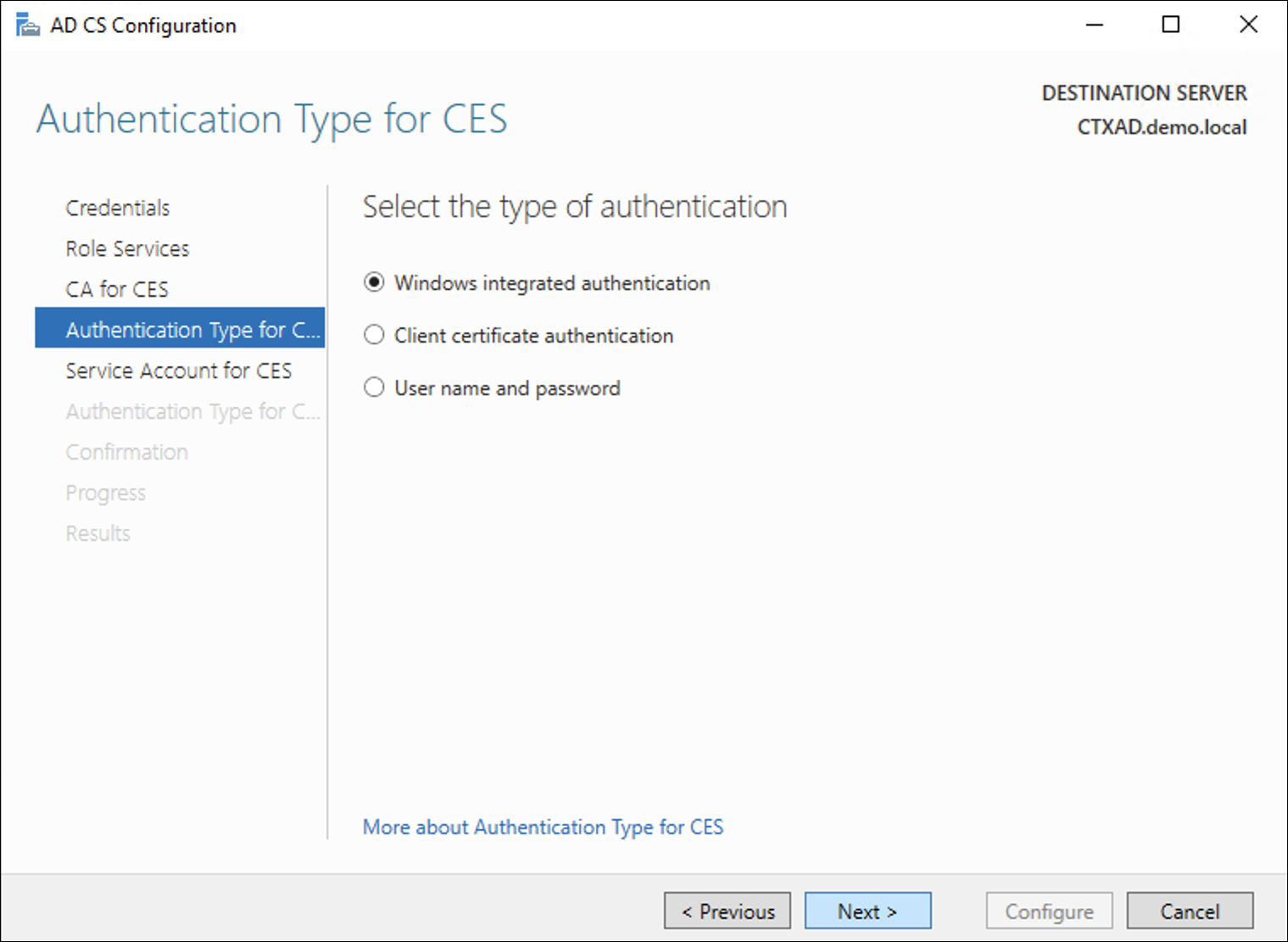
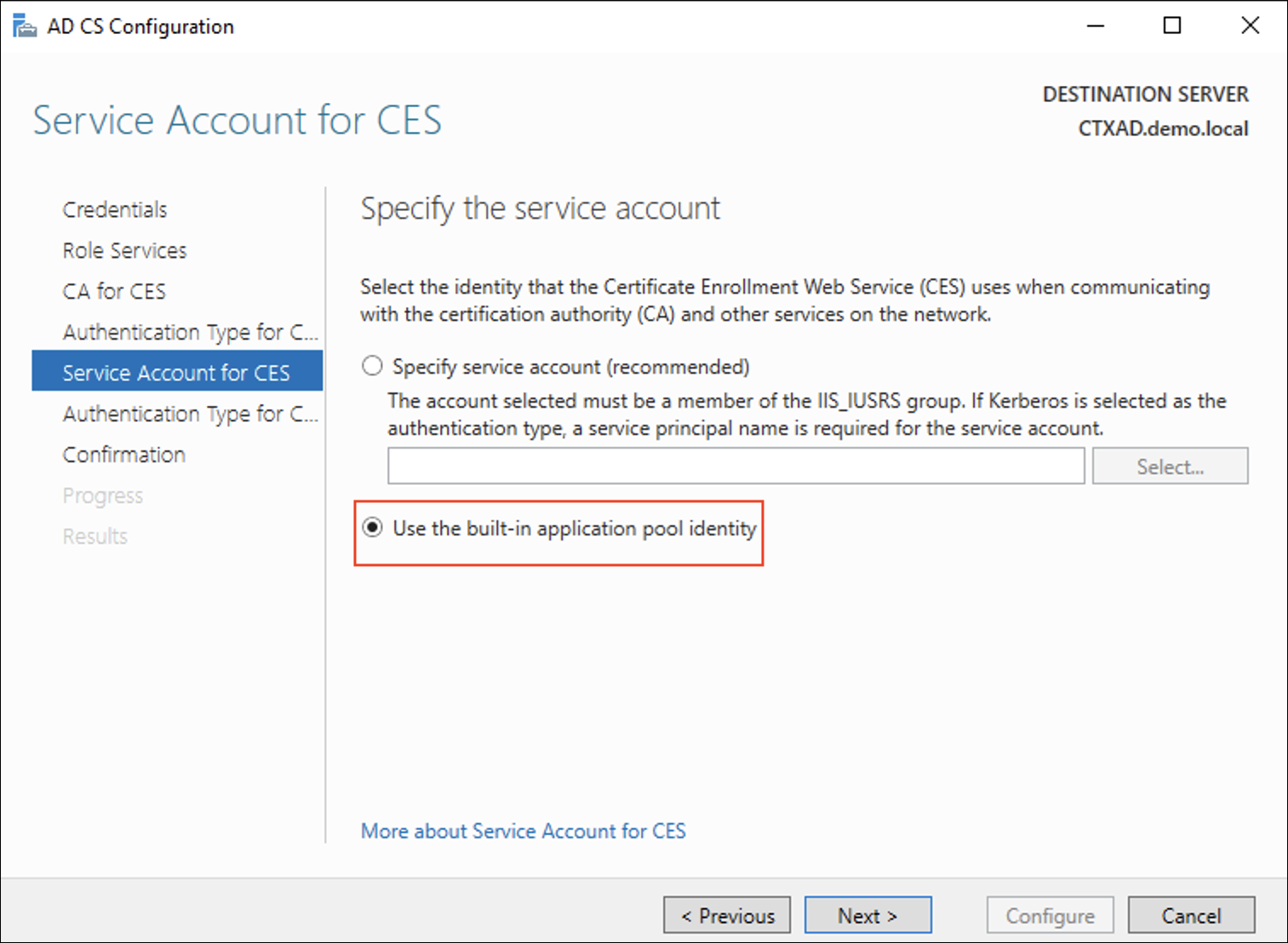
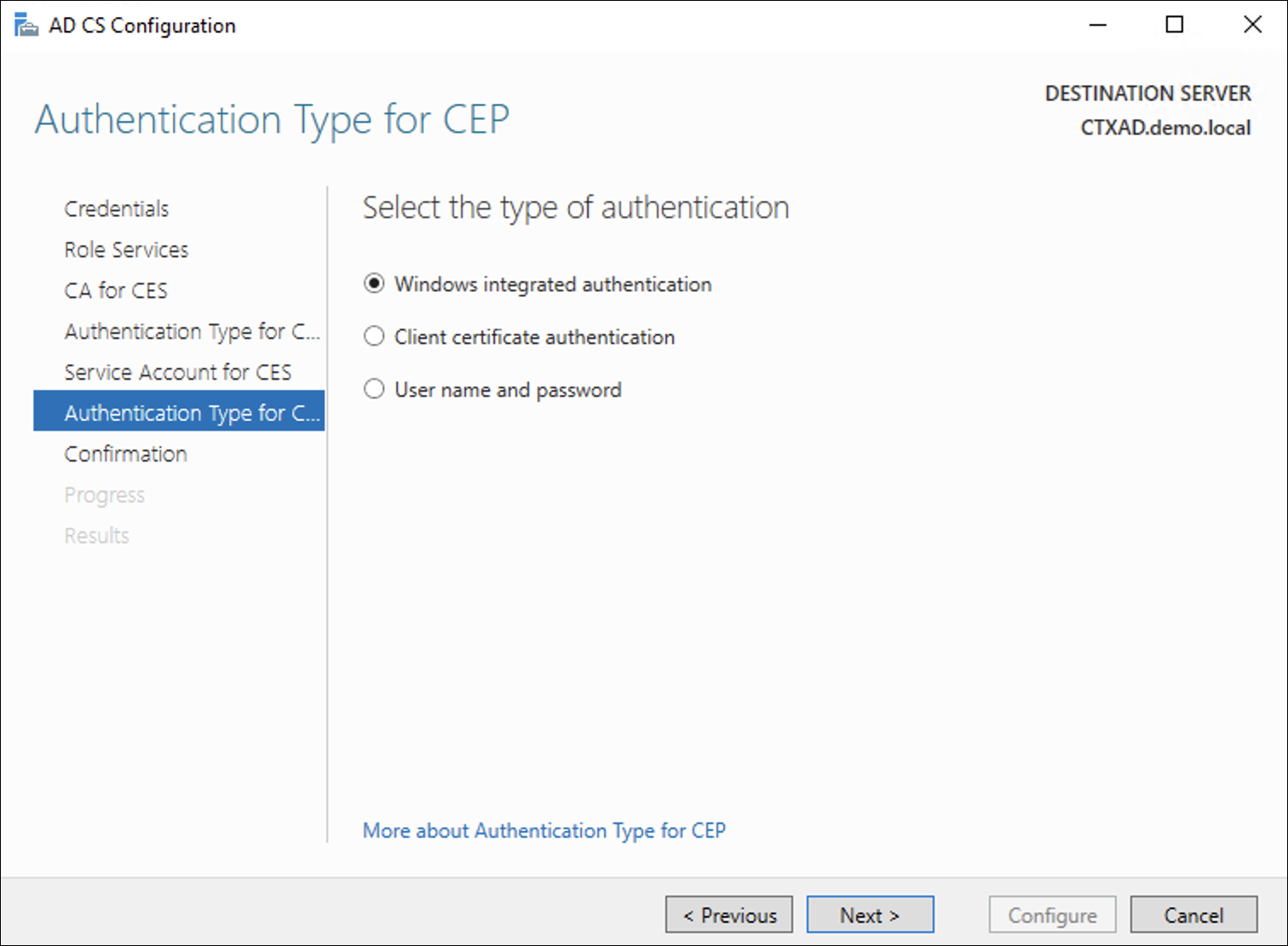
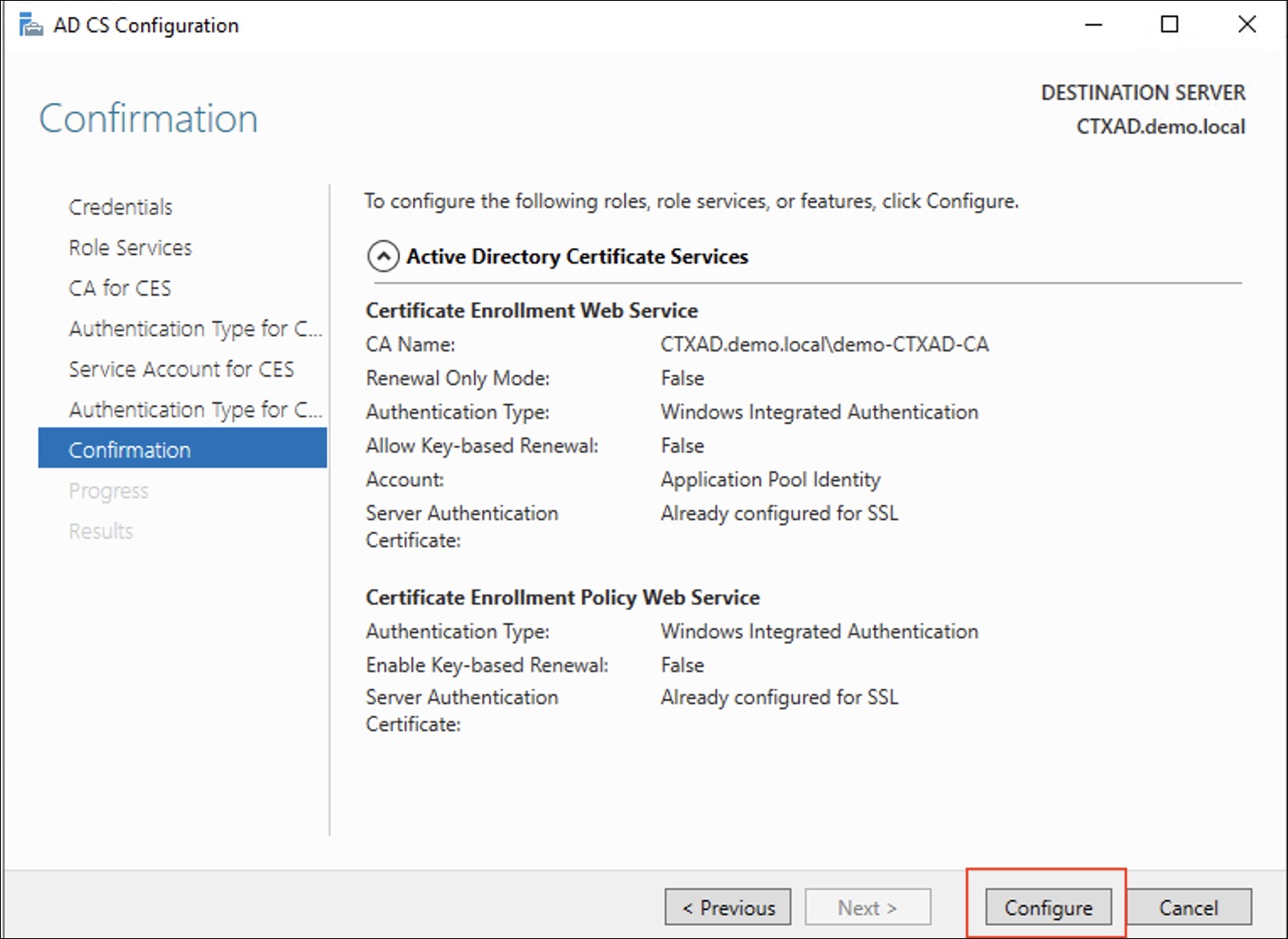
In Server Manager, click on AD CS on the left pane. If there is a warning mark, then click on the flag on the right corner, then click Configure Active Directory Certificate Services to start the configuration
Create Customized Web Server Certificate Template
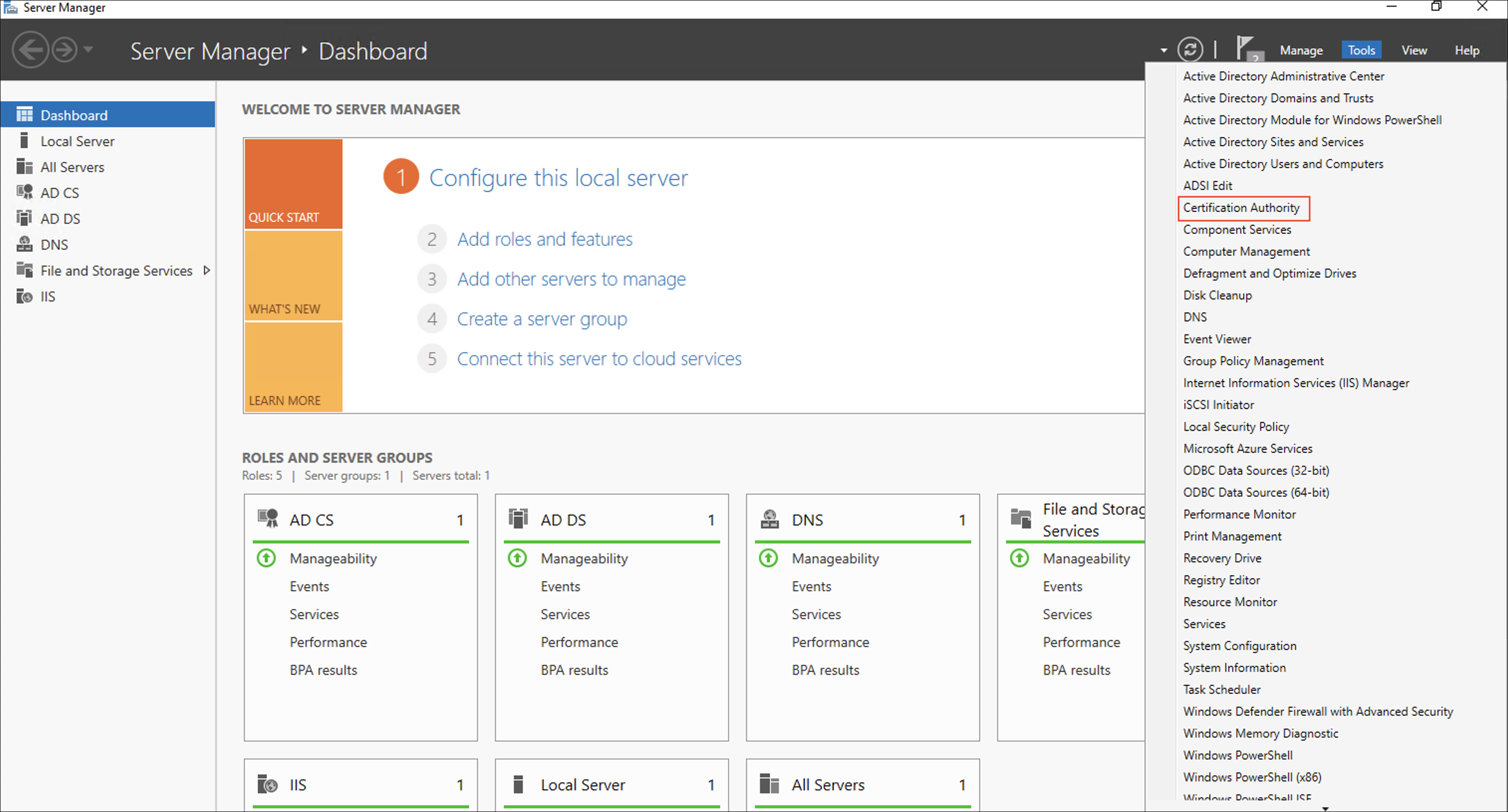
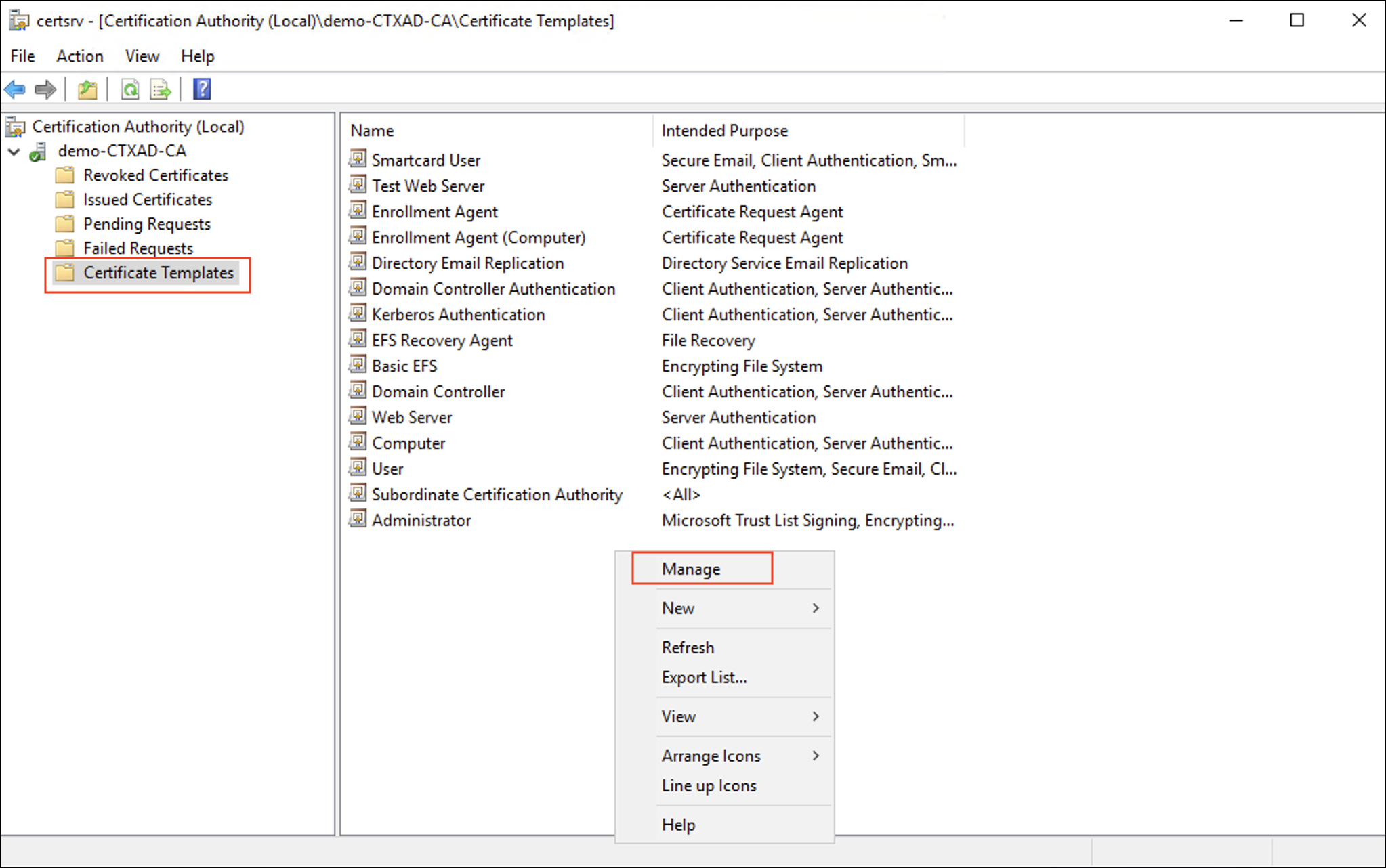
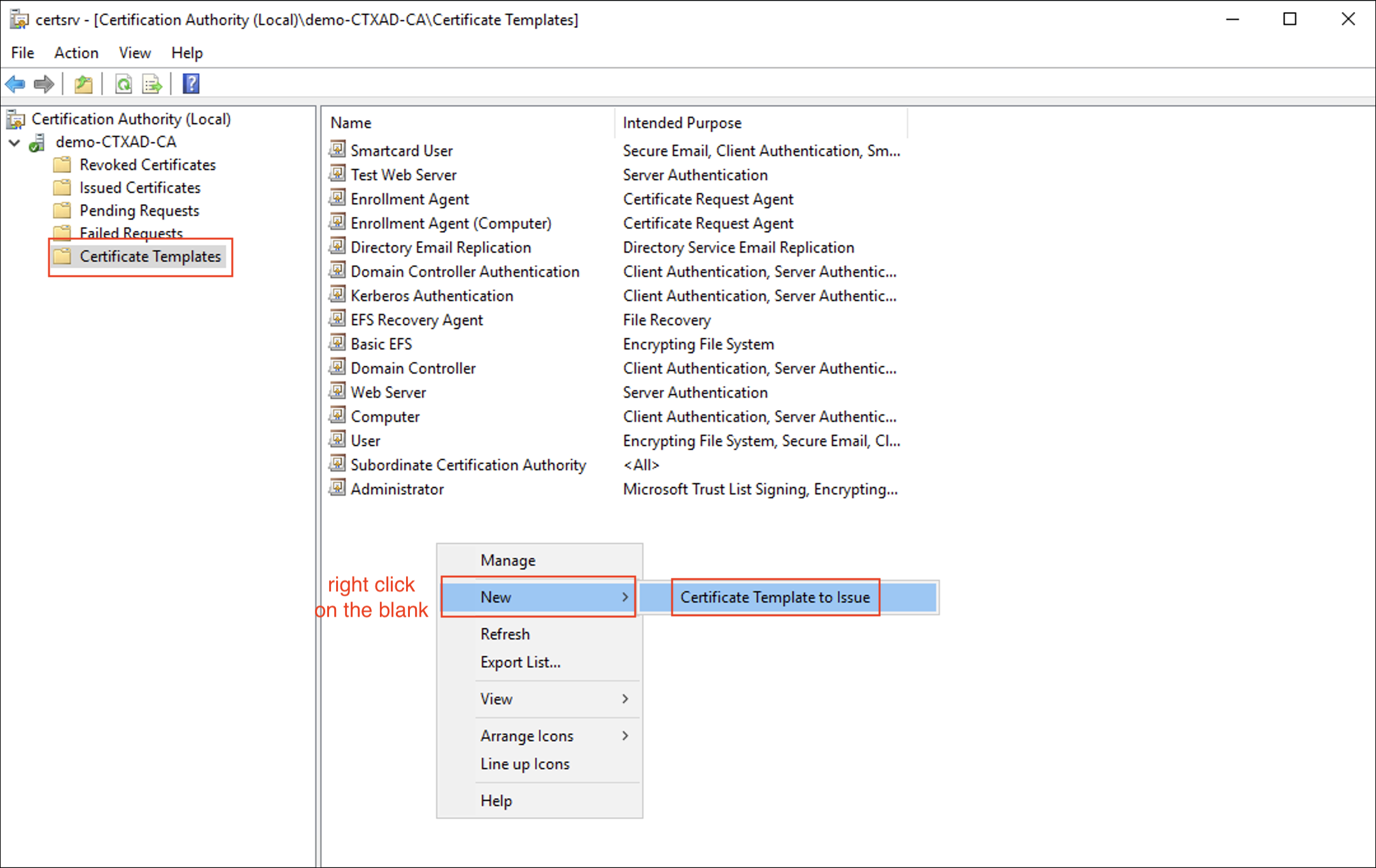
On Active Directory Server, Open Certification Authority
Create customized certification template
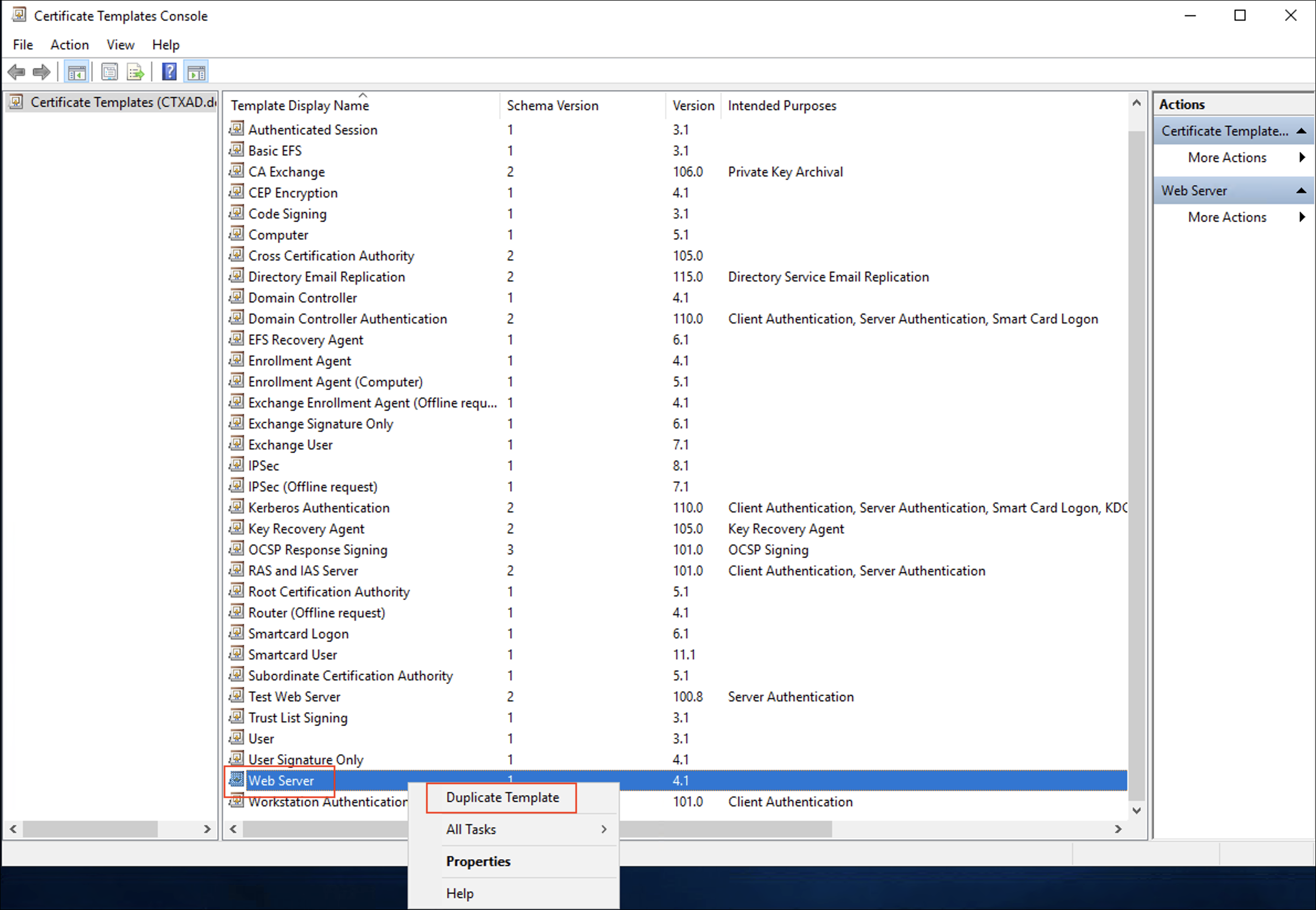
Web Server →Duplicate Template
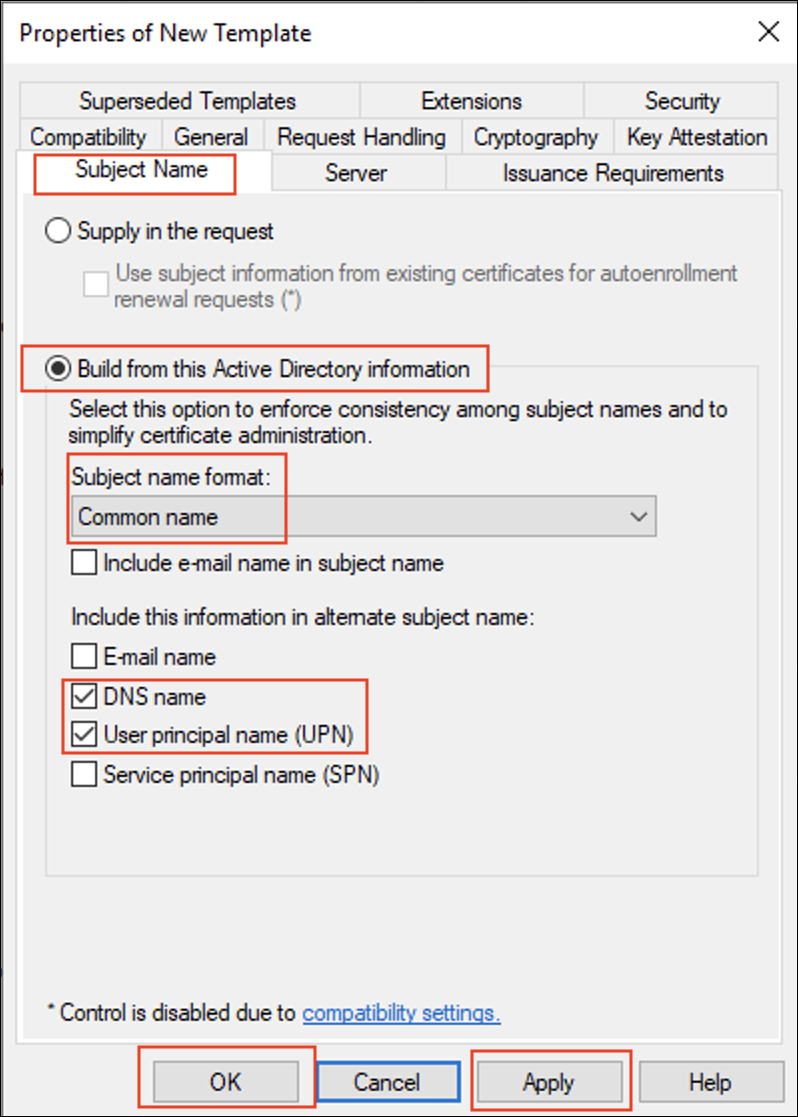
Configure the Properties of New Template
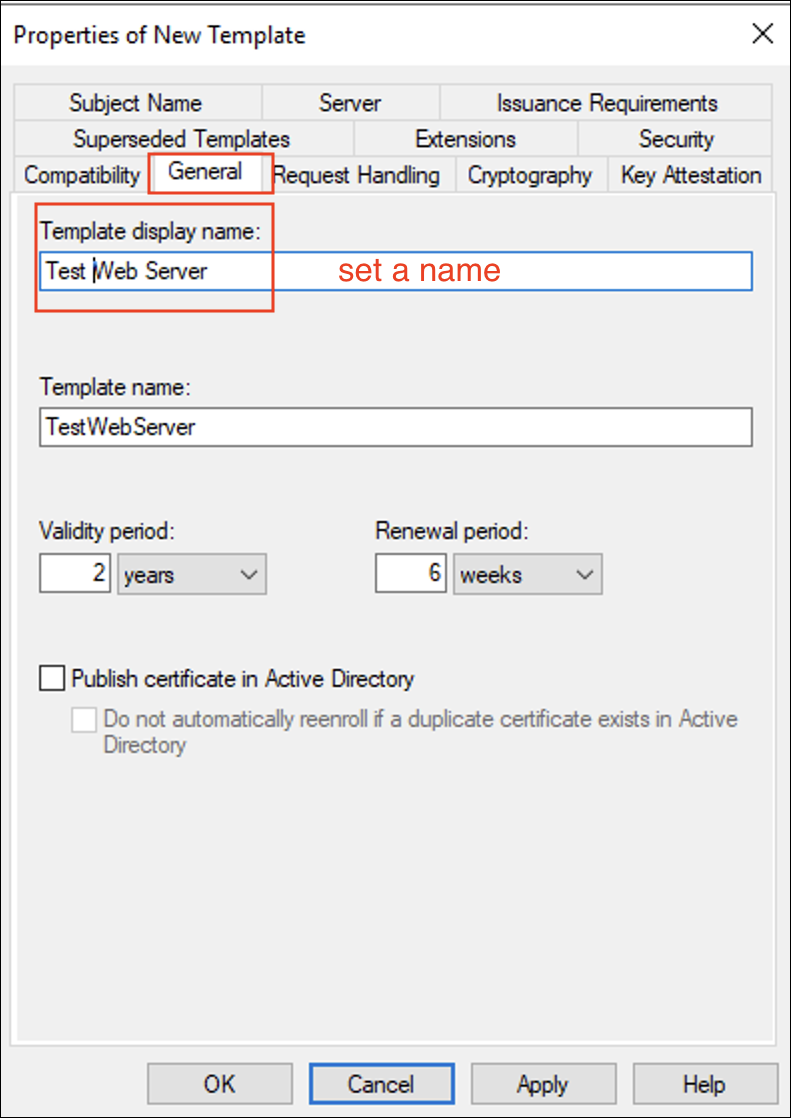
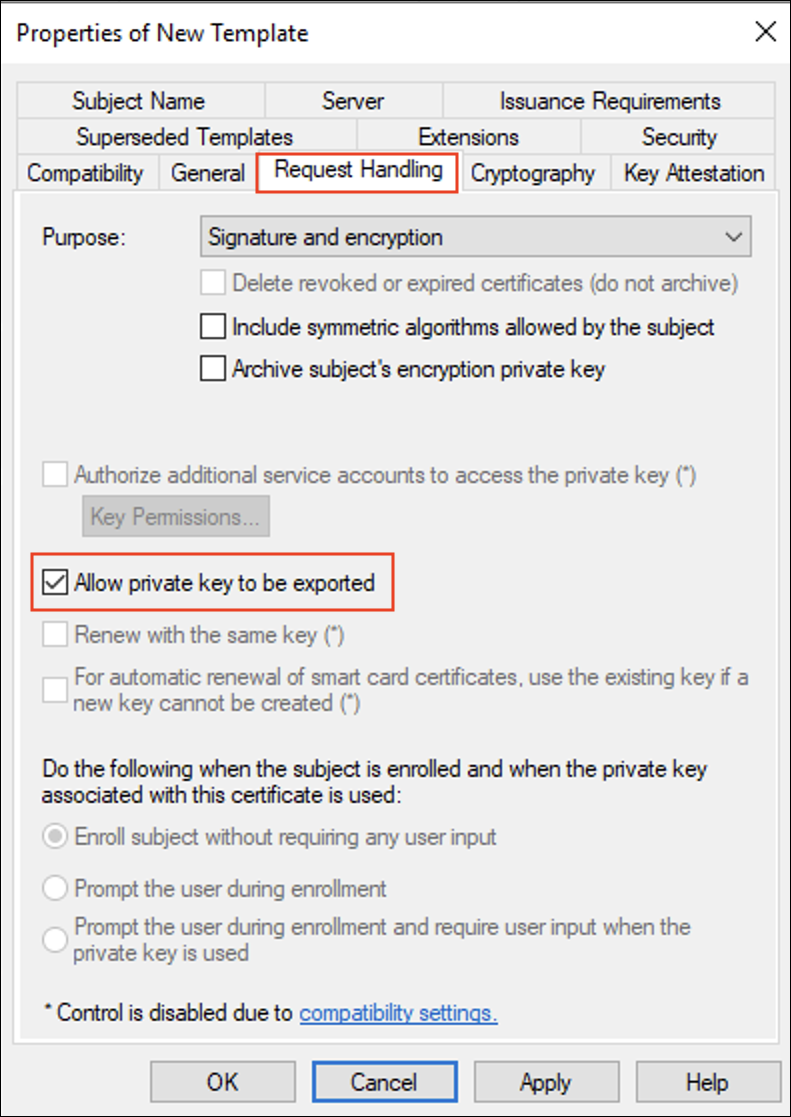
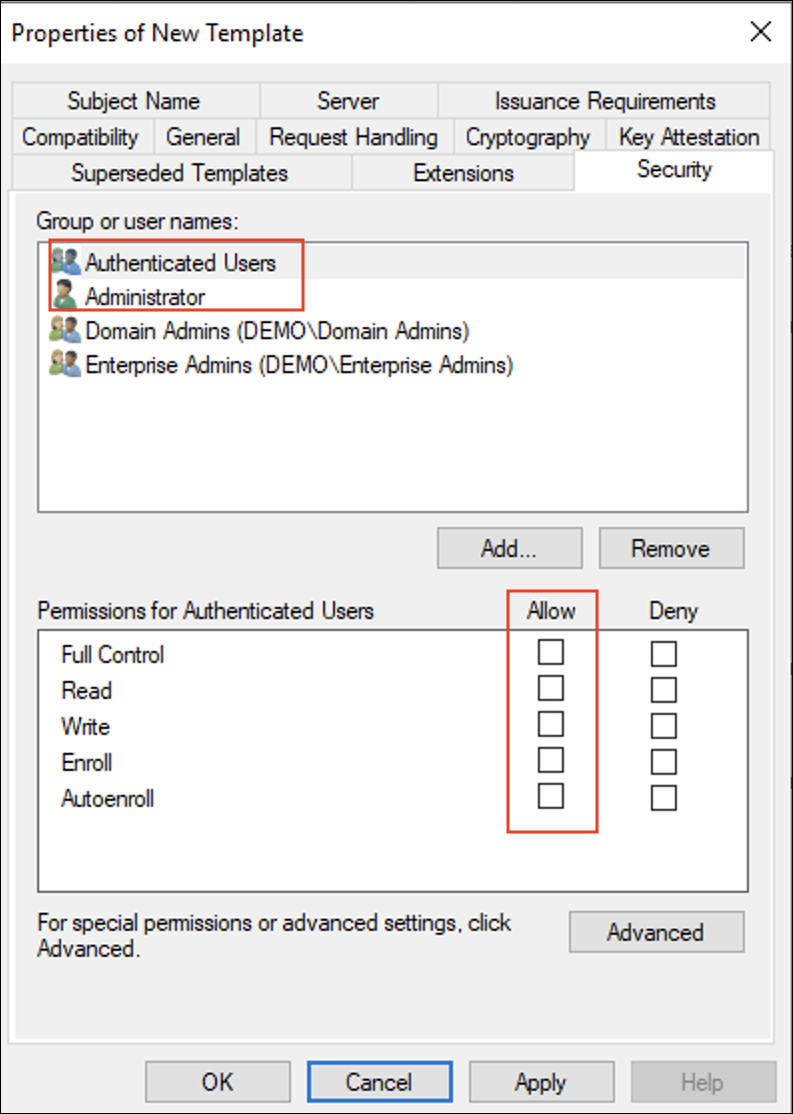
Note:
Administrator to evaluate and grant Permissions for Authenticated Users based on security considerations.
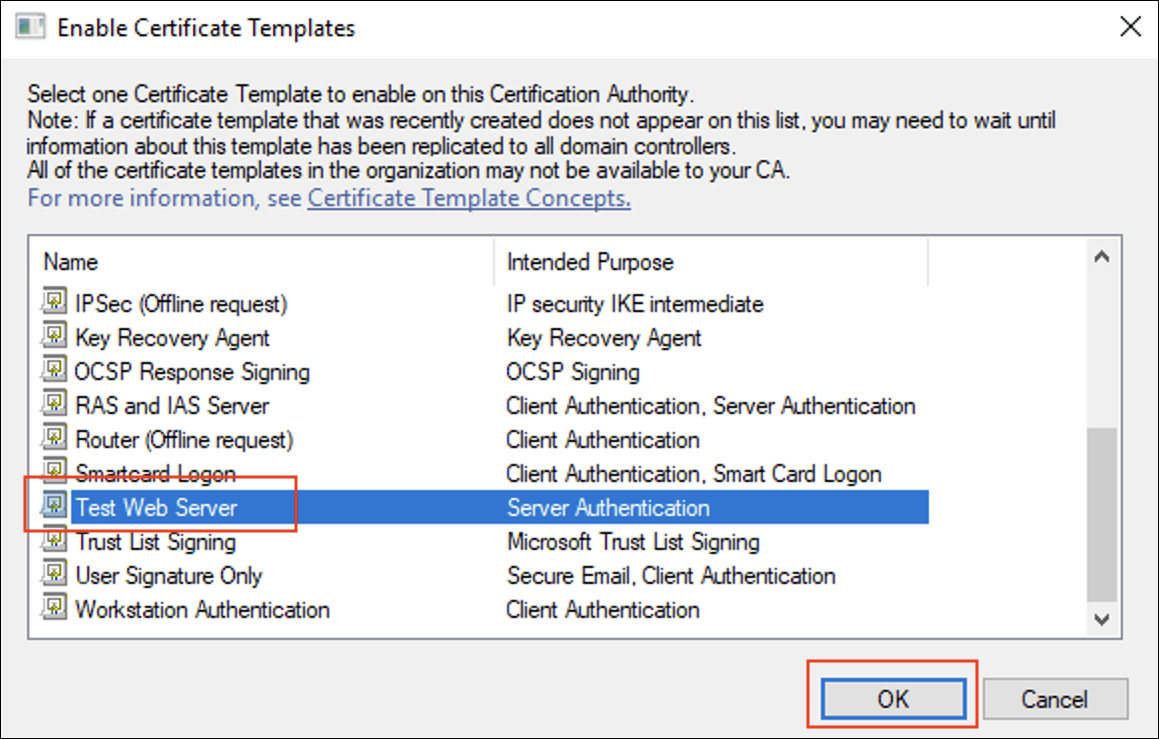
Back to Certification Authority to issue the Certificate Template
Install Certificate on DDC
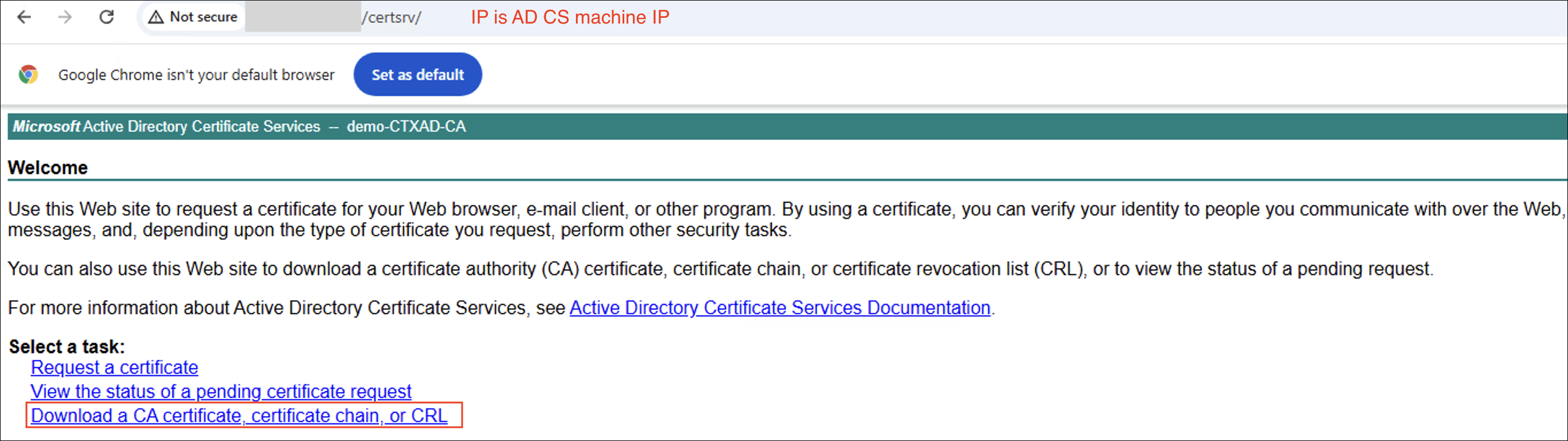
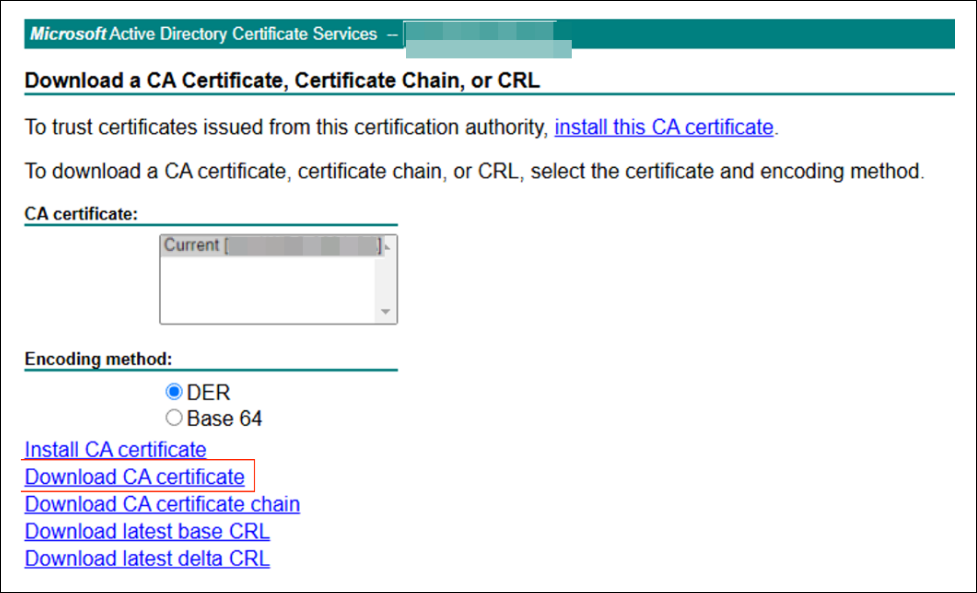
First on DDC machine, open (http://<AD CS machine IP>/certsrv) via the browser to download and install the certificate
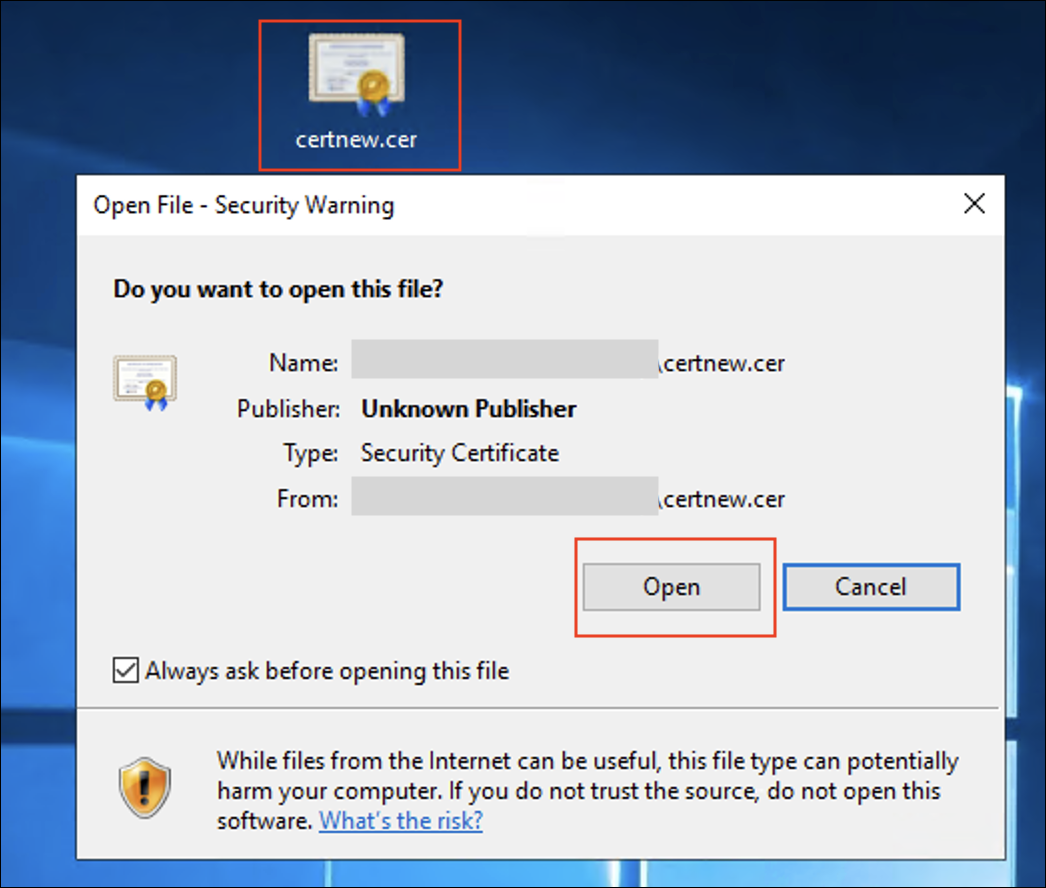
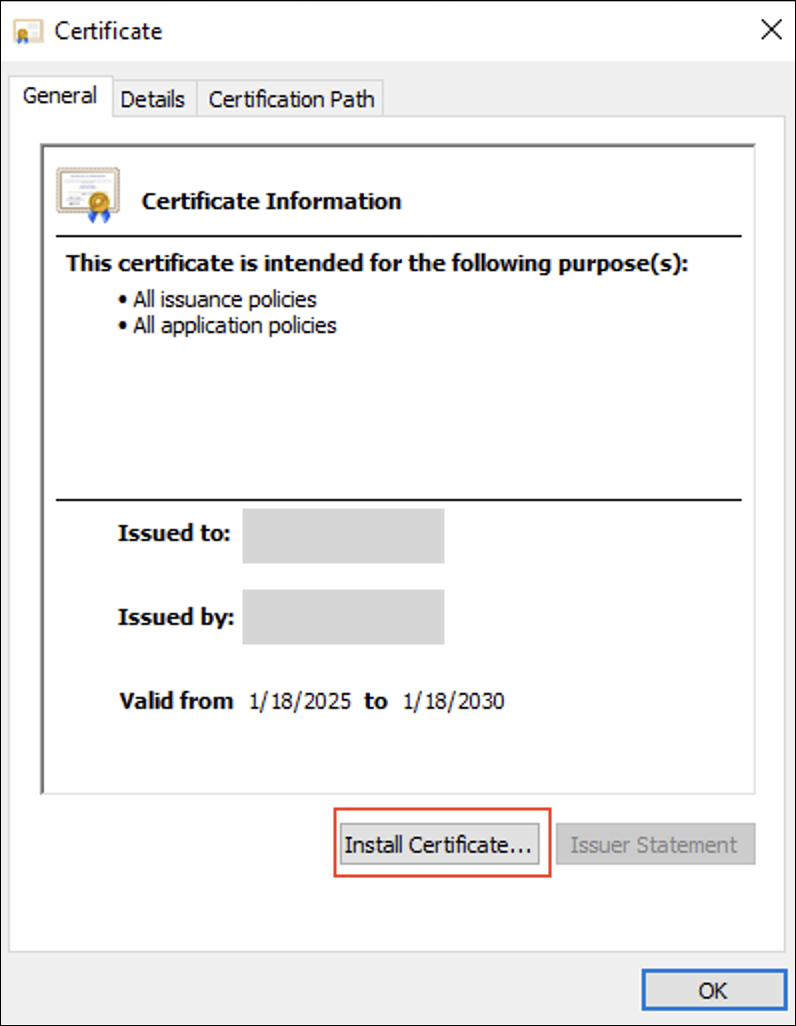
Double click on the downloaded certificate file to install
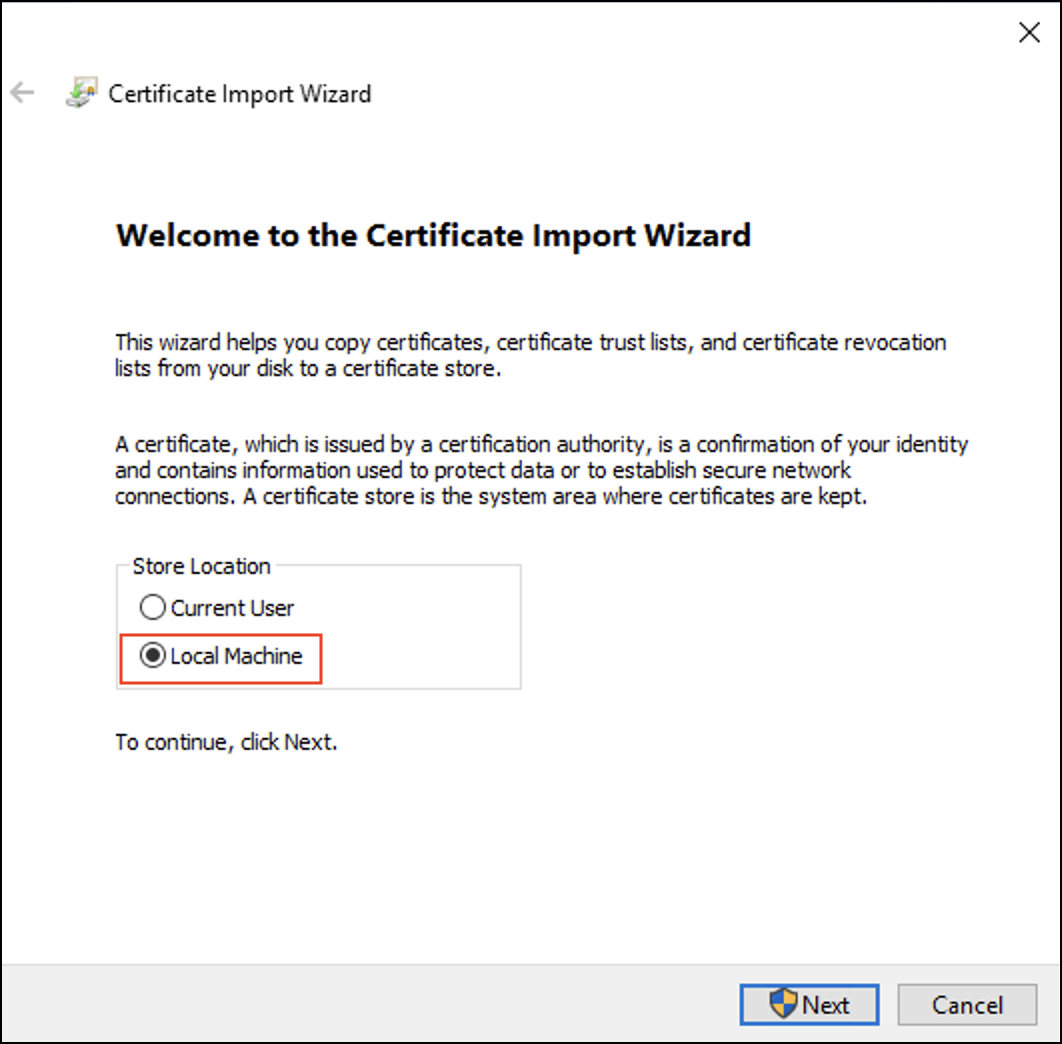
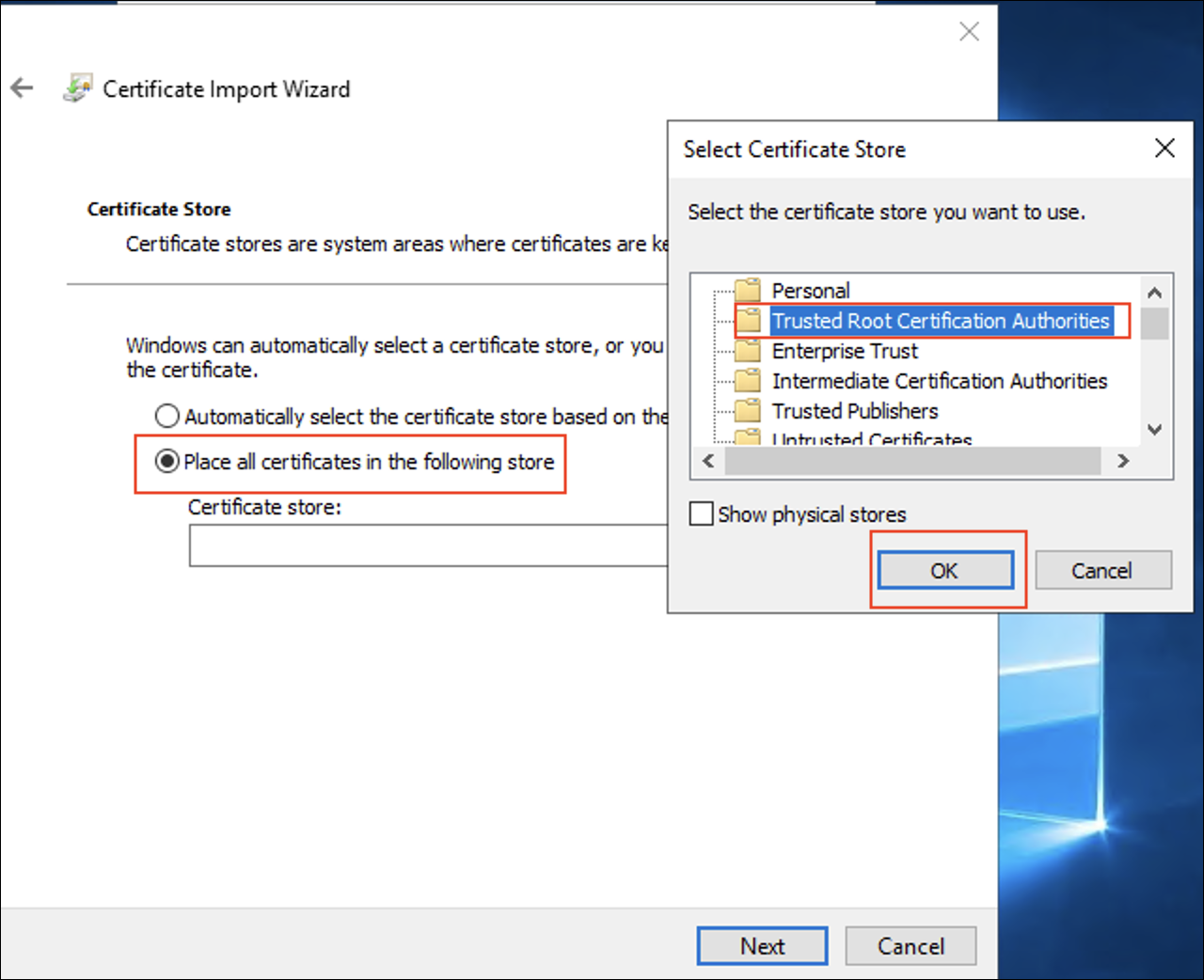
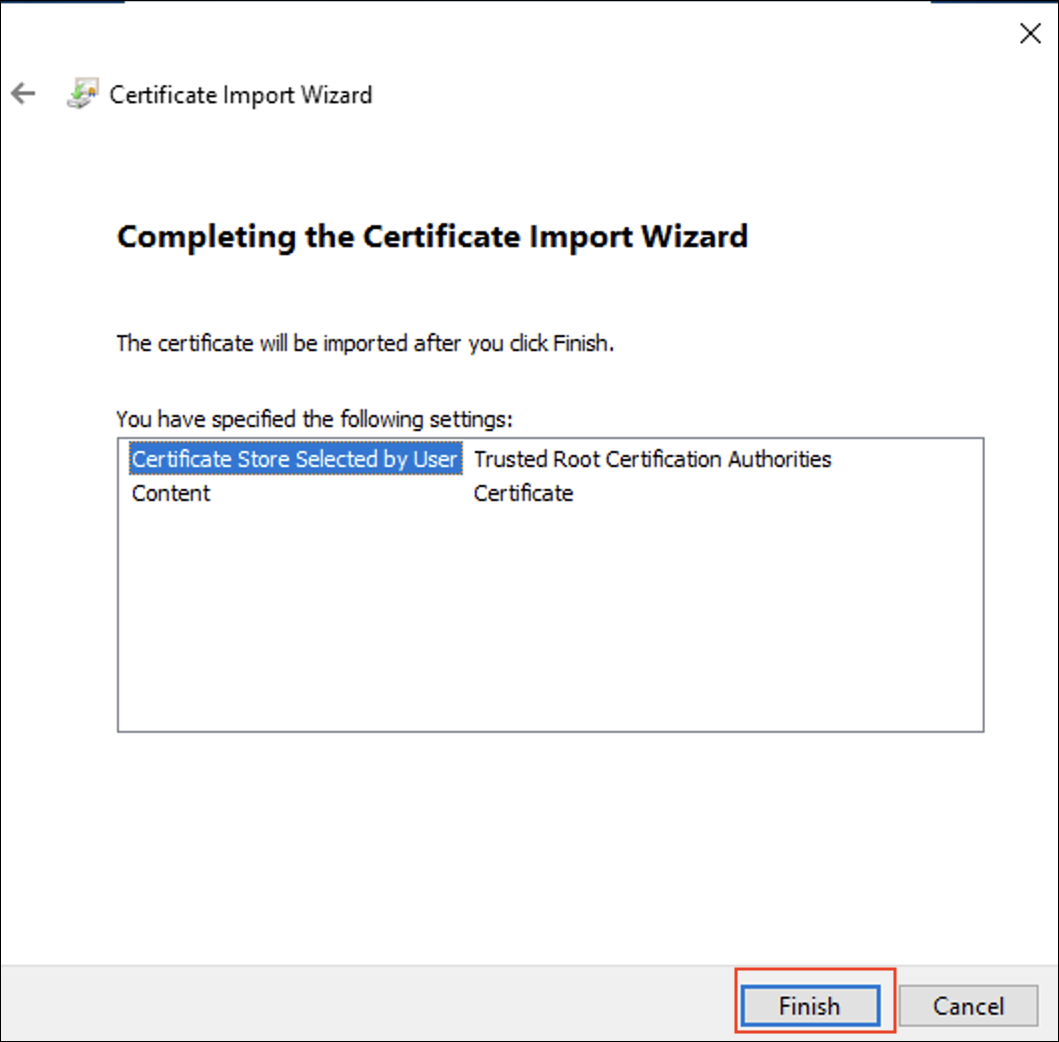
Request New Certificate on DDC
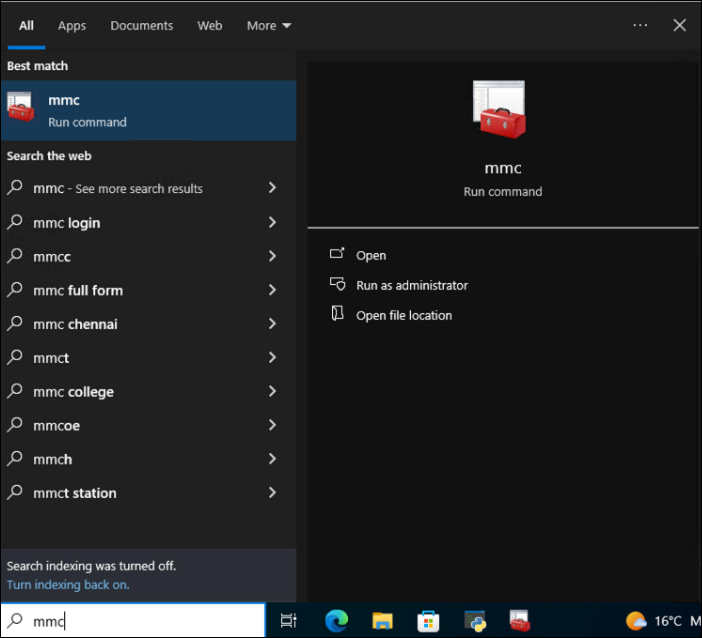
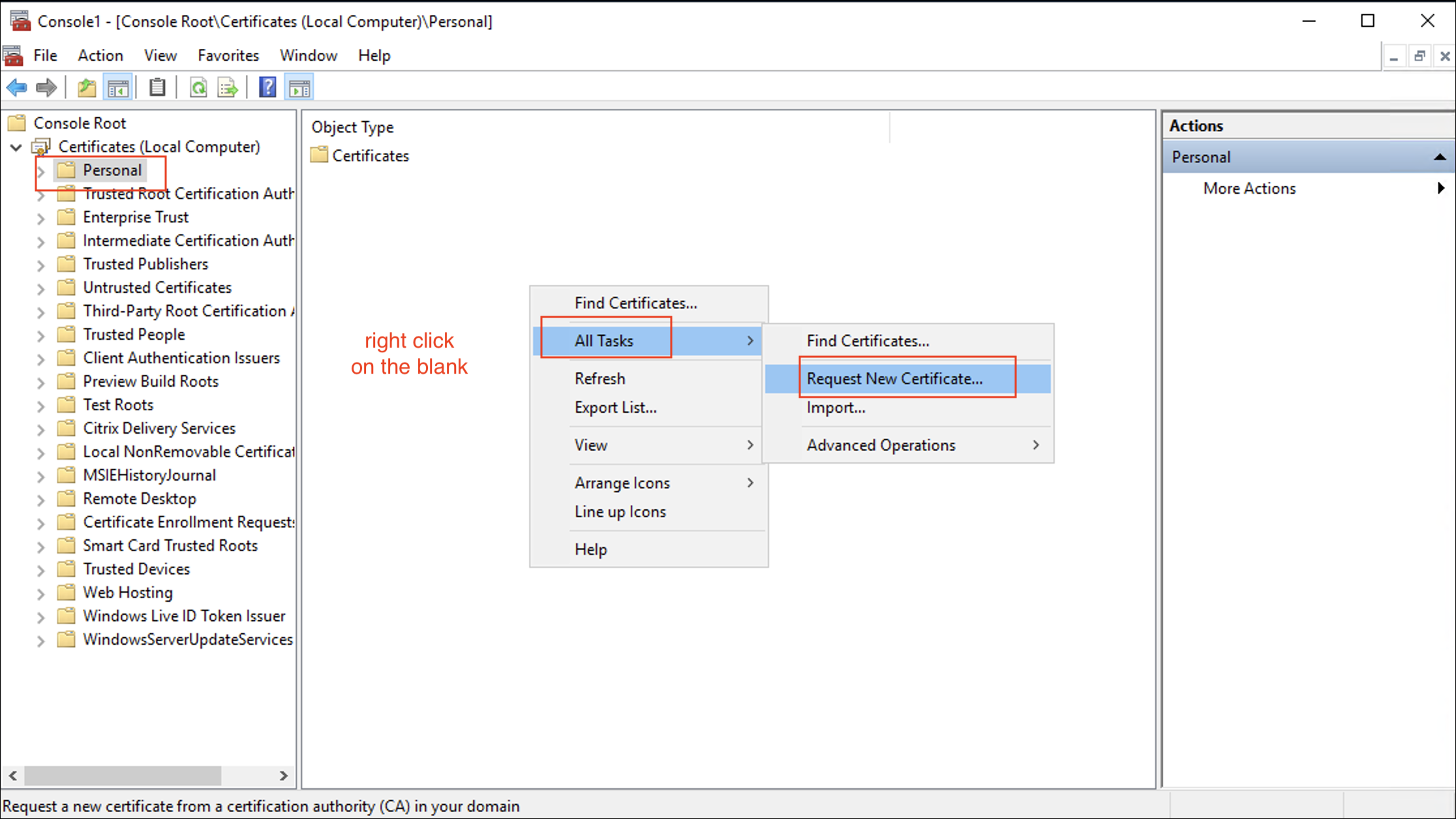
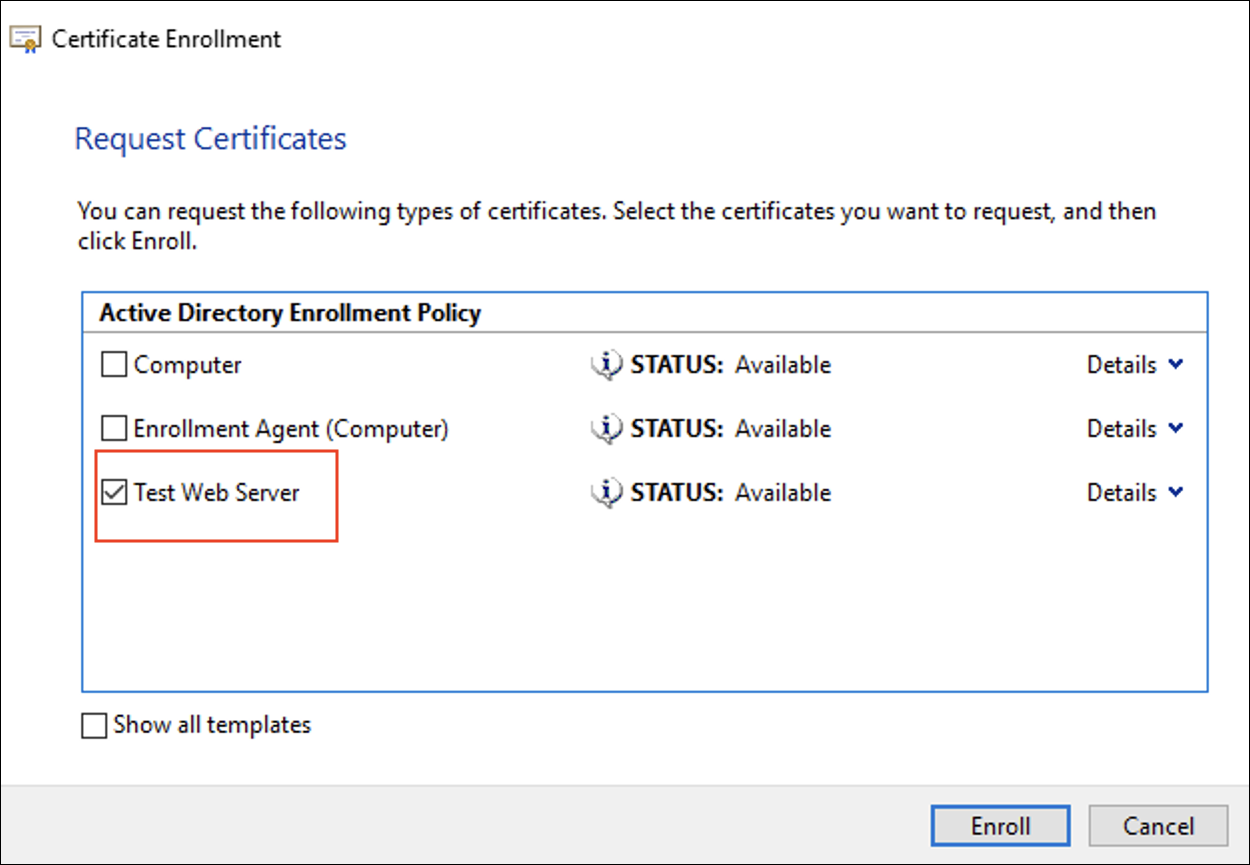
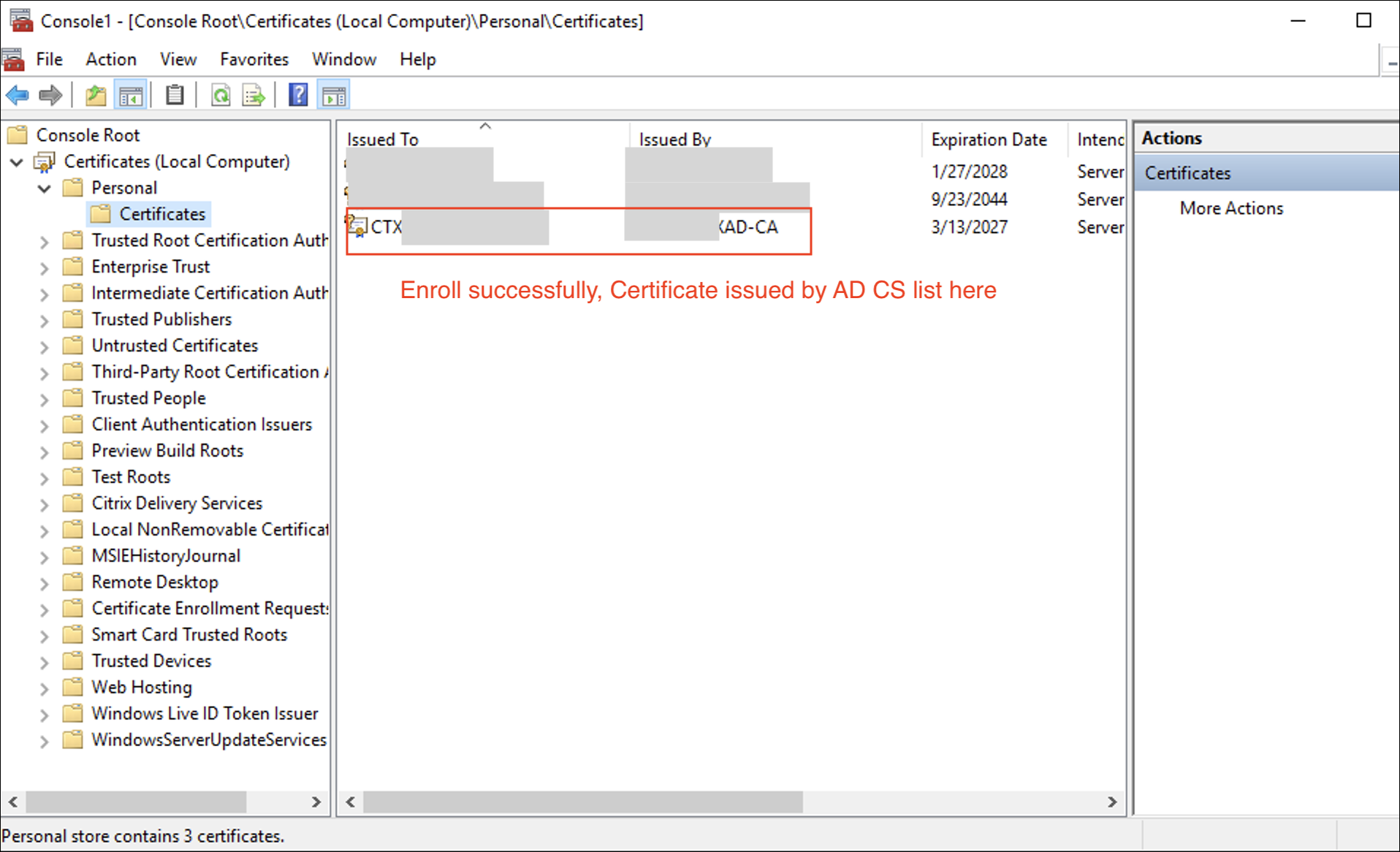
On DDC machine, open MMC and Request New Certificate as following
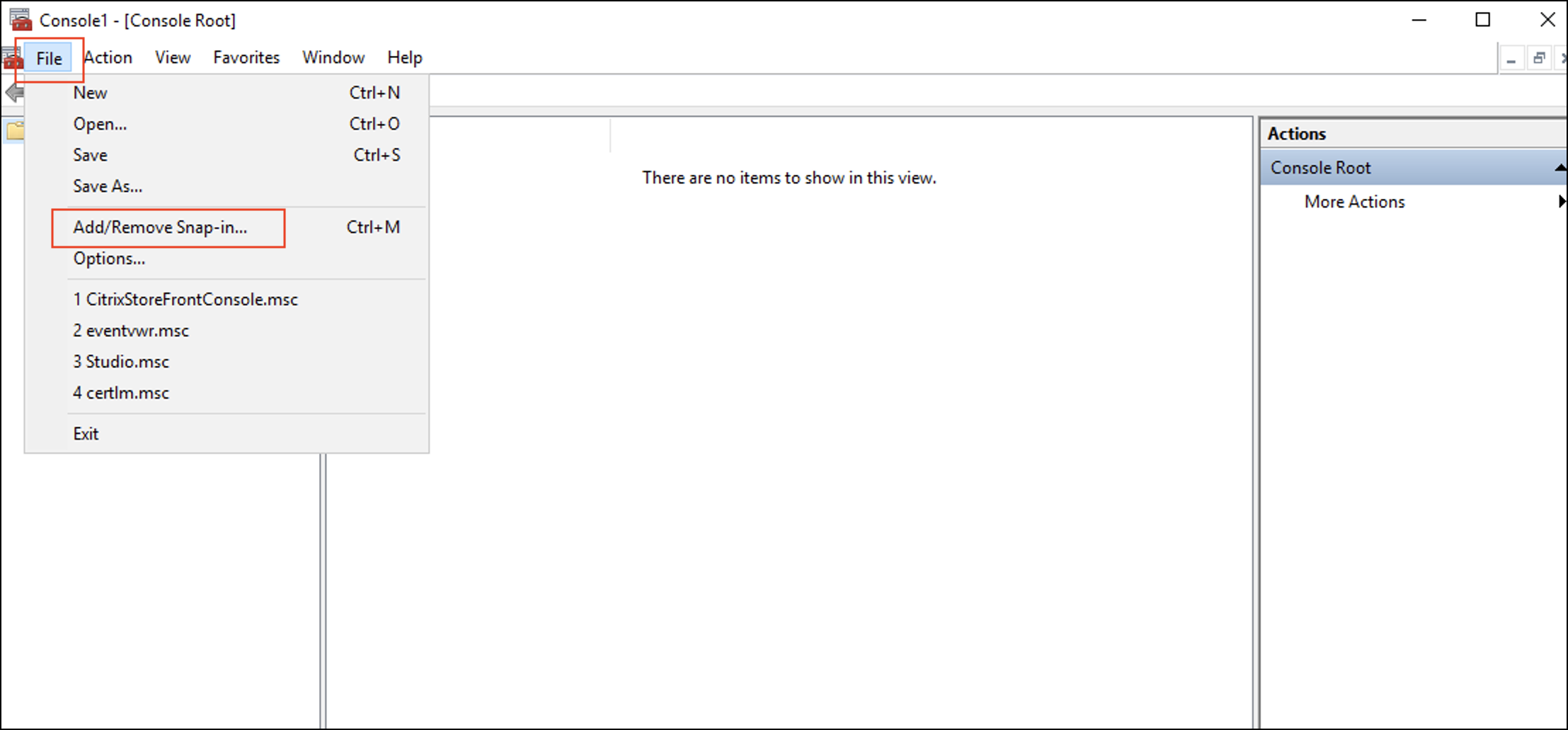
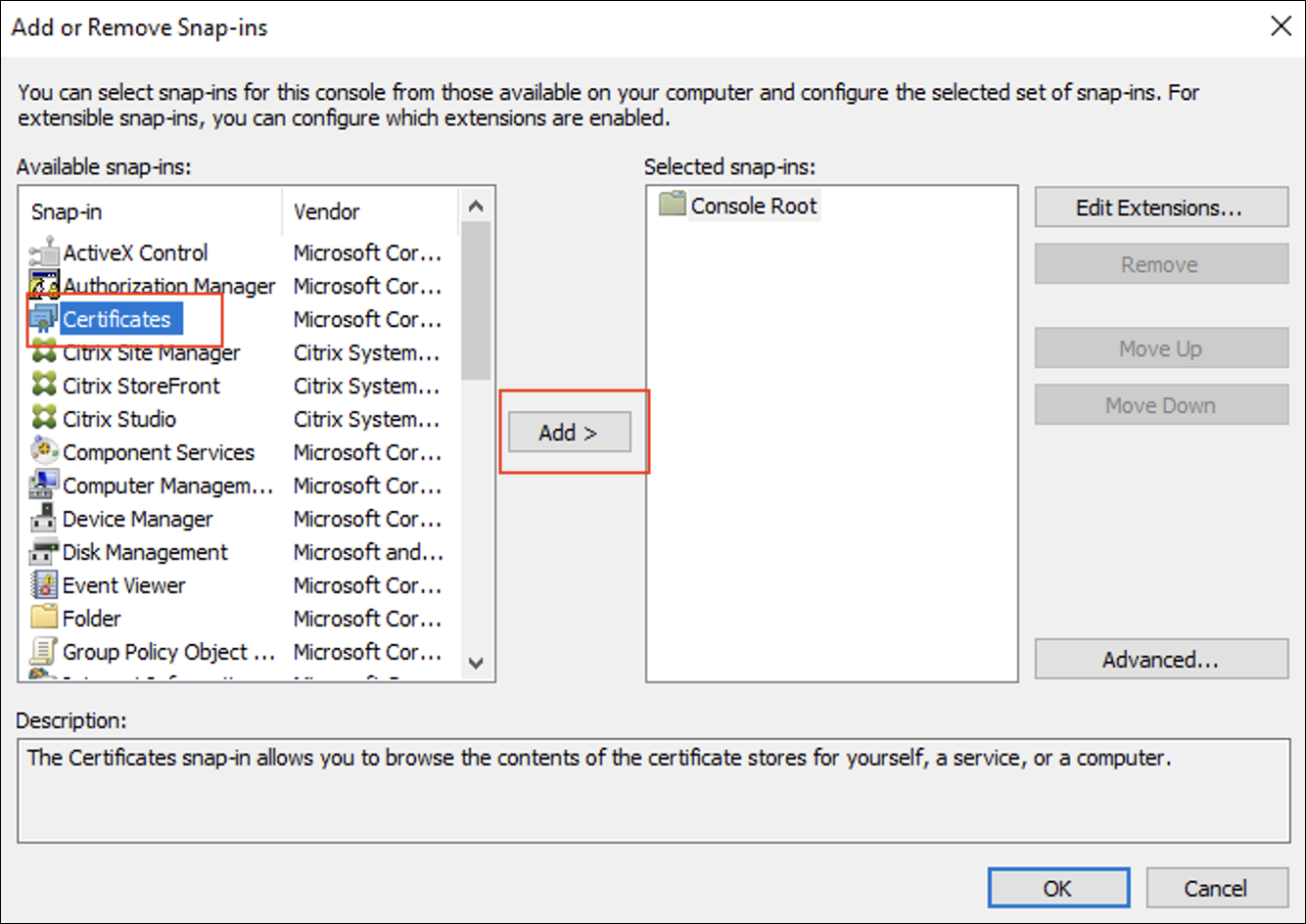
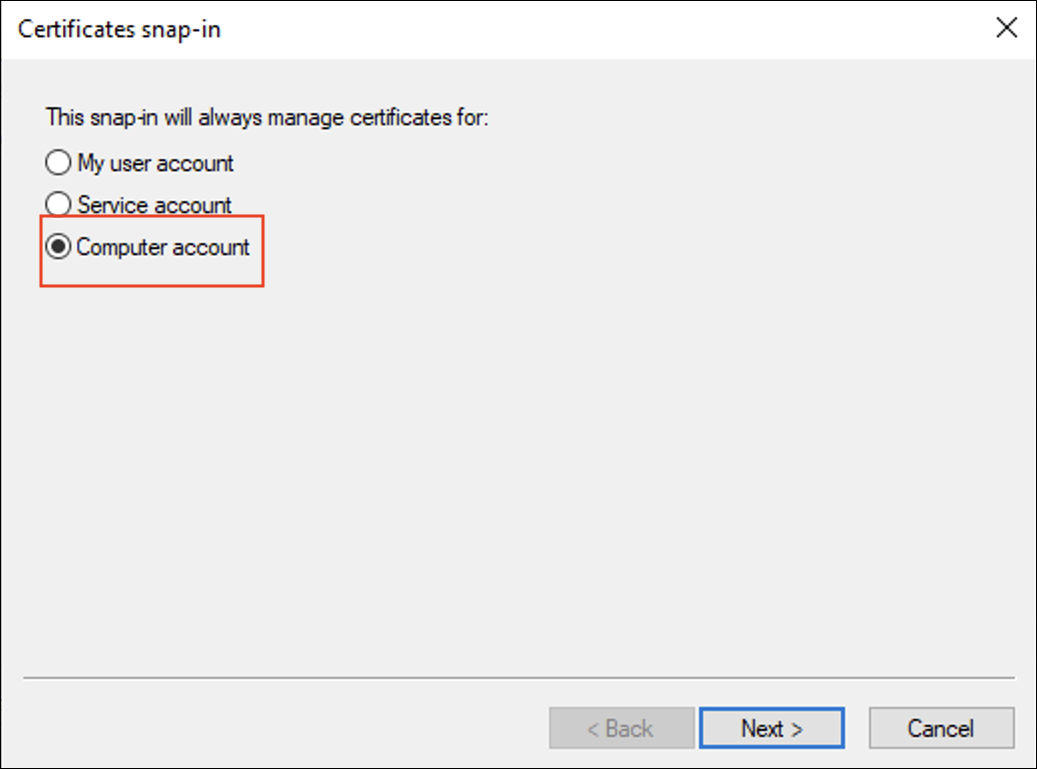
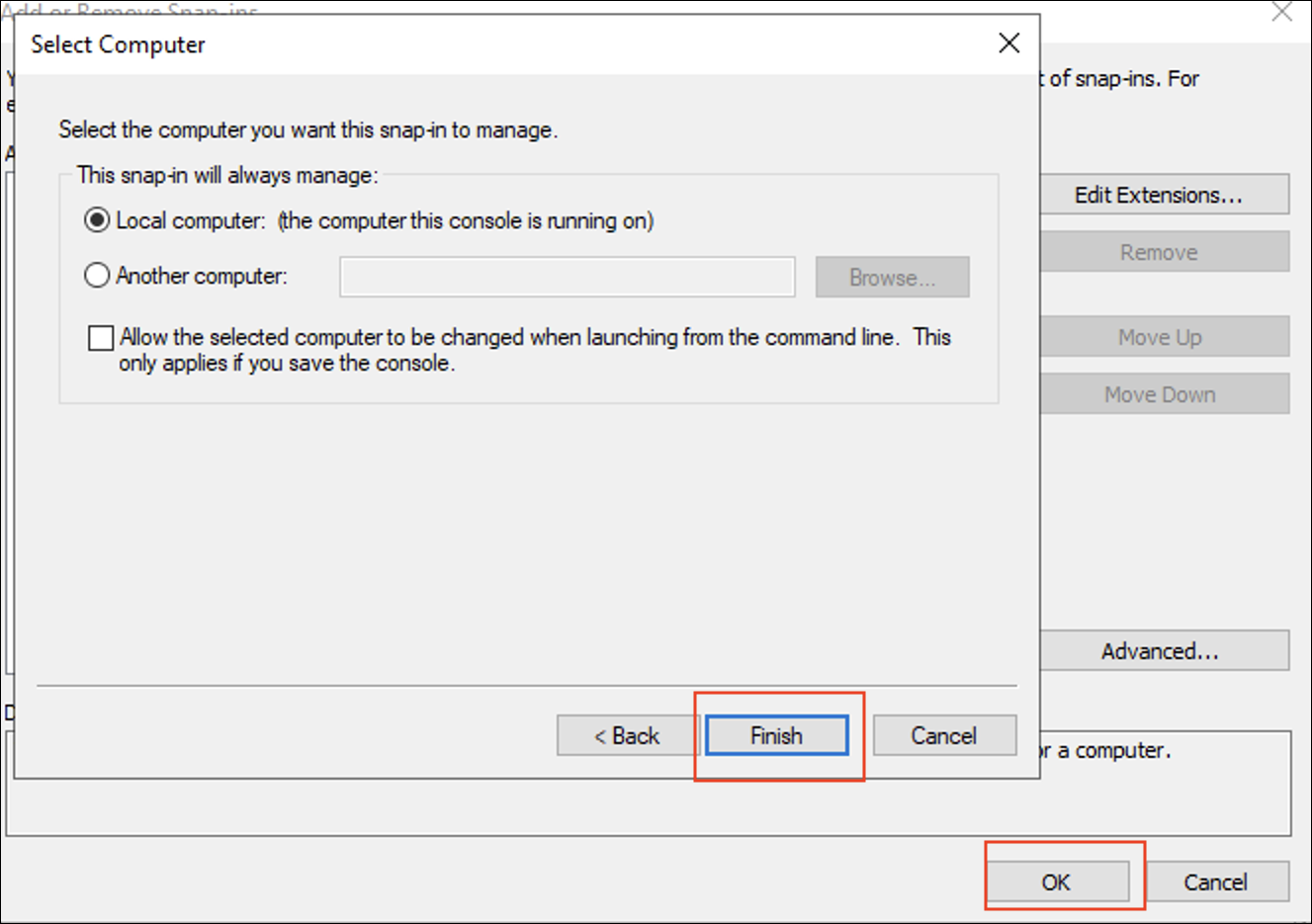
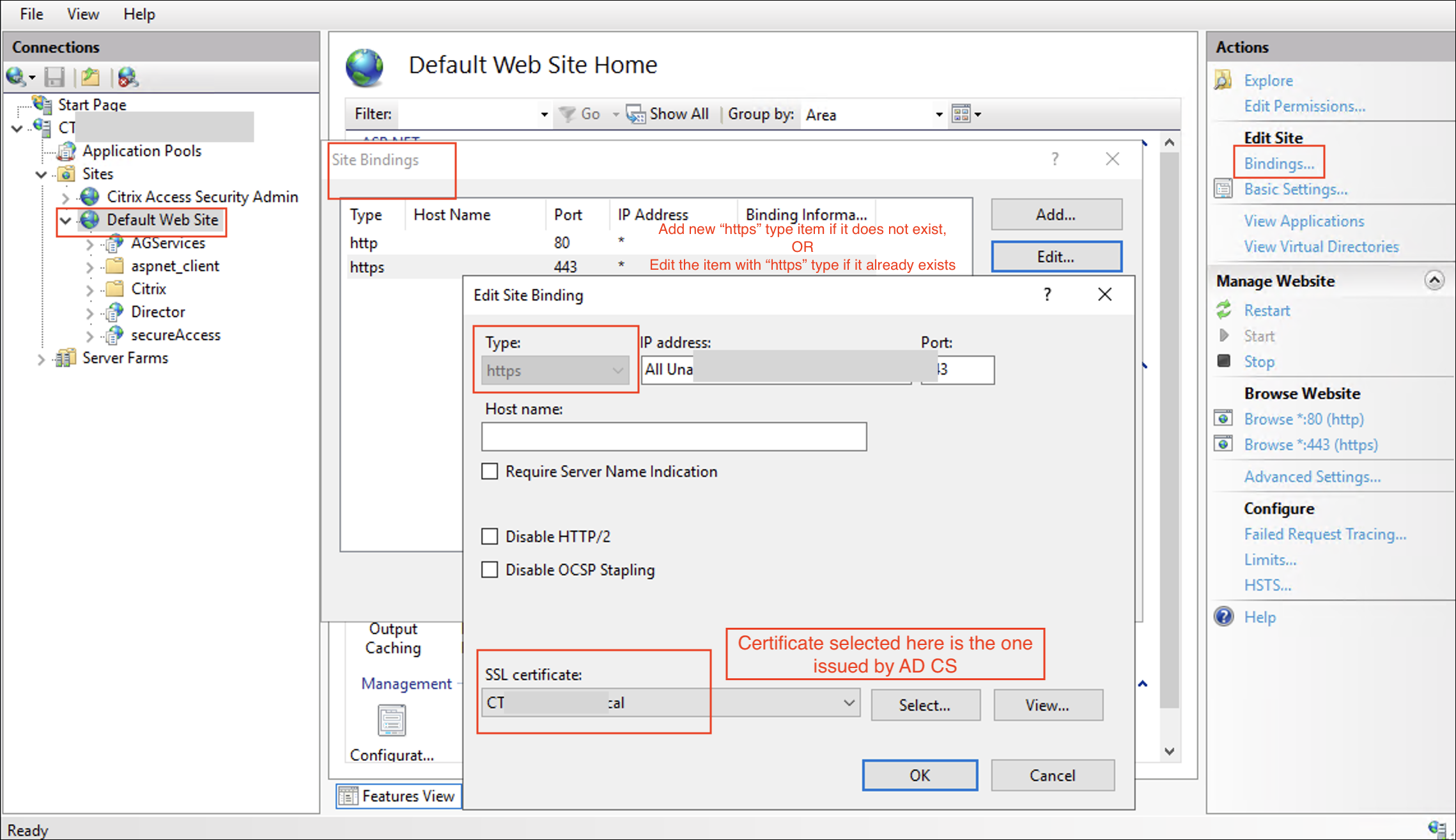
Binding Certificate on DDC IIS
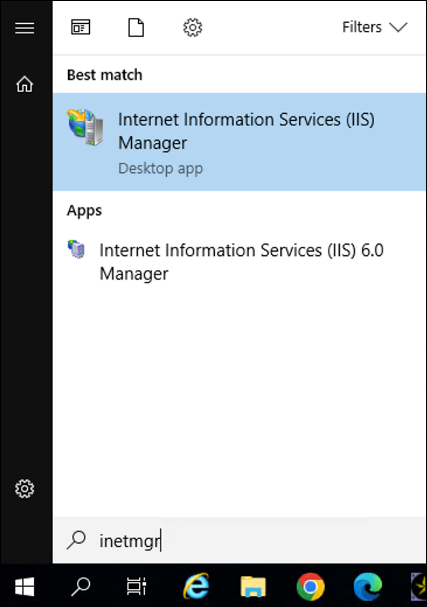
On DDC machine, open IIS and Edit Site Binding.
Note:
-
There is no need to reboot IIS or server after changing SSL certificate for DDC site.
-
WebStudio is a prerequisite for websocket VDA since token generation is only available in WebStudio.
-
If there are multiple DDC machines, the step to bind the certificate shall be done for all DDC machines, and ensure they are all binding the same certificate.
Install the Certificate on Mac
There are two ways to install the AD CS issued certificate on the Mac machine Method1:
-
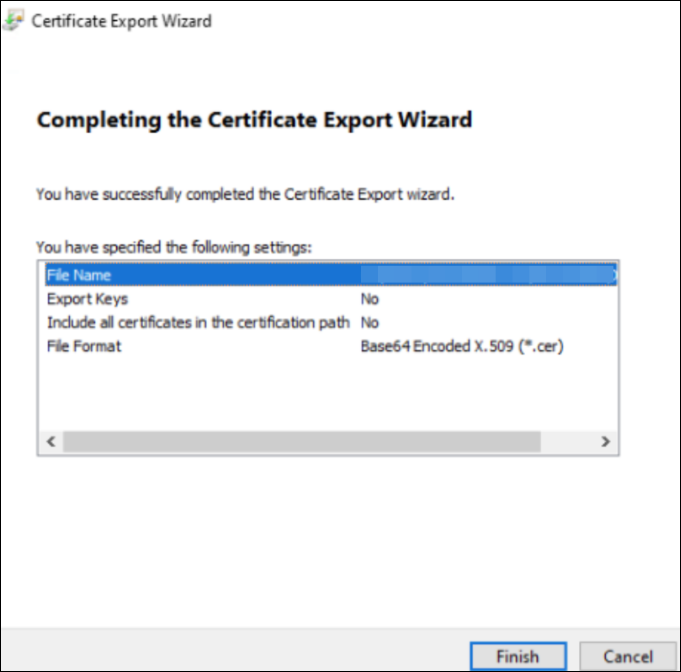
On DDC machine, open the Manage computer certificates by
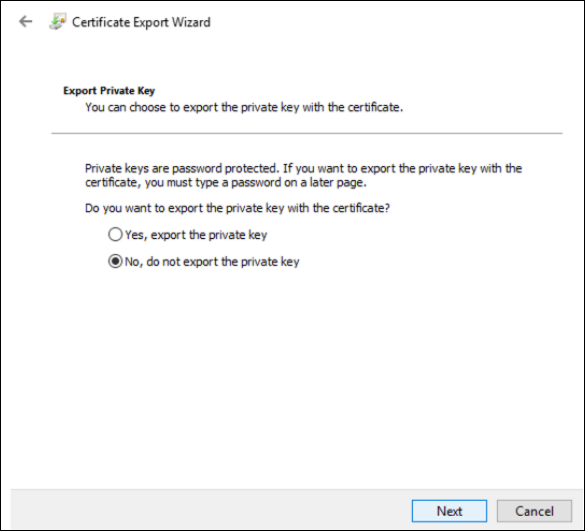
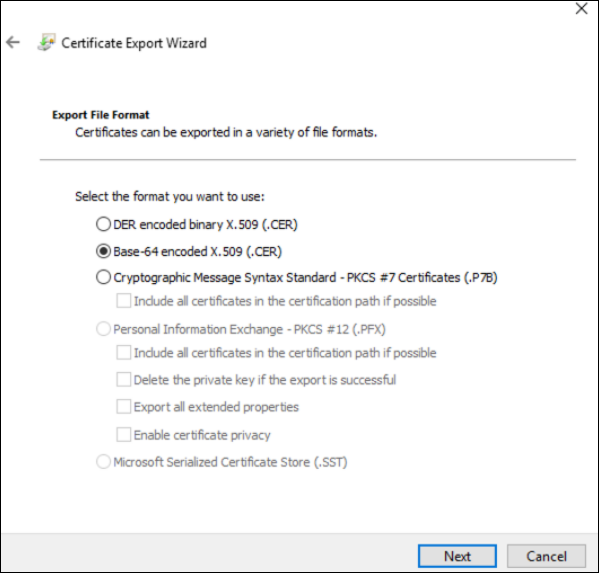
certlm.msccommand.Make sure to select the certificate which is selected in Step Binding Certificate on DDC IIS and Export the certificate.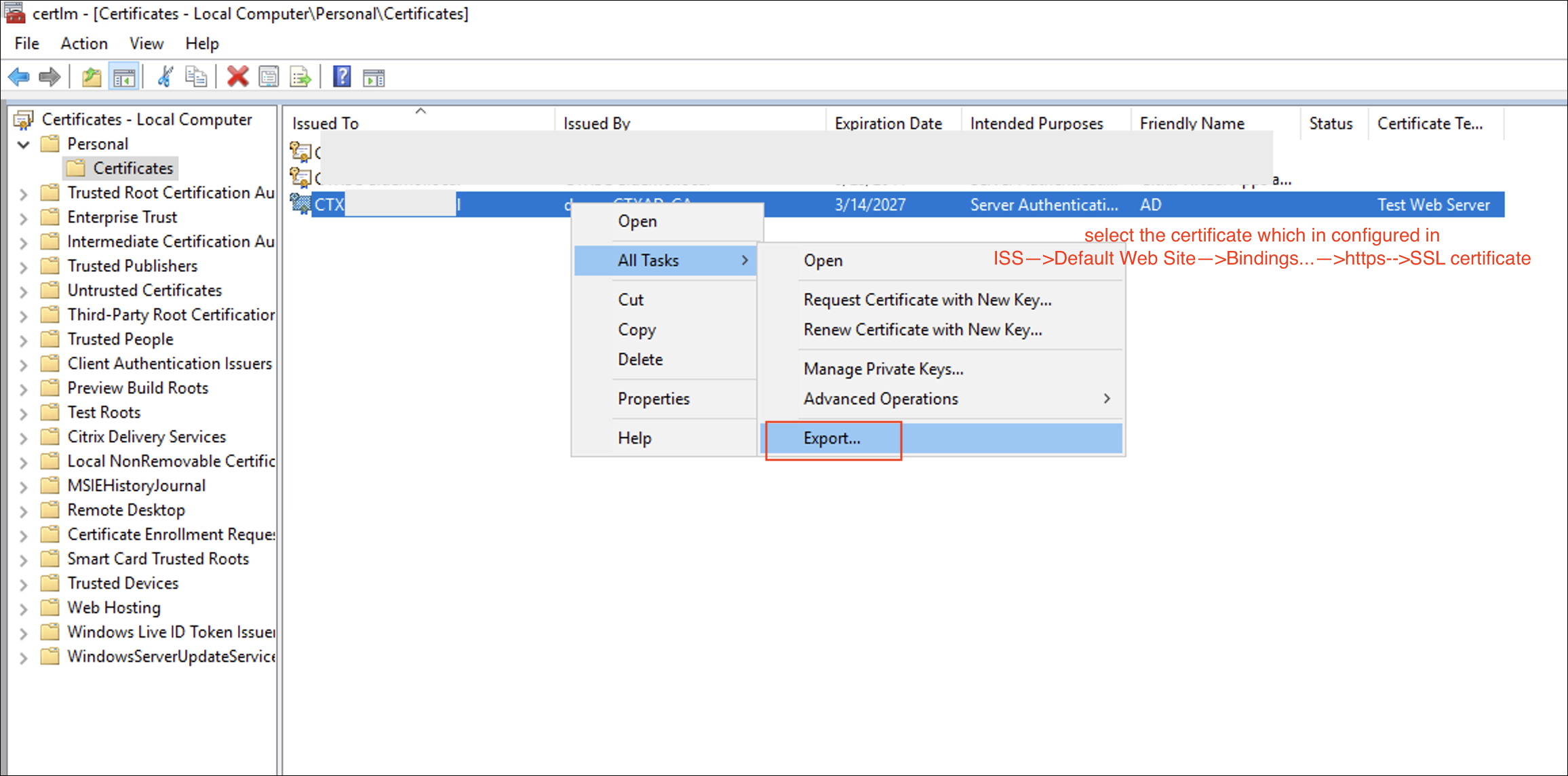
-
Transfer the exported certificate in above step to Mac machine,execute the following commands in Terminal App to trust the certificate:
sudo security add-trusted-cert -d -r trustAsRoot -p basic -p ssl -k /Library/Keychains/System.keychain <path/to/cert file name> -
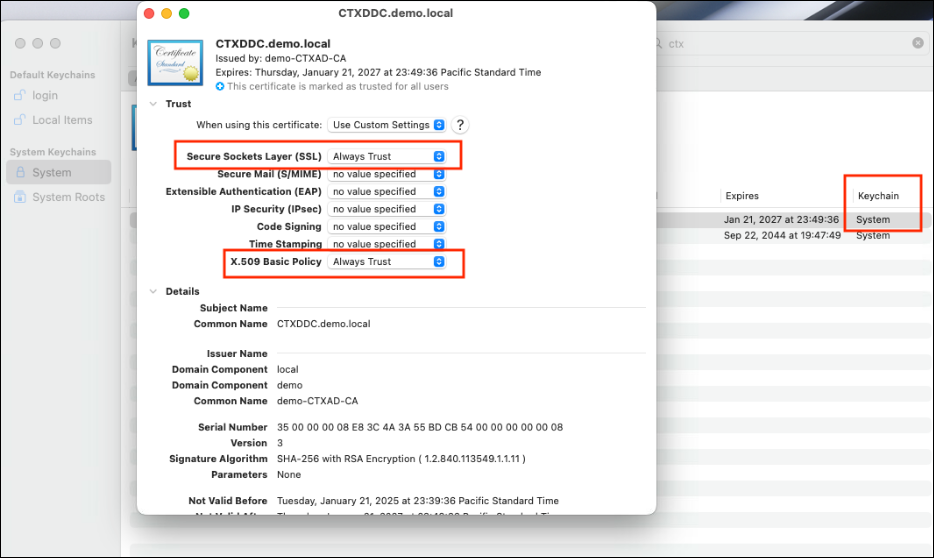
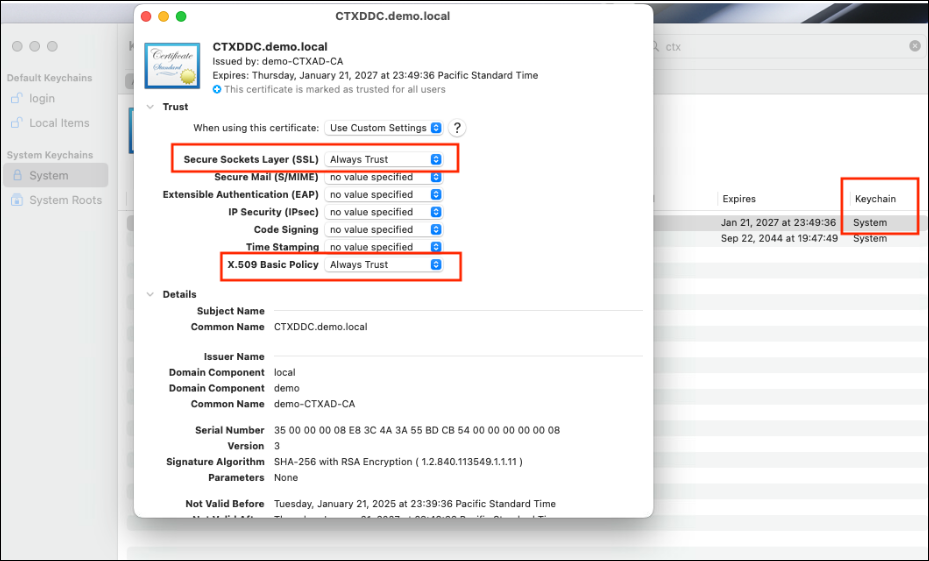
Open Keychain Access app, double confirm the certificate is added to System keychain and trust it for Secure socket Layer(SSL) and X.509 Basic Policy.
Method2:
-
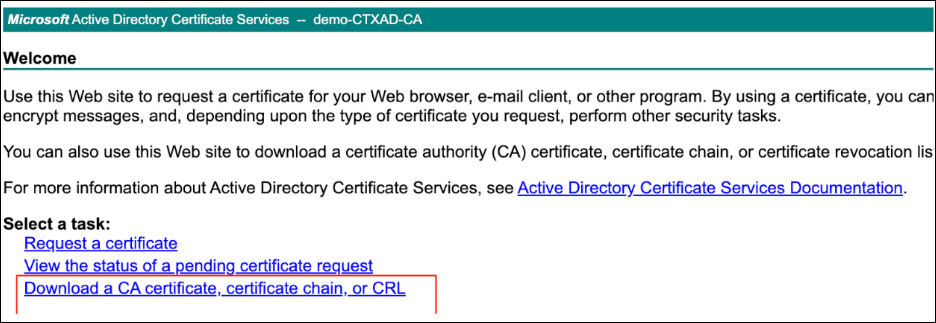
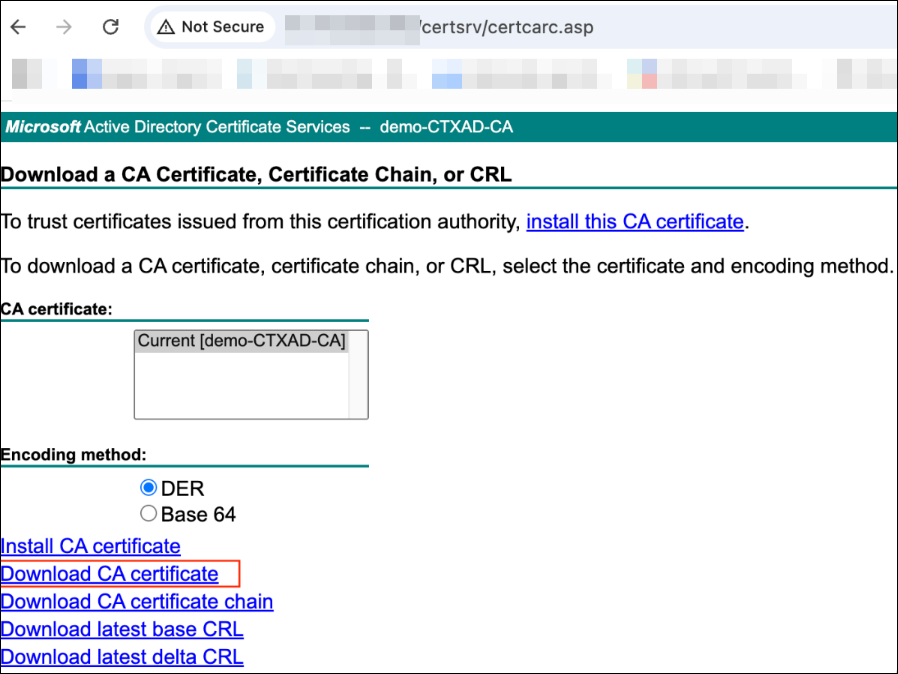
On Mac machine, open the Browser and input http://<AD CS IP>/certsrv
-
Execute the following commands in Terminal App to trust the downloaded certificate in above step
sudo security add-trusted-cert -d -r trustRoot -p basic -p ssl -k /Library/Keychains/System.keychain <path/to/cert file name> -
Open Keychain Access app, double confirm the certificate is added to System keychain and trust it for Secure socket Layer(SSL) and X.509 Basic Policy
Install Citrix VDA for macOS
To install Citrix VDA for macOS, see install VDA.
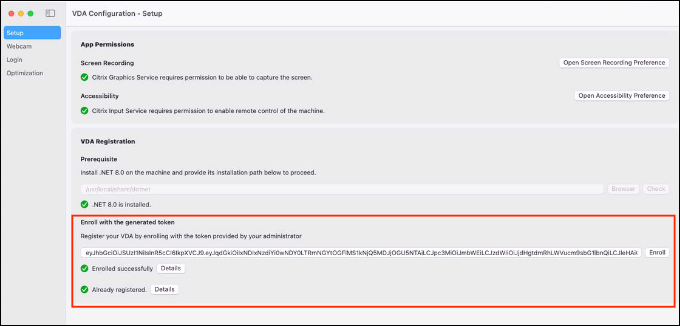
After installation, open the VDA Configuration app to finish the Enrollment and Registration.