
Entra ID single sign-on to VDAs
You can enable single sign-on to Entra joined VDAs, so that after users have authenticated to the store using Entra ID, they do not need to re-enter credentials when they launch a virtual app or desktop.
Prerequisites
-
StoreFront 2607 or higher.
-
Sites where you wish to use Entra SSO are Citrix DaaS or Citrix Virtual Apps and Desktops™ 2607 or higher.
-
Users authenticate to their store using a Citrix Gateway configured for Entra ID via OIDC.
-
The UI experience is set to Modern.
-
You have completed all configuration described at
-
You have configured DaaS Studio to use your own client application in your Microsoft Entra tenant. In Studio go to Settings, Microsoft Entra single sign-on (SSO), Edit, Custom Microsoft Entra settings and enter the application details. Citrix Cloud settings cannot be used with StoreFront.
Configure using management console
To configure Entra ID SSO:
-
Open the Store settings window for the store you wish to configure.
-
In the Action pane, select Configure Store Settings.
-
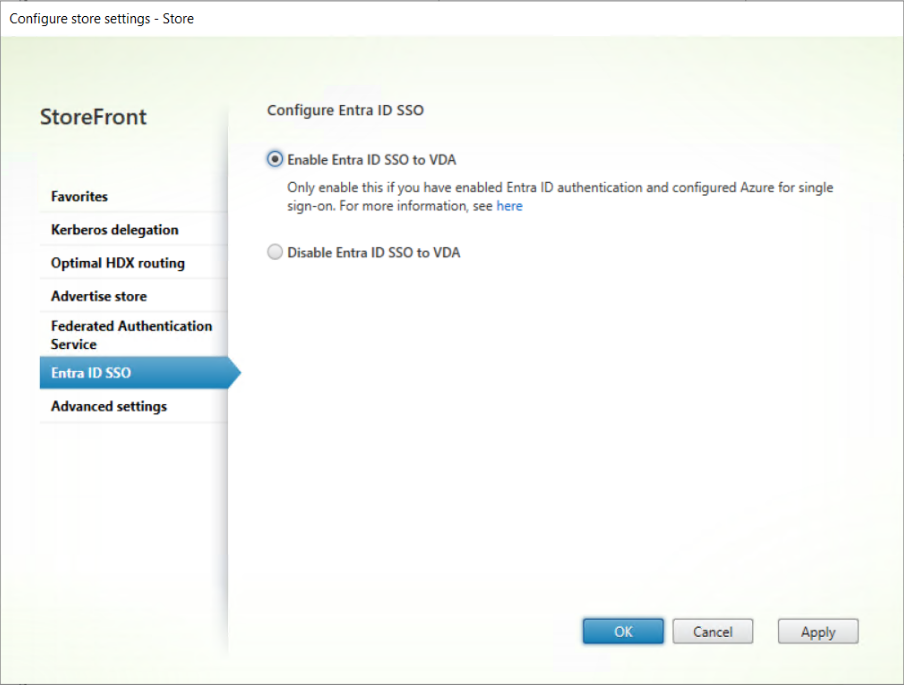
On the Configure Store Settings page, select the Entra SSO tab.
-
Enable or disable Entra SSO.
-
Select OK to save your changes.
This setting only affects machines in delivery groups configured to use log on type of Entra or hybrid. For delivery groups with log on type Active Directory, you may wish to also enable Federated Authentication Service.
Configuration using PowerShell
To configure single sign-on using PowerShell, call the Set-STFStoreLaunchOptions cmdlet with parameter
-EntraIdSsoEnabled.